REC
Recommended: Video Production, Editing & Gear Maintenance Guide
Recommended: Video Production, Editing & Gear Maintenance Guide
Create a Realistic Walkie‑Talkie Sound Effect in Audacity – Step‑by‑Step Guide
Creating a walkie‑talkie effect in Audacity is straightforward thanks to its built‑in Filter Curve EQ. Walkie‑talkies naturally cut off the low and high ends of the spectrum, leaving a pronounced mid‑range that gives the familiar “chatty” sound. While this compression reduces overall fidelity, the p
Create a Realistic Muffled Audio Effect in Audacity: Expert Guide
A muffled recording sounds as if it were captured behind a barrier: high‑frequency detail is reduced, while low frequencies remain intact. In Audacity, you can emulate this effect by selectively attenuating frequencies above 1–3 kHz using the Filter Curve EQ. Follow these steps to apply a muffled ef
Achieve Muffled Audio in Adobe Audition: A Voiceover Guide
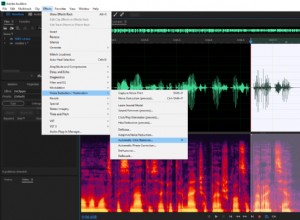
You can make your audio sound muffled using a built-in equalizer in Adobe Audition. Muffled audio contains more of the lower-end frequencies as these are much better capable of passing through objects compared to higher-end frequencies. Therefore, we’ll cut out higher-end fre
Convert Mono to Stereo (and Vice Versa) in Premiere Pro – Voice‑Over Pro Guide
Convert Mono to Stereo (and Vice Versa) in Premiere Pro Adobe Premiere Pro is primarily a video editing platform, but it also offers basic audio manipulation tools. One common task is switching a mono audio track to stereo, or collapsing a stereo track into mono, which is essential for consistent vo
Premiere Pro Keyboard Shortcuts: Boost Your Editing Workflow
Premiere Pro has the option to create keyboard shortcuts which will significantly improve your editing workflow. To create keyboard shortcuts in Premiere Pro follow these steps: Go to Edit->Keyboard shortcuts (CTRL+ALT+K) In the search section, type the effect you want to create/adjust the
Create Realistic Cave Sound Effects in Adobe Audition | Tutorial
Cave walls restrict audio within a cave, adding a lot of reverb to the sound you hear. Therefore, you’ll be using a reverb effect to achieve a cave sound quality in Adobe Audition. The reverb effect in Adobe Audition is quite versatile and allows you to adjust the audio accor
Create Realistic Cave Sound Effects in Audacity: A Tutorial
Reverb settings for large, medium and small cave sizes in Audacity. Caves have a distinct audio quality to them due to the bare rock walls surrounding you in a cave space. Since there’s nothing to absorb sound waves in a cave, it bounces back and forth within it, creating a reverb effect. Also
Adobe Audition: Configuring Input & Output Devices - A Quick Guide
Search... inquiries@voiceovertip.com Tips Software Gear Exercises Career Recommended Gear Search... Leave a Comment / Software / By Julius You can change both
How to Enable Auto Save in Adobe Premiere Pro – A Comprehensive Guide
Adobe Premiere Pro’s Auto Save feature is a lifesaver for editors. By automatically preserving your project at set intervals, it protects you from crashes, power outages, and unexpected system updates. To activate Auto Save, follow these simple steps: Navigate to Edit → Preferences → Auto Save. Set
Create Retro‑Style Distortion in Adobe Audition: Expert Techniques for Voice‑Over
Distortion is usually avoided in speech recordings because it degrades clarity and comfort. Yet, deliberate distortion can add character to specific projects—retro soundscapes, meme‑style audio, or low‑fidelity signal effects that require a gritty, bad sound. Adobe Audition provides several methods
Master Audacity Crossfades: Step‑by‑Step for Voice‑Over Artists
Audacity offers built‑in cross‑fade tools—Crossfade Clips and Crossfade Tracks—that let you blend multiple tracks smoothly. To cross‑fade audio from two separate tracks, use the Crossfade Tracks effect. Follow these steps: Arrange two tracks so they overlap slightly. Select the overlapping sections
OBS Studio: Easily Change Your Recording Folder - A Quick Guide
Search... inquiries@voiceovertip.com Tips Software Gear Exercises Career Recommended Gear Search... Leave a Comment / Software / By Julius You can find and cha
How to Crossfade Audio in Adobe Audition: A Step‑by‑Step Guide
Adobe Audition’s Multitrack editor includes a powerful, built‑in crossfade effect. By simply dragging one clip over another, you can blend audio smoothly and avoid abrupt transitions.Follow these expert steps to create a flawless crossfade:Open the Multitrack editor (top‑left corner of the interface
Muffle Audio in Premiere Pro: A Quick Guide for Voiceovers
Premiere Pro has similar audio editing tools integrated as Audition, which is Adobe’s dedicated audio editing software. While the audio editing process might be slightly less convenient in Premiere Pro, you can achieve the same or similar results and attempting muffled audio is no ha
Synchronize Audio and Video in Premiere Pro: A Step‑by‑Step Guide
Separately recording audio and video necessitates precise synchronization to align the footage with its corresponding sound. This scenario commonly arises when a dedicated camera captures video while audio is recorded on an external microphone. Premiere Pro simplifies this process with a built‑in sy
Audacity: Easily Switch Recording & Playback Devices - A Quick Guide
You can change both the recording device (microphone) and playback device (headphones or speakers) in Audacity through the Audio Setup menu. Your recording/playback devices won’t necessarily be the same as the current devices selected on your PC/Mac. Also, within the device l
Reaper: Easily Change Recording & Playback Devices (Voiceover Tip)
Search... inquiries@voiceovertip.com Tips Software Gear Exercises Career Recommended Gear Search... Leave a Comment / Software / By Julius To change both the r
Audacity Safety & Security: A Comprehensive Review for Voice Over Artists
Audacity has gained widespread recognition as a leading open-source digital audio workstation (DAW) ever since its launch in May 2000 on SourceForge.net, and many lauds it as one of the most reliable free alternatives to other premium audio recording/editing software due to the impressive numb
ACX Requirements for Audible: Audacity Audio Quality Guide
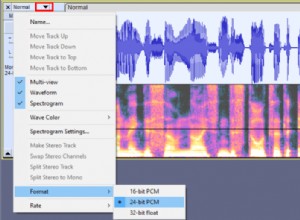
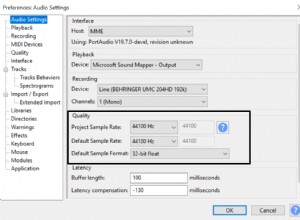
ACX is a platform where voice actors have a chance to audition for narrating audiobooks and have their work published on Audible. ACX is strict with audio quality and will give you a set of requirements that your audiobook recording must pass. Luckily, it’s not too hard to meet their requiremen
Premiere Pro: Create a Muffled Audio Effect - Voiceover Tutorial
A muffled sound quality is often achieved when you’re speaking from another room, under a blanket, pillow or behind some kind of object that absorbs your vocal frequencies. This phenomenon happens because higher-end audio frequencies get blocked and absorbed. However, lowe
Recommended Articles
Photoshop Tutorial: How to Add Creative Overlays to Your Portraits – Beginner Guide
Master Grain & Noise Reduction in Premiere Pro: Pro Techniques for Crystal-Clear Footage
Adobe Lightroom CC Review: Is It Worth It for Your Workflow?
Master the 'Room with a View' Effect: Create Stunning Window Blinds Portraits Anywhere
Create a Dreamy Soft Portrait Preset in Lightroom 4: Step-by-Step Guide
Popular Articles
Photoshop Tutorial: How to Add Creative Overlays to Your Portraits – Beginner Guide
Master Grain & Noise Reduction in Premiere Pro: Pro Techniques for Crystal-Clear Footage
Adobe Lightroom CC Review: Is It Worth It for Your Workflow?
Master the 'Room with a View' Effect: Create Stunning Window Blinds Portraits Anywhere
Create a Dreamy Soft Portrait Preset in Lightroom 4: Step-by-Step Guide