
REC

Recommended: Video Production, Editing & Gear Maintenance Guide

 WTVID >> WTVID >  >> Video Editing >> Adobe Audition

Audacity: Easily Switch Recording & Playback Devices - A Quick Guide

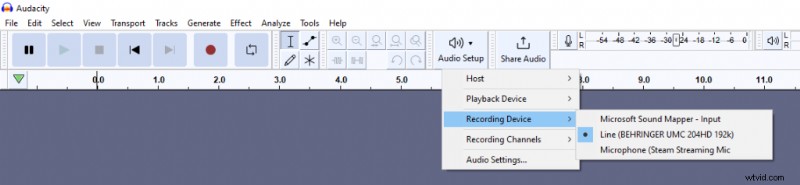
You can change both the recording device (microphone) and playback device (headphones or speakers) in Audacity through the Audio Setup menu. Your recording/playback devices won’t necessarily be the same as the current devices selected on your PC/Mac. Also, within the device list your playback/recording device might have a different name than you anticipate. If you can’t find your device try out the whole list of devices. For example, in my case ‘Headphones (High Definition Audio)’ playback device stands for Edifier speakers as the device name is not read correctly by my PC.

To change the Recording Device in Audacity follow these steps:

  1. Click on Audio Setup -> Recording Device
  2. Choose your microphone or audio interface

To change the Playback Device in Audacity follow these steps:

  1. Click on Audio Setup -> Playback Device
  2. Choose your headphones/speakers or audio interface with headphones in them
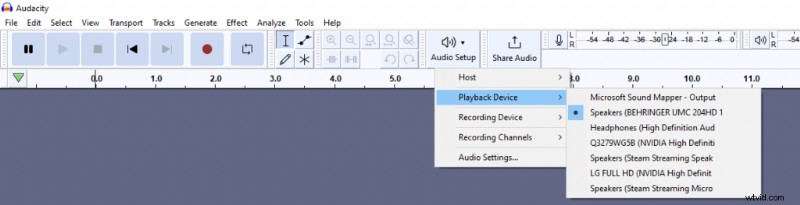
Audacity: Easily Switch Recording & Playback Devices - A Quick GuideChoosing your playback device within Audacity. Audacity: Easily Switch Recording & Playback Devices - A Quick GuideChoosing your recording device within Audacity.
  1. How to Eliminate Background Noise in Audacity: Step-by-Step Guide

  2. Customize Reaper's Default Project Layout: A Simple Guide

  3. Premiere Pro: Easily Fade Out Audio with Default Transitions

  4. How to Isolate Vocals: Remove Music Background in Audacity (Step-by-Step Guide)

  5. How to Effortlessly Remove Mouth Clicks in Adobe Audition Using Automatic Click Remover

Adobe Audition
  1. Clone Yourself in Photos: Easy Step-by-Step Tutorial

  2. Master Chroma Key: Step-by-Step Guide to Using a Green Screen Effectively

  3. Top 13 Cinematic Lightroom Presets for Stunning Film-Like Edits (2024)

  4. 5 Expert Tips to Build a Home Studio for Stunning Dramatic Portraits

  5. Master Luminosity Masks: What They Are and How to Use Them for Pro Photo Edits

  6. Top GIF Makers for 2026: Create Engaging Animations

  7. How to Create a Stunning Grunge Effect on Your Portraits in Lightroom

  8. Expert Guide: Edit Professional Corporate Headshots in Lightroom