REC

Recommended: Video Production, Editing & Gear Maintenance Guide

 WTVID >> WTVID >  >> Video Editing >> Adobe Audition

Customize Reaper's Default Project Layout: A Simple Guide

Reaper has a very steep learning curve. However, it provides you with a myriad of customization options. One of which is adjusting how your default project looks when you open up the DAW.

You don’t need to adjust Reaper’s layout every time you open the program. To make your audio recording and editing process as smooth as possible, create a project template that will become your default layout.

Once you have everything looking nice and neat in Reaper, follow these steps to make it your starting point when you open the program:

  • Go to File->Project templates
  • Choose Save project as template
  • Name the project template and Save it
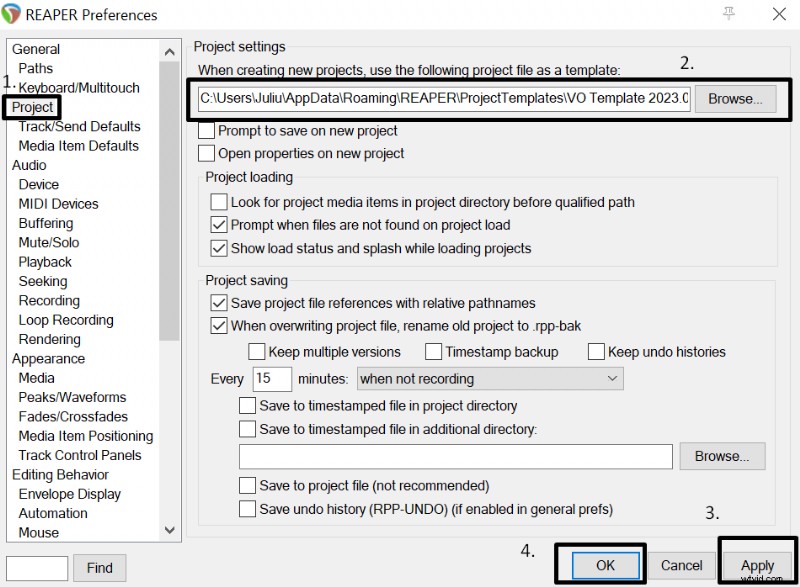
  • Go to Options->Preferences->Project
  • Click Browse at the top
  • Find your project template and Open it
  • Click Apply and OK
Customize Reaper s Default Project Layout: A Simple GuideSaving project template in Reaper. Customize Reaper s Default Project Layout: A Simple GuideChanging default project layout in Reaper.
  1. Reverse Audio in Reaper: A Quick Guide for Voiceover Artists

  2. Unlocking Exceptional Actor Performances: A Director's Essential Guide

  3. What It's Like to Premiere Your First Feature Film at Sundance

  4. 1st Assistant Director: Key Responsibilities and Role in Film & TV Production

  5. From 400-Page Memoir to Film-Ready Screenplay: A Step-by-Step Guide

Adobe Audition
  1. Avidemux Tutorial: Master Video Editing – Cut, Join, Split, Rotate & Filters

  2. Master the Enhanced Graduated & Radial Filters in Lightroom 6

  3. Creative Image Distortion: Tools & Techniques for Artistic Effects

  4. Transform Your Portraits: How to Use a Small Softbox with Flash for Stunning Results

  5. Create a Stunning 'Soft Portrait' Preset in Lightroom 4: Step-by-Step Guide

  6. Master Portrait Retouching: Pro Tips for Lightroom's Adjustment Brush

  7. Master Natural Portrait Retouching in Photoshop: 3 Essential Steps

  8. Photoshop CS3 Tutorial: Simulate a Neutral Density Gradient Filter Effect