
Premiere Pro has built-in tools from Adobe Audition that make it perfectly capable of quickly removing breaths from your audio. You can use Noise gate and DeNoise tools to eliminate breaths within Premiere Pro in just a few clicks. However, as Premiere Pro lacks an audio spectrogram it makes it hard to remove breaths manually which is sometimes required when fine-tuning your audio.
How to remove breaths in Premiere Pro with Noise gate?
To remove breaths with Noise gate in Premiere Pro follow these steps:
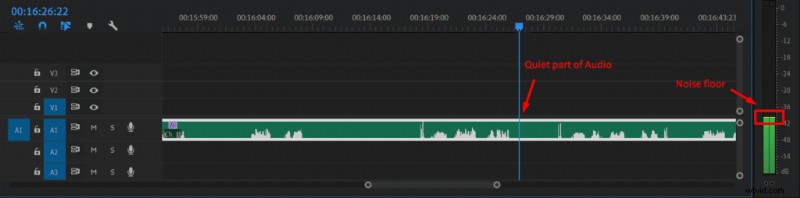
- Measure noise floor by playing the quiet part of your audio and observing playback level
- Select your audio track
- Go to Effects->Audio Effects->Amplitude and Compression->Dynamics
- Drag Dynamics effect onto your audio track in a timeline
- Go to Effect Controls
- Click Edit… next to Custom Setup
- Check AutoGate and uncheck Compressor and Expander
- Set Threshold about 5dB higher than the Noise floor you’ve measured before, Attack at 2ms, Release at 200ms, Hold at 50ms.
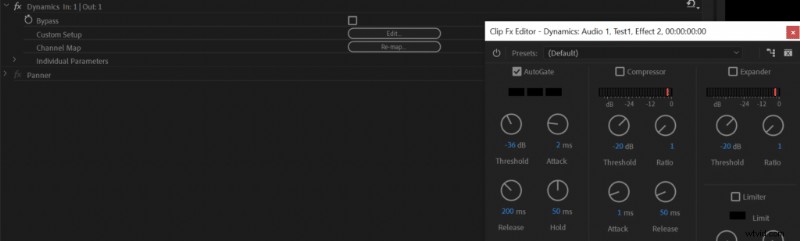
If after applying noise gate you still notice some breaths then try applying a higher Threshold until breaths are no longer present.
Noise gate is a preferred way to remove breaths as it’s quick and if applied correctly doesn’t reduce audio quality. It works by removing audio that’s below a threshold level. For that reason, we measure the noise floor and set the threshold slightly higher than noise floor or in this case, you can also measure the audio volume of the breath and then set the threshold slightly higher than it. You can read more in-depth about noise gate, how to apply it and its parameters in this article.
How to remove breaths in Premiere Pro with DeNoise?
You can remove breaths using DeNoise tool. It’s even easier to apply than Noise gate and Premiere Pro’s DeNoise tool is of very high quality, however, it does affect your audio quality a bit, therefore, I consider noise gate a primary option for removing breaths.
Still, DeNoise tool could be a tool that will fix multiple issues including breathing noise, mouth clicks, hissing and other odd sounds at the same time without requiring much effort.
You can remove breaths in Premiere Pro using DeNoise tool by following these steps:
- Select your audio track
- Go to Effects->Audio Effects->Noise Reduction/Restoration->DeNoise
- Drag DeNoise effect onto your audio track in a timeline
- Go to Effect Controls
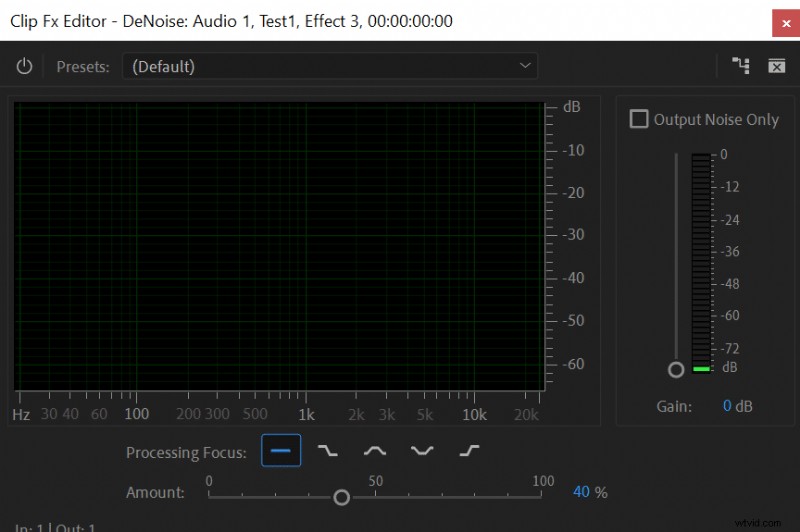
- Click Edit… next to Custom Setup
- Set Amount to 40% for somewhat average breaths.
You can play around with Amount parameter in DeNoise effect. If breaths are very noticeable setting Amount to 40% might not be enough and ramping it up to 80% might be required, however, use the effect cautiously as a higher Amount will have a detrimental effect on your overall audio quality.
For more information regarding how to prevent breaths read this article.