REC

Recommended: Video Production, Editing & Gear Maintenance Guide

 WTVID >> WTVID >  >> Video Editing >> Adobe Audition

How to Easily Add Audio in Adobe Premiere Pro: Step-by-Step Guide

You can add audio in Premiere Pro by following these steps:

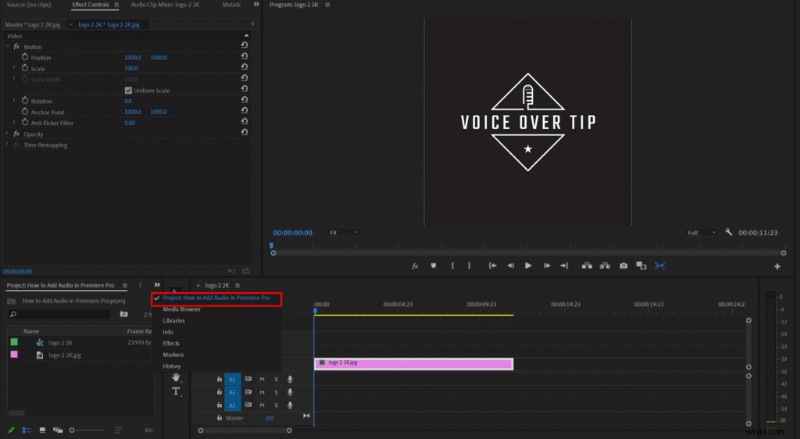
  1. Select project folder at the bottom left of Premiere Pro panel.
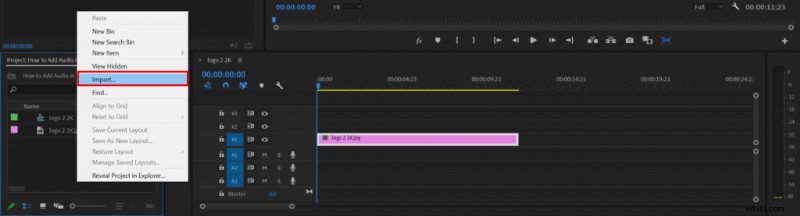
  2. Click the right mouse button onto the project files dock and choose Import from the menu.
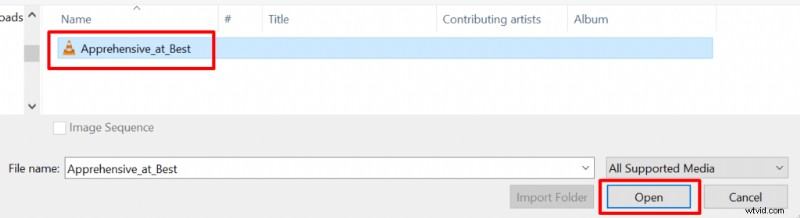
  3. Select audio file(s) of your choice and click open.
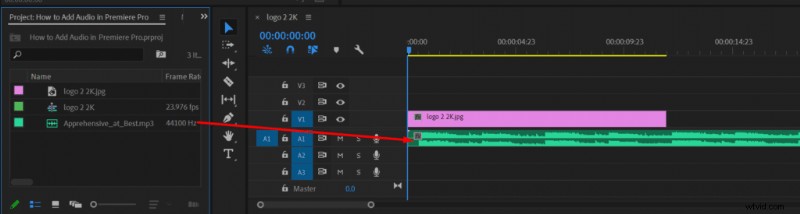
  4. Click and drag audio file from the project folder onto Premier’s timeline audio track.
How to Easily Add Audio in Adobe Premiere Pro: Step-by-Step Guide How to Easily Add Audio in Adobe Premiere Pro: Step-by-Step Guide How to Easily Add Audio in Adobe Premiere Pro: Step-by-Step Guide How to Easily Add Audio in Adobe Premiere Pro: Step-by-Step Guide
  1. Step-by-Step Guide: Adding Smooth Transitions in Adobe Premiere Pro

  2. How to Remove Echo from Audio in Adobe Premiere Pro: Step-by-Step Guide

  3. Expert Guide: Enhance Audio Quality in Adobe Premiere Pro with Built-in Tools

  4. How to Split Audio Tracks in Adobe Premiere Pro: Razor Tool Guide

  5. Effortlessly Remove Breaths from Audio in Adobe Premiere Pro: Expert Guide

Adobe Audition
  1. How to Add Subtitles and Captions in Adobe Premiere Pro: Step-by-Step Guide

  2. Effortlessly Adjust Music Length in Adobe Premiere Pro with 2022 Remix Feature

  3. 4 Simple Ways to Fade Out Audio in Adobe Premiere Pro

  4. Step-by-Step Guide: How to Add Subtitles and Captions to Videos in Adobe Premiere Pro

  5. Submix in Premiere Pro: What It Is and How to Create & Use It Effectively

  6. How to Easily Add Photos to Audio with Wondershare Filmora: Step-by-Step Guide

  7. How to Add Audio to Video Easily with Wondershare Filmora

  8. How to Fix No Audio in Adobe Premiere Pro: Step-by-Step Troubleshooting Guide