Want to add photos to audio so that you can upload it to YouTube? Or want to turn your photo albums into a stunning slideshow? You can do it quickly in the video editing software like Wondershare Filmora (originally Wondershare Video Editor). This powerful tool will help you easily make a creative creation on your own. Follow the simple five-step instructions below to learn how to add photos to audio with just three simple steps.
Simply free download filmora video editor if you don't have it yet.
How to add photos to audio step by step guide
1Import your photo and audio files
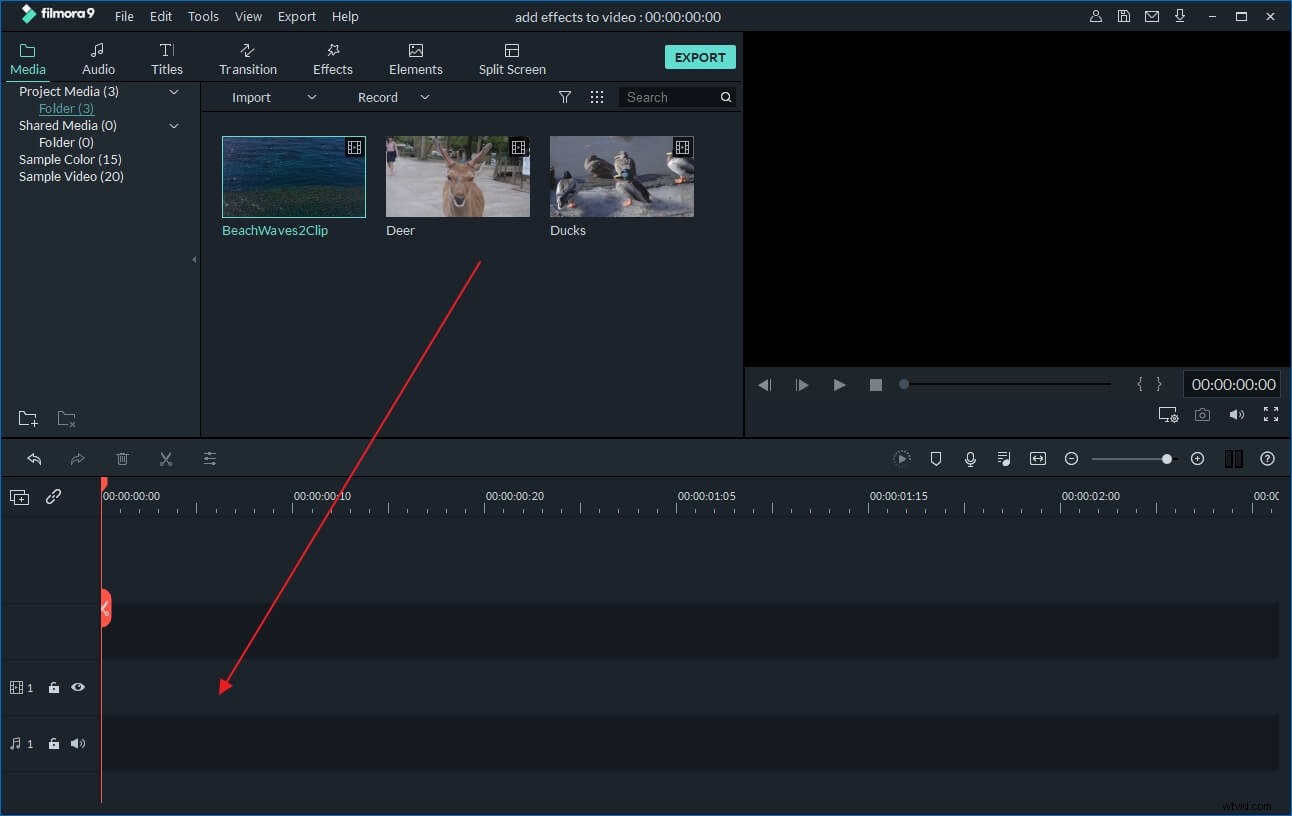
Install and run Video Editor. Choose from “16:9” or “4:3” ratio rate. Then click the “Import” button to import your photo and audio files. You can also directly drag and drop the files to the program.
2Add photos to audio and rearrange them
Then select these added files and move them to the corresponding tracks on the timeline panel below. The photos should be placed on the video track and the audio file on the music track. Then put the photos in the order you want them to appear in your creation. After that, adjust timing by highlighting and target file and moving the red slider.
Besides that, you can also improve the quality of your photos and even apply special effects to them. To review the list of available filters and effects, click the “Effects” button in the tool bar to display the menu. Here is a detailed guide about how to apply effects to video.
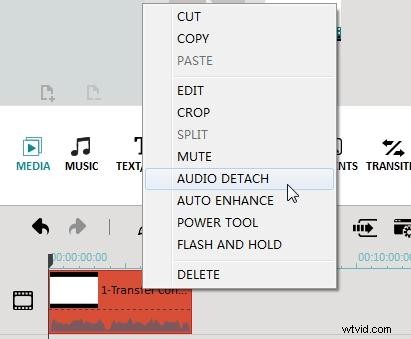
If the audio file needs editing, double click it and adjust the volume and pitch or add fade in or fade out effect in the pop up window.
3Share or save our own creation
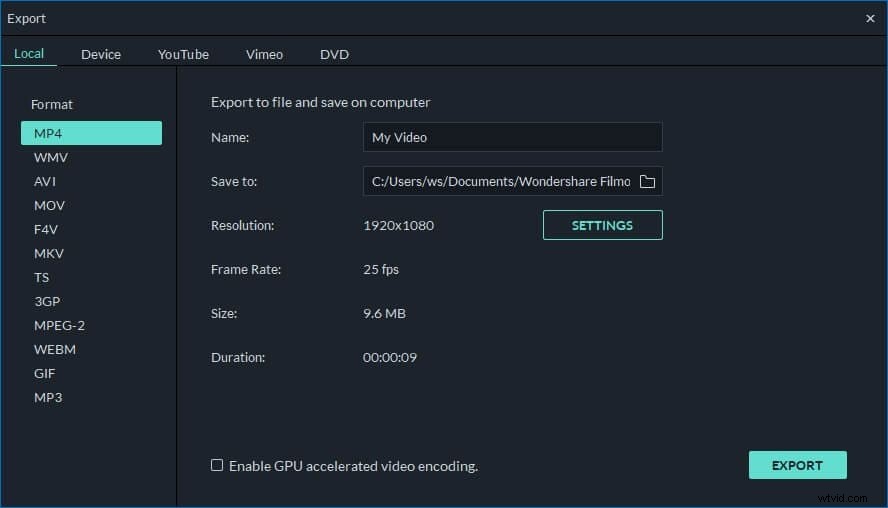
After adding photos to audio, you can save the creation in different ways. In the “Format” tab, you can save the file in any popular media format. If you want the file be played on mobile devices, go to the “Device” tab and choose one of the devices from the list.
Of course, publish it in social media like Facebook and YouTube is also another good choice if you want to share the video with your friend. To do this, click the “Create” button and go to the “YouTube” tab. Fill in the information and this program will publish your creation to the social media pages - it will be uploaded promptly and properly. You can also burn a DVD and present your family or friends with a beautifully packaged disk.