
How to add a .mka audio track to a .mkv video? Is there a simple step-by-step? I tried Mkvmerge but it doesn't seem to work with this.
You may come across the same problem: want to add audio to MKV but find video editing tools like Mkvmerge doesn’t work. Well, then what’s the available way to do so? In this article, I’ll show you how to add audio to MKV file by using Wondershare Filmora. If you are looking for such a solution, just feel free to see the guide below. This program enables you to add specified audio track to MKV as well as apply more effects to your source file.
1 Add video and audio files
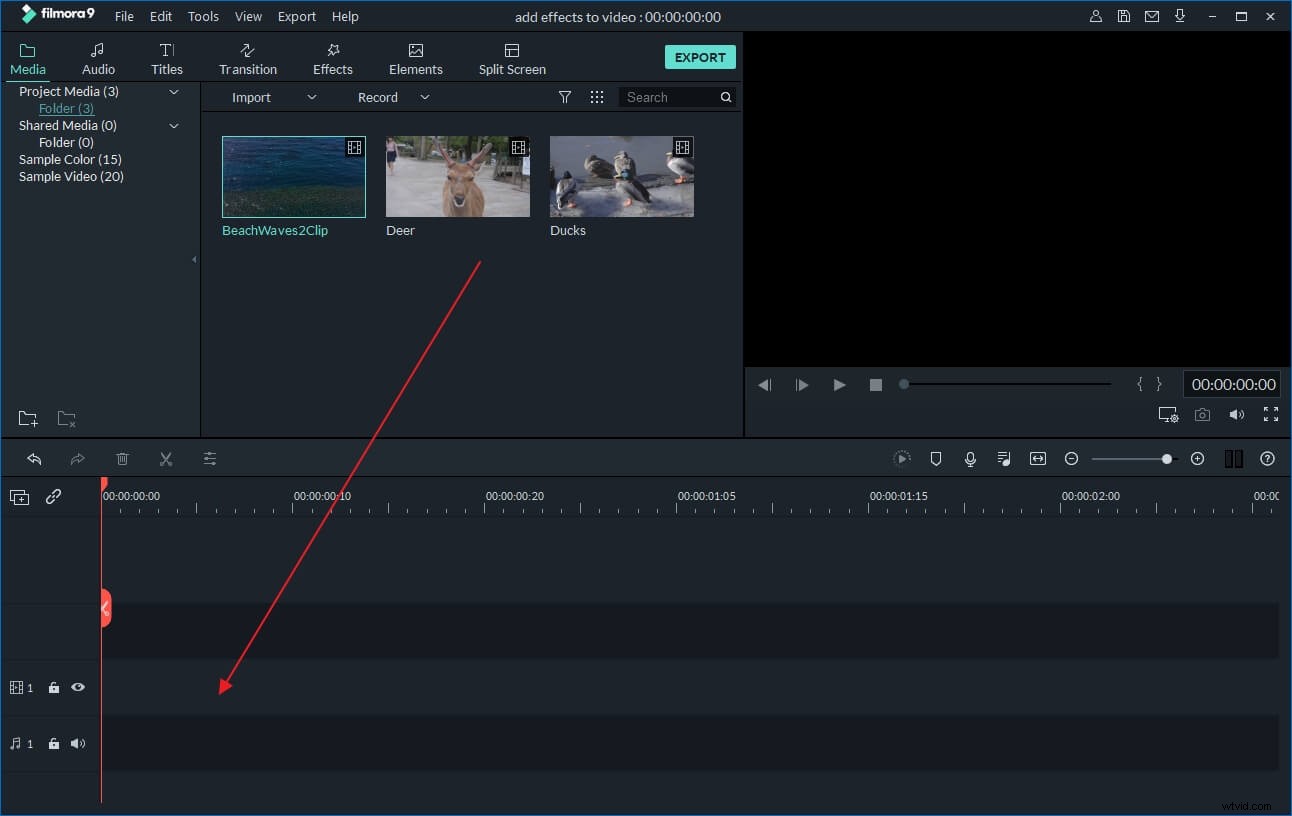
Download and install Wondershare Filmora first. Once run it, click the “Import” button to load both the video and audio files. You can also directly drag and drop the media files to the program.
2 Add audio to MKV
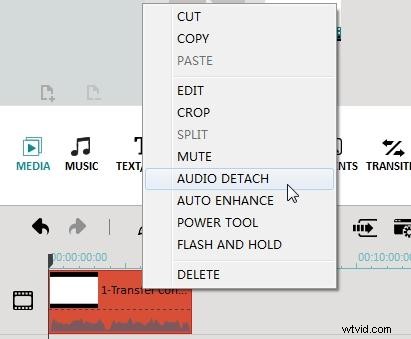
Now what you have to do is to drop the video file to the Video track in the Timeline and audio to the Audio Track. Then you can make the audio file fit your video by trimming or double click the audio file to set fade in/out effects, speed up or slow down it, adjust volume so that it doesn't drown out the original audio of your video, etc. If you want to remove the original audio, just right click the video in Timeline and select “Audio Detach” and press “Delete” to remove audio from video.
Besides adding an audio file, you can also use Wondershare Filmora (originally Wondershare Video Editor) to record and add your own voiceover. To do this, simply click the “Record” button on the toolbar and record the voiceover in the Record Audio window. Click the red button to get started and “OK” to save it and return to the main interface. The recorded voiceover will then appear in the audio track. Then adjust its position, volume, etc., just like any audio files.
3 Export the new MKV file
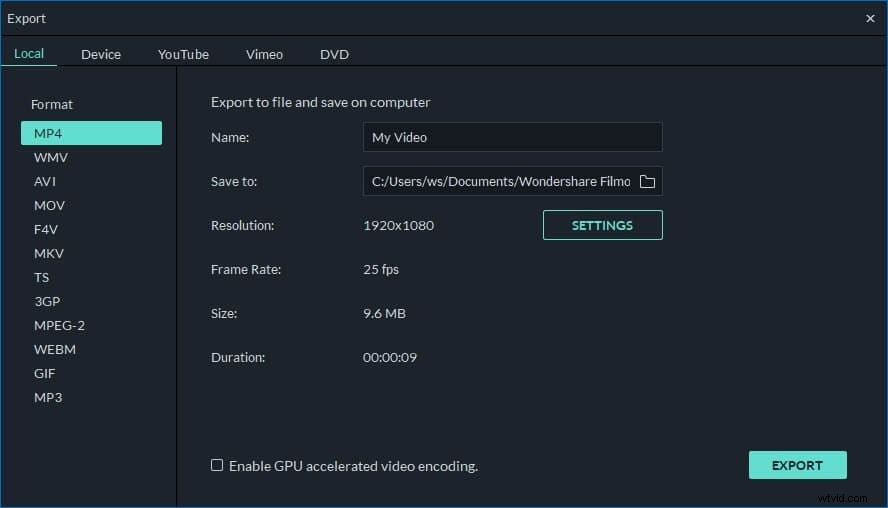
After adding audio, click “Play” to preview and listen to the new file. Then click “Create” to export your MKV file. Here are various choices for you: export the video to various video formats, convert the video to play on different mobile devices, upload the video to YouTube instantly or burn video to DVD disc. Select a desired output way and hit “Create” to start exporting the video file with the added audio.
Learn more about Wondershare Filmora: