
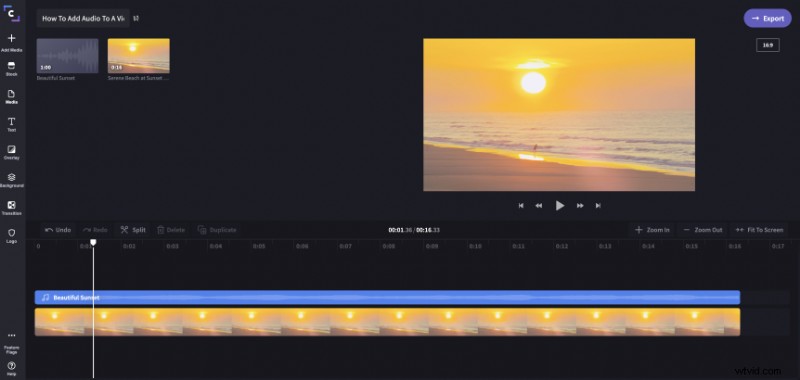
If you want your video content to make an impact, it’s essential you have good quality sound. Human beings have highly developed visual processing systems, and most people will easily make sense of imperfect visual content, so long as it’s engaging.
But bad audio will turn off almost any viewer. There is something very frustrating about muffled or inconsistent audio that quickly causes people to lose interest, even if the visuals are good!
Getting great audio might mean buying some good microphones to ensure you capture great sound when filming. However what if you’ve captured decent visuals but the audio is no good so you’d like to replace it with a separate audio recording?
Well, luckily there’s an easy way to add audio to a video online! This also works with images and photos where you can add sound separately to create a video slideshow with background music.
Add audio to a video with Clipchamp
Clipchamp is a simple but powerful free online video editor that makes it easy to pair great audio with your video content. Here is how it works:
Step 1: Register a free account or log in if you’ve used Clipchamp before
The first step is getting signed up. Clipchamp makes this easy – you can sign up with one click using your Facebook, Google, or email account.
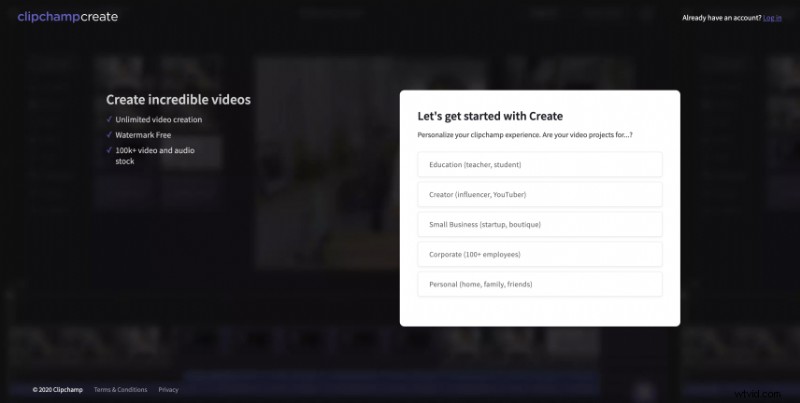
Step 2: Creating your video
Once you’ve signed up, click on ‘Create a Video’, like so:
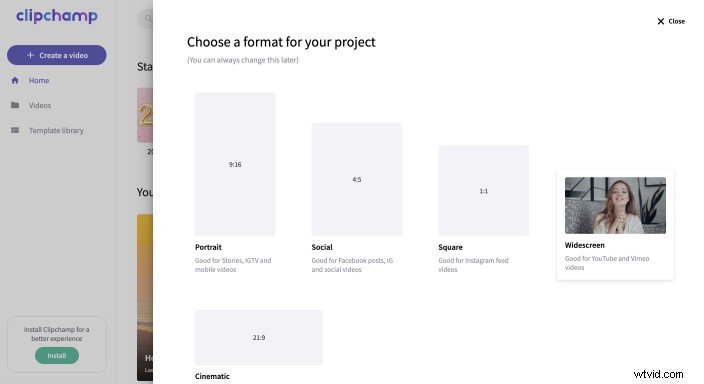
You’ll need to name your project and choose an aspect ratio that suits your video. 1:1 is a square, 4:3 is like an old ‘box’ TV, and 16:9 matches today’s widescreen TVs.
Step 3: Add video and audio files to the project
In the new project, use the ‘Add Media’ button to add video and audio files to your project:
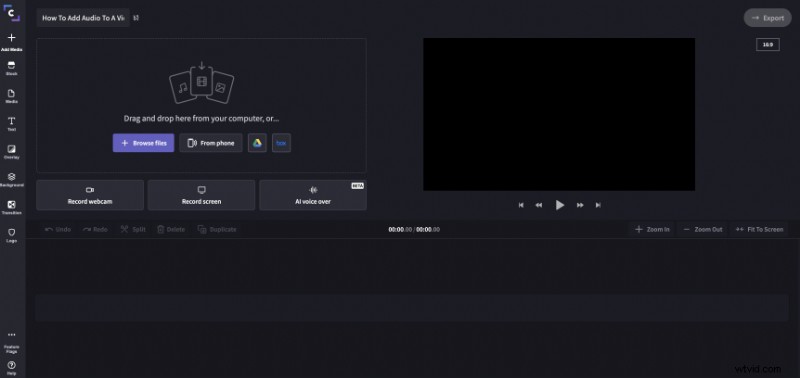
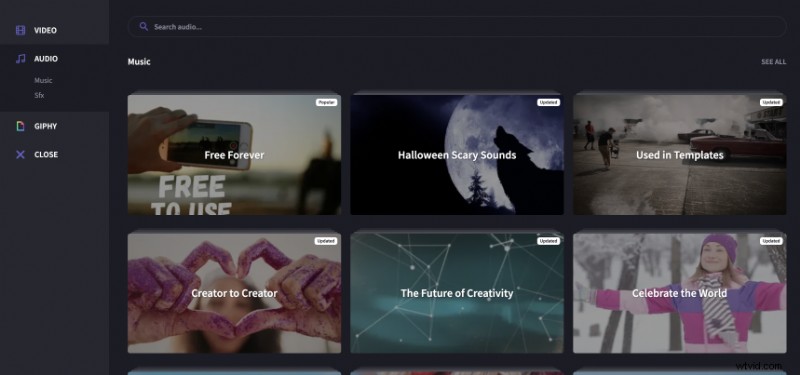
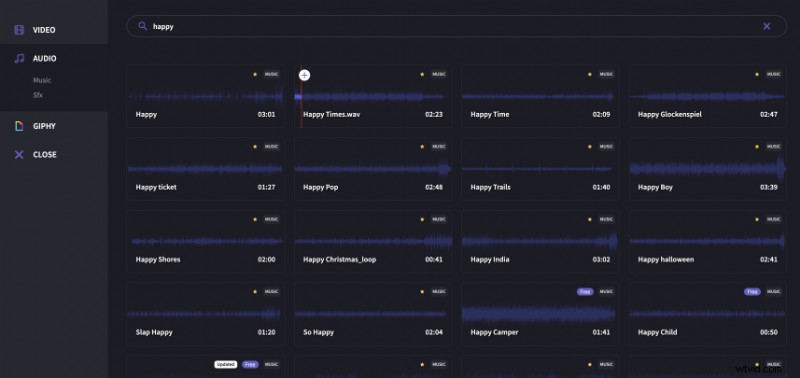
Choose ‘Browse my files’ to select from your computer, or you can also get professional audio tracks and sound effects from Clipchamp’s stock library:

Step 4: Add audio to your video
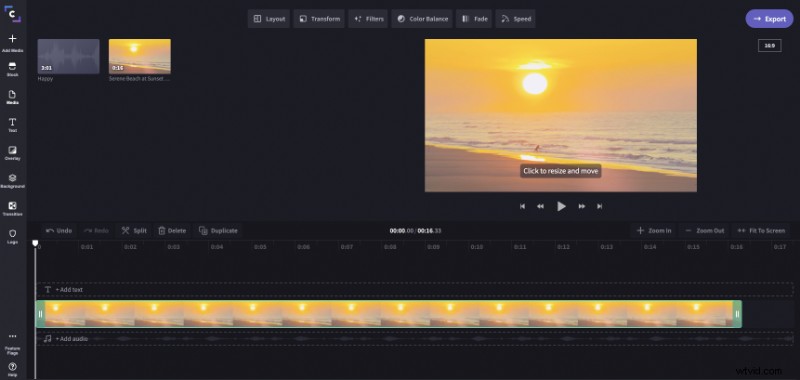
Once you’ve selected your audio and video files, head back to your project and you’ll see them appear in your library:
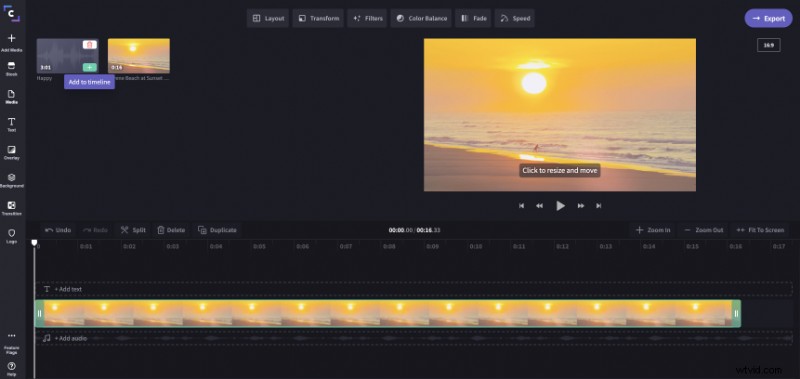
Now you just need to drag both files down into your timeline, like so:
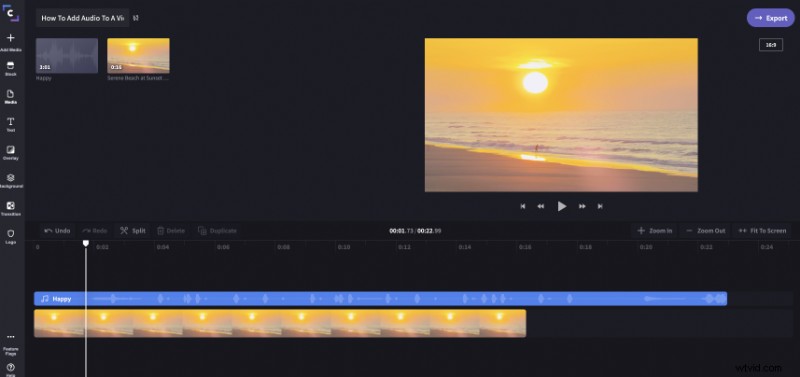
Step 5: Trim or cut audio to fit
After you add an audio track this way you may need to trim it to fit the length of your video. To do so, simply zoom out or select ‘Fit to screen’, until you see the end of the music row, then drag the end of the audio until it lines up with the end of the video:
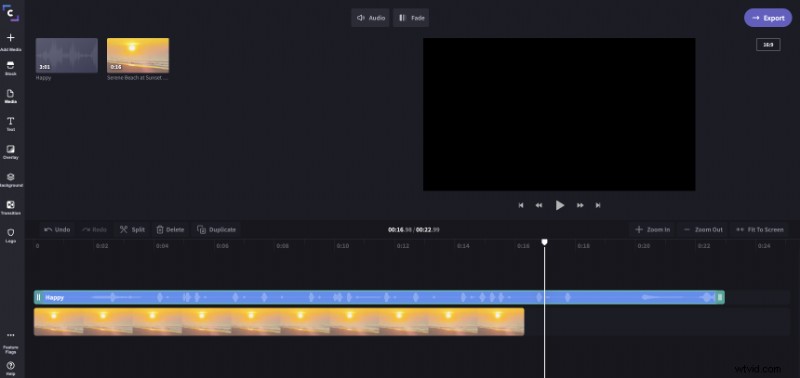
Drag the end of your audio file to match the video
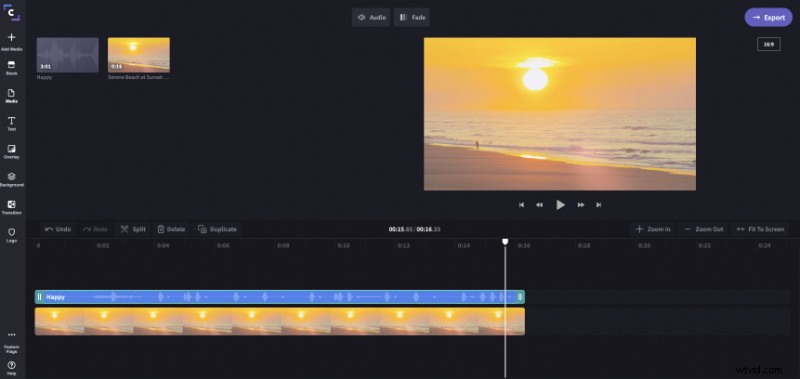
Then click ‘Fit to screen’
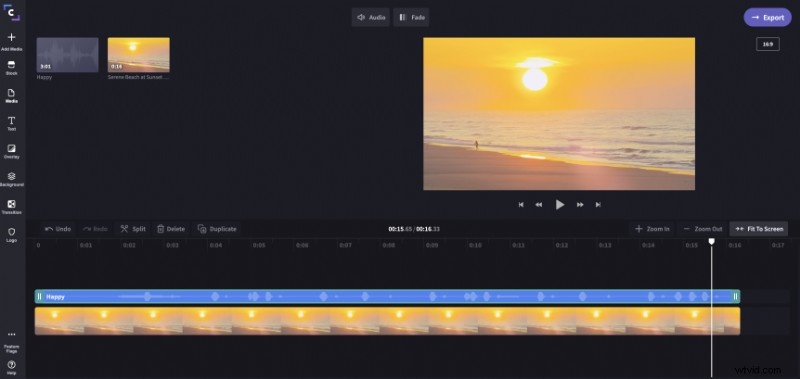
Instead of trimming, you can also cut the audio by dragging the white needle to the point where you’d like to have the audio stop and hitting the Scissors icon labeled “Split”. Then, delete the cut-off snippet by clicking the Bin icon labeled “Delete”.
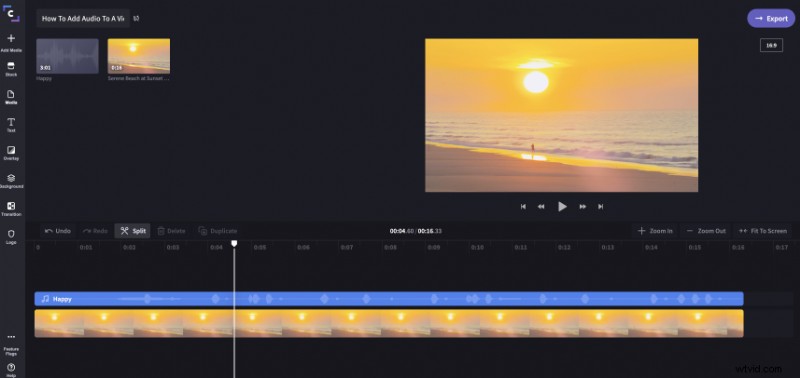
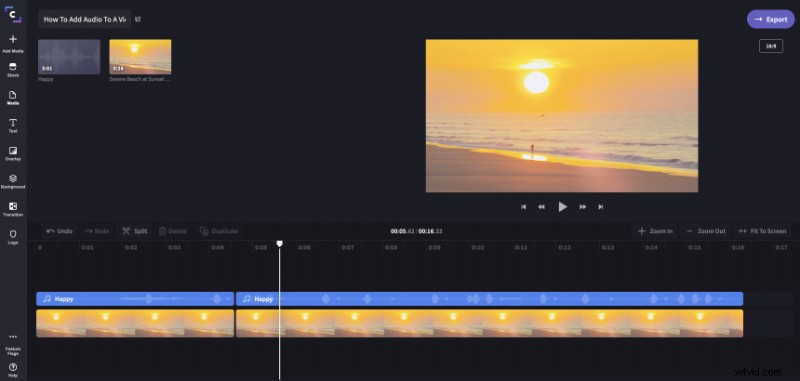
Step 6: Add more audio, adjust levels
You can also add multiple audio tracks to your video which allows you to layer sound. This is great if you want to add a soundtrack or create a soundscape.
For example, here I’ve added an enthusiastic song on top of the current audio, to increase the dramatic effect of the video.
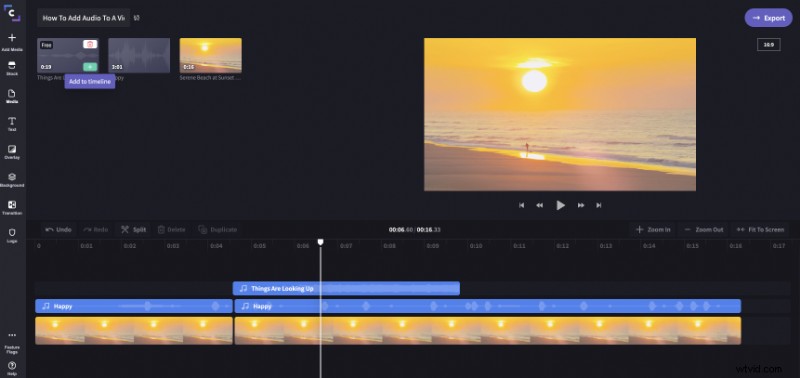
When you add audio to a video with Clipchamp, you can adjust the volume level per track individually. This helps you create an audio blend that works. Just click the track you want to adjust and raise or lower the clip audio:
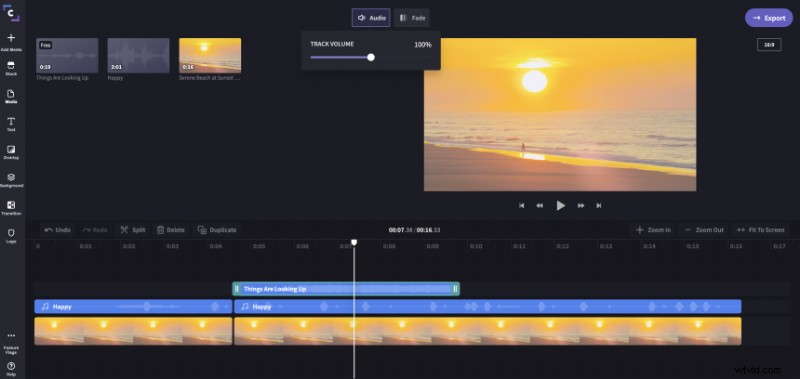
You can also add fade in and fade out effects to your audio.
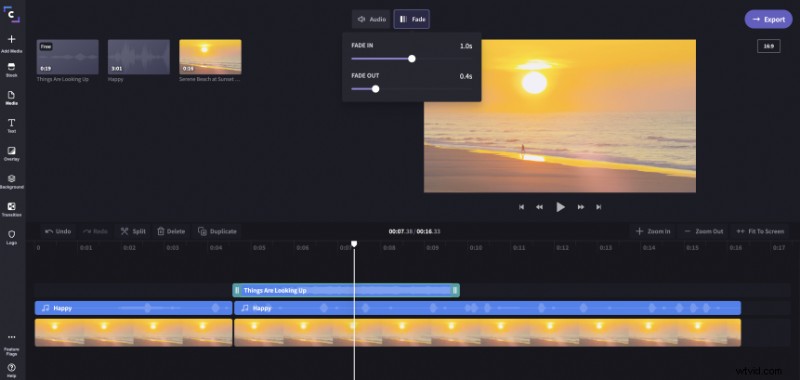
Step 7 (optional): Mute the audio track of the original video file
If your original video file already includes sound that you wanted to replace with a separate audio track as shown above, make sure to also mute the audio that came with the video. You can do this by selecting the video track in the timeline, going to the Audio tab in the editing menu that comes up at the top left, then reducing the clip audio level to 0%.
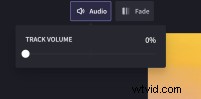
This way only the separate music track will be audible in the finished video/audio mix.
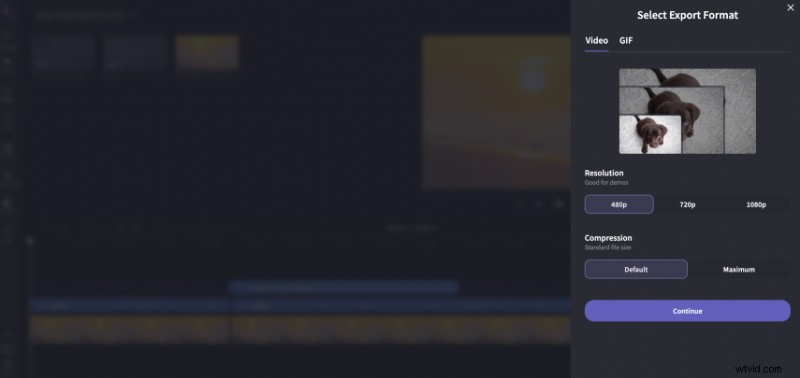
Once you’re happy with all your audio levels, it’s time to export the video and enjoy the results.
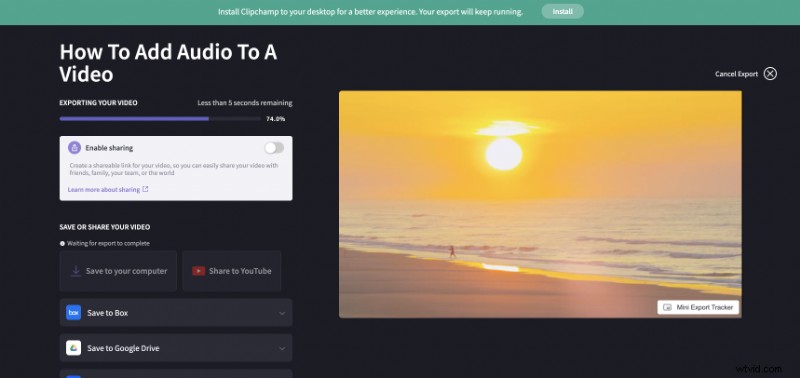
As you can see, adding music to a video for free with Clipchamp is as simple as it gets. Have fun with your project!