
**** updated on 29th May 2020 ****
Have you filmed a multi-part event and want to break it up into different sections? Or maybe you want to split or cut shots you’ve taken for a creative or promotional video project. Whatever the reason, using an editing tool to cut or split video online will give you the chance to correct the original footage and open up a world of creative possibilities!
How Clipchamp can help
Clipchamp Create is a powerful, free, easy-to-use video editor that makes splitting video files online a breeze. The app lets you work on video files from your computer without the need to upload them – this makes the process faster and means your files stay under your control the whole time. Whether you’re creating short or long-form video content, being able to quickly cut, rearrange or delete segments is essential.
Read on for our step-by-step guide to splitting video files with Clipchamp Create:
Step 1: Register for a free account
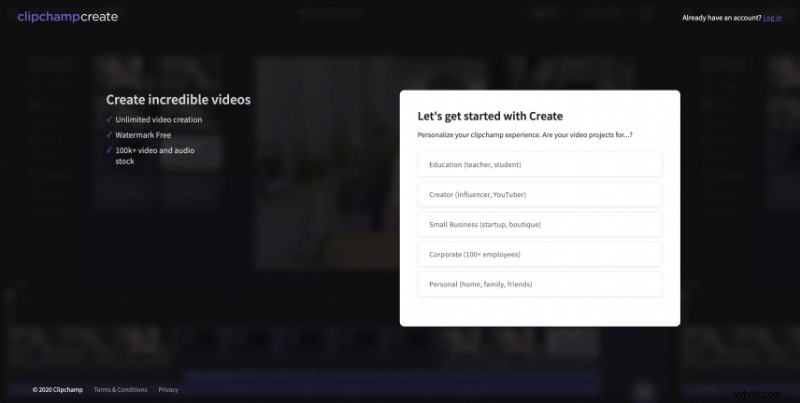
You'll need a Clipchamp Create account to get started. Signing up is very quick and easy – all you need is a Facebook, Google, or email account!
Step 2: Create a new project
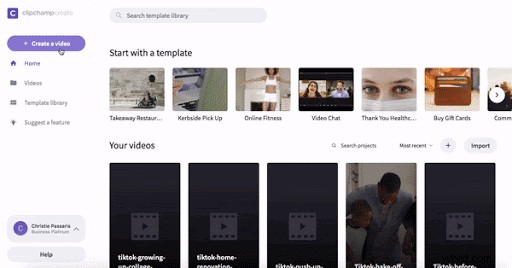
Once you’ve signed up, click on the ‘Create a video’ button and select your preferred aspect ratio, like so:
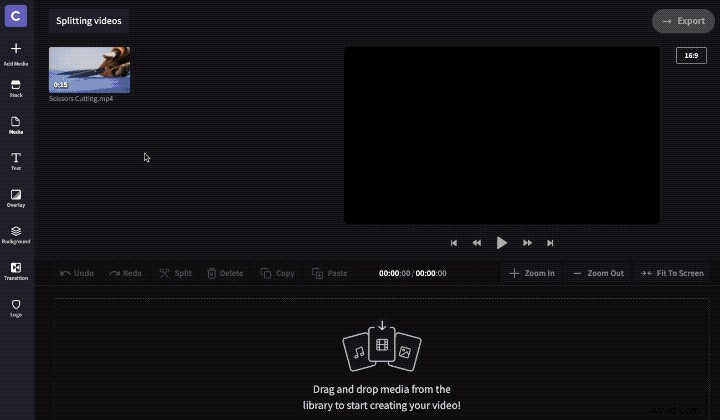
Step 3: Add the video file you want to cut
Once your project is ready, click ‘Add Media’ to import video files from your computer into the editing project. You can choose ‘Browse my files’ to select videos, or simply drag and drop them into the Add Media window. This also works with audio and image files:
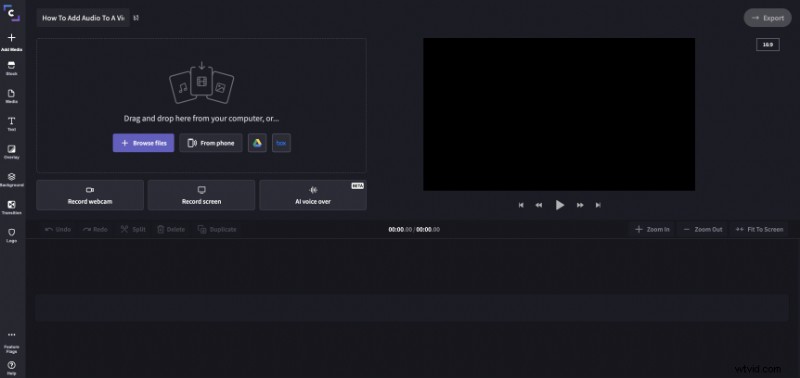
There’s no need to wait while your videos upload, you can start editing right away!
You can also add media from Clipchamp’s library of professional video and audio files using the ‘Stock’ button:
Step 4: Decide where you want to split the video
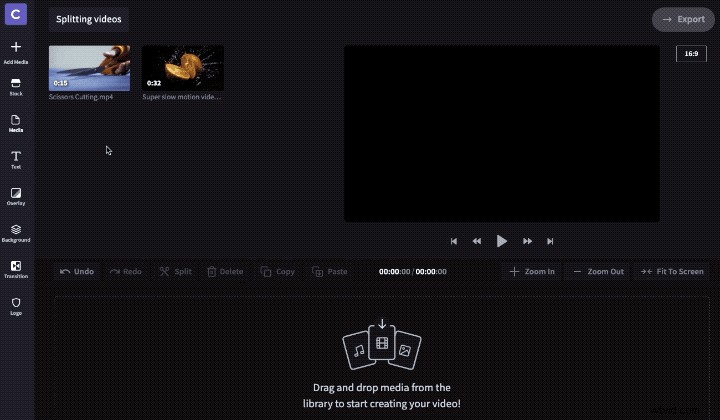
Drag the video into the timeline at the bottom of your screen, like this:
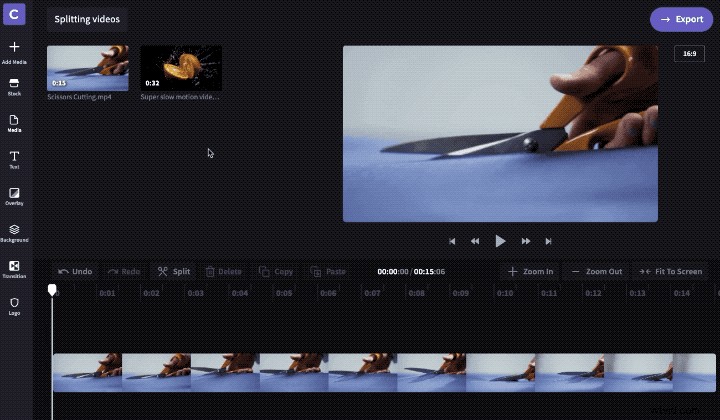
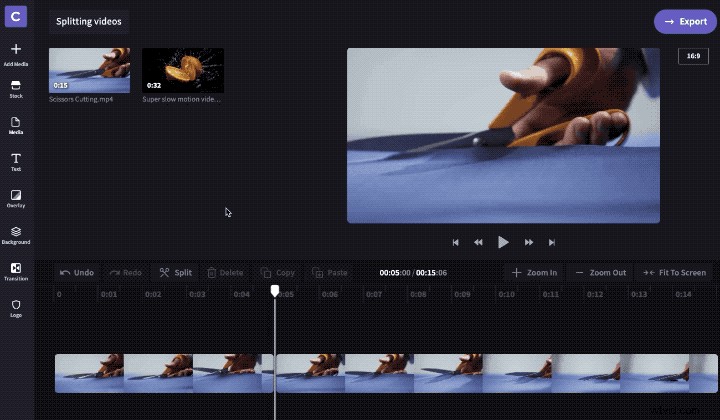
Now simply drag the scrubber to where you want to split the video. You’ll be able to see the approximate time of the cut at the top of the timeline:
Step 5: Click the split button
Once you’ve got the scrubber where you want it, you can cut the video with just one click by pressing the ‘Split’ scissors icon:
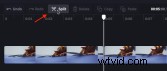
Your video will split neatly in two at the exact point you chose.
If you only want the earlier or later part of the video, simply select the unwanted half and click the ‘Delete’ bin icon:
If you want to use the other part of the video elsewhere you can move it to a lower track in the timeline until you need to use it. Simply click and drag the section of video downwards until you see a blue line appear, then let go. Now you’ll have the two parts of the video on two separate tracks.
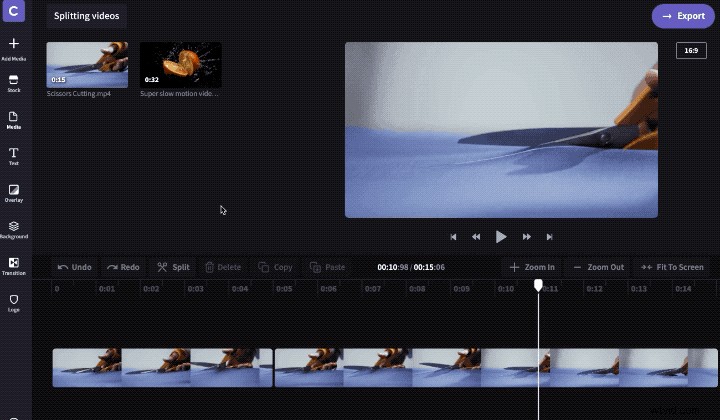
That’s how easy it is to split video online!
If you’d like to learn about trimming videos using our free editor, checkout our tutorial on how to trim videos.
Splitting also works with audio and image files
The process for splitting videos shown above will also work with any audio files and photos you add to your editing project. This makes it possible to cut an audio file into multiple segments, or delete parts of an audio file.
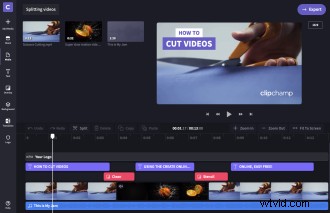
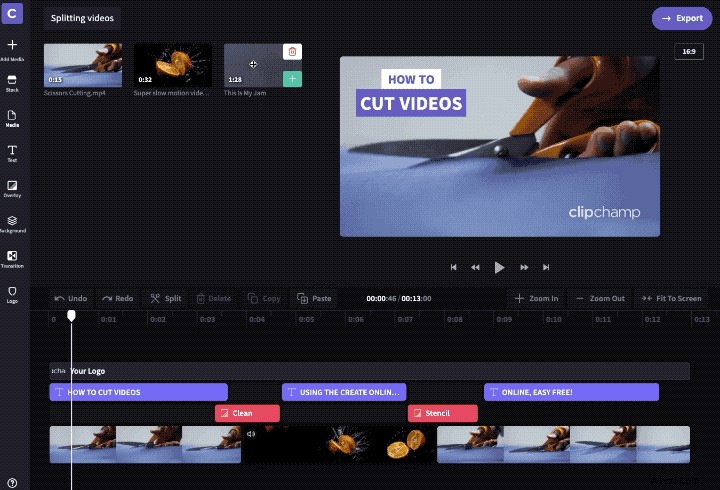
In the example below you’ll see there are different clips on different tracks in the timeline: the purple bars are titles, the red bars are graphic overlays, and the blue bars are audio. If you only want to cut something in one track, e.g. an audio clip, select it first before using the clip cutter tool (using the clip cutting tool without selecting anything will cut all tracks):
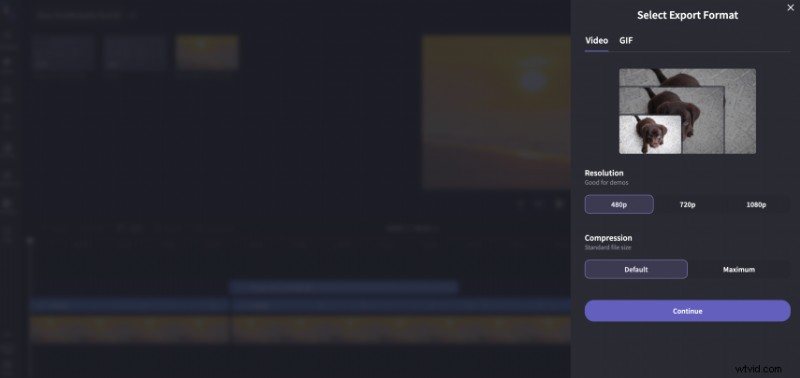
Once you’re done editing, all that’s left is to export the finished video file to save it back to your computer.
And here’s the result, cut together with just a few clicks:
As you can see, with Clipchamp you don't need complicated software to cut video online - you can do it with our video cutter and editor in 5 easy steps! Have fun 😊
PRO TIP: Looking for inspiration? Browse Clipchamp’s collection of ready-made video templates to find professional content and styles for your projects. For example, here’s a template for a fitness studio ad that uses fast cutting with relevant music and titles.