
As we already said besides adding video and image overlay to the main video, you can also add text to the video. Adding text is one of the professional ways to touch your videos. Adding text to the video will allow viewers to watch the video in a noisy environment and get the information as well, which also works perfectly when people hang out on Facebook to watch the muted Autoplay videos in News Feed.
Let’s check the below tutorial about how to add text videos first.
- Part 1: How to add text to video in Filmora
- Part 2: How to add text to video with other software
Part 1: How to add text to video in Filmora
While adding text to video will require some video editing software, you can find some online solutions but it's not difficult and can be completed in a few short steps using video editing software like Wondershare Filmora. In this article, I will show you all the steps about how to add text overlay to video using Filmora.
Step 1: Import your video files
After launching Filmora, click New Project to enter the main screen. It is recommended to adjust settings such as aspect ratio and frame rates before getting started in the Project Settings window as shown below.
The default aspect ratio is 16:9, you can adjust the aspect ratio based on your needs and change it to 1:1 (for Instagram videos), 4:3, or 9:16 (videos shot vertically).
Click the "Import" button to select and add your video to the media library. For your convenience, you can also directly drag and drop the target video to the collection.
Step 2: Add Videos to Timeline and Locate the Video Frame
Next, you need to drag and drop your video clips from the media library to the timeline panel to edit. Before adding text to the video, you can trim, cut or delete part of the video based on your needs. Then Zoom in the timeline to show the video frame more precisely to locate the frames that should have a text overlay.
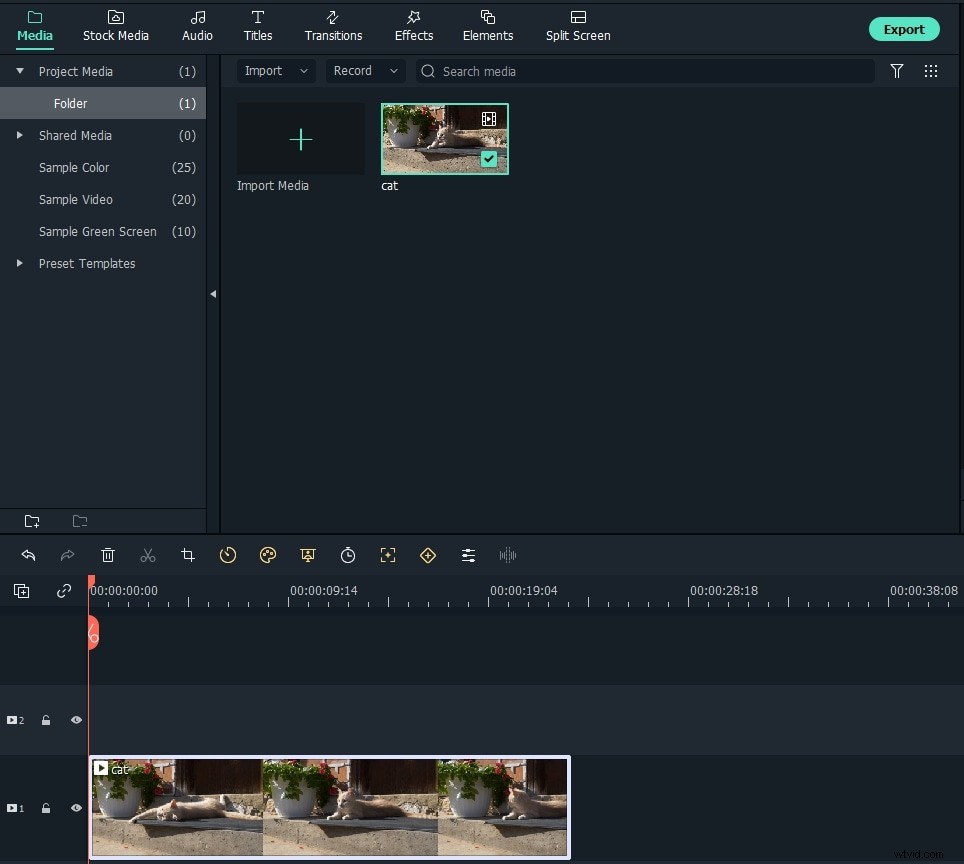
Step 3: Choose Text Presets and Add text
Click the Titles tab to open the Text& Title presets. There are more than 200+ text effects built-in Filmora, which cover various styles such as Lifestyle, media, seasonal, opener, lower 3rd, and end credits. Double click the titles preset to check the result in the Preview window.
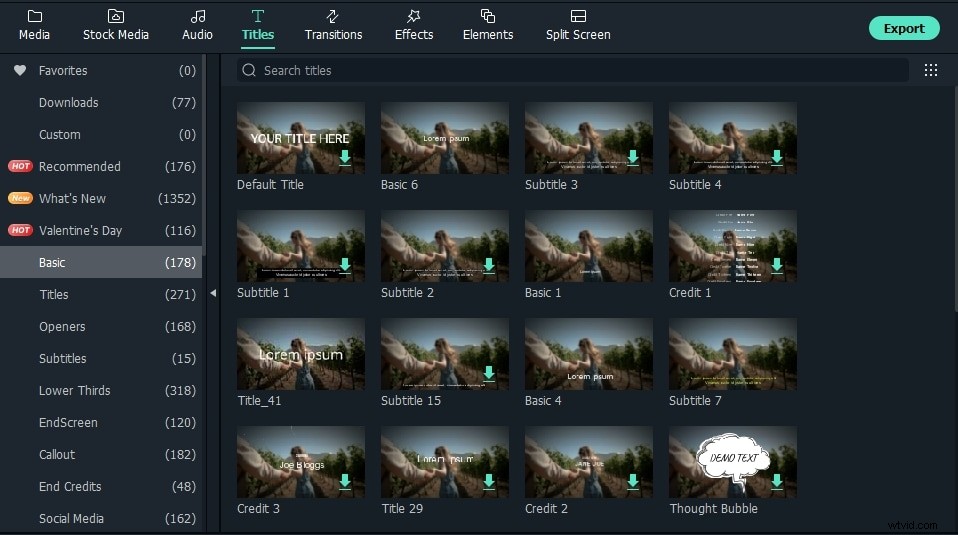
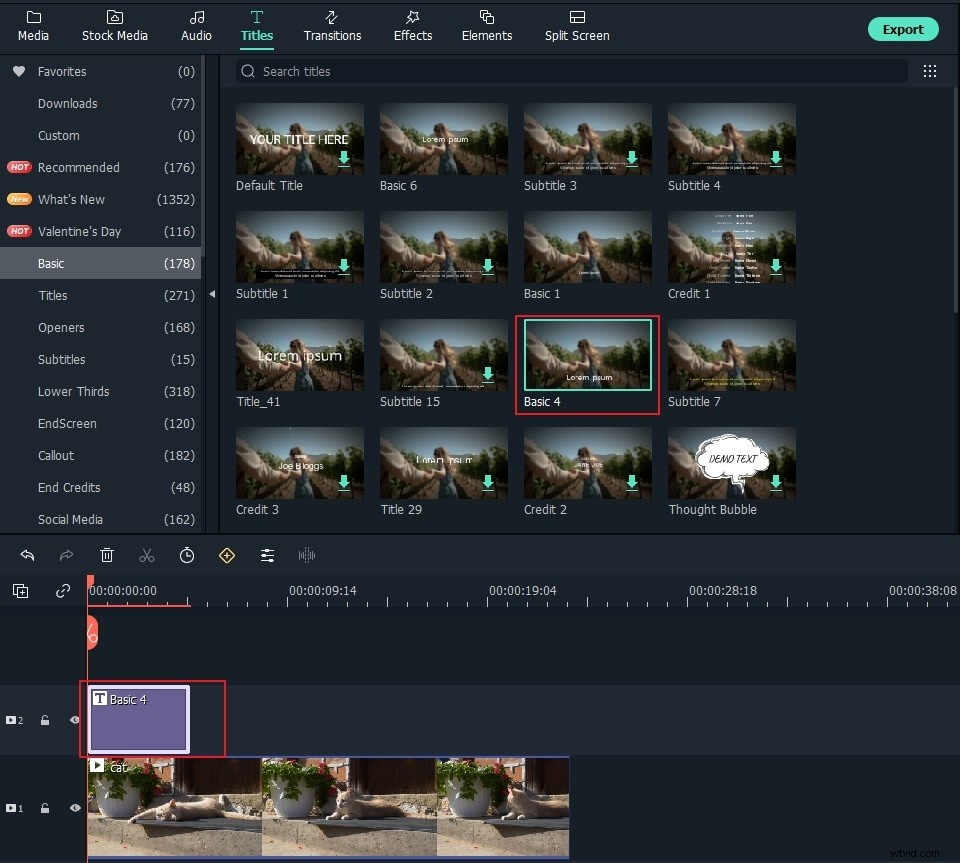
If it fits your needs, place the Playhead to the position where you want to add the text and title in the timeline and then drag and drop it to the track above the video in the timeline.
Step 4: Change the Duration of the Text
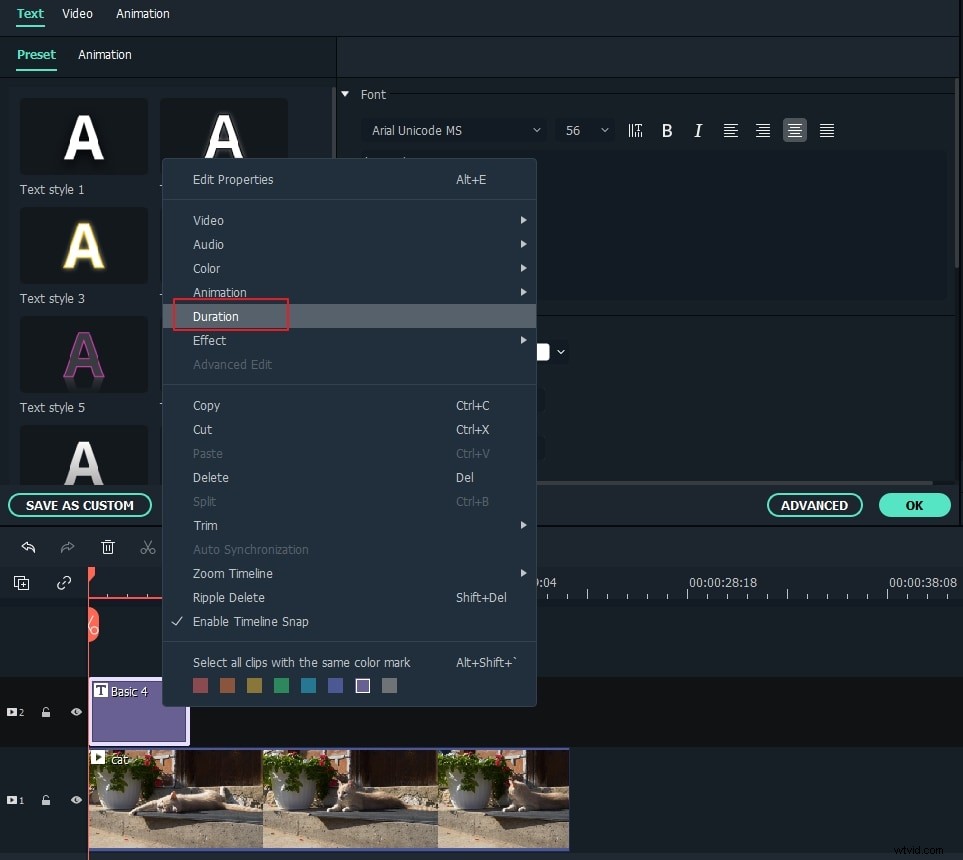
In Filmora, the default duration of the text overlay is 5 seconds, but you can drag the edge of the text module in the timeline to extend it to fit the length of the video based on your needs. Or, you can select the Text in the timeline first and then click the Timer icon to change the duration of the text effect.
Step 5: Edit and Customize Your Text
Double click the Title frame in the timeline to open a window that allows you to do some basic editing of the titles. Here you can enter the text of your text overlay and change the text font, color, and size.
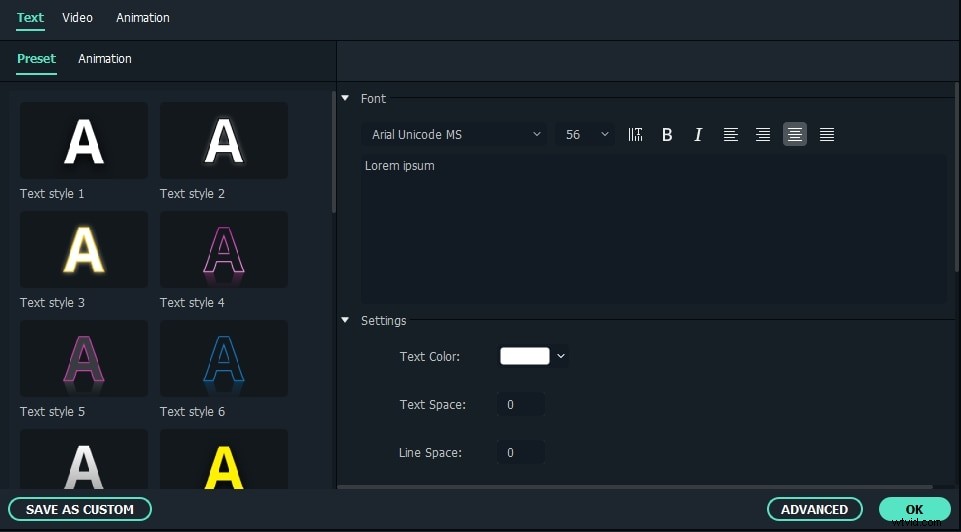
There is more than 20 text effect style for you to choose from. Just double click one Style to apply it in the text overlay and you will see the changes in the Preview window.
You can also click the "Animation" icon to change the animation of your title text overlay or drag and drop the text box in the preview window to change the position.
Advanced Text Editing
To customize the text overlay further, click the Advanced button to open the Advanced Text Edit panel. Here, you can also apply a preset and animation as well as customize the Text Fill, Border, and Shadow elements.
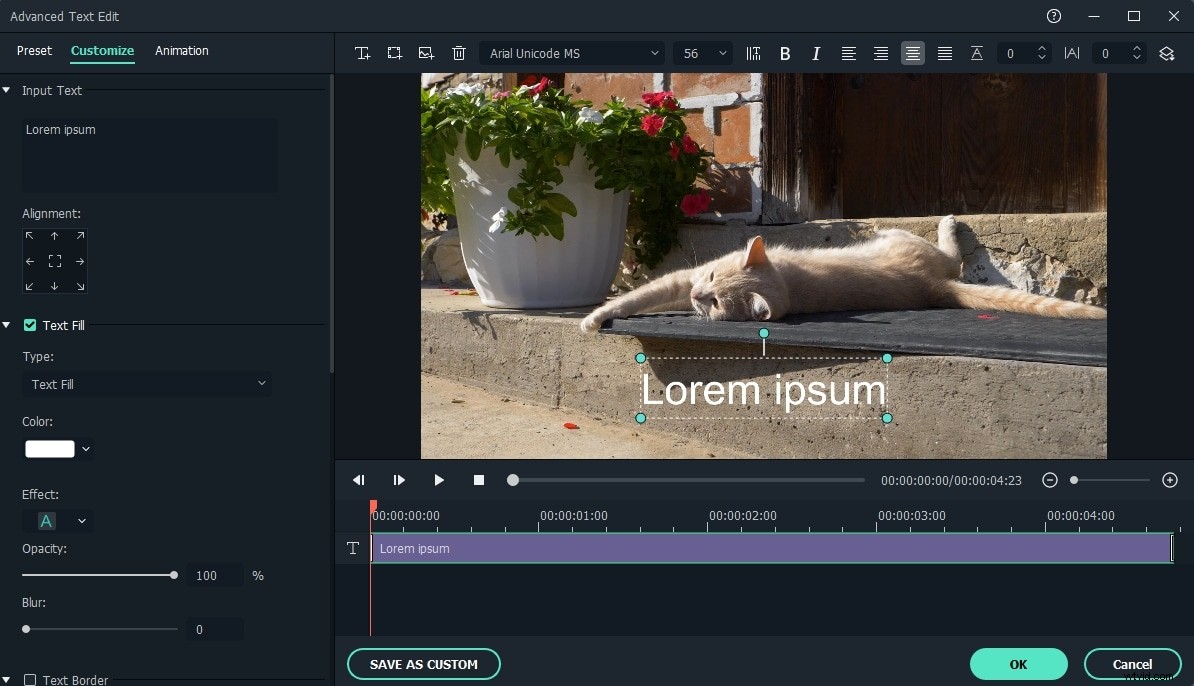
You can add more text boxes to the video as well as new text shapes such as circle, rectangle, round bubble and arrow. Besides that, you can adjust the duration of each text element by dragging the edge of the text in the Text timeline.
Step 6: Export the new video
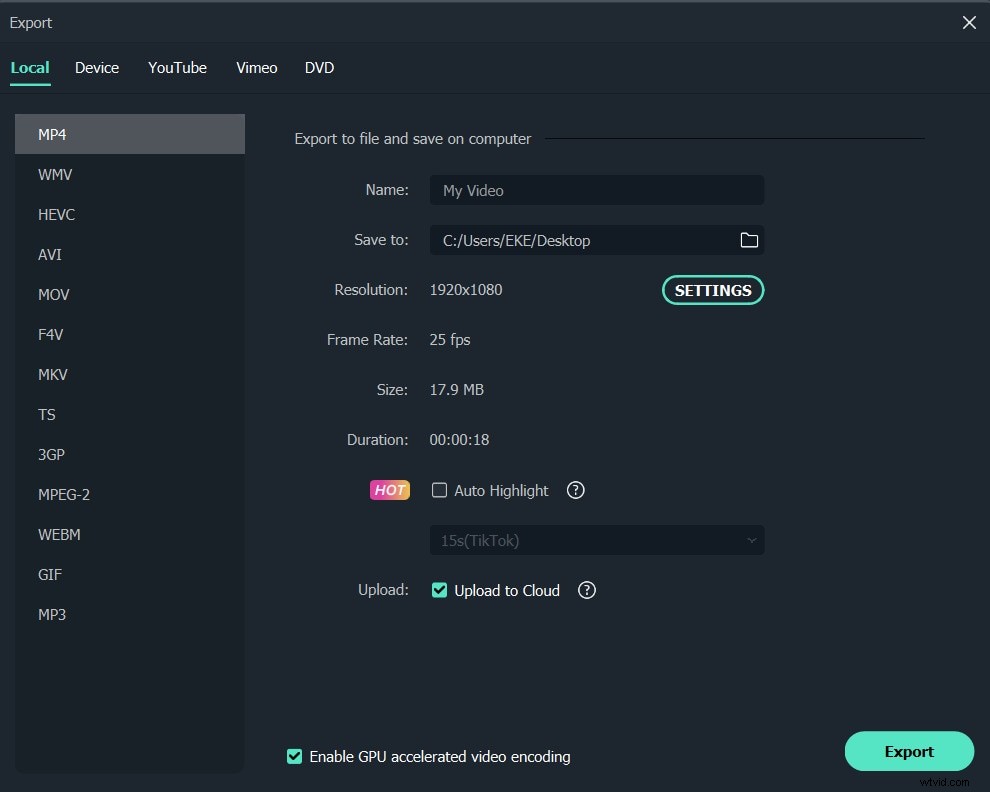
After adding your text overlay, click the “Play” icon to preview the result. If satisfied, click the “Export” button and choose an output format from the list. You can change the video and audio parameters such as Bit Rate, Encoder, Resolution in the advanced settings.
You can also directly upload to YouTube right from Filmora, or the classic way - burn to DVD for watching on your home player. If you want to play on your mobile device, choose the "Devices" tab and select a device such as iPhone, iPad, iPod, Zune, Samsung Galaxy, Xbox and more.
You May Also Like
How to Add Text to YouTube Videos >>
From the video tutorial above we can see that adding text to video is easy, now let me show you how to add text to video step by step.
Part 2: How to add text to video with other software
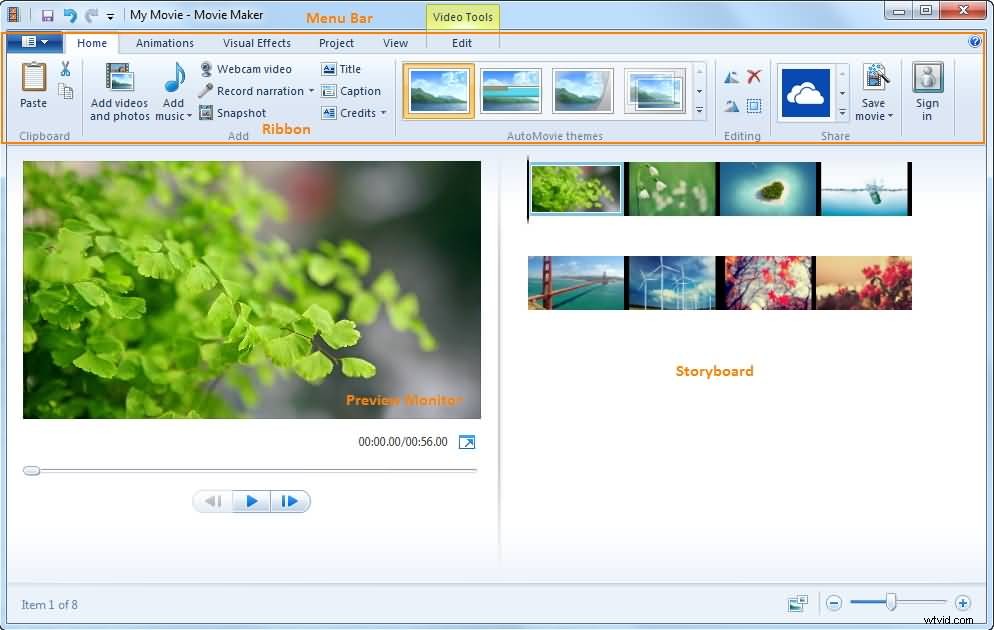
1. Windows Movie Maker
Originally, it is developed by Microsoft and many users use it to add text to video. You can use Windows Movie Maker to add various text templates to videos. It supports changing text size, text font and color. If you like to highlight video message, adding text to video is the best way. You can also add text to the video in a different position. Left or right is at your choice.
2. Animoto
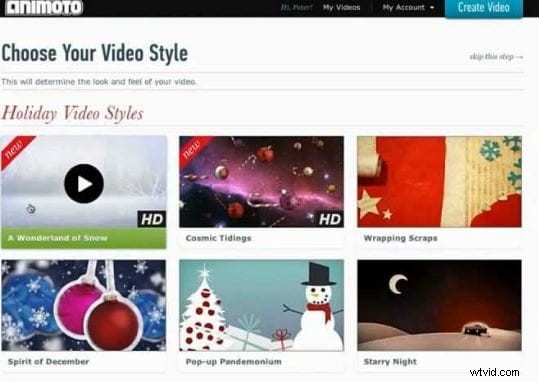
Animoto is an online tool to add text to video. Without downloading. You need to log in to import video and add text. You can change text style to make it fit with your video. If your video is young and happy, you should choose some funny text templates to add. All the style is based on your video. You can choose text animations to stand out in your video.
Besides adding text overlay, Filmora has more brilliant editing functions to edit and produce videos inside a wide selection of file kinds with ease for all the users. You can easily trim or split video clips, crop video screen size, apply unique effects to your video files, flip/rotate them horizontally or vertically. Now download and try it out!