
Most of us don’t consider ourselves trainers, but at some point, nearly all of us will have to show a colleague or a customer how to do something. A video is a great way to show someone a process, teach new skills, or train someone on a new system. But sometimes, just showing what to do or how to do it isn’t enough. Adding text to a video can bring more clarity, help identify what you’re trying to show, or bring more life to your explanation.
But how do you do it?
Luckily, adding text to a video is incredibly easy.
Here’s what you’ll learn:
- Five reasons to add text to a video
- How to add text to a video in five easy steps
- How to go beyond basic text
- How lower-thirds can help bring clarity to your videos
Why add text to video?
Video works well as a learning tool because everything your viewers need to see is right there on the screen. You can literally show what you know. So why would you need to add text?
Turns out, there are a lot of reasons to add text to a video. Here are a few common ones:
- Show your video’s title
- Identify something or someone on the screen
- Provide more explanation as to what viewers see
- Draw attention to a detail that might not otherwise be obvious
- Show a series of steps
I could go on, but you can see that text in a video can be a critical part of ensuring viewers get the information they need.
To be clear, when I talk about how to add text to a video, I mean adding dynamic text that’s actually part of the video. You could add a static image of text onto the screen, but it’s really much easier and more efficient to do it right in your video editor.
Bottom line: Adding text in your video editor makes it much easier to update and edit the text when needed.
Note: This blog is not about how to add captions or subtitles to a video. If you want more information on how to add captions on social media or other videos, check out this great blog: How to Add Captions or Subtitles to a Video.
How to add text to a video
One of the best things about TechSmith Camtasia is that unlike other video editing tools, it’s super quick and easy to add text to a video.
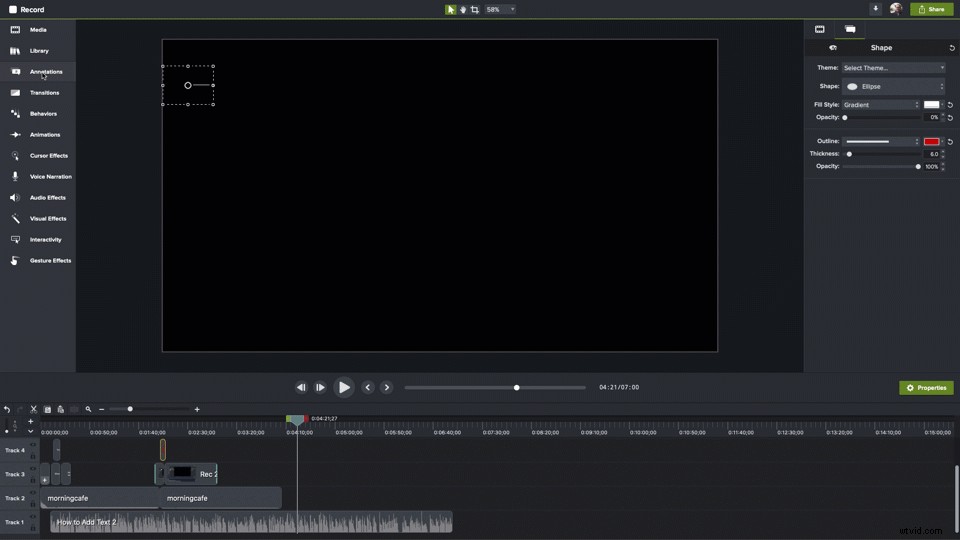
- Step 1: Choose annotations
With Camtasia open, choose Annotations in the menu.
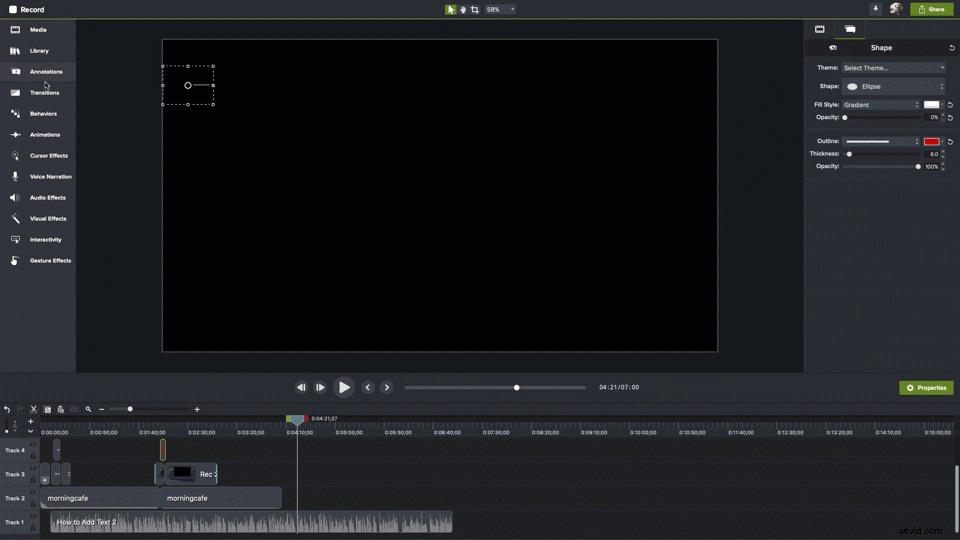
- Step 2: Pick your style
Choose the style of annotation you want to add and drag it to the timeline where you want it to appear.
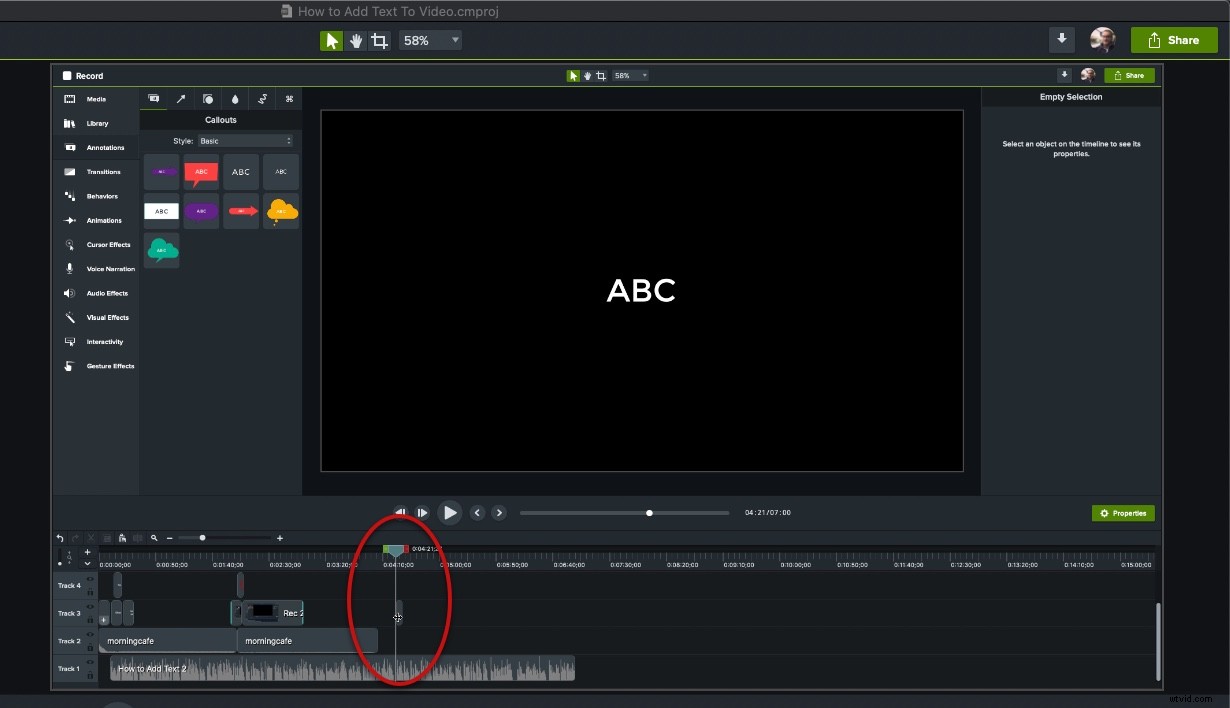
- Step 3: Place the playhead
Place the playhead over the area on the timeline where your annotation appears.
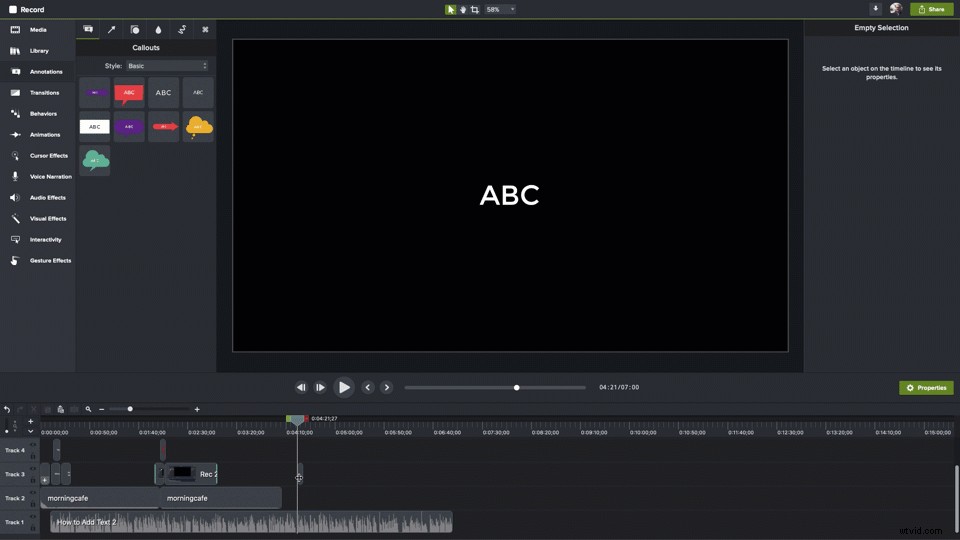
- Step 4: Position your text box
On the canvas, click and drag your text box to position where you want on the screen and use the handles to scale it larger or smaller as you need.
- Step 5: Add your text
Double-click in the text box and add your text.
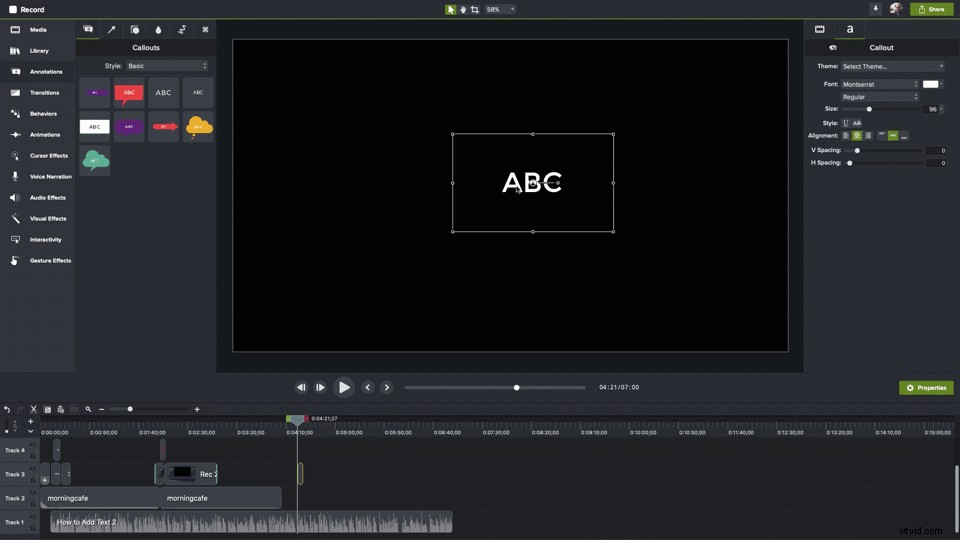
That’s it. That’s how to add text to a video in Camtasia. It’s really that simple.
Also, this works whether you created your video in Camtasia or imported it from another source.
Beyond the basics: How to enhance your text for greater impact
If basic text is all you need, that’s great, but I’m guessing you’d like to learn how you can customize and animate the text in your videos.
Camtasia offers a ton of ways to enhance your text and help it have an even greater impact.
For example, instead of plain text, you can use an annotation such as an arrow, speech bubble, or a shape.
Basic enhancements
Want to change the font, size, color, or other properties of your text? With your text box selected, click the Properties button to open the Properties panel. Here, you can change all of the attributes and settings that determine how your text looks.
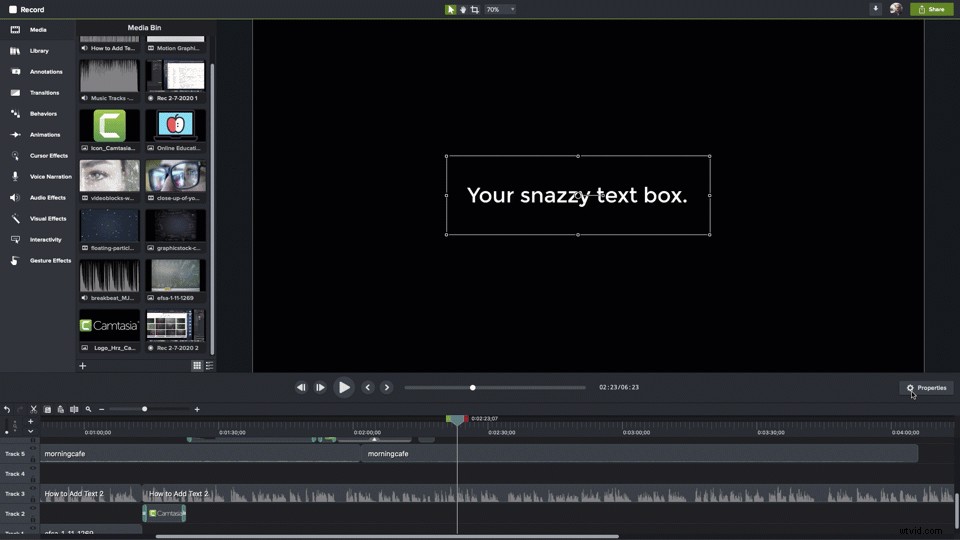
If you have one you want to use, select and apply it. You can make all kinds of changes, including the ones I just mentioned. Plus you can select a theme if you have one, change your text’s alignment, and more.
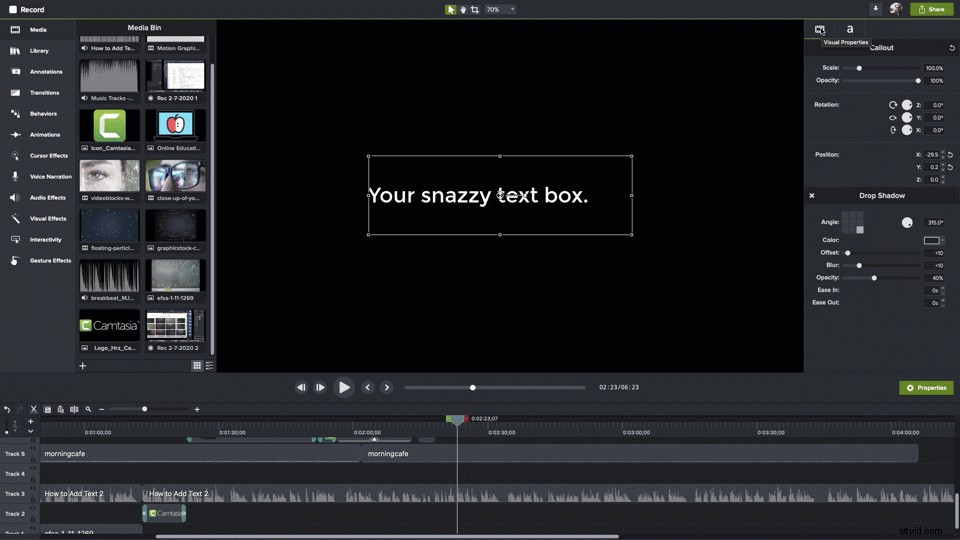
Select the film icon, and you can change the size of the text box, its opacity, rotation, and position on the screen. The rotation and position properties are particularly useful if you want to start animating your text.
You can also change most of the visual properties by clicking and dragging the anchor points on the text box right on the canvas, as well.
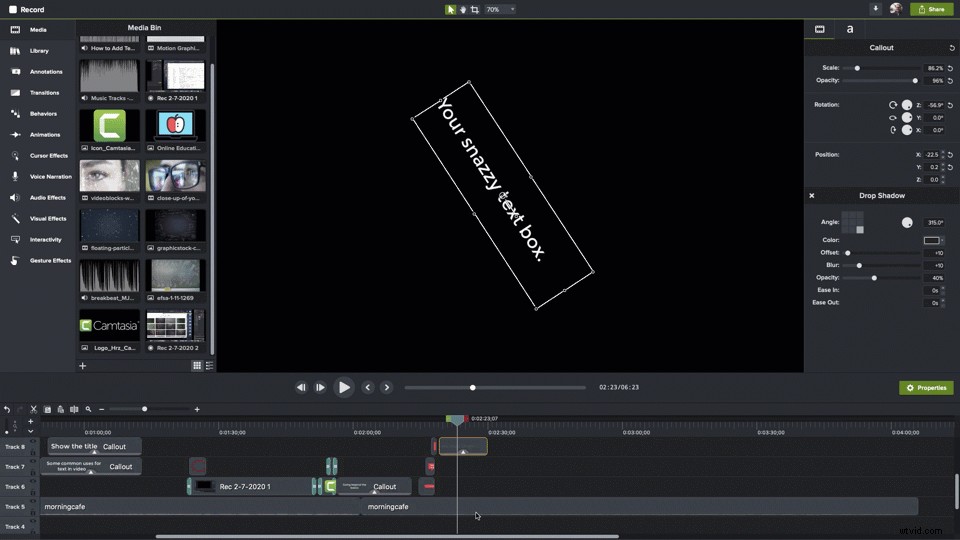
Increase or decrease the length of time your text appears in the video by dragging the edges of the clip on the timeline. Adjust when your text appears by clicking and dragging it to where you want it to be.
Behaviors
Want to add some motion to your text? You can do that, too!
Camtasia offers Behaviors, which are dynamic sequences of animations, and can help draw attention to your message or add some flare. Select Behaviors from the menu, and the list of available Behaviors will appear.
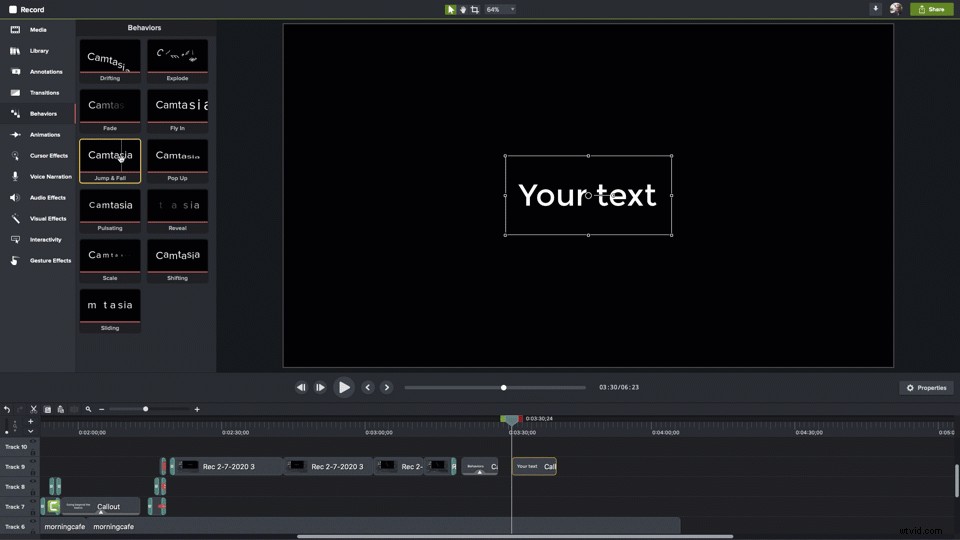
You can preview what each does by hovering your mouse cursor over each one. When you find one you want to use, click and drag it to the timeline and drop it on the text or clip you want to animate.
Transitions
When you add your text to the timeline, it will appear suddenly and disappear just as suddenly when its time is up. Transitions help soften this and add some style and elegance to how your text appears on the screen.
Select Transitions from the menu to see the available transitions. Just like Behaviors, you can hover over each one to see what it looks like in action.
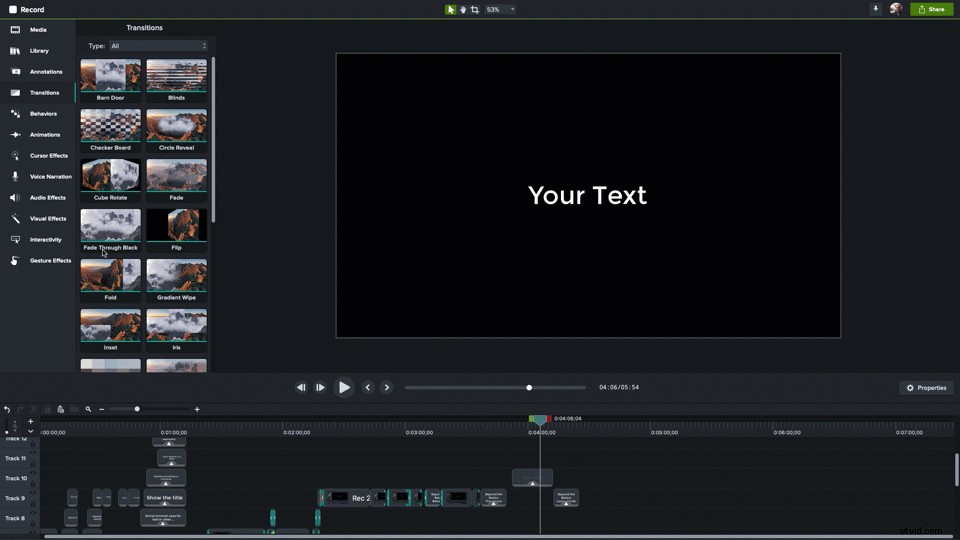
When you find one you like, drag and drop it onto your text on the timeline. Transitions can be applied to both ends of a clip at once or to the beginning and end individually.
My favorite transition is Fade. It’s subtle and does a nice job of softening the appearance and disappearance of your text.
A word of caution: Whatever transition you choose, use the same one for all transitions throughout your video. Using different Transitions can give your video an amateur or unpolished look.
Lower thirds from TechSmith Assets for Camtasia
Camtasia comes bundled with a cool selection of free assets, such as intros and outros, music, icons, and more.
But Camtasia also comes with a nice selection of lower thirds. Also called chyrons, these are the combinations of text and graphics often used to identify people speaking on screen. If you’ve ever watched a TV news broadcast, you’ve seen a lower third.
While you can certainly use plain text for this, using one of these from TechSmith Assets will add style to your video.
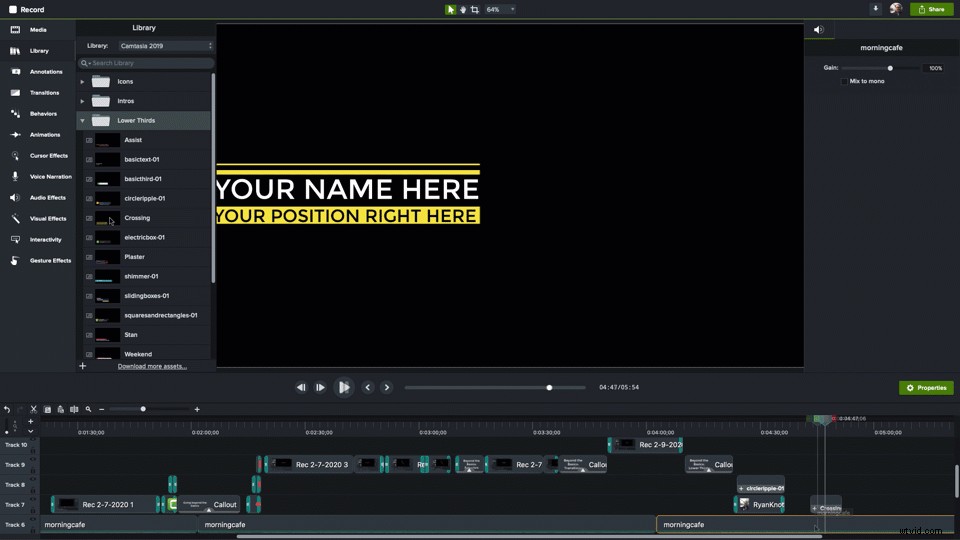
Just select the one you want and click and drag it to where you want it to appear on the canvas. You can also drag it directly to the timeline, where it will appear on the lower left of the canvas by default.
And, of course, they’re totally customizable by opening the Properties pane.
Snagit can do it, too
Adding text to video isn’t exclusive to Camtasia. With Snagit’s Create Video from Images feature, you can create video from a series of screenshots or other images and then add annotations (including text and other callouts) as you record your video. It’s not the same process, but for more basic videos, the results can be just as impactful.
📚Recommended Reading: Screenshot Video: How to Turn Images Into a Quick VideoKeep accessibility in mind
As with any content, whenever possible, videos should be accessible to people with disabilities or who may use accessibility tools.
While a person who is blind or visually impaired may not be able to see your video, they may be able to learn through the audio portion of the video along with an audio description. That description should include anything that is only presented visually, including any text that appears on the screen.
📚Recommended Reading: How to Add Captions to Video for AccessibilityText me!
While a video without text can be impactful, interesting, and effective, adding text can enhance understanding and bring more clarity.
In fact, even if it’s just to indicate your video’s title, nearly all videos can be improved with text. Luckily, with Camtasia, it’s easy to add professional-looking text and effects!