
On this page, you’ll learn how to add animated text to a video in CapCut. Additional CapCut text features such as text-to-speech, text tracking, auto caption, etc. are also covered.
It’s a fairly common practice, to put text into videos in video editing, which can be used for demonstration, elaboration, caption, subtitling, and commentary purposes in videos. And with the rising of video editing apps, adding text to videos has become easier today.
From this complete guide, you’ll learn from the detailed tutorials on how to add text to videos in CapCut, how to add effects and animations to text in CapCut videos, and how to make good use of the additional text features in CapCut.
How to Add Animated Text to Video in CapCut (Step by Step)
The following tutorial is demonstrated with CapCut on PC, and the steps are exactly the same as that of CapCut on Android/iPhone in this regard. For more information, please see our guide on how to use CapCut on PC.
For adding other types of overlays to videos, please refer to our guide on how to add overlays to CapCut.
Step 1. Create a New Project in CapCut
Launch the CapCut app on your device, and hit the New Project button to create a new video editing project, or open an existing one.
Step 2. Import the Video
Then import the video you intend to add text to from your gallery to CapCut.
Step 3. Go to the Text Feature
With no clip selected, hit the lower Text button from the main workplace to enter the CapCut text adding screen.
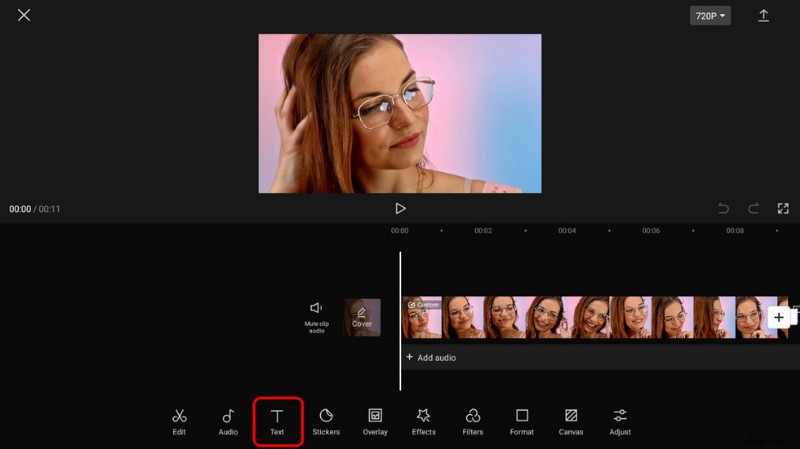
Hit Text Button in CapCut
Step 4. Add Text to Video in CapCut
From the text adding screen, hit the Add text button. Type in the desired text from the upper box, and define the font type from different countries.
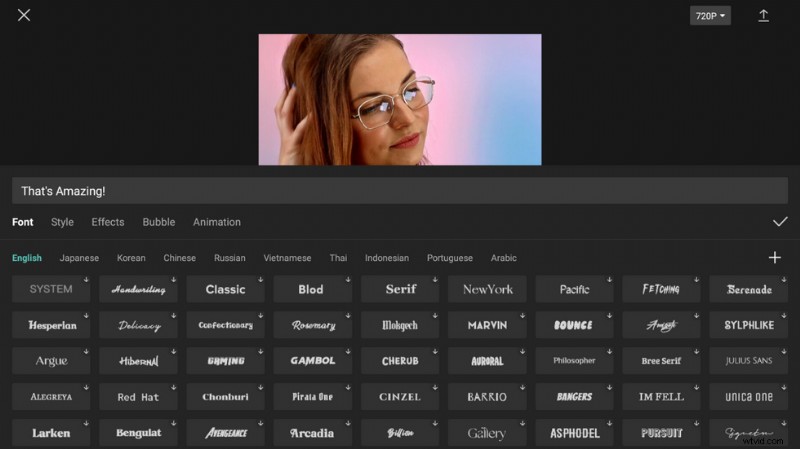
Add Customized Text in CapCut
Step 5. Animate the Added text
From where we are, go to the Animation category, and dozens of animation effects are available there. Select a preferred animation, and tap the checkmark to the right to add to the selected text.
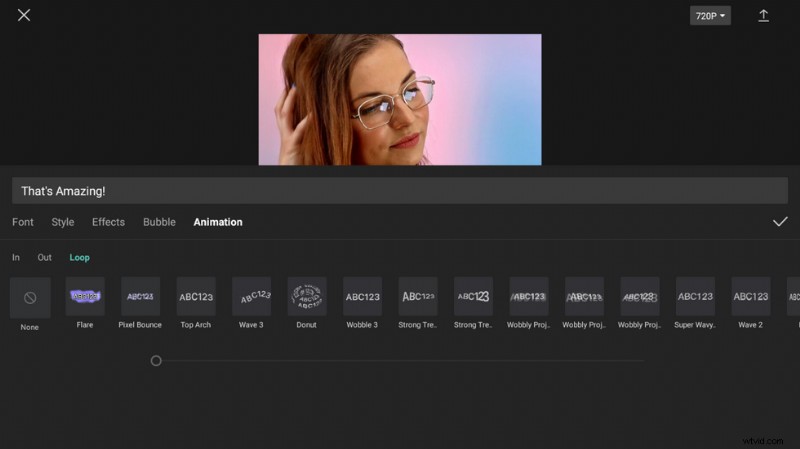
Animate Added Text in CapCut
Step 6. Customize Text Styles, Effects, and Bubbles
As you can see from the given categories, there are text Style, Effects, and Bubble for further customization, from the corresponding categories. And there are tons of fascinating options waiting for you to explore.
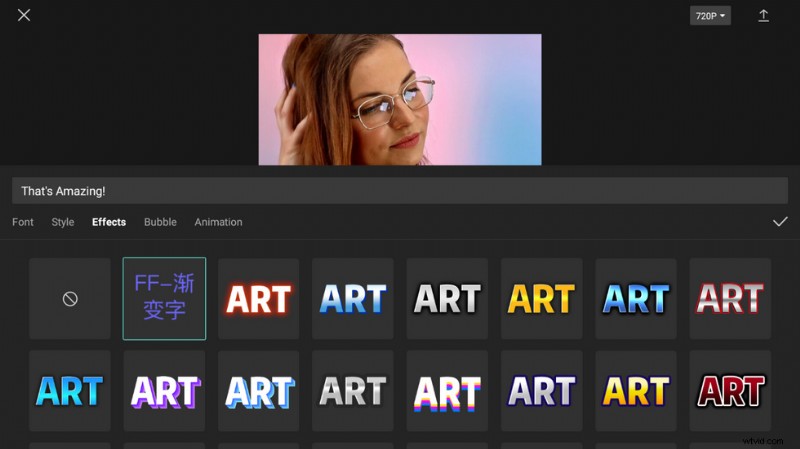
Customize CapCut Text Effects
Step 7. Adjust Text Duration and Position
Then it’s time to decide when and where the added text should display in your video, to do so, drag the handlebar from the start/end side of the text clip, to adjust the duration of the text. And from the top preview window you can adjust the text frame’s position and size
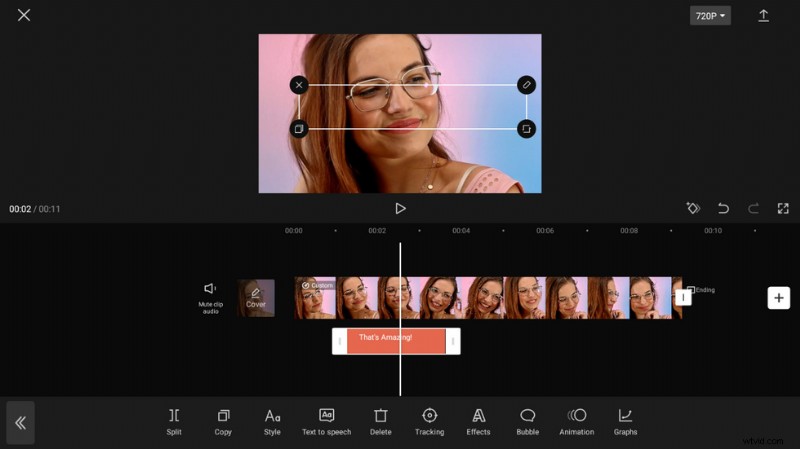
Adjust Text Duration in CapCut
How to Add Text Templates to Videos in CapCut
If you’re a video editing beginner who has no idea how to make the added text look better in your videos, you should always try CapCut text templates.
What is a CapCut text template? As with CapCut templates, CapCut text templates are ready-made text styles and animations, allowing you to add gorgeous-looking and customizable text to your videos by simply typing in the desired text.
Related Content: How to Download Templates in CapCut
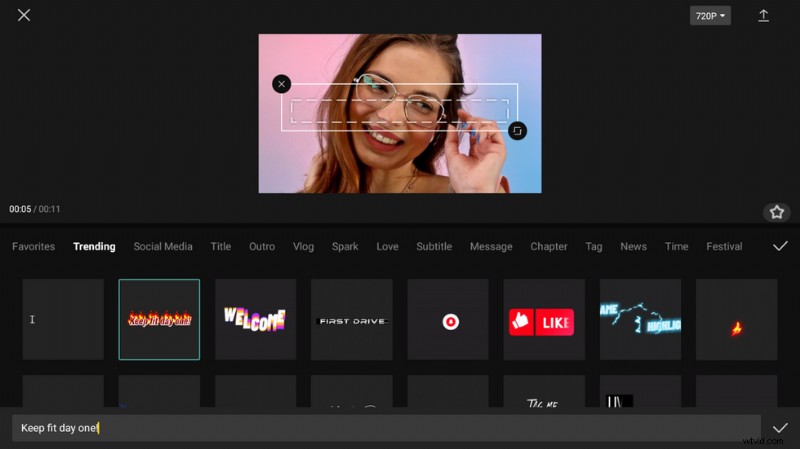
Use Text Templates in CapCut
Step 1. Create a project or open an existing one in CapCut
Step 2. Without any clip selected, hit the lower Text button
Step 3. From the Text menu, tap Text template
Step 4. There are dozens of text templates stored in different categories, browse for and select one that you prefer. Text templates from the trending category are highly recommended
Step 5. Once a text template is selected, the text box provided underneath is for you to input the desired text. When ready, hit the checkmark from the lower-right corner to add the text template to your video – with your favored text messages!
Oh, Have You Tried the Text Tracking Feature?
By the way, the text tracking feature is something you should not miss while adding text to videos in CapCut. The motion text auto-tracking makes it possible to track an object in your video and make your added text go with it!
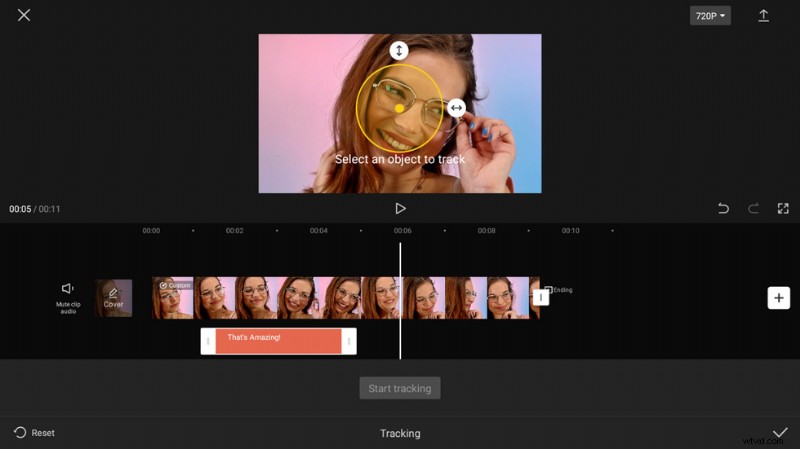
Text Tracking Feature in CapCut
To do text tracking in CapCut,
- Select the added text in the timeline
- Hit the Text tracking button from the lower panel
- From the upper preview window, drag to adjust the tracking oval and select the desired object
- Hit the Start tracking button from the lower side
Add Effects to Text Also
Under the text settings menu (the lower menubar when the added text is selected), you can hit the Effects button to browse for and add a variety of special effects to your added text in the video, including Font, Styles, Effects, Bubble, Animation, etc.
Change the Added Text to Speech
Have your tried narrating your videos using AI’s voice (like many TikTokers already do for a while)? The CapCut text-to-speech feature allows you to convert the added texts to audible speeches in CapCut, so you don’t have to speak yourself, CapCut will do it for you.
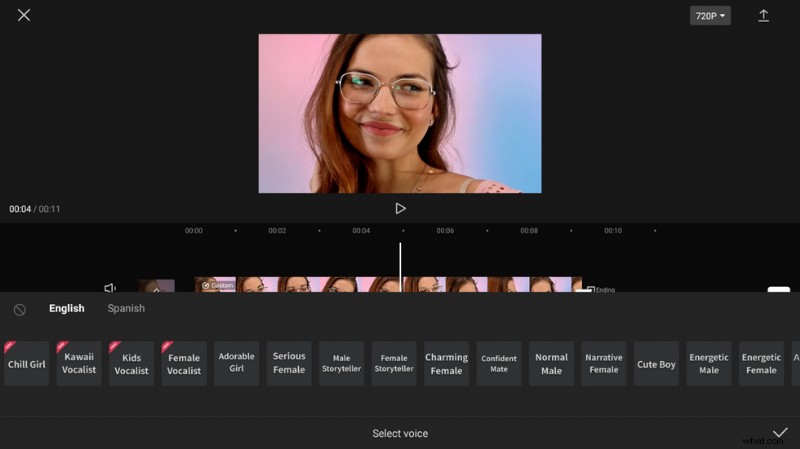
Convert Text to Speech in CapCut
To do text-to-speech in CapCut,
- Tap on the added text in the timeline
- Hit the Text to speech button from the lower panel
- Select your language from the given categories such as English and Spanish
- Select a favored voice from the given options, and hit the checkmark to the right
Add Auto Captions to Video
Things will be easier if you try to add captions of the speech in the video, instead of stand-alone words, phrases, or lines. The CapCut feature called auto-captions helps to generate captions of people speaking in your video automatically.
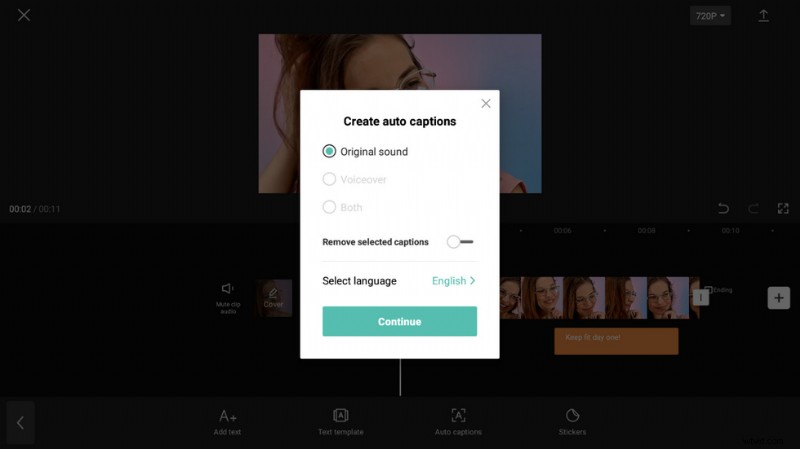
Add Automatic Captions in CapCut
To do auto-captions in CapCut,
- From the CapCut main workspace, with no clip being selected, hit the Text button from the lower panel
- Select Auto captions from the Text menu
- Hit the Add captions button from the pop-up dialog
- Select sound types from Original sound, voiceover, or Both
- Enable Remove selected captions if needed
- Select the language that people speak in the video and press Continue
- Then a message will appear from the top of CapCut UI saying that the automatic captions are generating
To Sum Up
Adding text to videos is well used in video editing and film productions, it’s quite easy, yet it doesn’t have to be simple. As the matter of fact, when using the robust video editing app CapCut, it’s possible to add text to videos in a way that no one has ever seen before.
I hope you have benefited from this guide, and please share your insights or questions with us in the comment section below!