
Make your next presentation, creative video, or demo video entertaining and easy to follow with text animation. In just a few minutes, choose from a wide range of unique font and text styles to make your videos stand out with Clipchamp's free online video editor.
Read on to learn how to create animated video titles, texts, and supers easily.
How to create animated video titles
How to create text animation GIFs with templates
Does text animation add value to your video?
How to create animated video titles
Let’s take a look at how to create animated video titles using our free video editor.
Step 1. Log in to Clipchamp
Log in to your Clipchamp account or sign up for free to start text animation.

Step 2. Create a new video
To create a new video, click on the purple Create a video button. The editor will automatically open. Rename your new video by clicking on the Untitled video bar at the top of the editor.
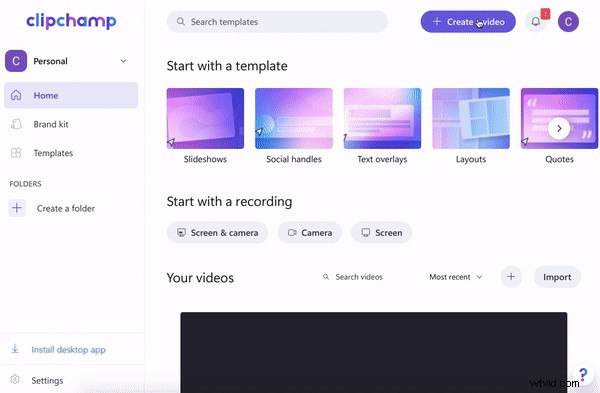
Step 3. Upload your video footage or select stock footage
To upload video footage, click on the + plus symbol on the left sidebar. A pull-out tab will appear. Upload a video from your computer, Dropbox, Google Drive, OneDrive, Zoom, Box, Google Photos, or smartphone device. You can also drag and drop your video file into the white pull-out tab. Your footage will appear under the Your media tab on the left sidebar.
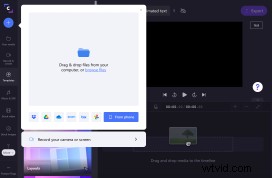
If you would like to use stock footage, click on the stock video or stock images tab on the left sidebar. Scroll through our categorized folders, or search for a keyword. Click on the green + symbol to add the stock footage to your timeline. Alternatively, click on the stock footage, then click the Add to my media button. Your stock footage will appear under the Your media tab. Drag and drop the video footage onto your timeline.
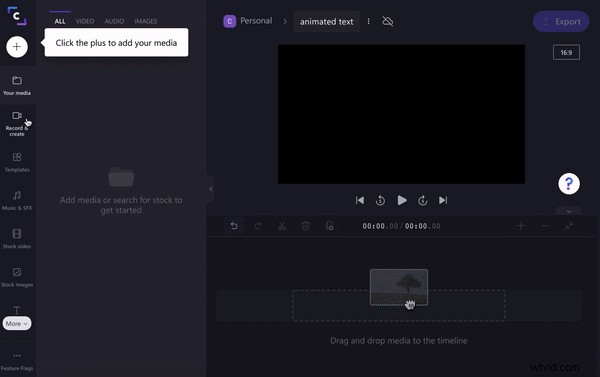
Step 4. Add text animation to your video
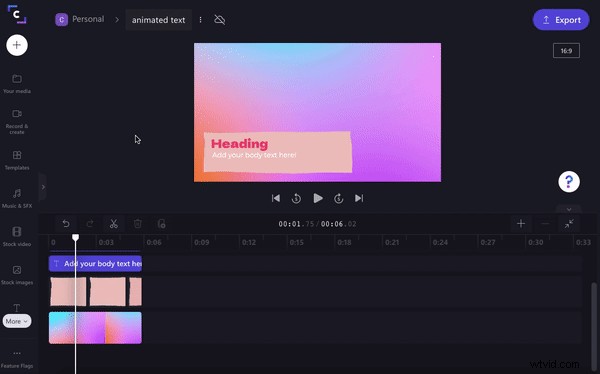
Click the Text tab on the left sidebar. Select a text animation preset that you can fully customize, like text typing animation, then drag and drop the text onto your timeline above the video clip. You can also click on the green + symbol to add the text animation directly to your timeline.
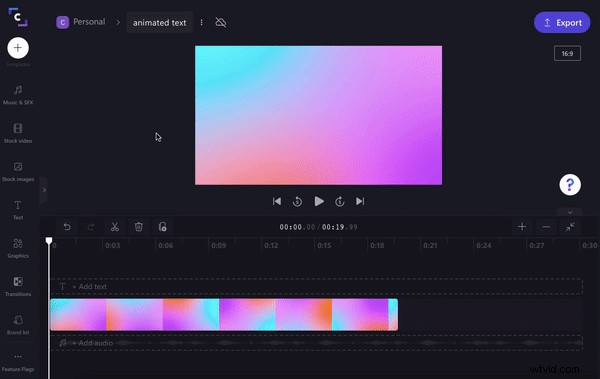
Customize your text animation by using the editing options located above the video preview. Select from edit text, transform, color, shadow, and adjust colors.
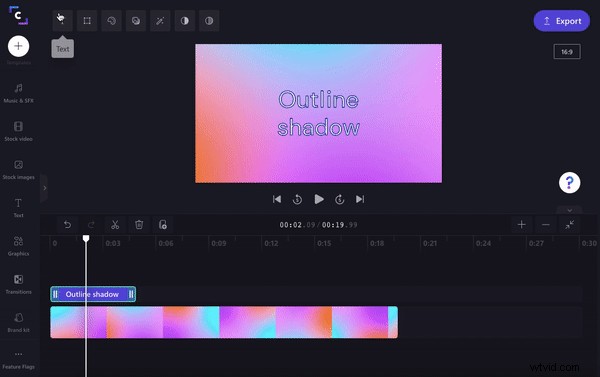
To turn your text into a text animation, select the Filters tab. Select a filter that best suits your video.
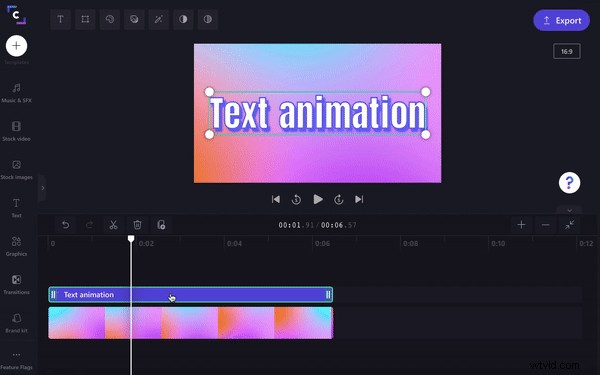
How to create text animation GIFs with templates
Text animation isn’t limited to only using filters. You can create text animation GIFs with emojis and much more using our ready-to-use text animation templates.
Step 1. Select a text animation template
Click on the Template tab on the left sidebar. Scroll down to the Text overlays folder. Click on the folder. Select a text animation to add to your timeline. You will have to create a new video or replace your current video by using a template. Click replate current video, then drag and drop your stock footage back onto the timeline.
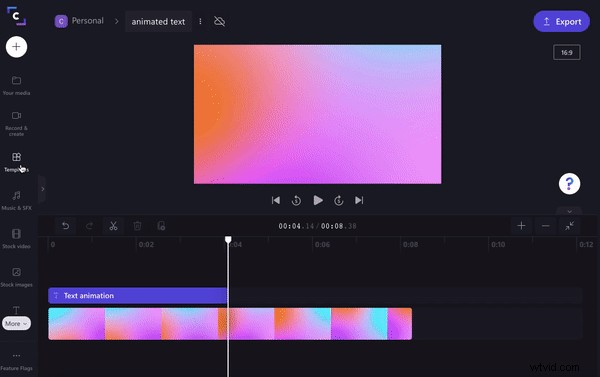
Step 2. Customize your text
Customize your text animation template. Click on the text box on your timeline. Customize the text animation by clicking on the Text tab. Transform your text, change its color, add a filter, adjust the color, and fade if desired.
Does text animation add value to your video?
Absolutely! Readable text animation is one of the easiest ways to take your video from good to great. Today, more users are watching your video with the sound turned off, so short captions, and text animation can increase your content's reach.
The fonts you use in your videos are important. They set the tone and help you communicate with the 50% of viewers who rely on video captions.
Capture the attention of scrolling users by adding text, and changing the font, animations, and text filters.
Create engaging videos with our free video title options
Keep your audience engaged for longer and stop them from scrolling forward with text animations.
No matter what industry you’re in, text animation can make your videos look professional. Ready to get started? Turn boring text captions into engaging text animations with Clipchamp’s free video title animation maker.