
We’ve all sent an emoji. Whether it’s via text message or through social media, emojis allow us to express our attitudes and feelings a little bit differently.
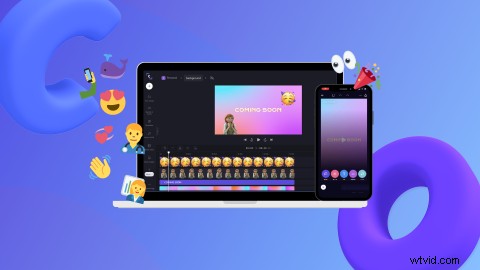
But emojis aren’t just for sending to your friends for fun. Users can now add emojis to videos! With thousands of emojis to choose from, add extra value to your video, replace someone’s head, or drop a location pin. All you have to do is drag and drop.
Read on to explore how you can add emojis to videos in just a few seconds with Clipchamp’s free online video editor.
Why add emojis to videos?
Emojis are light-hearted, fun, and convey a broad range of emotions that sometimes words cannot.

Emojis are essential to communicate emotion but are also up for interpretation. We associate emojis with text messages, but emojis have now taken over the video game as well. Just adding an emoji to your video can liven up the message being portrayed, add a pop of color, and blip of personality. The options are endless. Add as many, or as few emojis as you would like.
How to add emojis to videos
There are a few different ways to add emojis to your video with Clipchamp. First, let’s take a look at how to create a new video using your desktop.
Step 1. Log in to Clipchamp
Log in to your Clipchamp account, or sign up for free.

Step 2. Create a new video
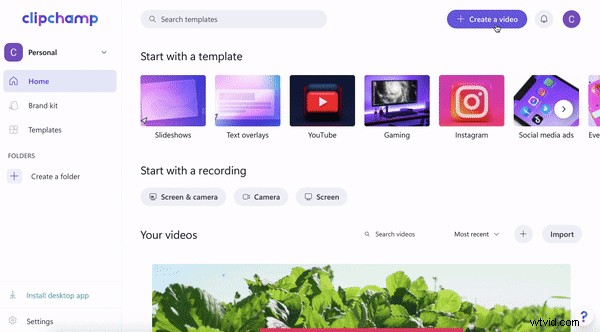
Once logged in, you will be taken to the editor homepage. Click on the + Create a video button at the top right corner of the editor homepage. The video editor will automatically open.
Step 3. Import a video or stock footage
To import your own video or footage, click on the + symbol on the left toolbar. A pull-out tab will appear. Upload a video from your computer, Dropbox, Google Drive, OneDrive, Zoom, Box, Google Photos, or smartphone device. You can also drag and drop your video file into the white pull-out tab.
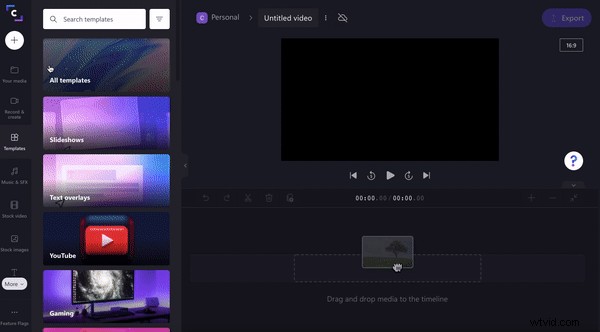
If you would like to use stock footage, click on the Stock video tab on the left toolbar. Scroll through the categorized folders, or search a keyword. Click the Add to my media button to add your chosen stock to Your media. Drag and drop the stock video onto your timeline. Alternatively, click on Add to timeline if you want to add footage directly to your timeline.
Step 4. Add text
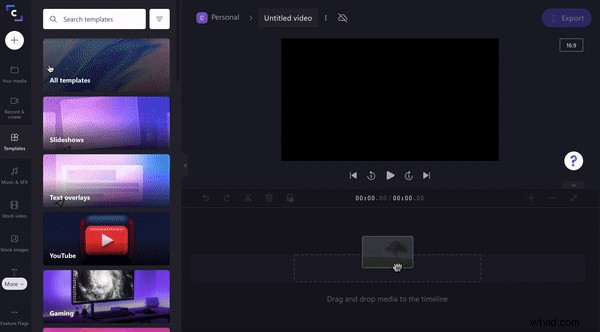
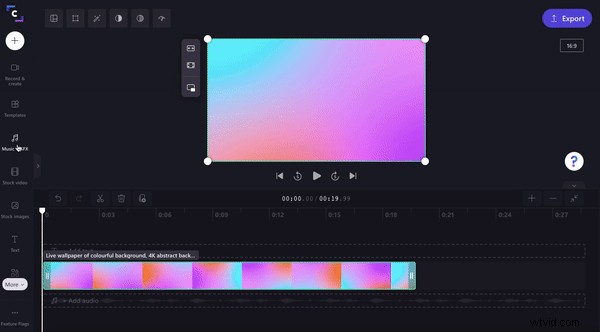
Click on the Text tab on the left toolbar. Drag and drop your selected text style onto the timeline above the stock footage. Edit the text using the editing options above the video preview.
It’s time to add emojis
Option 1. GIFs as stickers/emojis
Emojis don’t have to always be classic and still. Spice up your video with our free-to-use stickers. Just like emojis, GIF stickers add another layer of emotion, fun, and entertainment to your video. But these stickers include some movement.
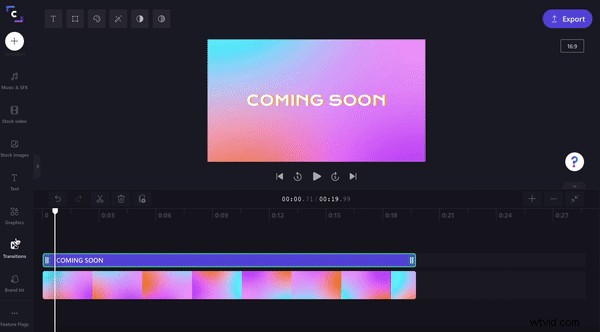
Click on the Graphics tab on the left toolbar. Click on the See more option under Stickers. Scroll or keyword search through our endless collection of stickers. Once you have found your desired sticker emoji, drag and drop the item onto your timeline. You can freely move the emoji around your video preview, and alter the size. You can add as many stickers to your video as you would like.
Option 2. Download classic emojis as images
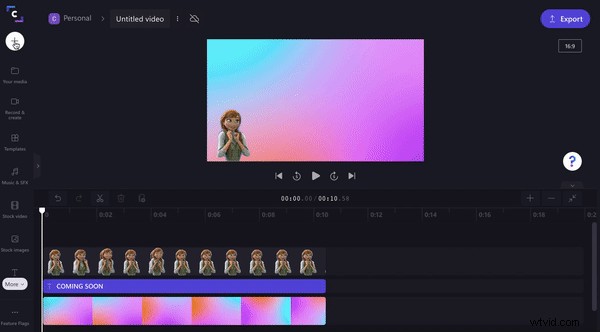
If you’re wanting a more classic approach, you can add emojis to your video via the image tab. All you have to do is download your favorite emojis (make sure they have a transparent background) as a PNG file, then add them to your video as an image. You can also use stock images if you desire.
To import your own emoji, click on the + symbol on the left toolbar. A pull-out tab will appear. Upload a PNG file from your computer, Dropbox, Google Drive, OneDrive, Zoom, Box, Google Photos, or smartphone device. You can also drag and drop your PNG file into the white pull-out tab. Next, drag and drop your emoji onto the timeline. You can freely move the emoji around your video preview, and alter the size. You can add as many emojis to your video as you would like.
Option 3. Use the Clipchamp iOS app
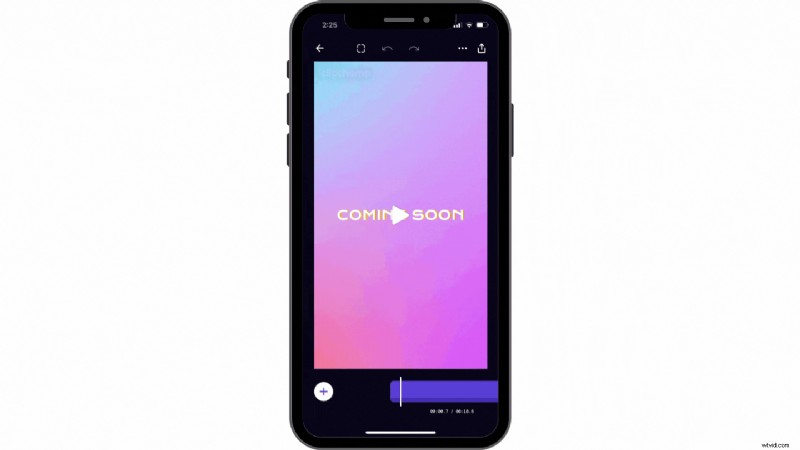
If you would like to use the emojis on your smartphone, create your video using the Clipchamp iOS app. Here, you can add any existing emoji from your smartphone keyboard to your video.
Once you have created a new video, tap on the + symbol at the bottom of the screen. 5 different editing options will appear. Tap on the text option. Select the emoji of your choice from your keyboard. Tap on the emoji and enlarge it by pinching two fingers. Move the emoji freely around the screen by dragging and dropping.
Liven up your videos with emojis
Whether you’re adding some excitement, humor, filling the blank spaces, or censoring someone’s face, emojis are easy to use, and fun to work with.
In just a few clicks, create iconic videos today with Clipchamp’s free online video editor.