
Watermarking your video is an effective way to protect your copyright. It will also give you a chance to show your creativity to the whole world. Your video will also look more professional with watermark. This article will teach you how to make an image watermark and a text watermark in Vegas Pro with great ease.
There are some limitations of Sony (Magix) Vegas Pro such as high cost and supports windows only. You do not need to worry as Wondershare Filmora is able to overcome these limitations. This video editing software is compatible with both Windows and Mac operating systems. If you are new to video editing world then Wondershare Filmora is an ideal choice for you due to its easy-to-use interface. Thus beginners should try it by downloading the free version. You can get it done by following the below link.
How you can add a watermark to video in Sony Vegas Pro
- Section 1: Picture Watermark
- Section 2: Text Watermark
Section 1: Picture watermark
The steps for making photo watermark in Vegas Pro are:
1. Preparing photo:
The first thing that you have to do is selection of a logo or picture having a transparent background. After selecting it, choose the video to which you want to add watermark. If you do not possess a transparent background photo then Chroma keyer feature in Sony Vegas can solve this problem. It will work only if the background is of single color and that color should also be different from color of your photo.
See how to use chroma key in Sony Vegas Pro.
2. Importing media files
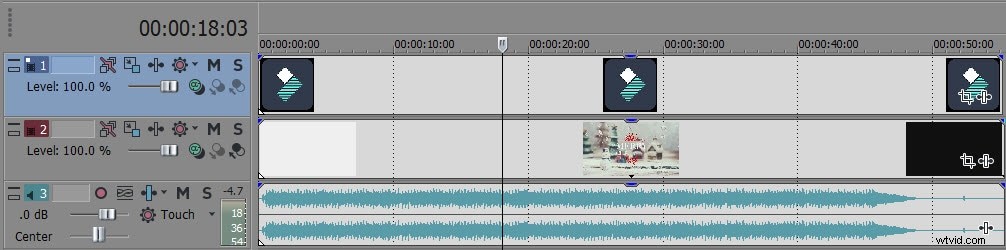
Now you have to import video and picture into Vegas Pro. After this, drag the picture and video to track 1 and track 2 respectively on timeline. Once you are done with it, your picture will be appeared on video. It would be better if you will drag your picture according to the length of your video as it will be there for the entire video.
3. Resizing and adjusting the watermark
If position of your photo is at the center of video and photo size is too big then you can resize the watermark by the following steps.
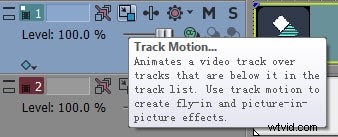
- Tap on Track Motion option which is present at the track information header of the photo clip.
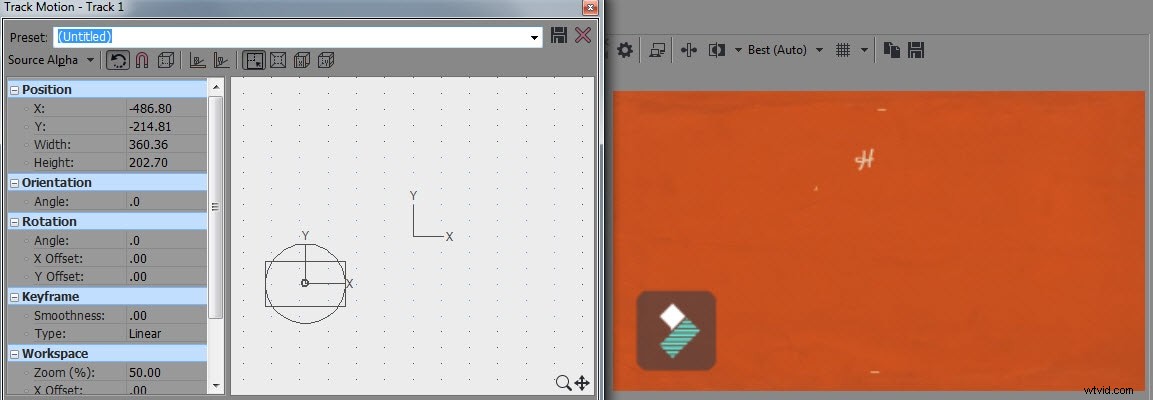
- After that, adjust the size of watermark by shrinking the rectangle and then dragging it to the lower or upper location over the video clip. There will also be a preview window where you can observe the effect created.
4. Changing the opacity
If you will reduce opacity then people will be able to see rest of the video. The opacity can be decreased by going to the watermark in the first timeline panel. Here the level of opacity will be 100 percent so drag it left to change it.
Section 2: Text watermark
The text watermark can also be added to video if you are not having an image logo by the steps given below.
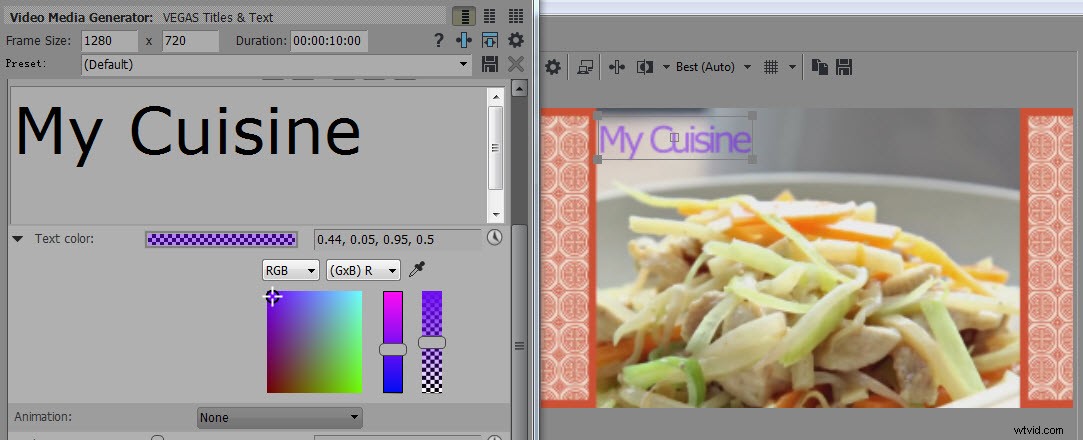
- Go to Media Generators and click on Title and Text
- Now choose default text and write your desired slogan
- After this, adjust color and change the position as per your need
- Decrease opacity
There are two ways for reducing opacity:
1. At the end of text track, tap on Generated Media option and then go to text color. Now drag the handle to the right side for changing opacity.
2. Another way is dragging the “Level” handle in head of the text track in a similar manner as that of photo watermark.