
The article below contains complete information about how to record voice or audio directly using Sony Vegas Pro (Magix Vegas Pro) platform. One interesting feature of this advanced software tool allows users to record voice over timeline without making additional efforts. This facility appears too good to all those users who love to add their own voice or like to commentate in between video clips.
Related article: How to edit audio in Vegas Pro>>
There is no doubt to say that Vegas Pro can provide you so many quality features but there are two major troubles to use this software tool: first is the high cost as you need to pay $599 to get this tool on your device and secondly it works only on windows environment as it is not compatible with Mac. So, people who are searching for a Mac compatible free software tool for video editing can go for Wondershare Filmora as it contains all desired features with advanced editing tools. You can download free trial version of wondershare Filmora from its official website.
How to record voice over in Sony Vegas Pro:
This task can be completed with the help of following easy to follow steps:
Step 1: Import media files:
First of all you need to open your software on your Windows environment and then drag your desired video file to timeline.
Step 2: Mute the Audio or Voice for Video:
If you are thinking to add your own voice to any already created video file by removing its already existing voice then it is much easier to do. Simply mute the existing audio. It can be done by hitting M or Mute button available on software window on top left side.

Step 3: Add Voice:
Now you can add your voice or any other audio track on muted video. For this you need to click on header of the track and then choose Insert Audio track option from drop down menu. In order to access this feature from shortcut, you can use Ctrl+Q from keyboard.
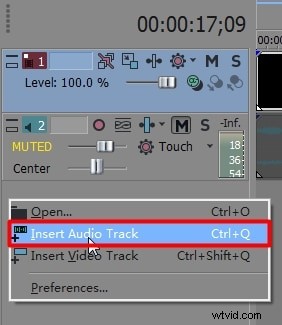
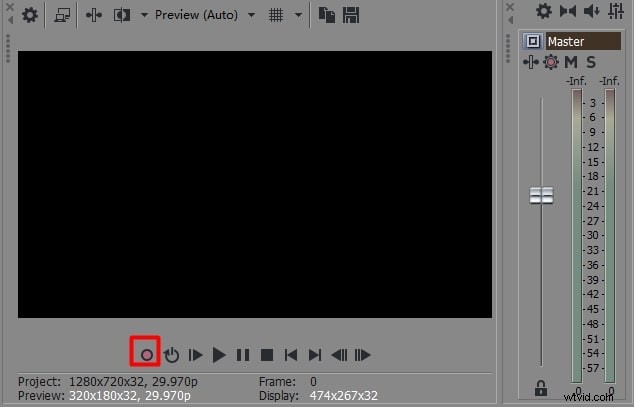
As soon as you start with above editing, an audio track will start appearing under your original video file. Place your handle on that specific portion of video from where you wish to start externally added audio track or if it is required from beginning then place your handle at beginning of video file. Select the Record button that is available below preview window on your software screen.
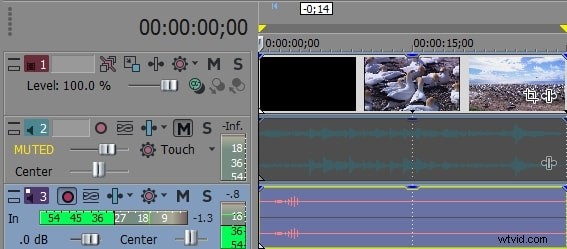
It will immediately start recording and few waves as well as green slides will start showing status of audio file being added to video.
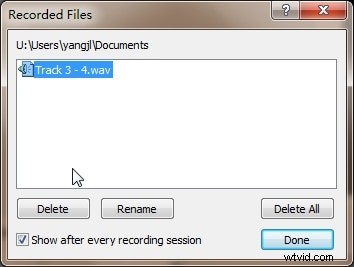
If you wish to stop recording temporally then use Pause button and software will help you to save your video file to desired location. When you wish to restart your recording process again then use Record button again.
Step 4: Save Project:
Once your editing task is over then hit save option and your project will be now available for direct upload on to social media websites.