
Want to add an audio explanation to your tutorial video? Then don’t miss this post. Here we are going to detail 3 excellent voice over apps, including one online website, and show you how to add voiceover to video quickly. If you just need to add audio to video, try MiniTool MovieMaker.
Have you ever thought about adding your own voice to a video or add a voiceover file to video? You can do this as long as you use the voice over apps recommended in this post.
Corel VideoStudio
The best voice over software for Windows is Corel VideoStudio, which is an all-in-one video editing software package that can help you easily complete various editing tasks.
This powerful video editing software has a clear and intuitive interface, and it allows you to import and export videos in various formats. Now, let’s learn about how to add voiceover to your video with VideoStudio.
Step 1. Download, install and run VideoStudio on your Windows.
Step 2. Under the Edit tab, click Import Media Files to upload the video file you’d like to add voiceover to.
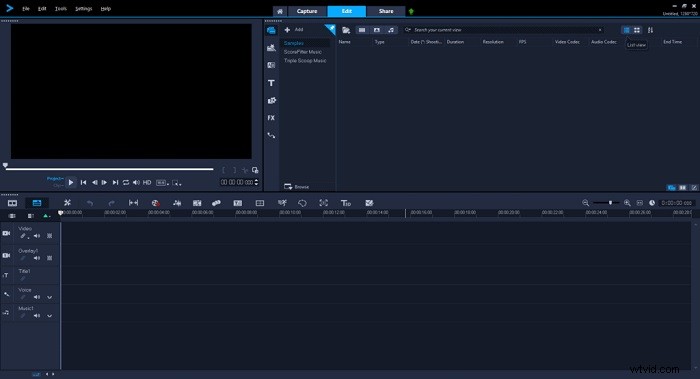
Step 3. Drag and drop the video onto the timeline.
Step 4. Highlight the video clip on the timeline, click the Record/Capture icon, and then select Voice-over.
Step 5. It will automatically recognize your microphone on your computer.
Step 6. Click Start to record your audio.
Step 7. Press ESC or the spacebar to stop your recording.
iMovie
iMovie is the most popular video editing software on the Mac, which has a simple drag-and-drop function and supports multiple video formats. Undoubtedly, this is the best voice over app for Mac users.
With iMovie, you can browse video clips, create Hollywood-style trailers, and even process 4K videos to get amazing movie-quality videos. You can also directly record a voiceover for your video.
Step 1. Launch iMovie on your Mac.
Step 2. Click +New to select the Movie option.
Step 3. Name the new movie and click OK to confirm.
Step 4. Use the LIBRARIES list to import the video that you want to add voiceover.
Step 5. Go to Windows > Record Voiceover.
Step 6. Click the microphone icon to start recording a voiceover for your video.
Step 7. When finished, click the microphone icon to stop.
Related article: How to Remove Audio Track from MKV for Free – Solved
Clipchamp
Clipchamp is an online video editor that provides you with various video templates and a huge library of music, videos, graphics, filters, and transitions, etc.
Recently, the video editor has added an AI voice over generator that lets you turn text into speech, making it easy to add voiceover to video. However, Clipchamp only supports video files in MP4, WebM, and MOV formats.
Step 1. Visit Clipchamp on your browser and log in to your account.
Step 2. Click Tools to select Video Editor.
Step 3. Tap on + Create a Video in the upper right corner.
Step 4. Click the + icon to add your video file to the site and then drag it onto the timeline.
Step 5. Select Record & create, followed by Create text to speech.
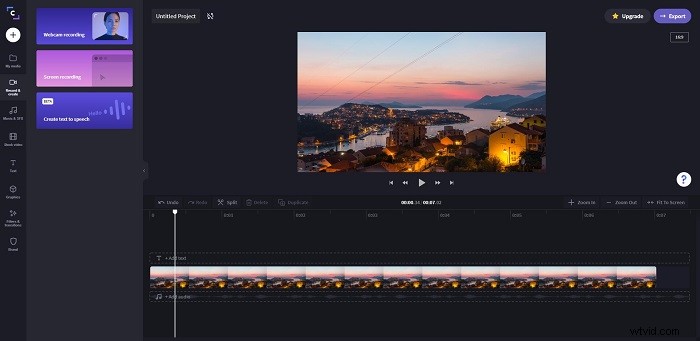
Step 6. Choose an AI voice over style from the given 6 options.
Step 7. Enter your voiceover text into the text field and click the Generate preview button.
Step 8. Listen to the voiceover it created. If you’re satisfied with the result, click Add to media library.
Step 9. Then drag the voiceover onto the timeline.
Bottom Line
Have you mastered how to add voiceover to video using the above 3 tools? If you have any questions or suggestions about it, please contact us via admin@wtvid.com or share them in the comments section below.