
With over 80% of social media videos being watched on mute, one thing is clear — adding video captions is no longer optional. It’s a necessity. That’s why you’re seeing more and more professional editing software and video captioning services that are designed to add English video captions. But what about if you want to add video captions in Spanish?
If your videos are geared towards a Spanish audience, then you obviously want your video captions to be in Spanish. Unfortunately, once you start trying to find a software or service that includes the capability for Spanish captions, your options become very limited.
That’s why we’ve designed Zubtitle to support 60+ spoken languages for automated video caption generation. So if you want to add video captions in Spanish (or any of our other supported languages), check out the walkthrough below.
How to Add Video Captions in Spanish
1. Upload Your Video
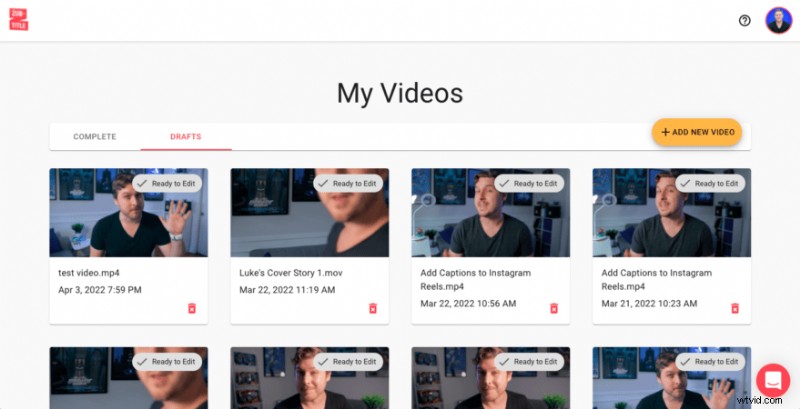
First things first: you’ll need to start by creating a Zubtitle account (or logging into your existing one). Once you’re in, you can upload a video by clicking the yellow “Add New Video” button on the right-hand side of the screen.
2. Change Your Language Settings to Spanish
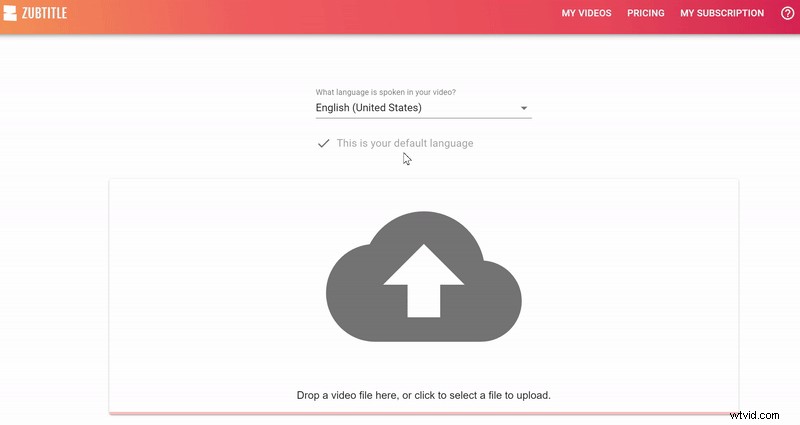
As soon as you upload your video, you’ll be given the option to change your language preference. All Zubtitle accounts offer multi-language support. Plus, we make it easy to customize your experience. You can choose to either switch your preferred language every time you upload a new video (which is ideal if you want to switch back and forth between languages from video to video) or set Spanish to be your default setting for every video (ideal if you’ll want Spanish video captions in pretty much every video you create). To set Spanish as your default setting, simply check the box next to the “Set as my default language” option.
3. Edit Your Video Captions
While our state-of-the-art video caption software may seem like magic, it’s not infallible. So after Zubtitle automatically transcribes the speech in your video and converts it to timed captions, you’ll want to do a quick read-through and make sure everything looks just right.
4. Style Your Video Captions
You’re almost there! Your last step is styling your captions and your video. You’re welcome to customize everything by choosing the font and colors for your captions, adjusting the background color, adding a logo & progress bar, manually resizing, etc. Or you can style your entire video with one click by selecting a pre-made template (you’ll find them in the Templates menu). Now you’re ready to download your new video — complete with video captions in Spanish and ready to share on social media.
Do you want to add video captions in Spanish?
Sign up for a free account and start creating today!