
In late 2017, LinkedIn joined the social video movement by adding native video uploads. Shortly after, they added the ability to upload videos to LinkedIn from the web interface, making it even easier to get video marketing content on LinkedIn. Marketers have since used videos on LinkedIn with great effectiveness, as the social media platform has become the go-to place to view business-related video content. But if you're putting videos on LinkedIn, then you've probably wondered... should I add captions to LinkedIn videos?
The answer is simple: YES! Why? See, here's the deal with LinkedIn. Videos on LinkedIn start playing automatically in the feed and viewers must watch for at least 3 seconds for it to count as a view. User settings determine whether videos are auto-played in the feed or not. However, LinkedIn videos are always auto-played on mute.
So we know your video will always be on mute when it starts to auto-play on someone's feed. But there's also a very good chance that your followers will continue to watch it silently - after all, statistics show that 80% of social videos are watched on mute. That means a HUGE portion of your audience could miss out on your video. And that's why it's so important to add captions to LinkedIn videos.
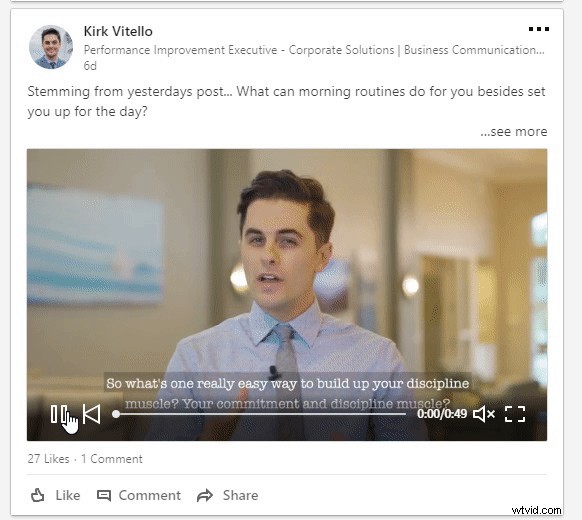
Here at Zubtitle, we're on a mission to make it easy to add captions to any video, helping you increase the reach & engagement of your videos. With our state-of-the-art software, you can get your video ready for social media in just a few minutes. We've worked hard to make Zubtitle a one-stop-shop for video editors where you can add timed captions with one click, trim & resize your video, add a headline & progress bar, include your logo, and fully brand your video... all with one tool.
How to Add Captions to LinkedIn Videos
1. Create a Zubtitle account and upload your video
Our free plan allows you to sign up for an account with Zubtitle and create two videos per month. Simply upload your video file into Zubtitle by clicking on the yellow Add New Video button in the upper right-hand corner.
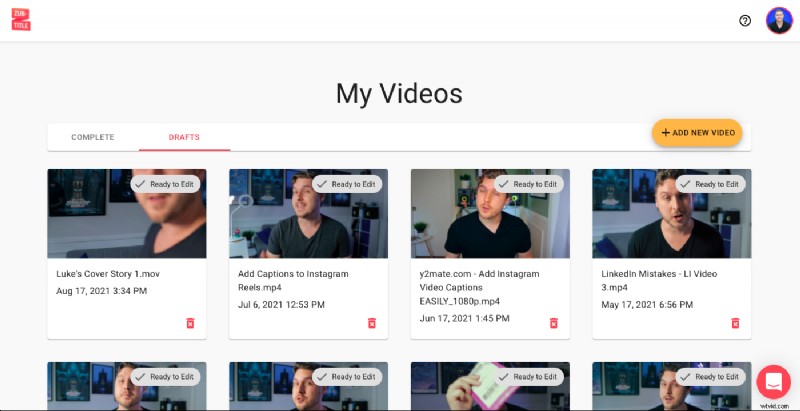
Zubtitle automatically transcribes the audio from your file and generates timed captions. It’s not magic, but it’s close 😆
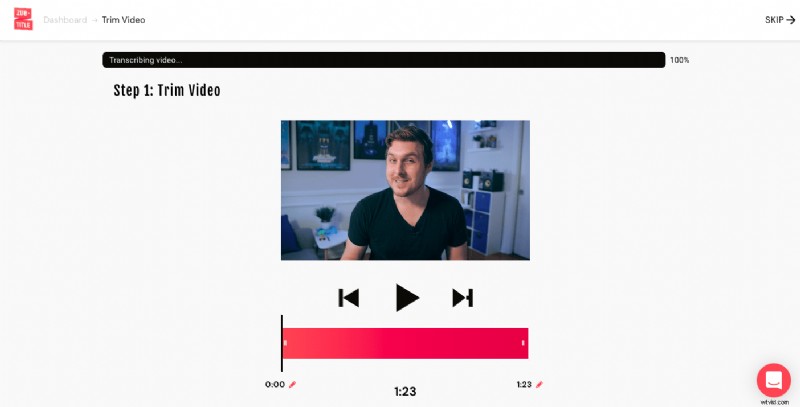
2. Trim your video
Simply click on the caption styles on the right panel to change the font & background on the caption As soon as you upload, you’ll have the option to trim your video’s length. Just use the sliding bar and click the Start Editing button when you’re done. You can also choose to skip the trimming step altogether.
3. Edit your captions
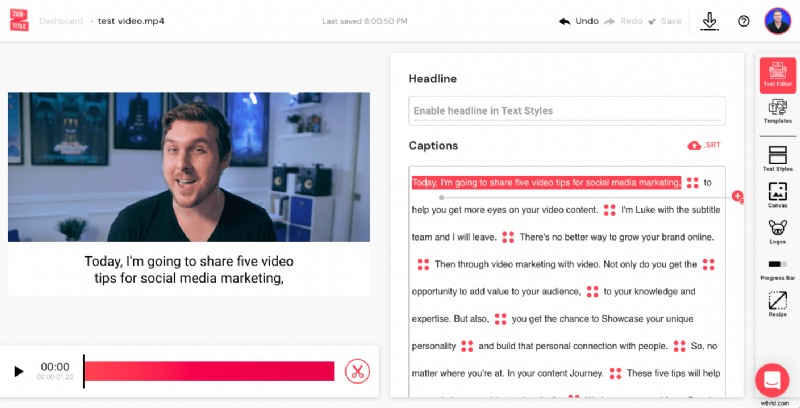
Speech-to-text technology isn’t 100% accurate. So it’s always a good idea to double-check your subtitles to make sure everything looks perfect. You can easily edit grammar or spelling, as well as adjust the timing of the captions, by using the simple point and click text editor. This is also the section where you can add a headline.
4. Style your video
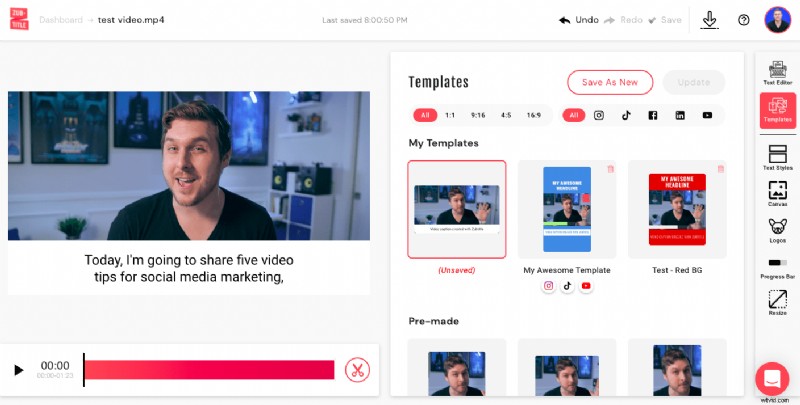
You can use our Templates feature to quickly style your video by selecting a pre-made template from the Default list (there are multiple styles and sizing).
Or you can fully customize and brand your video by going down the side menu and selecting every feature yourself. You can add a headline, change text and background colors, upload your own custom fonts, fine-tune positioning, add a logo or progress bar, and more.
Remember that if you decide to customize your own video styling instead of choosing a pre-made template, you can save all of that styling as your own custom template so it will be all ready to go for your next video!
5. Download your new video
Just select the download button in the upper-right hand corner to render your new video and download it to your computer or device.
6. Upload your new captioned video to LinkedIn
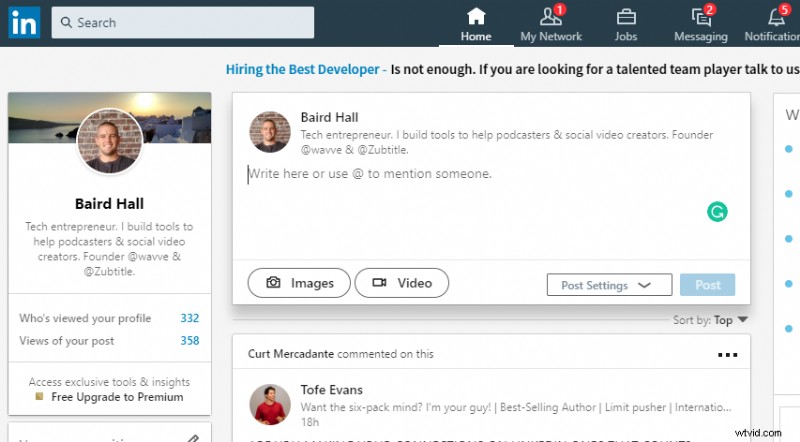
From the home page of your LinkedIn Account (from the web or mobile interface), you can upload your video directly into a new post. Just select your newly optimized LinkedIn video and click Post!
Are you ready to add captions to LinkedIn videos?
Sign up for a free Zubtitle account today to get started! With our free plan, you can create two videos per month. To create up to 10 videos per month (and remove the Zubtitle watermark), check out our standard plan.