
Much like Instagram Stories (and Facebook Stories and Twitter Fleets), LinkedIn Stories is the feature on LinkedIn that allows users to share more casual, laid-back content that disappears after 24 hours. Just like those other similar features, LinkedIn Stories enables you to share photos or video clips.
You may have some video content in mind that you want to share on LinkedIn Stories. Of course, just like other platforms, including captions is always a good idea when you’re sharing a video on social media (after all, 80% of social videos are watched on mute). Want to learn how to quickly and easily add captions to LinkedIn Stories? We’ve got a solution!
How to Add Captions to LinkedIn Stories
Zubtitle’s state-of-the-art software makes it quick and easy to add captions to LinkedIn Stories (and any other social media videos). Just follow these steps:
1. Upload Your Video
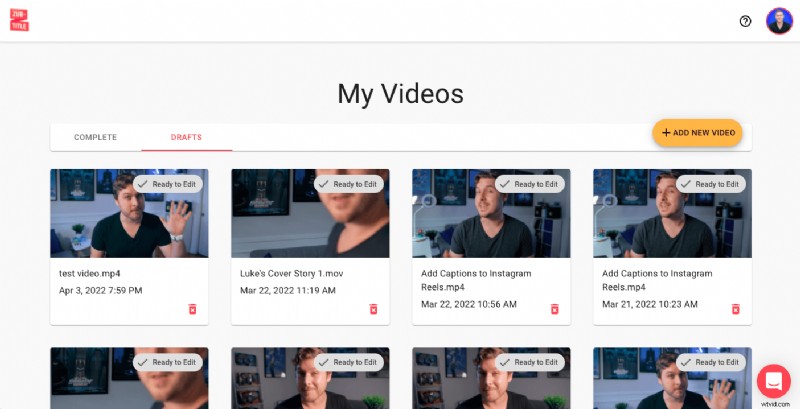
Once you’ve created your Zubtitle account (or logged into an existing one), you can upload your video by clicking the yellow “Add New Video” button on the right-hand side of your screen.
2. Edit Your Captions
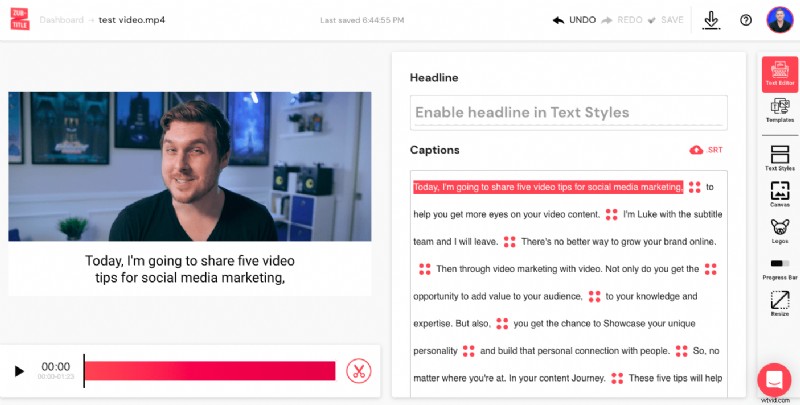
After uploading your video, Zubtitle will do all of the heavy lifting. In just a couple of minutes, your video’s speech will be automatically transcribed and converted into timed captions.
Once your captions are ready, all you have to do scan through the captions and make sure everything looks good. After all, our software may seem like magic but it’s not infallible. You can edit any spelling/grammar or adjust the caption timing simply by pointing and clicking directly in the editor.
3. Style Your Captions
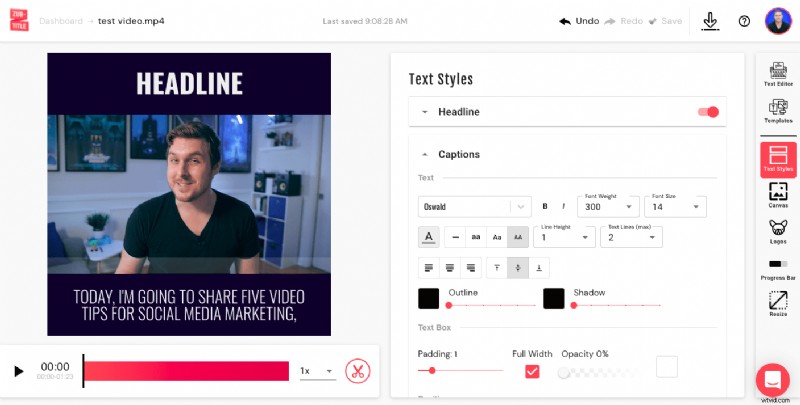
Now it’s time for the fun stuff! All that’s left is for you to decide how you want your subtitles to look. When you select the Text Styles menu, you’ll be able to choose a font (or upload a custom font), change the font size/color, adjust the text box, and more. You can also fine-tune the positioning of your subtitles.
After selecting all of your styling options, you’re all set to download your new video with captions and share it to LinkedIn Stories!
Do you want to add captions to LinkedIn Stories?
Sign up for a free Zubtitle account and start creating today!