
Now, Zoom live transcript feature is available for all free users. How to turn on closed captioning on Zoom? How to add captions to Zoom? How to disable au-to generated captions on Zoom? Read this post to get the answers.
How to Enable Closed Captioning on Zoom
Zoom can create auto-generated captions for your meetings and webinars. How to put captions on Zoom? Before that, you need to turn on Zoom closed captioning. (Try MiniTool MovieMaker to edit your Zoom recordings.)
Here’s a step-by-step guide:
Step 1. Go to the Zoom website and sign in to your Zoom account.
Step 2. Under ‘PERSONAL’, click on Settings.
Step 3. Under ‘Meeting’, click on In Meeting (Advanced) to adjust the advanced settings.
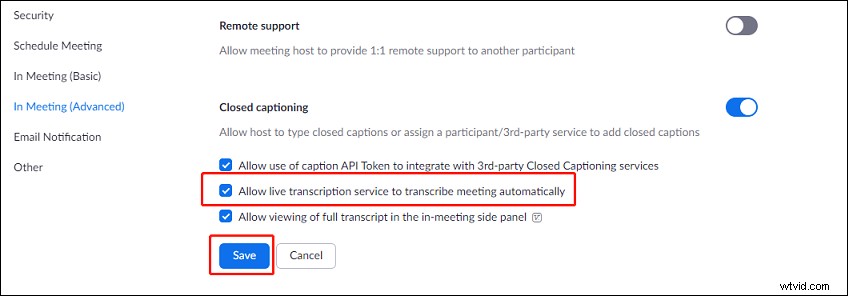
Step 4. Scroll down to Closed captioning and toggle it on. In the Enable Closed captioning window, confirm by clicking Enable.
Step 5. Check the option Allow live transcription service to transcribe meeting automatically. Click Save.
How to Add Captions to Zoom
After turning on closed captioning on Zoom, let’s see how to add captions to Zoom meetings.
Step 1. Join or host a Zoom meeting.
Step 2. Click the More button and select Live Transcript.
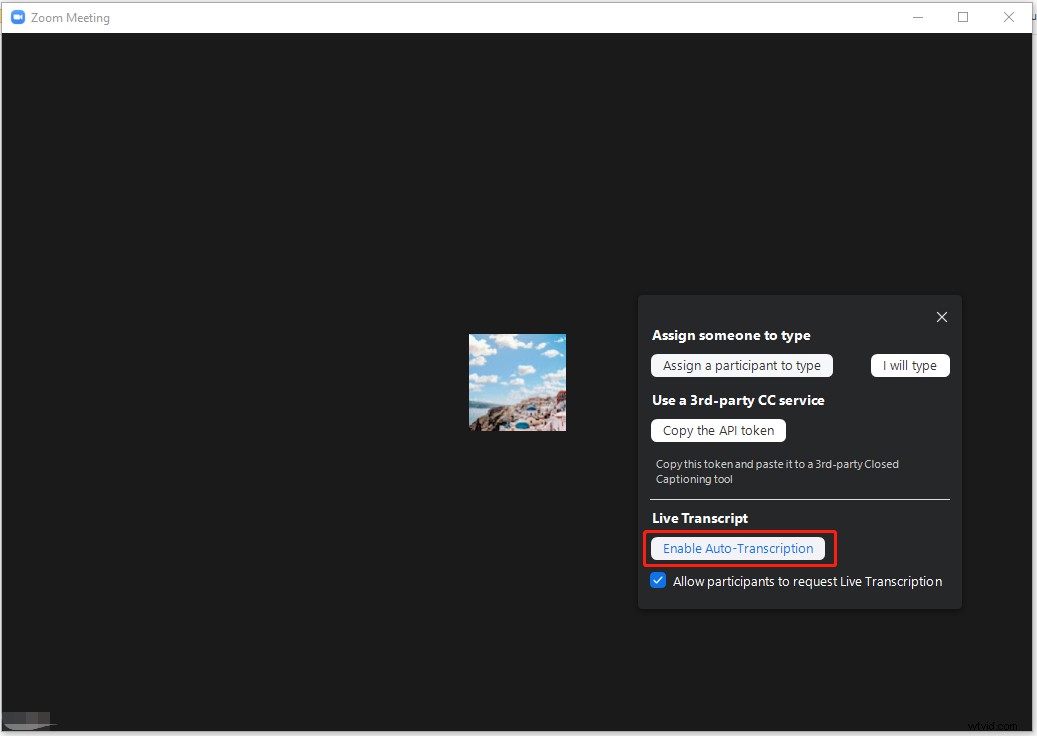
Step 3. A pop-up window appears, click Enable Auto-Transcription under ‘Live Transcript’.
Alternatively, you can type closed captions for the meeting or assign a participant to type or use a third-party CC service.
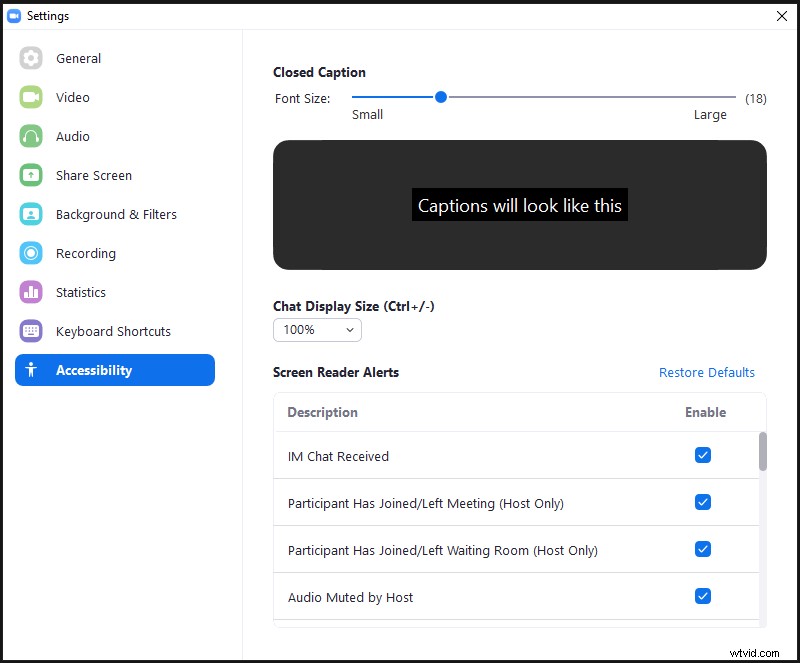
Step 4. Afterward, you can change the font size of the subtitles. Click the More button and open Subtitle Settings. Use the slider to change the font size of the Zoom captions.
Step 5. If you want to display the full transcript, choose More > View Full Transcript.
How to save Zoom live transcript
Take the following steps to download the full meeting transcript.
Step 1. Before starting a meeting, go to Settings.
Step 2. Choose In Meeting (Advanced) and enable the Save Captions under Closed captioning.
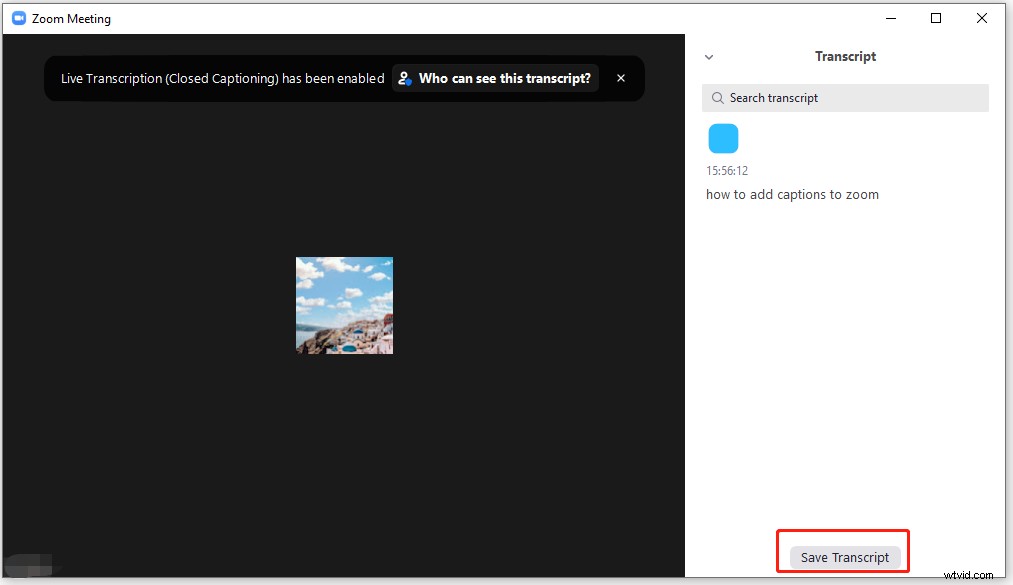
Step 3. During the meeting, click More and choose View Full Transcript from the drop-down menu.
Step 4. In the Transcript window, the Save Transcript button will appear at the bottom. Click on Save Transcript to download the transcript from Zoom.
Step 5. After that, you can check the transcript by clicking Show in Folder.
How to Turn off Live Transcript on Zoom
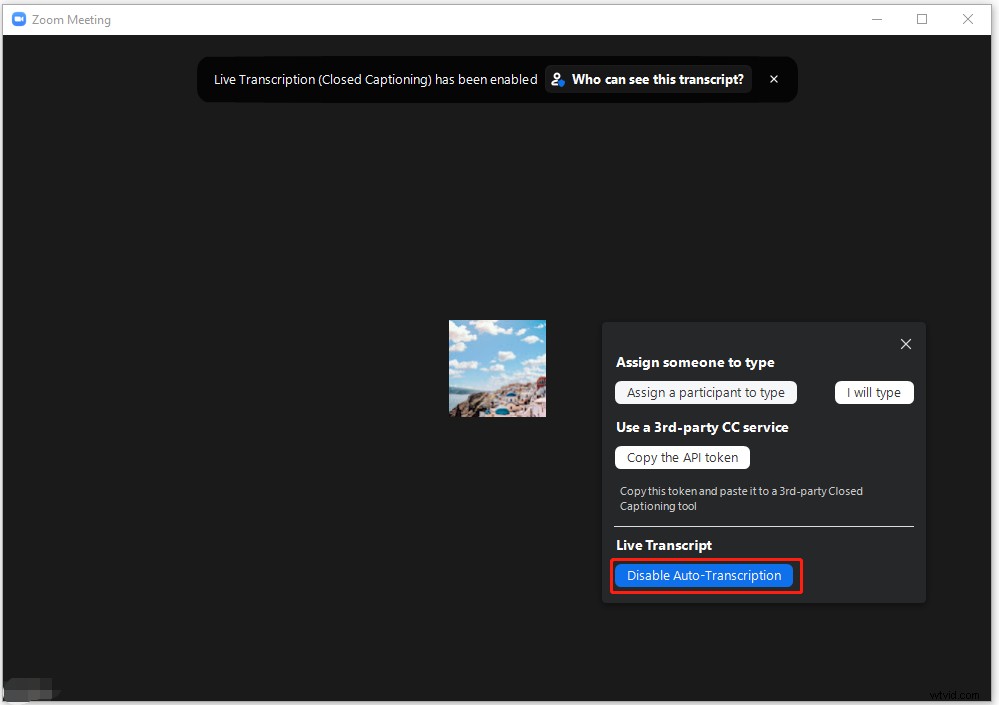
Here’s how to disable auto-generated captions on Zoom.
Step 1. Click the More button in the Zoom meeting.
Step 2. From the drop-down menu, select the option Live Transcript. Then click Disable Auto-Transcription to turn off the live transcript.
Wondering how to record a Zoom meeting? Check out this post: Top 10 Free Zoom Recorders to Record Zoom Meeting.
Conclusion
Have you learned how to put captions on Zoom? If you want to add captions to Zoom recordings, you can use MiniTool MovieMaker, a watermark-free video editor for Windows.