
There’s always something new happening in the social media world. And one of the most recent updates came from Twitter when they launched their new feature… Fleets. Much like Instagram Stories, Fleets are only available for 24 hours and are intended to give users a less-permanent way to share fleeting or casual thoughts.
Of course, if you’re sharing video content to Twitter Fleets (which you definitely should), you’ll want to add video captions for the same reasons that you add captions to all social media videos.
But how can you add video captions to Twitter Fleets without spending a ton of time, effort, or money? Here’s a secret: you just need the right tool! And that tool is Zubtitle.
How to Add Video Captions to Twitter Fleets
Zubtitle’s state-of-the-art software makes it quick and easy to add video captions to Twitter Fleets (and any other social media video content). Just follow these steps:
1. Upload Your Video
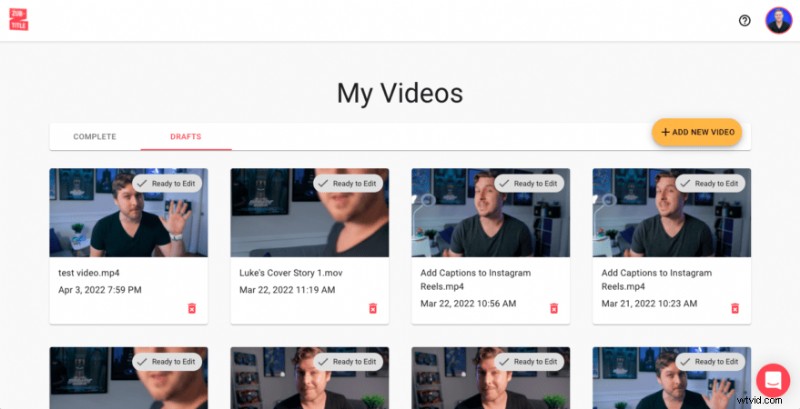
First, you’ll want to log into your existing Zubtitle account (or create a new one). Once you’re in, you can upload your video by clicking the yellow “Add New Video” button on the right-hand side of the screen.
2. Edit Your Video Captions
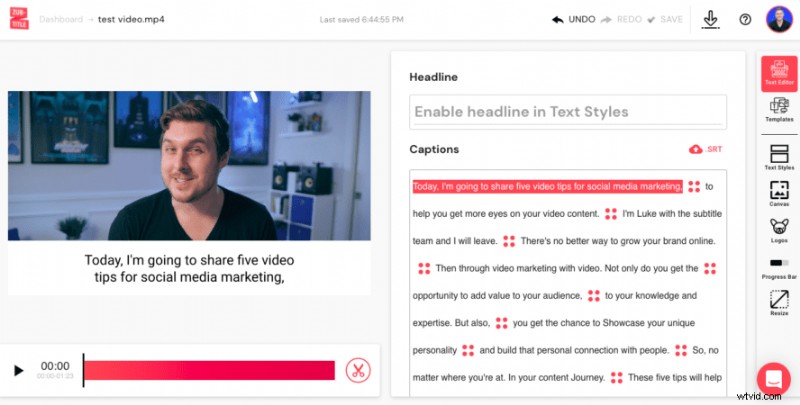
After you’ve uploaded your video, Zubtitle will take care of the hard part. The speech in your video will be automatically transcribed by our software in just a couple of minutes and converted into timed captions.
Even though this may seem like magic, the tool still needs a little editorial help from you. Be sure to scan through all of the captions and make sure everything looks exactly right. You’re welcome to make any spelling/grammar changes or adjust the caption timing to your heart’s content. Just point and click directly in the editor.
3. Style Your Video Captions
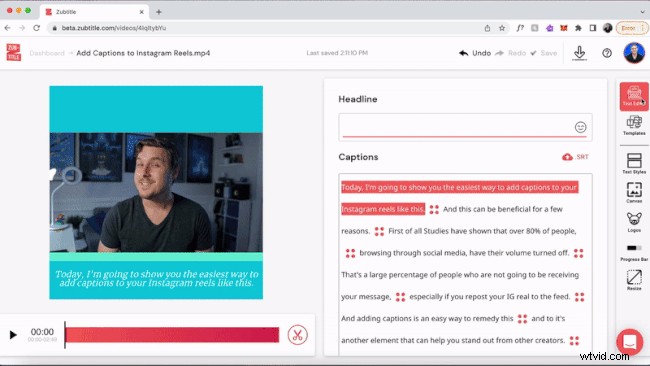
Now for the fun part! Your last step is styling your captions and your video. You’re welcome to customize everything by choosing the font and colors for your captions, adjusting the background color, adding a logo & progress bar, manually resizing, etc. Or you can style your entire video with one click by selecting a pre-made template (you’ll find them in the Templates menu). Once you’re done, you’re all set to download your video — perfectly optimized for Twitter Fleets!
Do you want to add video captions to Twitter Fleets?
Sign up for a free account and start creating today!