
After you have completed editing your video, it's time to add subtitles and captions to videos to make it more appealing and engaging to all people. Permanent subtitles and captions make videos more attractive. It not only helps people to engage more with the videos but also helps people with low vision and hearing impairment to enjoy the video at full length.
As 85 per cent of the Facebook video is watched without sound and videos with subtitles perform an average of 12 per cent longer than un-captioned videos, it's more required than never to makes some tweaks to your script and have your videos silent-proof. You can add the following types of texts to make your video more compelling to view.
Emoji Embedded Subtitles
A video compilation of funny cat videos may not require full-length subtitles speaking for all its characters. While an emoji embedded subtitle that spans the entire video with a catchy caption is enough to catch people's attention.
Highlighted Texts
Highlighted texts that easily summarize the content can make people more interested in the video you created. At regular instants of the video, makes some relevant and thought-provoking text to makes the viewers more interested in the video content. This makes people watch more. Moreover, highlighted texts with relevant content have more shares and this, in turn, helps you to diversify your video content to a more wider audience.
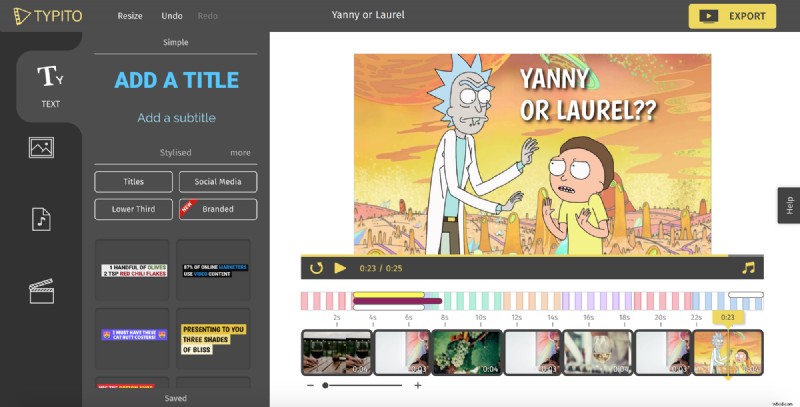
Well, now let's dive into how to add some subtitles to make your video speak for itself. Since the subtitles and highlighted text can act as guides to make the viewer engage more, it increases the completion rates of the videos than videos that don't come with subtitles or any highlighted texts.
For creating videos with catchy subtitles and highlighted texts, you can use Typito Online Video Editor.
1. Upload Video
First you need to upload your video in Typito video editor.
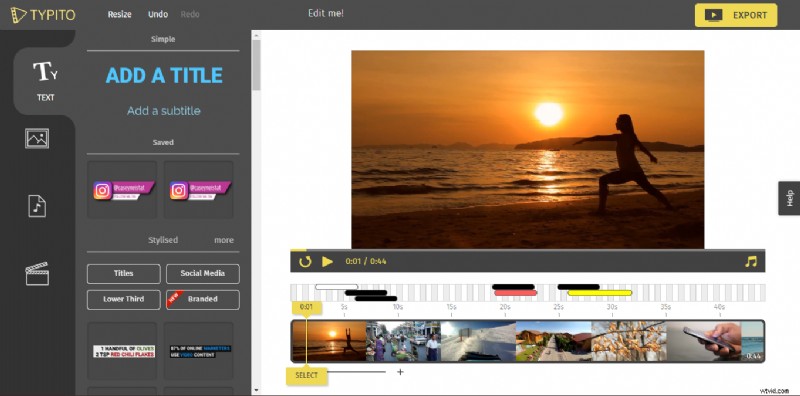
- Click the edit button, a video editor will be loaded on to your browser with a bunch of video editing tools.
2. Add Subtitles and Captions to Videos
- From the far left you can click “ TEXT” and under the “Simple” category you will get the “ Add the Subtitle” option.
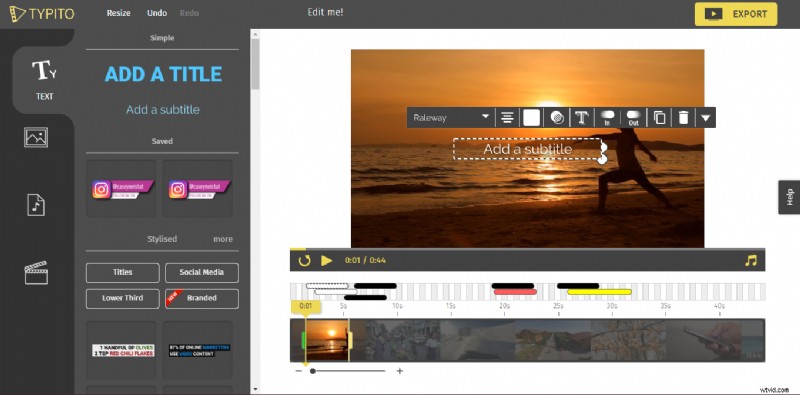
- Click the “ Add a Subtitle” option and you get a box with some tools in the video editor section.
- Click the box named “ Add a Subtitle”, so you can type in some relevant texts.
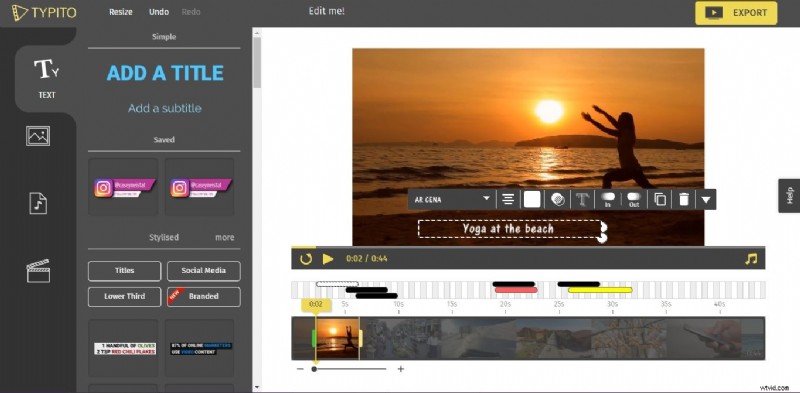
- You can control the appearance, color and text font of your subtitle. Adjust the length up to which the subtitle should be visible in the video by using the timeline editor.
3. Choose Caption Templates
Likewise, you can edit the time frame to adjust the extent up to which the subtitles are visible on the entire video. You can also browse through a plethora of captions.
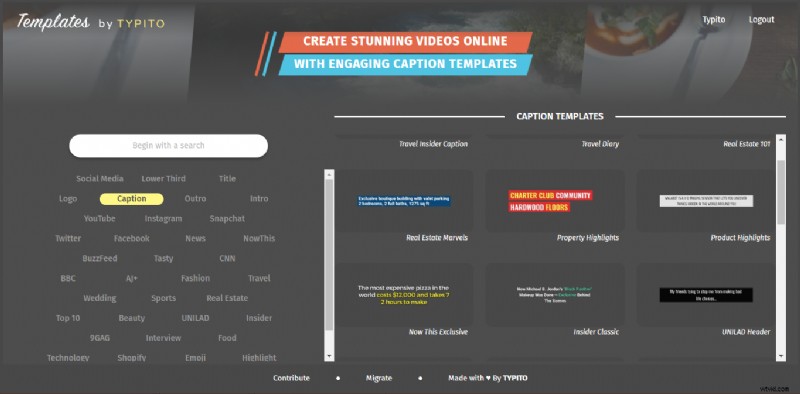
- Select a caption style that could match with your video so it will add punch to your video and then click “Save”.
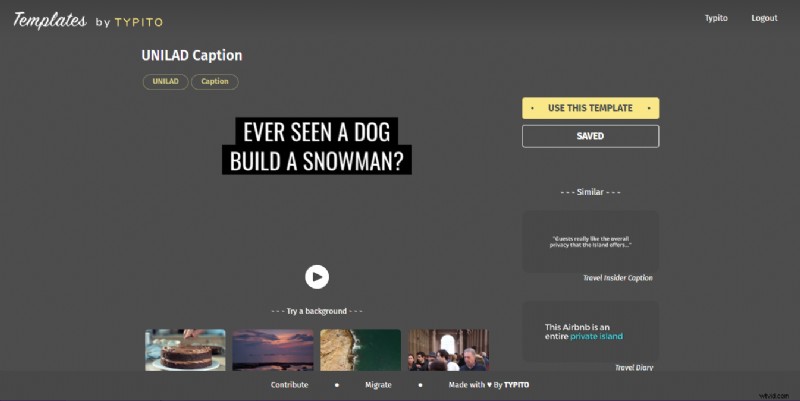
- The caption will appear in the “SAVED” section under the “TEXT” category at the far left of the video editor. You can now easily use the caption into the current video you are editing.
4. Export Video
Finally, you can easily export the video to your computer or upload directly to social media. If you want to add text and highlight it, you can read - How to Highlight Text on Videos like a PRO.
We have also created a video tutorial for you that easily explains how to add captions to your video and why.
Well, now, you have successfully learned how to add subtitles and captions to videos and make it more engaging and worth sharing in social media and other popular platforms to amass likes and followers. Happy Creating!!!