How to add subtitles or captions to a Vimeo video online
Vimeo subtitles, as the very prefix “sub” indicates, are placed at the bottom part of the screen, below the video. Usually it’s a word-by-word translation of the characters’ speech into a foreign language. Also, if the recording is indented for deaf people, for example, it can be a transcription in the audience’s mother tongue.
Vimeo captions, on the other hand, can be situated anywhere, at any part of the screen. They may provide additional information, e.g. cultural notes, hints, background sounds transcription, etc. Captions, in general, are performed in the same language as the video itself, but not necessarily.
There are two types of them:
Open captions or subtitles are embedded in the file as an integral part of the video and can’t get turned off.
Closed captions or subtitles are optional and can be turned on and off. Vimeo supports the following subtitles formats: VTT, SRT, DXFP, SCC, SAMI.
With Clideo you can create both types.
Upload a video
Open our Subtitle Creator by Clideo in any browser.
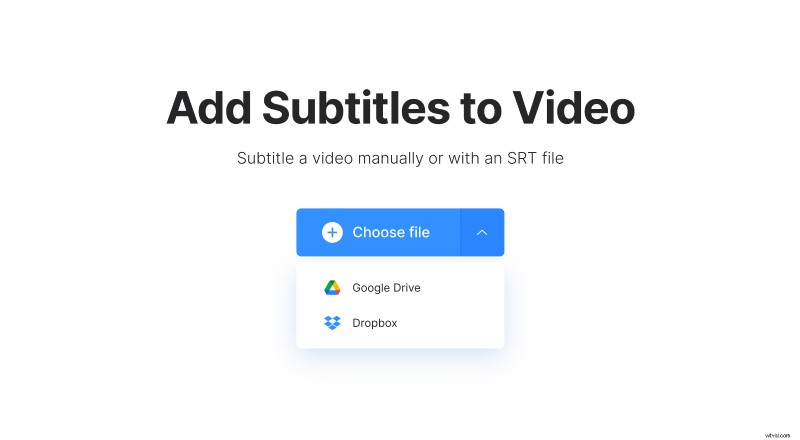
If you have already have your “captionless” video for Vimeo, just click the "Choose file" button to add it. You can also hit the small arrow on the right side of the big blue button on the homepage of the tool, call the drop-down menu and add the file store in your Google Drive or Dropbox cloud storage.
After creating subtitles, it will be enough to save them separately as an SRT file.
Alternatively, you can create a “subtitled” video from the very beginning – just import it from your personal device, Google Drive, Dropbox or any other online source.
Add or create captions
If you already have a ready SRT file, you can just upload it now. If not, hit “Add Manually”.
Find the “New Subtitle” field on the right of the player, set the timing and write a capture. It will appear on the timeline below the video. You can drag the ready subtitle along the timeline, expand it or make it shorter as you like.
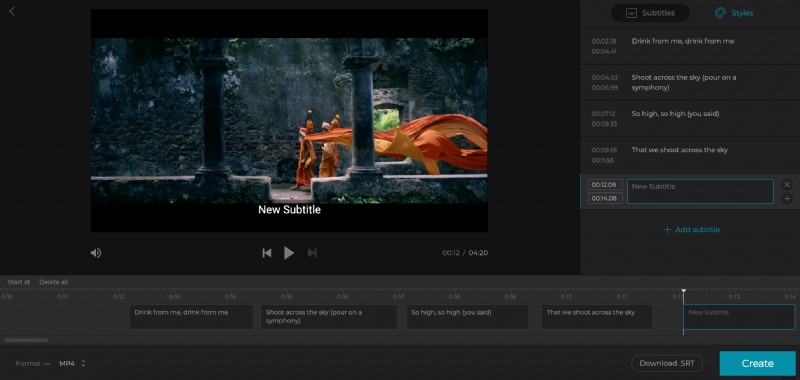
Hit the “Add Subtitle” sign and create as many captures as you need. Arrange them nicely as you wish.
When you are done with the captures order, click the “Styles” tab and decide on the font, style, alignment, letters and background colour.
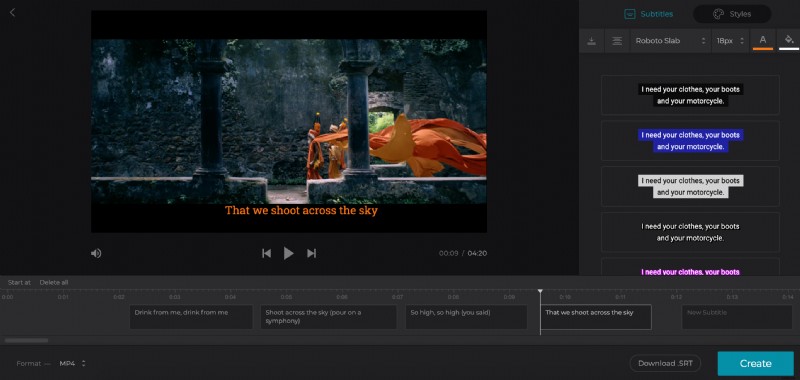
Now, if you want to create closed captions, click “Download .SRT” and add them manually to your Vimeo video. Here is a detailed manual on how to add captions to Vimeo.
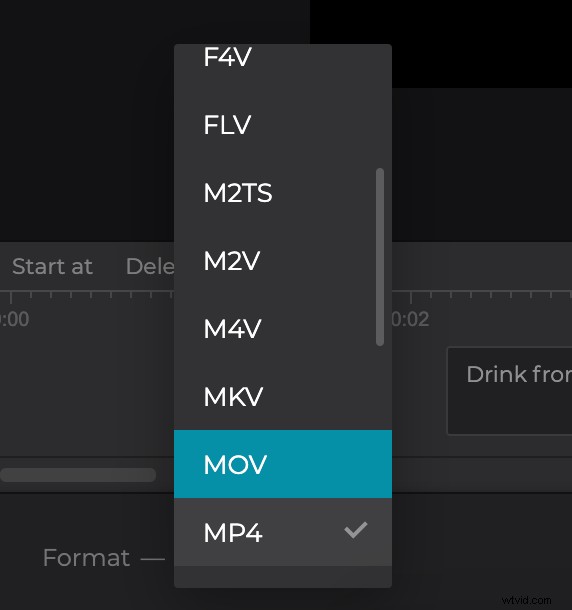
If you want open captions, choose an output format (MP4 is the best choice) and click “Create”.
Please note that the tool adds hard subtitles only. Hard subtitles are burned in, or hard coded, as an overlay over your video and cannot be turned off or on later in a player.
Download the video
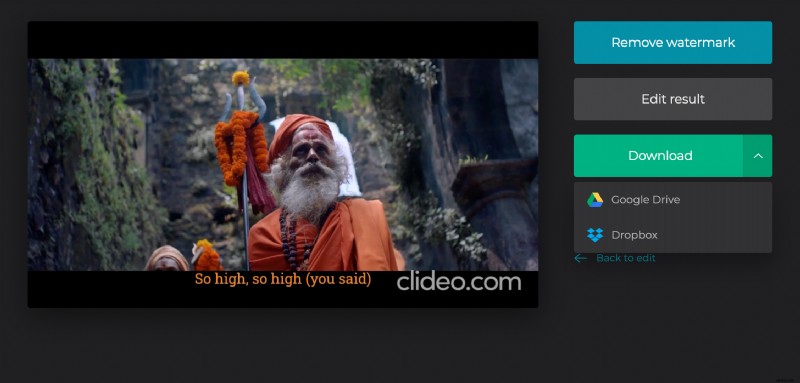
If you’ve chosen the second option at the previous step, now you have a recording with embedded subtitles. Check it in the preview player and save to your personal device or cloud storage account.