
How to add audio to a video for YouTube
For example, the sound is okay but it could do with some background music to liven it up a little? Or maybe there’s no sound on your clip for YouTube at all and you’d like to add a voice-over to explain what’s going on?
Perhaps you want to get rid of the original video audio completely and replace it with your own music or new sounds? Well, it’s easy to do with the help of our tool.
Add your video
First, navigate to Clideo’s Add Audio to Video tool through your web browser. If you’d like to upload a video you have stored on your device, click the ‘Choose file’ button, which will prompt you to upload from your device’s storage.
You can also upload to the tool from Dropbox and Google Drive cloud storage accounts. Click the small arrow next to the button and select the required option.
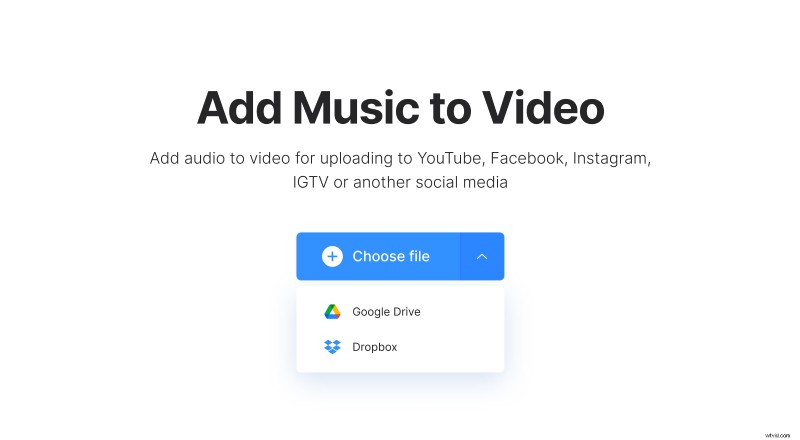
In case you’re wondering, all devices are supported by the tool, be it your Mac or Windows computer, iPhone or Android phone. Most popular video and audio formats are supported, too, such as MP4, MP3, 3GP, OGG, WMV, and AVI. It allows you to edit files up to 500 MB for free.
Add sound to the video for YouTube
After uploading, it’s time to add custom music to your video.
This is very easy to do, simply navigate over to the right side of the editor and tap the ‘Add Audio’ button. You can upload music or sounds straight from your device or from Dropbox or Google Drive account if it’s stored there.
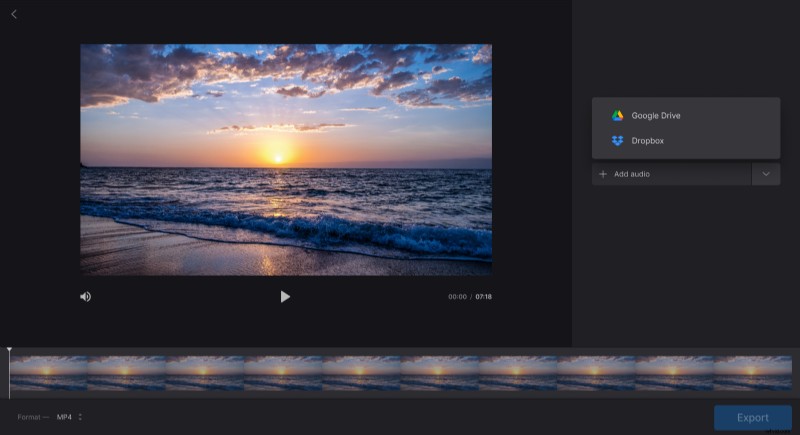
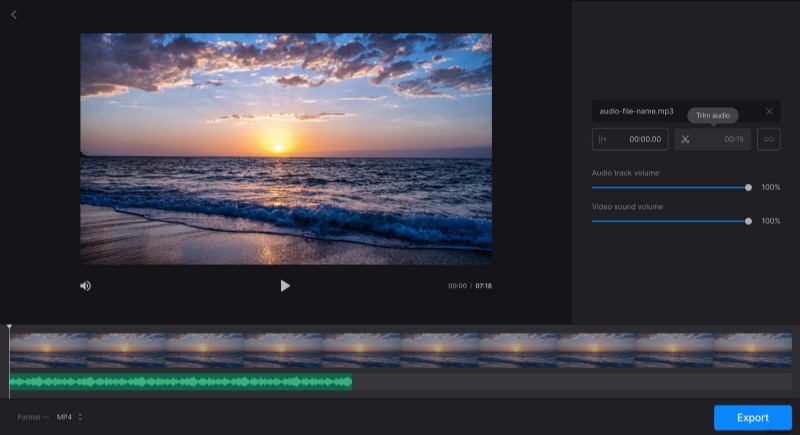
Now you can choose where you’d like it to start in the video as well as trim or loop it. Change volume to make the uploaded sounds take over the entire audio track or mix in with the original.
When you're done editing, select a format for the output file.
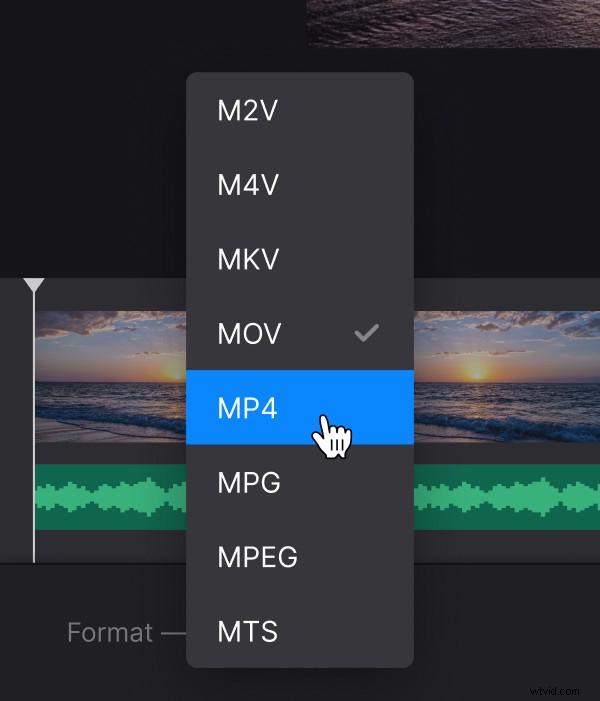
To finish, tap the ‘Export’ button in the bottom right corner.
Download the new clip
Now, once you’ve added music to your video for YouTube, give it a sneak peek to ensure it’s exactly how you want it before downloading back to your device, then hit the ‘Download’ button.
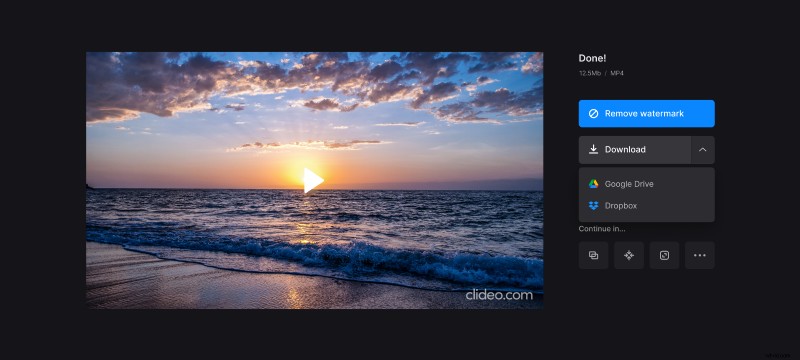
If you'd like to save it to Dropbox or Google Drive instead, again, do this via the down-arrow.
If your edited video isn’t quite to your liking, make some changes easily by tapping the ‘Back to edit’ option.