
How to edit your video for YouTube
Our online tool allows you to cut out any part of a video and convert it to an appropriate format for YouTube. The best aspect ratio for a YouTube video would be 16:9, so if you are not sure that it is, you can resize your video first.
This can be done all without having to download and install any software. That’s because Clideo works entirely in your browser, whether that’s Chrome, Safari, Edge or Firefox. And that’s from any device, be it Windows, Mac, iOS or Android.
It’s also super easy to use so doesn’t require any special video editing skills. The best part? It’s free, allowing you to cut and edit videos up to 500 MB in size. Here’s how...
Add a video
To get started, head over to Clideo’s YouTube Video Cutter tool.
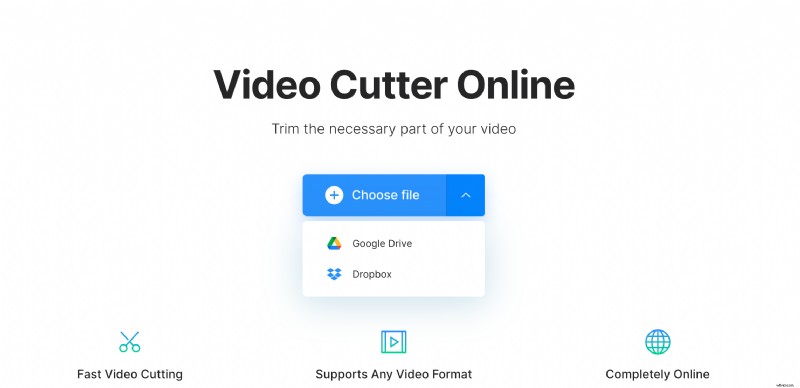
Click on Choose file and select a video you want to share on YouTube from your device. At the side of the button, you’ll find a down-arrow with options to upload a video from Google Drive or Dropbox.
Get snipping!
Once the video has been processed, you’ll be presented with the video editing tools dashboard where you can start chopping down the clip to the required length.
Choose where you want your video to begin and end before cutting by moving the sliders. You can select where you’d like to crop visually, like this, or you can input the specific beginning and end in minutes, seconds or even split seconds via the time stamp boxes.
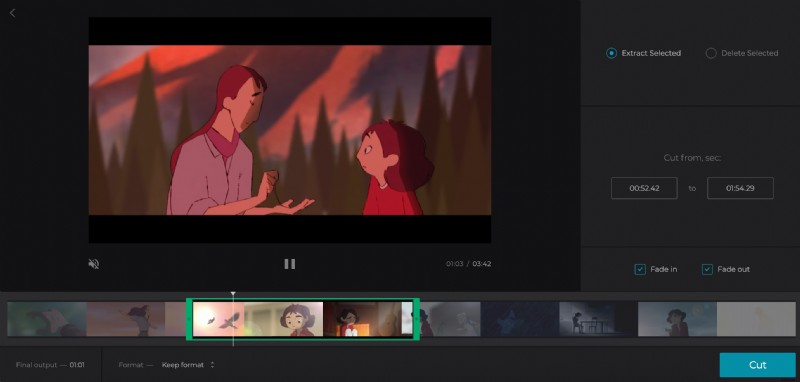
Next, opt to ‘Extract Selected’ or ‘Delete Selected’. If you select the former, you’ll be able to add a fade-in and fade-out for a professional-looking transition effect by ticking the boxes. Alternatively, choosing the latter will give you an option to crossfade the two remaining parts.
Now, give your newly-chopped clip a preview by pressing the play button under the preview pane and if you’re happy with the new length, select an output format. You can either keep the original or convert to one of the other supported video formats.
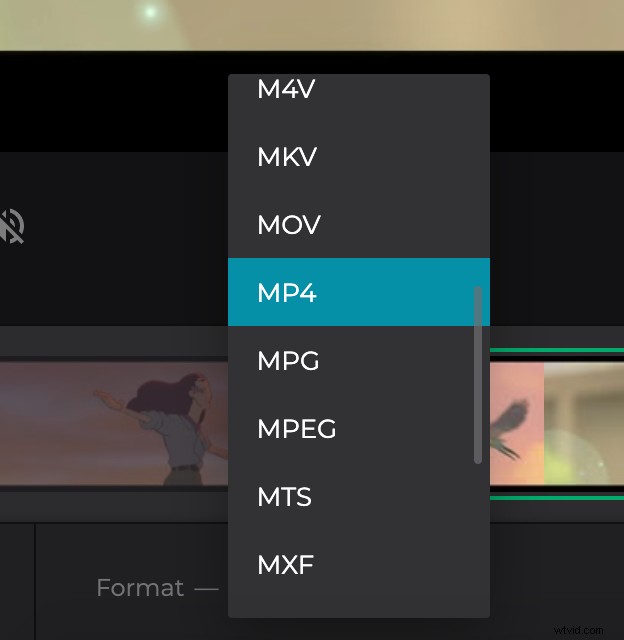
All done? Tap the green ‘Cut’ button and your video will be ready to download in just a few moments.
Download the cut video for YouTube
Once processing is over, you can either save it back to your device by tapping the ‘Download’ button, or to your online storage account via the down-arrow on the right.
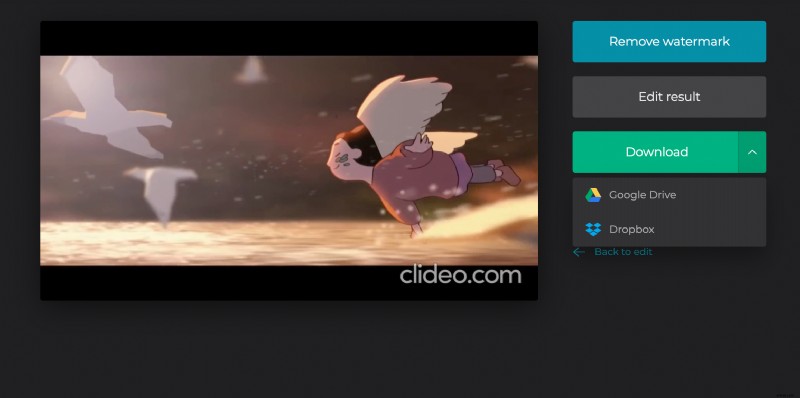
Want to make some changes? Simply hit the ‘Back to edit’ button to head back to the editor without starting over.