
Reverse video for YouTube online
It goes without saying, then, that in order for those creating video content to stand out among the masses, they must make use of unique tools and original editing techniques to grab the attention of visitors. While there are hundreds of ways YouTube movie makers can do this, one particular way proving popular is by adding a rewind effect to a video.
But can it be done without having to buy or download expensive, complex video editing software? It certainly can! Read on to find out how you can reverse a clip for YouTube online.
Add your video
To make a start, head over to Clideo’s YouTube video reverser. Here you’ll be presented with the tool’s home page with an option to upload your moving image file. You can select this either from a device (Mac and Windows computers, as well as iOS and Android smartphones and tablets, are supported) or upload straight from your Google Drive or Dropbox.
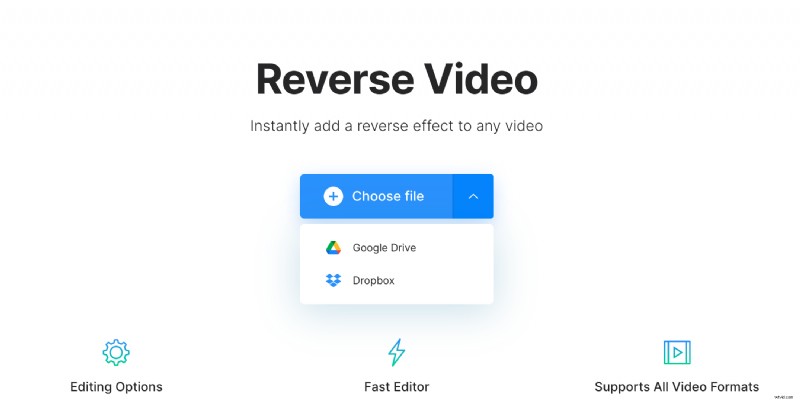
You can also drag and drop a saved file into the web page if you want to save time. Once a video file is chosen, the tool will begin uploading it to its servers.
Choose your reverse speed
Once your video is added, you can choose the speed at which you’d like it to be reversed in the panel on the right-hand side. Under this option, there’s a tick box which will enable you to mute the clip if you wish so, and at the bottom panel there is an option to change the video format if needed.
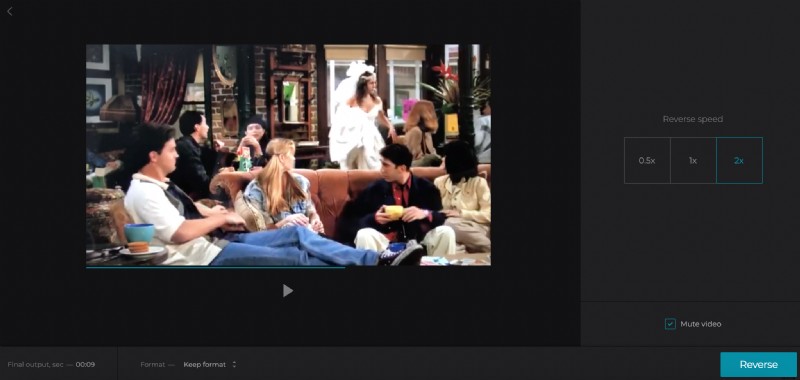
Hit the play button under the video in the centre of the browser to preview it and if you’re happy with the result, simply click "Reverse" in the bottom right-hand corner.
Save and publish!
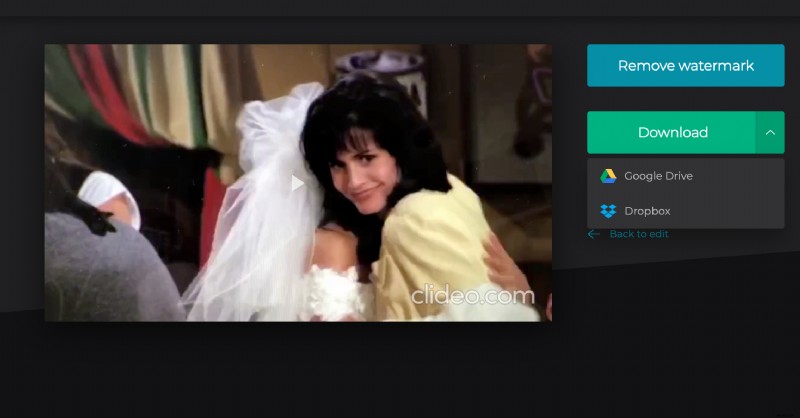
Once your newly reversed video has been processed, you can watch the result in the preview box and save it if you’re satisfied. You can choose to download it to your Google Drive or Dropbox storage platforms or save as a file to your device. Alternatively, you can hit ‘Back to edit’ if you aren’t quite happy and want to start over.