
How to rotate an already uploaded video on YouTube
What makes it harder is that the video platform doesn’t have a great deal of editing functionality baked in. And worst still, what if you deleted the original video?
We’ll tell you how to rotate a video for YouTube with nothing but an online tool and download the result.
Source your video for YouTube
To start, open a browser — be it Chrome, Edge, Firefox, Safari — and navigate over to Clideo’s Video Rotator tool where you’ll find a big blue ‘Choose File’ button in the centre of the screen. You can rotate a YouTube video on PC, Mac, iPhone, Android or another device.
If you’d like to rotate a recording that is stored on your device, just click in the centre of the ‘Choose File’ button and you can upload a physical file straight from your device.
Tap on the down-facing arrow to the right of the button and a drop-down menu will appear giving you options to upload your clip from your Google Drive or Dropbox storage account to the tool.
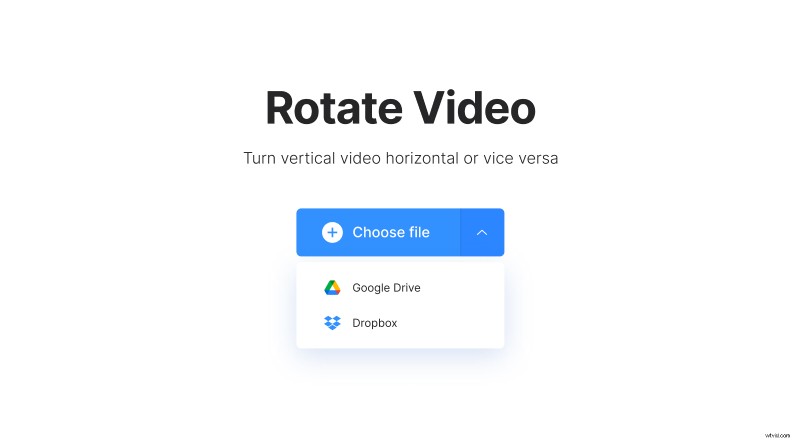
All the popular formats are supported, such as MP4, MOV, WMV, VOB, AVI, etc.
Rotate the video for YouTube
Once your video has been uploaded to the tool, you’ll be taken to the editor. Here you can use the buttons on the right to rotate your movie left or right by 90 degrees.
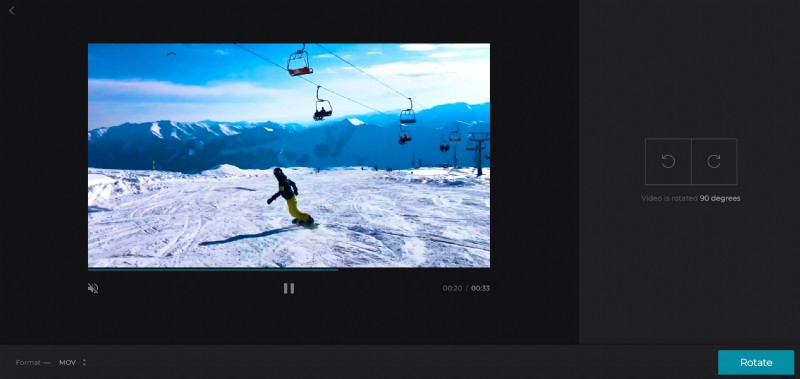
Before finishing, choose an output format for the file via the option on the bottom left, keeping in mind that MP4 is the best file format if you're editing from your Android or iPhone.
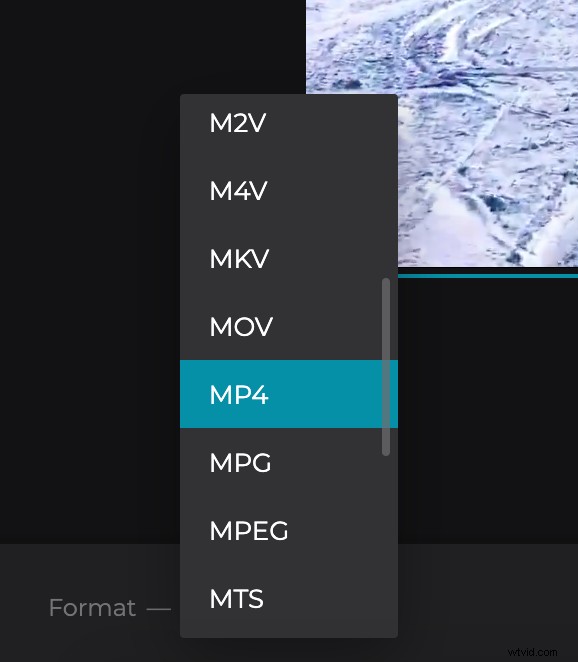
Finally, click the green ‘Rotate’ button in the bottom right corner and your video will be processed.
Download the rotated video
After a few moments, your video will be ready to download. You can preview it by hitting the play button in the preview pane to make sure it’s turned the right way and plays correctly.
You can either save to your device directly or to a cloud account.
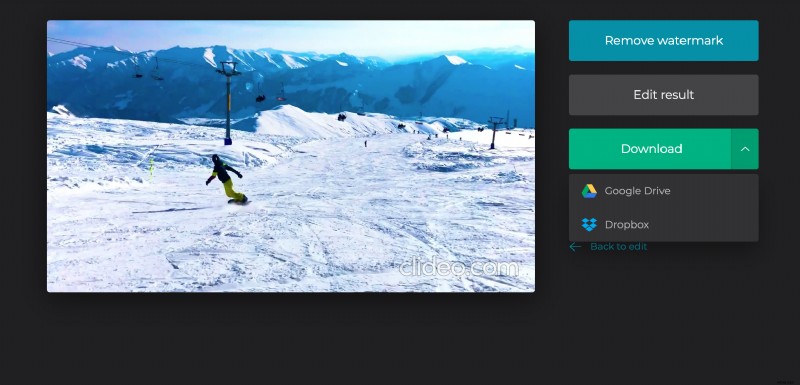
Made a mistake and want to make a quick edit? Just tap the ‘Back to edit’ button.
And that’s it; you’re all done! Have other editing needs? Check out Clideo’s full range of video editing tools all of which work online.