
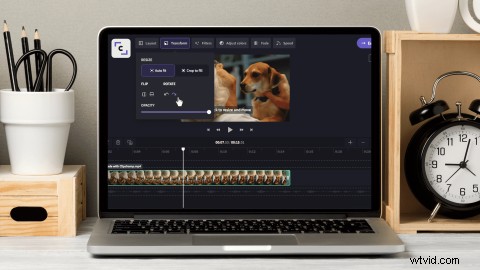
When video footage is captured on a smartphone or tablet, users risk clips being exported sideways or upside down. Although it’s extremely funny seeing people turn their heads to watch a video, it just isn’t practical. So what’s the solution? Edit from all angles using our online video editor. Rotate, flip or mirror videos vertically and horizontally without even leaving your browser. This blog will teach you how to rotate video online for free (no download needed).
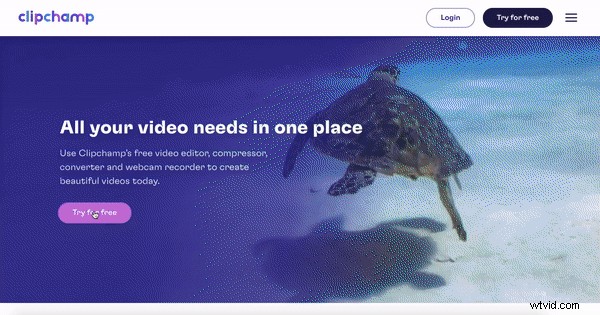
Step 1. Sign up to Clipchamp or log in
If you already have a Clipchamp account, log in to get started. If you’re new here, sign up for free!
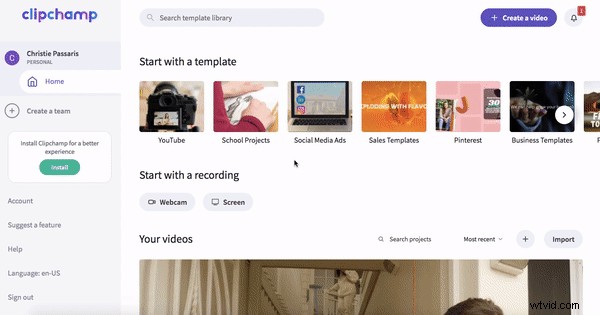
Step 2. Create a new Project
Once you’re logged in, select the + Create a Video purple button at the top right corner of your screen. The editor will automatically open. You can change the video ratio by clicking on one of the 6 video ratios. We are using widescreen 16:9 for the purpose of this tutorial. Rename your video project by clicking the Untitled Project box.
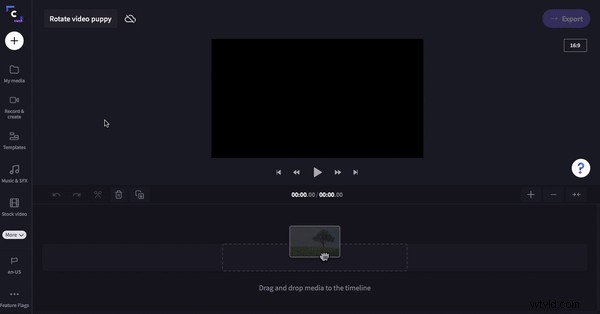
Step 3. Upload video content to rotate
To upload your video footage, click on the + white button on the left sidebar. Select the video clips you would like to rotate. Your video footage will appear in the My Media tab. You can alternatively drag and drop your video files into the library. To add your video to your timeline, drag and drop your video clip from the library to timeline.
Step 4. Rotate video clips
Click on your video on the timeline. Your video will be highlighted with a green border. Click on the transform tab to open the rotation options. Under Rotate click on the arrows to rotate your clip. Under Flip you can also flip your clip if desired.
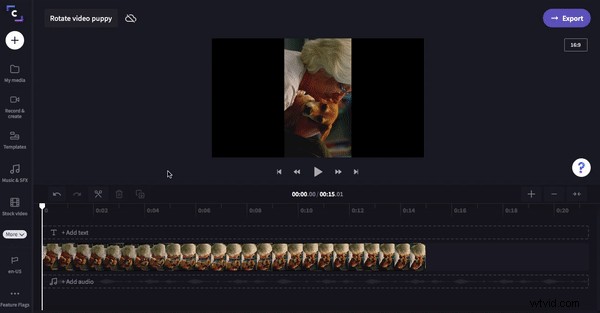
Step 5. Save and Export video
That’s all! Click on the purple → Export button in the top right corner of the editor. Choose your saving resolution and compression. For the purpose of this video, click 720p resolution and compression for a fast upload speed. Click Continue when ready to save.
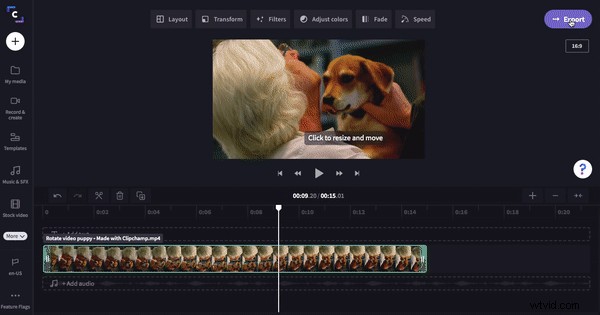
It’s as easy as that!
In 5 easy steps you can now successfully rotate any video in just a few minutes. You’ll never have to kink your neck ever again! Want to learn more about rotating videos and different aspect ratios? Check out our what is aspect ratio blog for more tips and tricks. Happy editing.
This blog was originally published on 08/08/2018 and has been updated on 07/05/2021.