
Rotate a video on Windows 10 in three steps
There are plenty of tools out there which can do that, but the majority of these require downloading apps and - in most instances - paying extortionate prices to use their features.
Not all, though. Clideo is an online-only tool which allows you to rotate an iPhone video on Windows 10, or any other video, with the click of a button, and all you need is an internet connection and your web browser.
The best part? It’s free, easy to use, and completely secure, deleting your data from its servers within 24 hours of use. Read on and get to know how to rotate video files on Windows 7, 10, or any other versions.
Upload your clip
To get started, power up the browser on your PC - be it Chrome, Edge, Firefox, Safari - and navigate over to Clideo’s Video Rotator tool.
Here, you’ll find a big blue ‘Choose File’ button in the centre of the screen. Tap this to upload a physical video file straight from your Windows device.
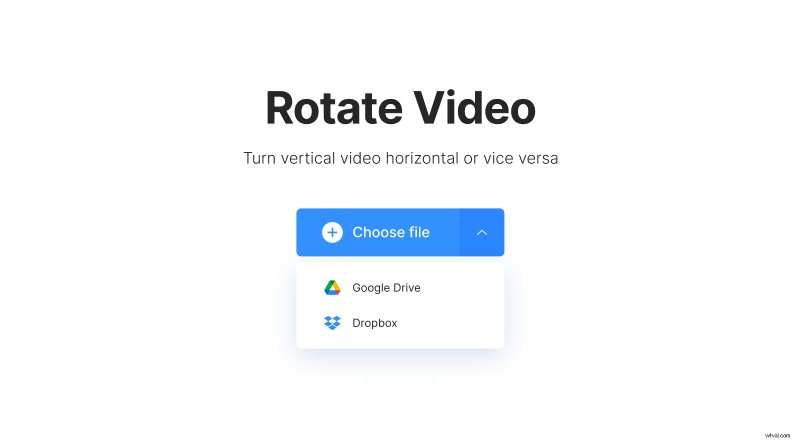
See the downwards arrow on the right-hand side? Tap this and you’ll be given the option to upload from a Dropbox or Google Drive cloud storage account if you like.
Lastly, please note that all the common and rare video formats are supported, such as MP4, MOV, WMV, VOB, and AVI.
Time to rotate
Once your video has been uploaded to our rotator tool, you’ll be taken to Clideo’s video editor.
Simply use the buttons on the right to rotate your clip either left or right by 90 degrees. For example, tap either button twice to turn a video that’s been recorded upside down the right way around.
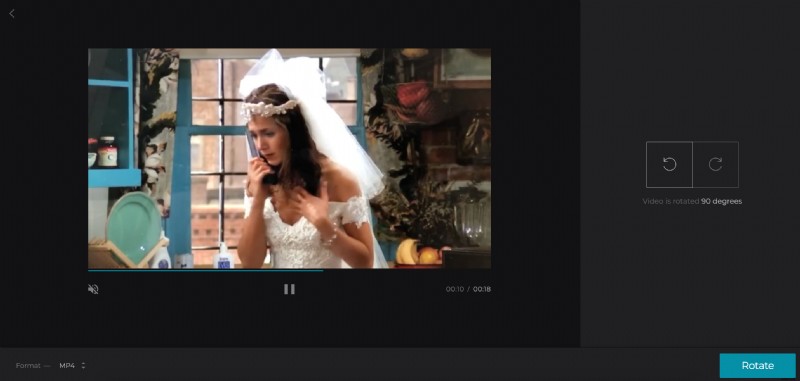
Next, opt for an output format for the video clip via the option on the bottom left. We recommend WMV for Windows. However, if you’re looking to know how to rotate an MP4 video on Windows 7, 10 or any other versions, to playback on a mobile device, you should select the MP4 output.
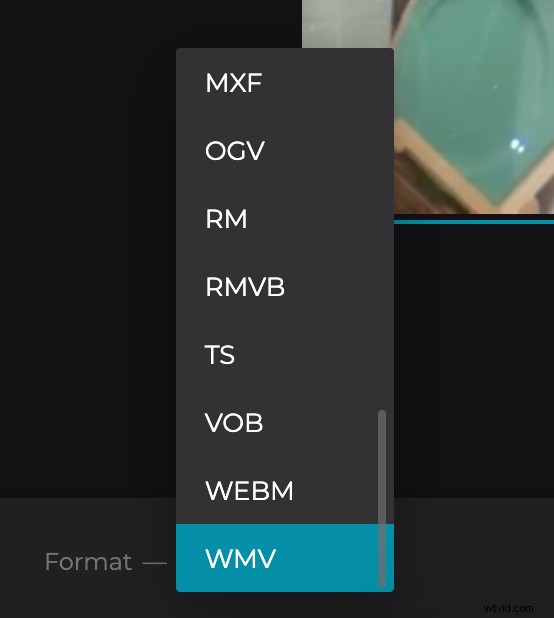
Lastly, select the ‘Rotate’ button in the bottom right corner and your video will start to process, readying itself for download.
Download the new clip
You may need to wait a few minutes, but not after long, your video will be ready to download. Want to preview it before saving it back to your Windows machine? Simply tap the play button just under the preview pane to make sure it’s turned the right way and plays correctly.
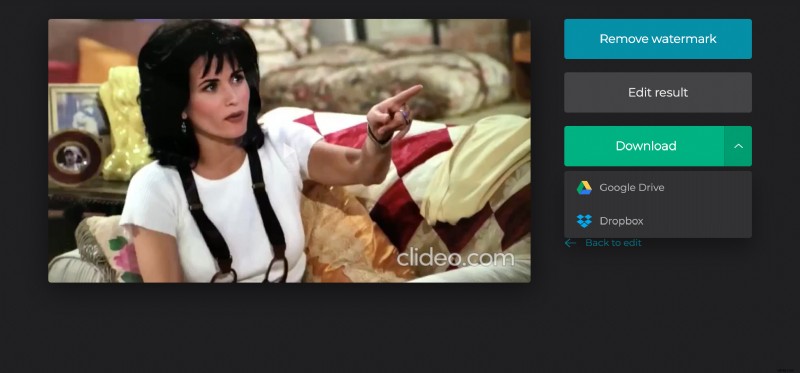
You also have the option to save to your device directly or to a cloud account.
If you found you made a mistake and want to make a quick edit, select the ‘Back to edit’ button and you’ll be taken back to the editor page without having to start from scratch.