
Have you ever captured video with a cell phone or compact camera only to find it's vertically oriented and you can't view it properly? Before you go straining your neck or flipping your monitor in order to watch your video, we'll show you a few easier methods by rotating videos.
If you want to rotate the video while you watch it, you can simply accomplish that within your media player like VLC .
If you want to rotate the video permanently when making a video, try Wondershare Filmora, which allows you to rotate a video and save it on Windows and Mac. It enables you to rotate video files in almost any video format including MOV, MP4, WMV, MKV, MTS, FLV, 3GP and more and rotate it at any angle.
- Part1: How to Rotate a Video with Filmora [Windows/Mac]
- Part2: How to Rotate a Video with VLC Media Player
- Part3: Rotate Videos on Windows for Free
Part 1: How to Rotate Video in Wondershare Filmora [Windows and Mac]?
Filmora is PC-Mac cross-platform compatible. In the tutorial below, we will show you how to rotate a video in Windows 7/8/10 with Filmora step by step. You can now rotate a video to any angle you like.
To rotate a video with Filmora, you can follow these steps:
Step 1. Import video files for rotation
TLaunch Filmora on your Windows or Mac computer, and then choose the default aspect ratio 16:9 to rotate a vertical to horizontal.
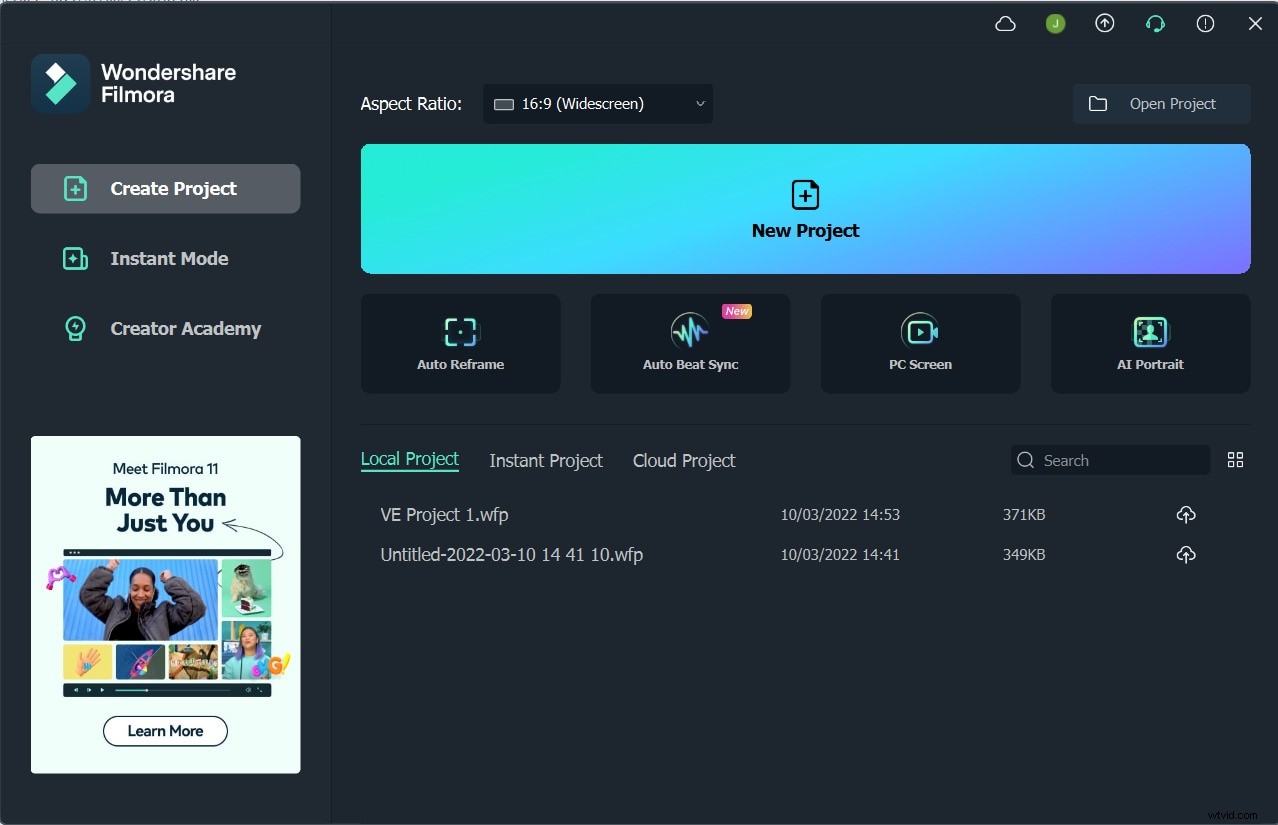
Next, click the "Import" on the primary windows and select files from your computer or drag and drop files to the media library directly to load the videos in the project. Then drag and place the media to video track in the timeline window as shown below.
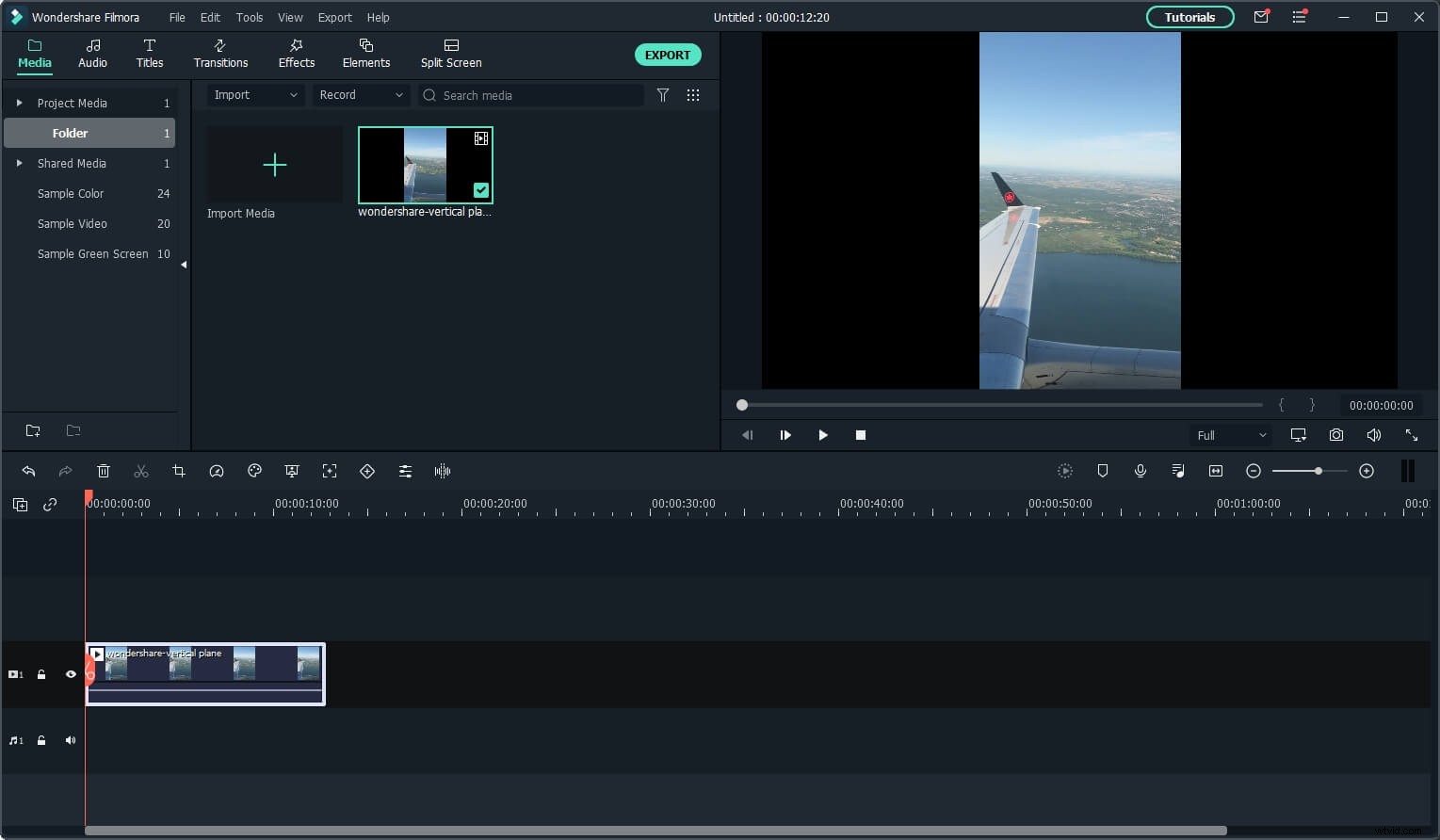
Note: Since the original vertical video has a different aspect ratio to project settings, and we need to rotate it later, choose Keep Project Settings this time.
Step 2. Separate the fragment to be rotated (optional)
If you need to rotate parts of your video, you can select the desired rotating parts with the split feature in Filmora. Place the red playheader maker at the beginning of a wrongly shot scene and hit the "Split" icon above the timeline.
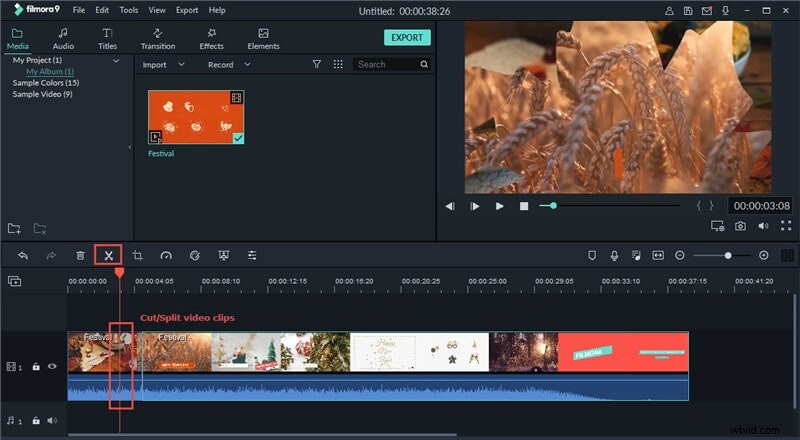
Then move the red marker to the end of the scene, and repeat this again to select the rotating part. You can use the Timeline Zoomer to zoom in on the timeline for the precise location.
Read this article to learn more split, trim and cut skills in Filmora .
Step 3. Rotate the video under Transform
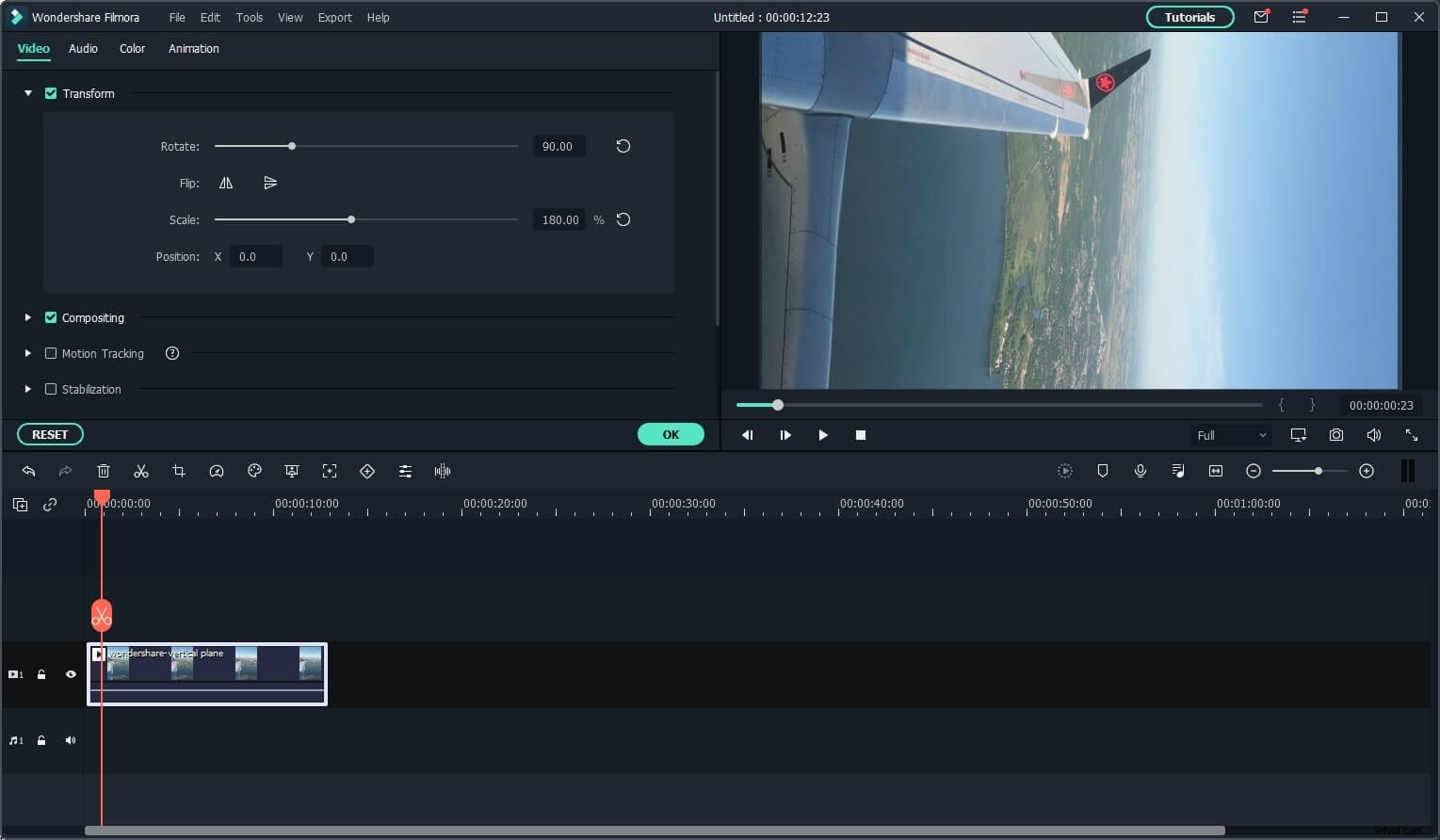
Double-click the video on the timeline to bring up the editing panel. The Rotation options are located on top under the Transform tab, including 4 options:
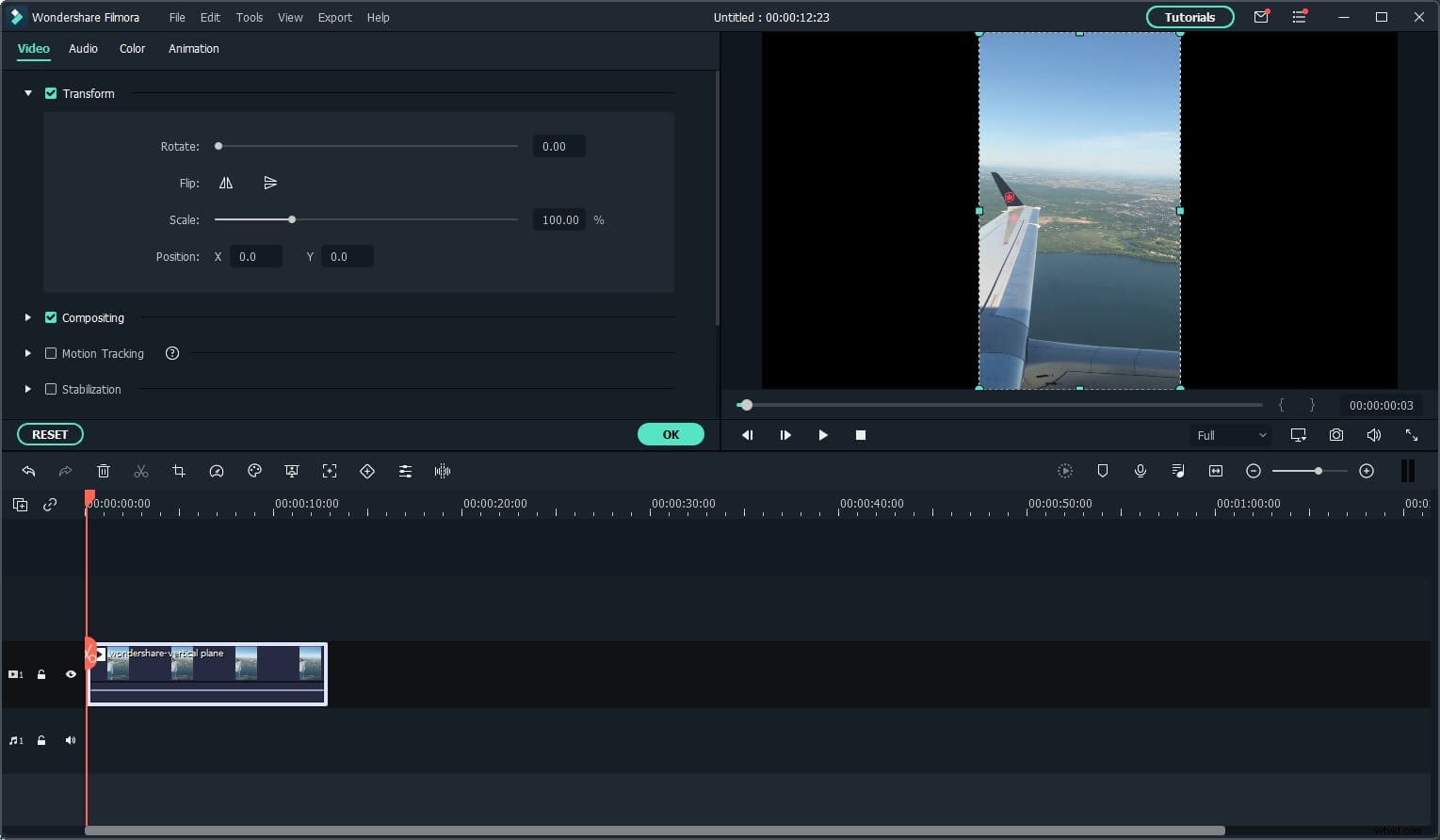
- Rotate: You can move the Rotate Slider or enter the rotating value directly to rotate the video to any angle you need. Rotate videos upside down, rotate left, rotate right, or 90 degrees clockwise, rotate video 180 degrees, 270 degrees, and rotate back to the original position. Rotate video 90 degrees anticlockwise and continuously, similar to Rotate 90 degrees clockwise but in anti-direction.
- Flip: You can flip the video clip horizontally left to right or vertically upside down, just like looking at yourself in a mirror.
- Scale: Adjust the size of the rotated videos from 0 to 4X.
- Position: Adjust the position of the rotated video clip to anywhere you like in the video footage.
Select any of the Transform effects you like to rotate left or right or flip your video and check the result in the preview window. In my case, I need to scale the rotated video large to fit the aspect ratio. When you get satisfied with the orientation of your video, hit "OK" and your clip will be rotated in the chosen way. Now you can turn to save your video or continue editing.
Step 4. Export the rotated ideo
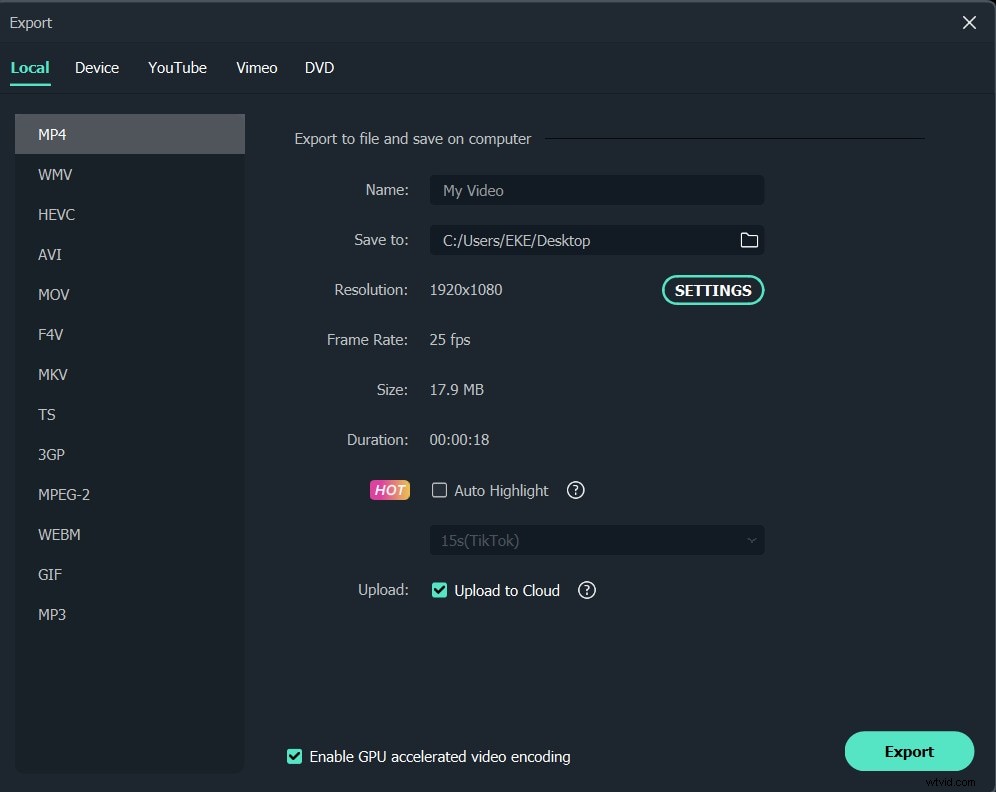
When your video turns out perfectly, you can click "Export" to save the rotated video. You can export video in any popular formats by choosing "Format".
If you want to play video creation on the iPhone, iPad, and iPod, click "Device" and select a device from the list. You can also directly upload your finished videos to YouTube or burn to DVD discs for watching on TV using a home DVD Player.
If you are looking for some video rotators to rotate and flip your video clips, you can check the list Top 5 Free Tools to Rotate Videos.
If you want to rotate a video on iPhone, check How to rotate your upside down/sideway photos on iPhone >> . If you don't want to install any video rotators, you can rotate videos online.
You may also like: How to rotate your upside down/sideway photos on iPhone >>
Benetifs of using Wondershare Filmora to rotate videos on Windows and Mac?
Using Wondershare Filmora, you can easily achieve the following editing features:
- Rotate your video to any angle easily.
- Edit videos/audios/photos with go-to features like trim, split, crop, etc.
- Make a picture-in-picture video and change the voice for fun with animated titles.
- Control the action with speed up and slow down effects.
Here you can download this software and learn how to rotate your YouTube video in any direction on Windows and Mac. You can rotate your video in 90 or 180 degrees clockwise or anticlockwise - whatever you need to correct the orientation.
Part 2: How to Rotate a Video with VLC Media Player When Watching the Video [Windows & Mac]
VLC Media Player is a totally free-to-use software. Normally, people tend to think it is a media player, but if you look deeper, VLC is also a video editor. Also, it can run on almost all platforms like Windows/Linux/Mac/iOS/Android as an open-source player. More importantly, you can use it to rotate or flip videos easily. Below are the steps on how to rotate a video with VLC Media Player.
Step 1: Open VLC media player and load the video that you want to rotate.
Step 2: Click Effects and Filters under Tools. Then select the Video Effects tab where you can rotate videos.
Step 3: Go to Geometry under the subtab Video Effects. Check Transform to select a direction that you want to rotate. You can rotate by 180/90/270 degrees. Besides, you can also rotate the video by a certain angle.
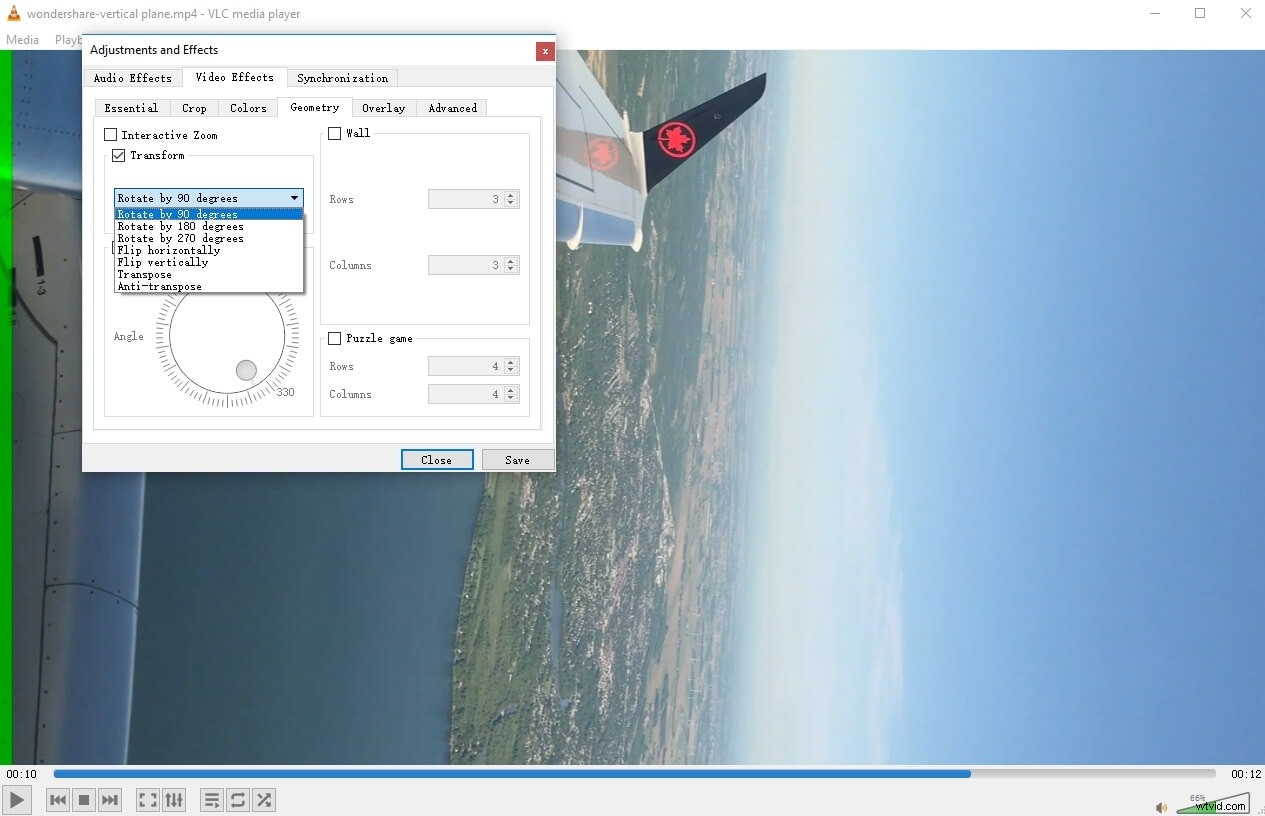
Note: When you open up a new video, these settings are still saved, so remember to uncheck the rotation.
Part 3: How to Rotate Videos on Windows 7/8/10 for Free with Windows Movie Maker/Photos App
If you are using Windows 7 and having Windows Movie Maker installed on your PC, you can rotate video clips on Windows for free. Here is a brief tutorial about how to rotate a video on Windows with WMM.
The steps of rotating videos on Windows with Movie Maker is similar to that in Filmora: Import video clips to Windows Movie Maker, preview the video clip, and then apply the Rotate feature to rotate videos left or right.
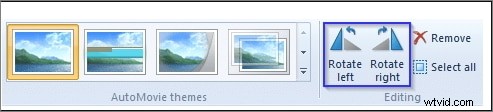
Note: Windows Movie Maker has been discontinued and can’t be downloaded from the Microsoft official website. If you want to download a copy of WMM from a third-party website, please make sure the website is trustable.
How to Rotate Video for Free on Windows 10?
For Windows 10 users, if you want to rotate video to 90, 180 or 270 degrees, you can use the Video Editor tool in Photos Apps to solve this problem.
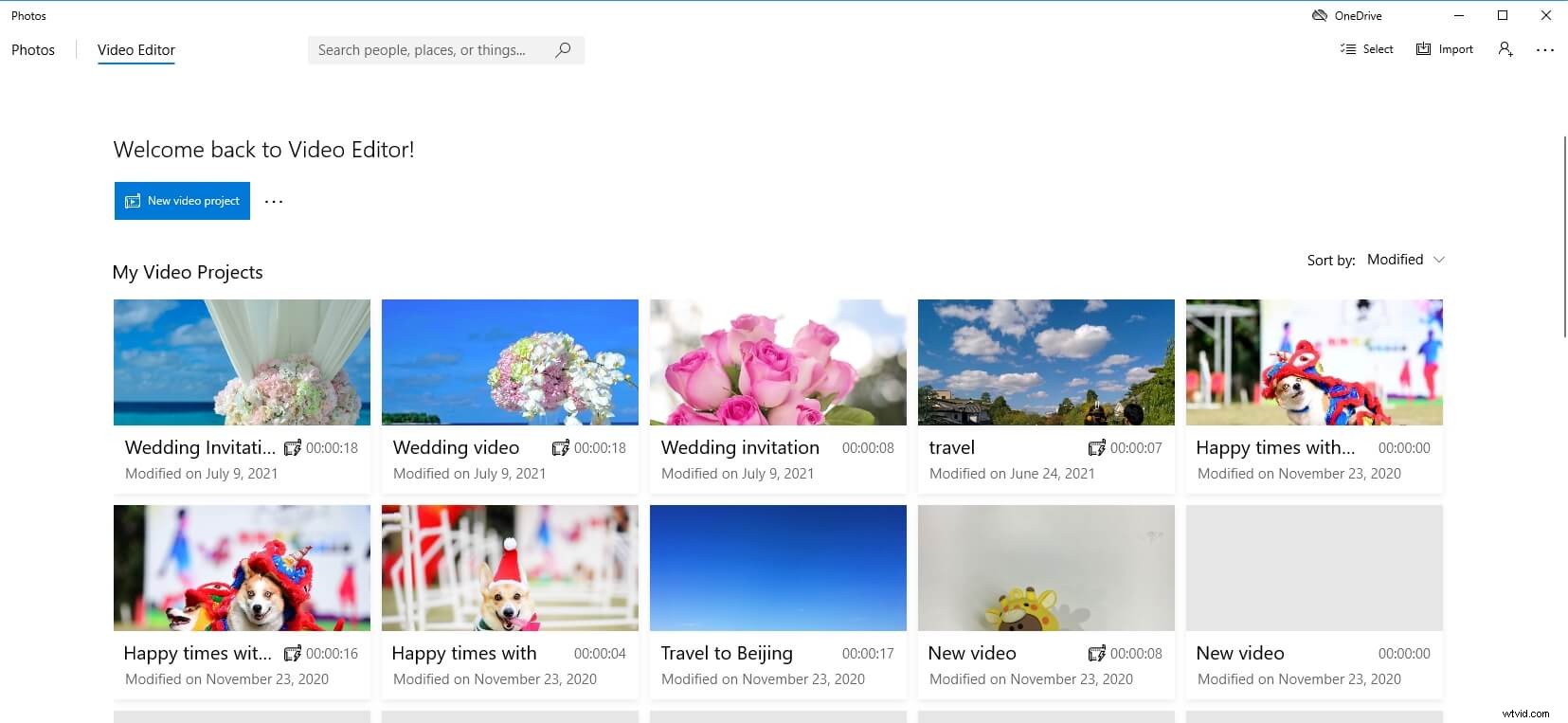
- Launch the Video Editor app from the Windows 10 search bar, and then click New Video Project to create a new one.
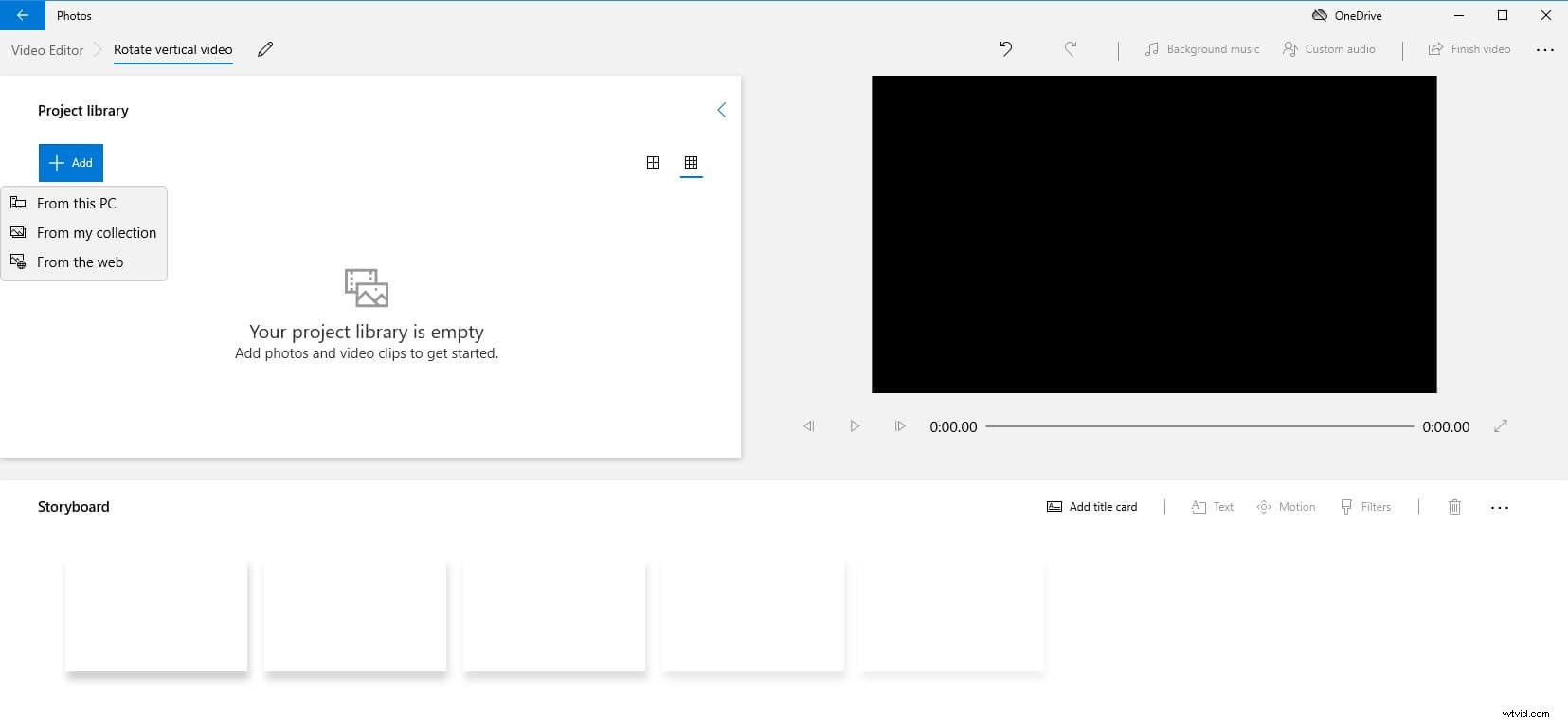
- Name the video and then click the Add button to import the vertical video to the Project library. You can import videos from your PC and the collection, or from the web.
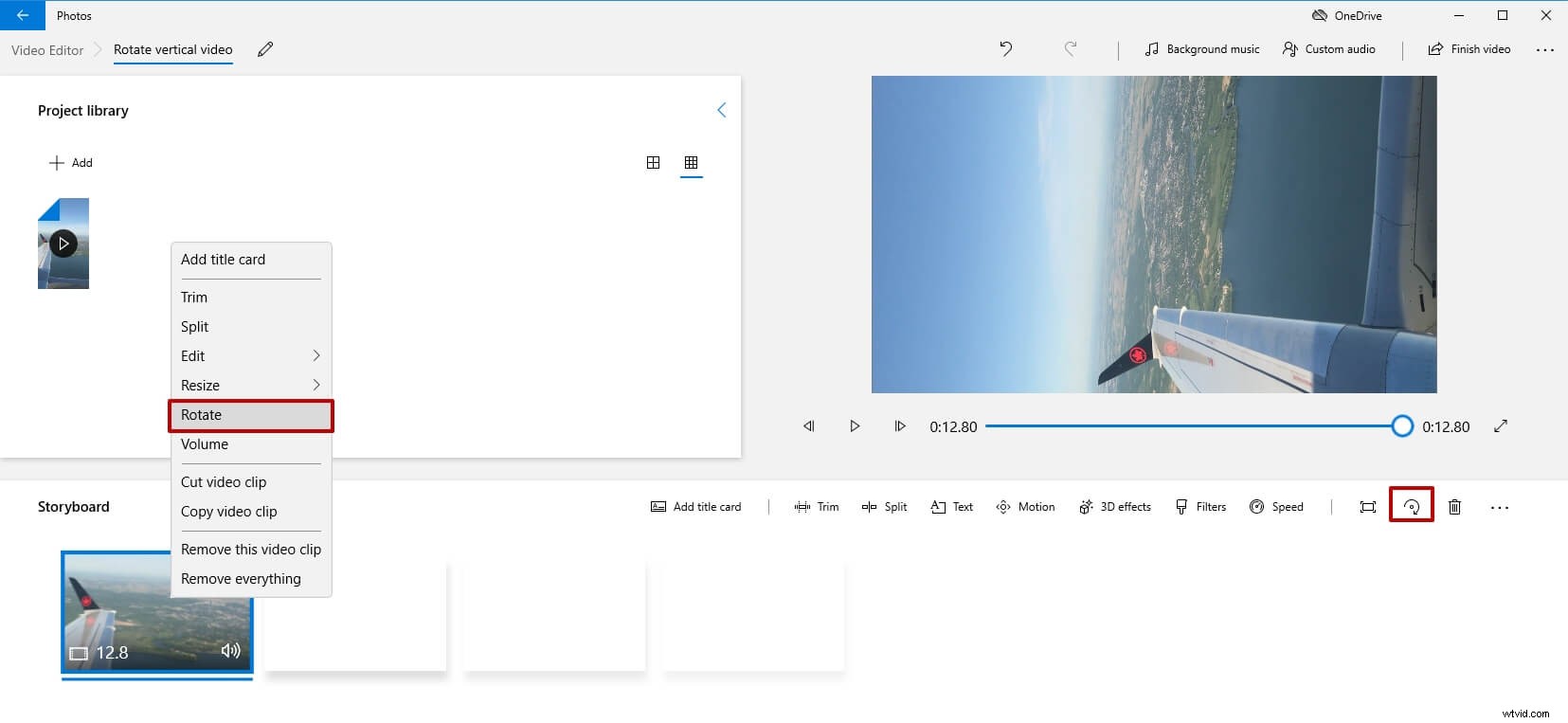
- Drag and place the vertical video to the storyboard, and then click the Rotate icon to rotate the video in 90, 180 or 270 degrees. Or you can right-click the video in the storyboard, and then select Rotate option from the menu.
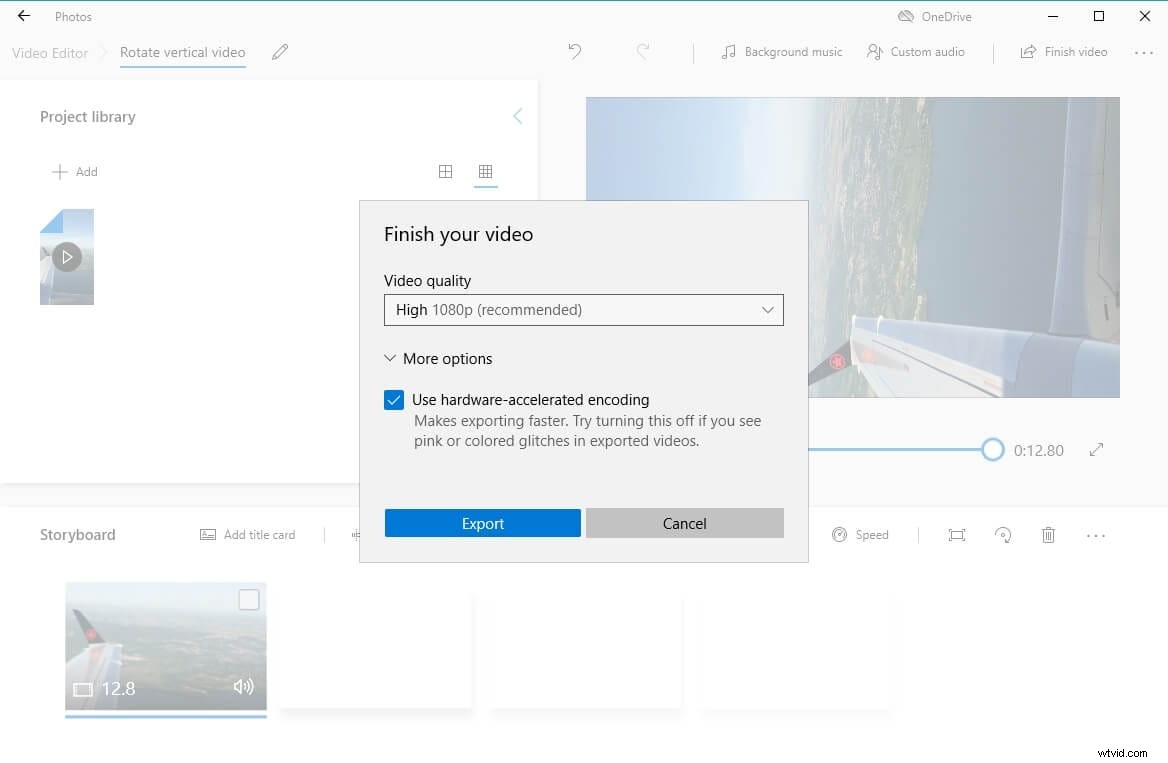
- Now the video has been rotated, and you can click the Finish Video button to save the video in high quality.
YouTuber Kevin has shown you how to easily rotate a video with the wrong orientation to a correct direction with the Windows 10 in-built Photos app. Watch the video below and find some tips for preventing recording videos in the wrong orientation.
Tips: What are the differences between "Rotate" and "Flip"?
Flip means completely turns over the shape, rotate means tilt it to some angle. With flipping a video, the side which faced upwards originally will face down. With rotating it just spins around on its axis.
Conclusion
Above are the solutions for you to rotate or flip your videos. You can use VLC or Windows Movie Maker. However, if you want to have more video editing options and have better editing experience, we strongly recommend Filmora. Download it right now to have a try!