Many movies are stored and shared in the format of WMV online for its small size and good quality. WMV files can be played on computer with players such as Windows Media Player, MPlayer or VLC. If you want to edit WMV movies, like cutting parts you don't want, or apply effects, transitions, intro/credits, etc., I'd love to share how to edit WMV files with a powerful WMV editor within a few steps.
Powerful WMV Editor: - Wondershare Filmora
- Easily trim, rotate, crop, merge and combine your WMV video files;
- Personalize your WMV videos with rich text, filter and transition effects;
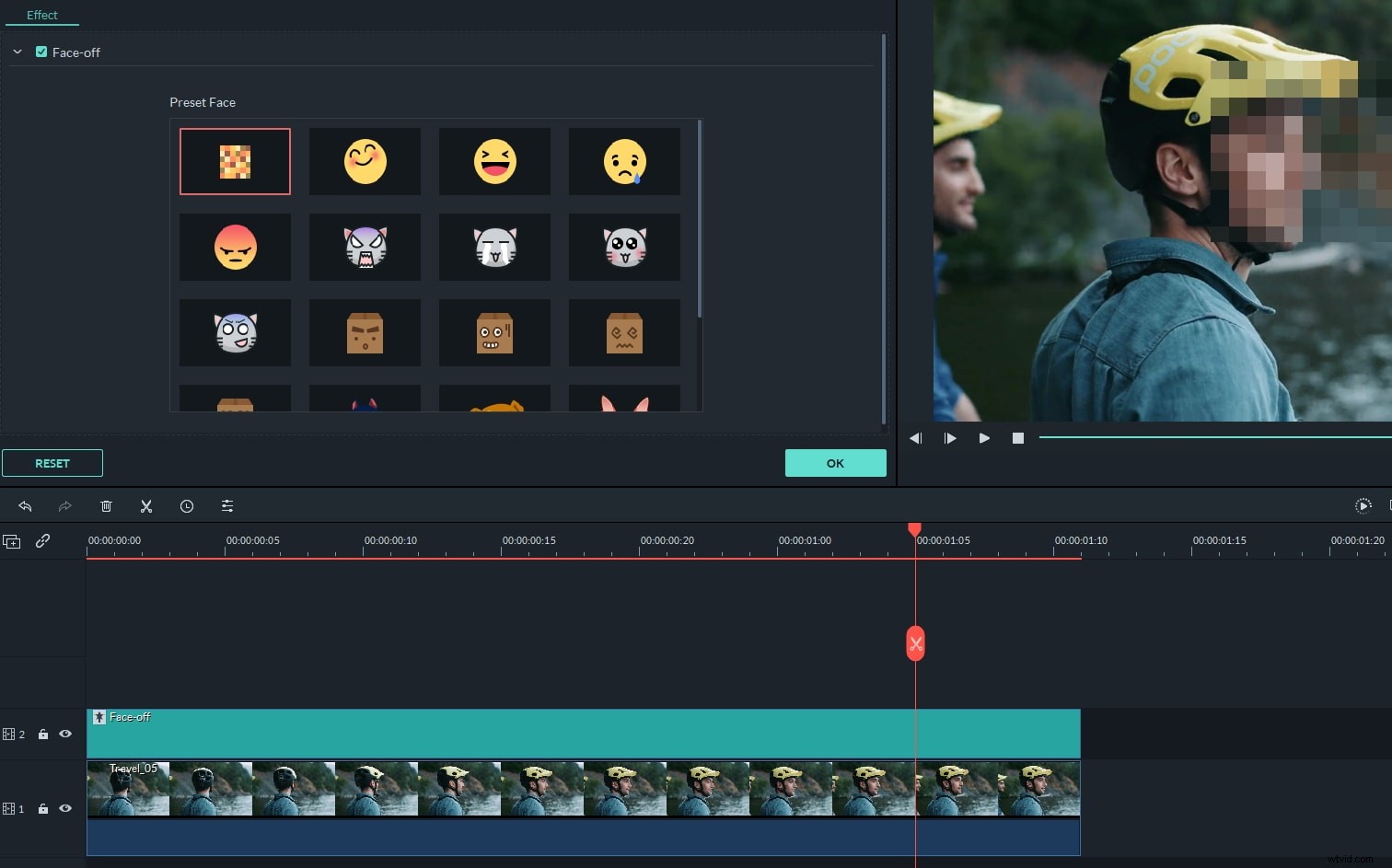
- Apply cool effects like Tilt-shift, Mosaic, Jump Cuts, Face-off, and more with a simple click;
- Save the edited video in different formats, burn to DVD or upload onto Facebook & YouTube.
How to Easily Edit WMV Video:
1. Do Some Basic Editing
The basic video tools like crop, rotate, flip, set Contrast/Saturation/Brightness, set Fast/Slow motion, trim and split, are all included in Video Editor. You can place the WMV video on the timeline and double click it to do the basic editing in the pop up window.
2. Add Transitions and Effects
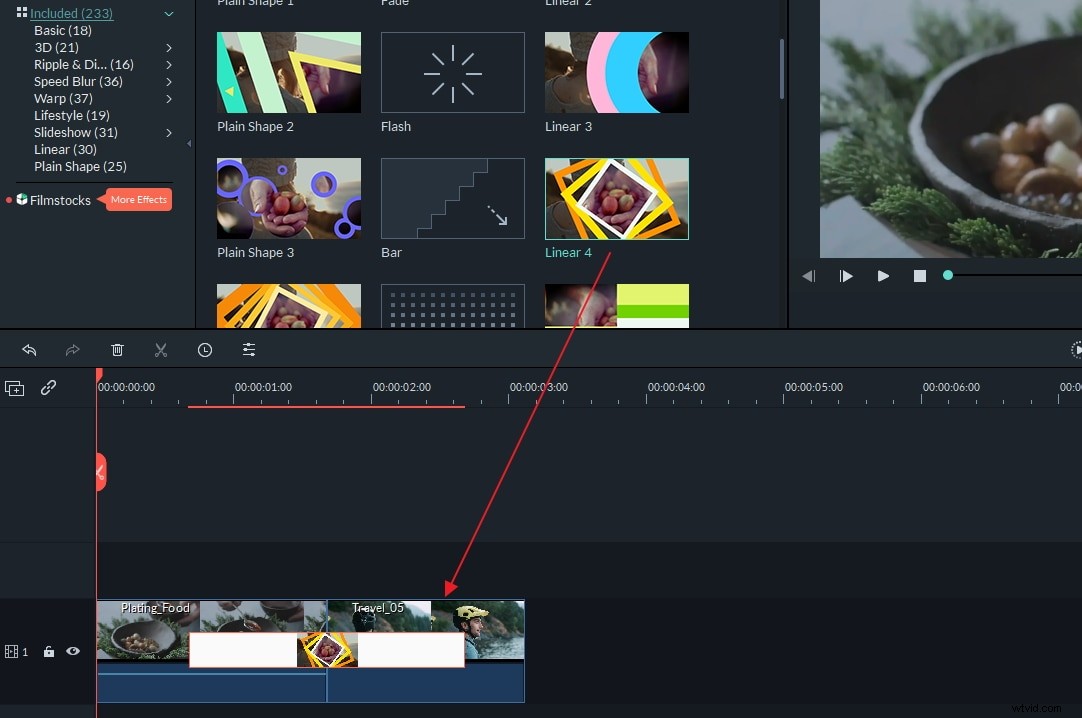
To apply transitions between different scenes, just click the "Transition" tab on the main interface and drag your favorite transition effect to the clips. Double-click the transition to set the transition duration time. You can also let the software choose transitions randomly.
More than 70 visual effects are also ready to be used. The added effect will be applied to videos and photos. For some effects, you can double click on them to change the parameters.
3. Apply Advanced Editing
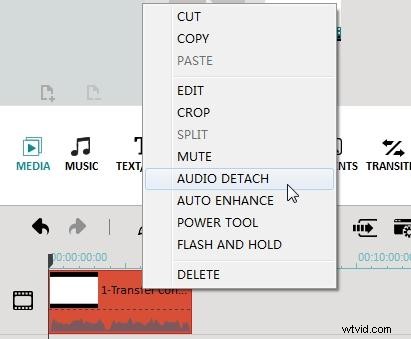
You can also adopt the power tool embedded in Video Editor to add more fun to your video. For example, add jump cuts between scenes, create a close-up to focus your favorite scene in the crowd, put mosaic to hide personal or copyrighted info, replaces faces in your video with artful masks, and more. Just highlight your video, right click it and select "Power Tool" to access the panel.