ASF, also known as Advanced Systems Format, is a Microsoft file format that's used to encode digital video. However, you may find that many video editing tools don't support such kind of format. That’s to say, you need to convert ASF to other format before editing. Sounds complicated? Well, here a powerful video editing program- Wondershare Filmora (originally Wondershare Video Editor) is introduced for you to directly edit ASF without conversion. Interested? Now check out the tip below to see how to edit ASF with it.
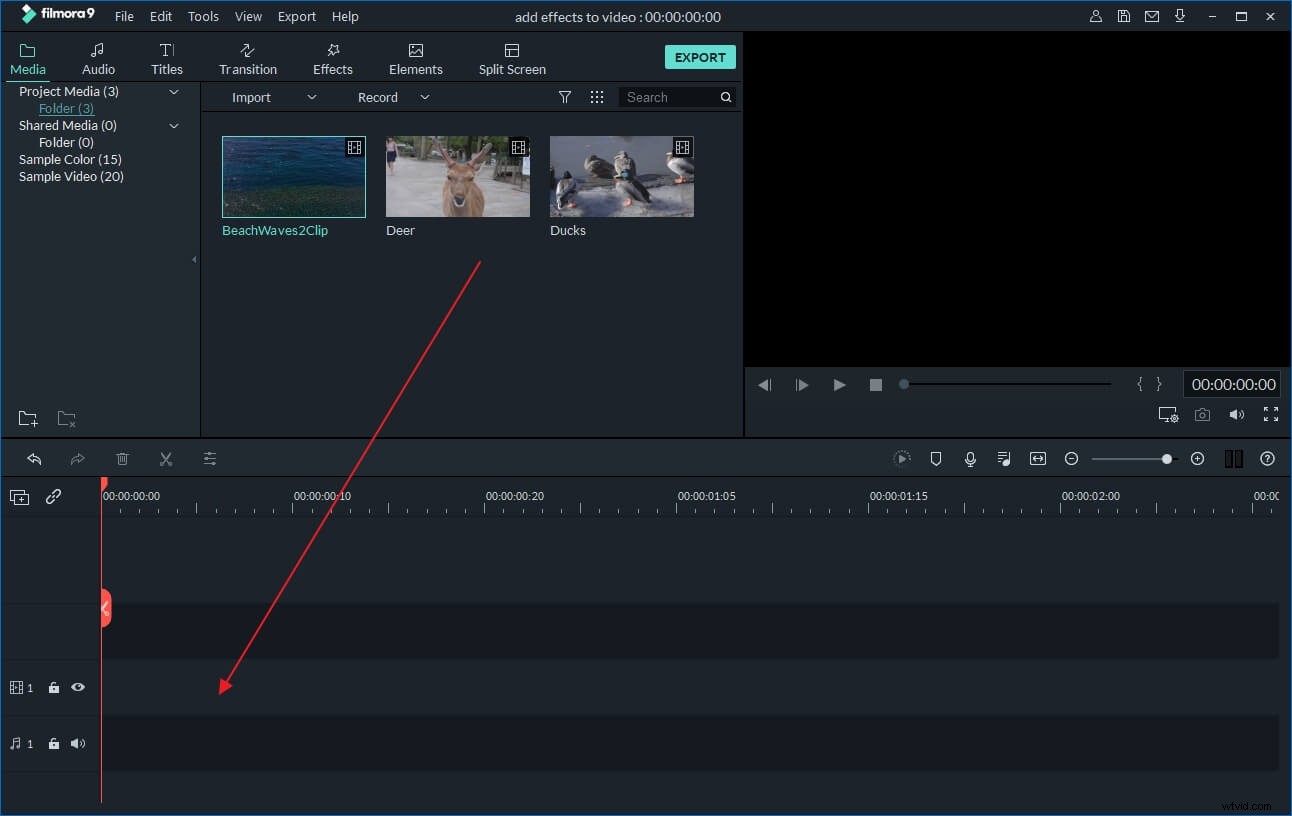
1 Import ASF video to the program
To begin with the ASF video editing work, choose the aspect ratio between 4:3 and 16:9. Then click the“Import”button to add ASF videos as well as the images and audio files along with the videos to the main panel. You can also directly drag&drop them to the program.
2 Apply transitions and effects to edit ASF
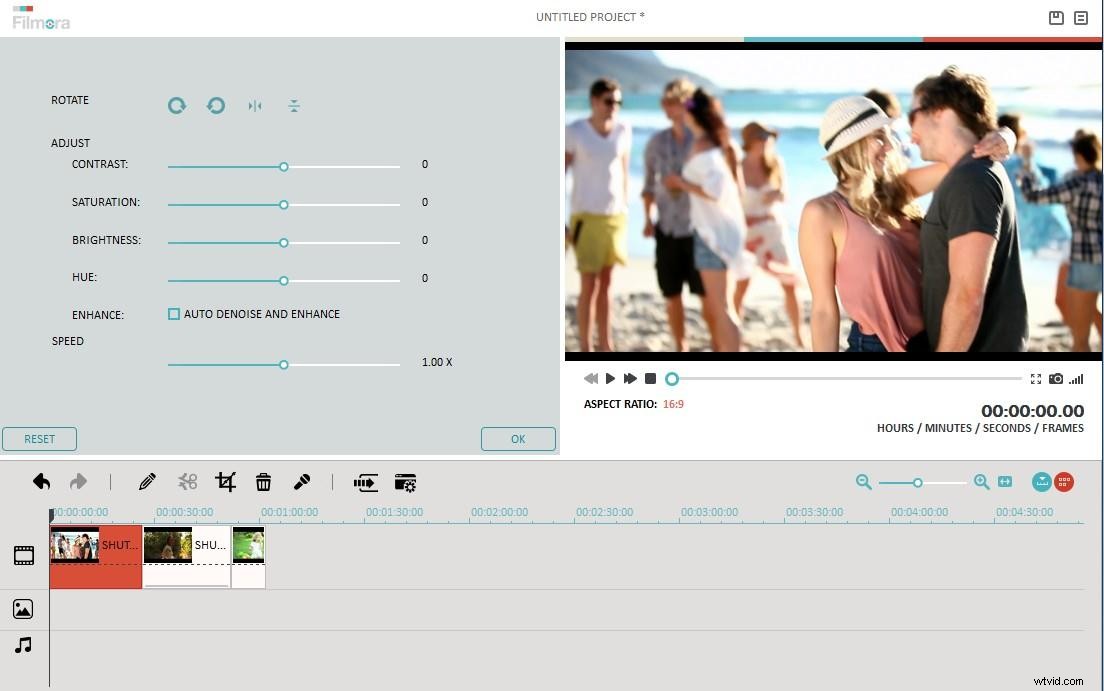
Drag and drop the ASF videos, images and audio files to the corresponding timelines of the editing area. Double click the files on the Timeline, you can crop, rotate, set Contrast/Saturation/Brightness and fast/slow motion as you like. Or simply split and trim ASF video by moving the slidebar to left or right to remove unwanted part.
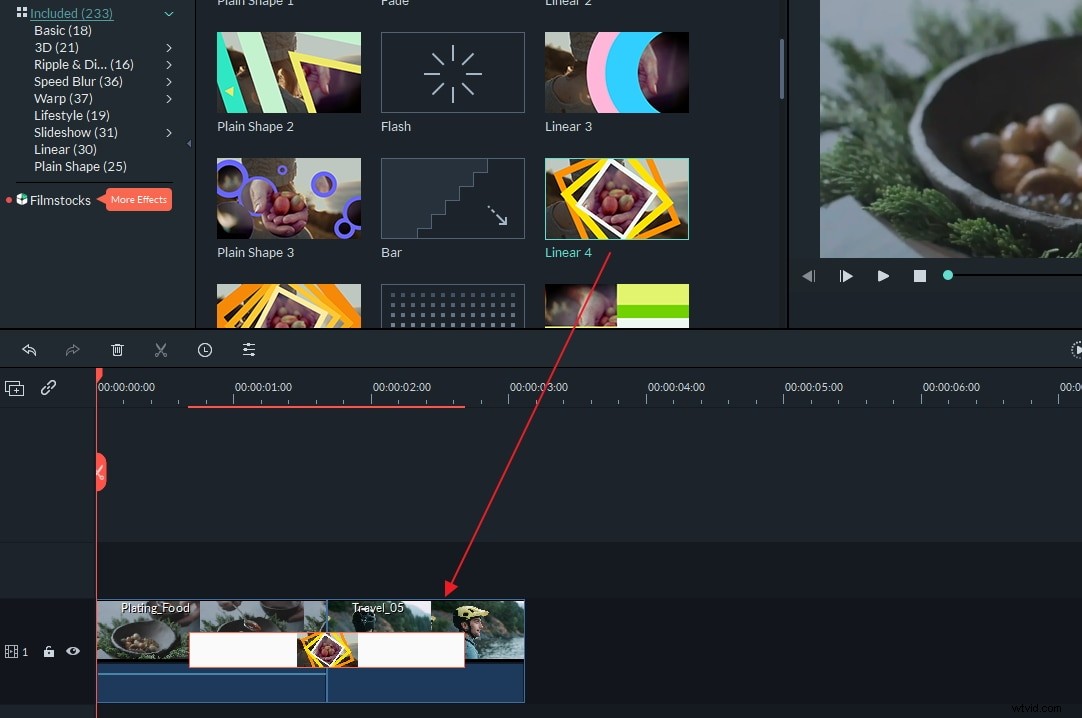
Then click the “Transition” and “Effect” buttons separately to choose from a wide range of amazing effects to add to your ASF video. To apply them, just drag the transition or effect you need and drop it on the timeline.
To add a subtitle for the ASF video, simply click the “Text”button to choose a style. Then drag it to the timeline, double click to enter the words or change the font, color, size and position as you like.
Besides what’s mentioned above, you can also add logo to video, apply picture-in-picture effect, change face, ect.
3 Save the edited ASF
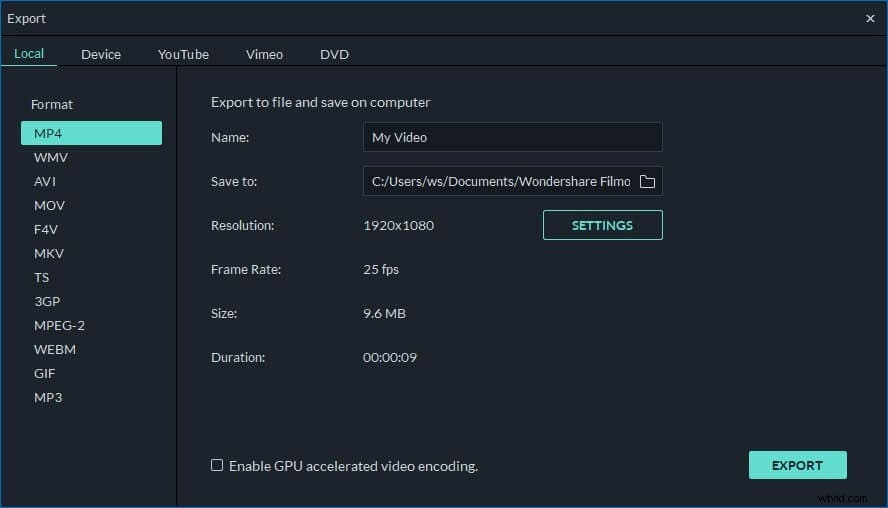
After editing ASF with all factors, go to the final step - save ASF. Wondershare Filmora (originally Wondershare Video Editor) provides four output ways for you to choose:
- If you want to convert ASF video to other formats, click the“Formats”tab to save it as different formats.
- If you want to watch the edited ASF video on your portable media device like iPod, iPhone, etc., go to the “Device”tab and choose from dozens of preset output profiles.
- If you need to burn the edited ASF to DVD, choose the “DVD” tab as the output way.
- If you want to instantly share your edited video online, go to the “YouTube”tab to upload it to YouTube or Facebook.