
Thanks to the communication programs such as Skype, webcam is becoming more and more widely used to communicate across great distances. With the rise in webcam use, the need to edit the webcam video has also become more important. Here a powerful webcam video editor- Wondershare Filmora is introduced to help you edit a webcam video. With it, editing a webcam video can be turned into quality entertainment. Now download it and follow the steps below.
How to Edit a Webcam Video
1. Import the webcam video and cut the unwanted part
Install and run Video Editor. Click Import or directly drag and drop your webcam video to add it to the program. Then drag it to the timeline and click the Play icon to watch it all the way through and look for areas you may wish to cut, such as points where the audio is unintelligible, the picture becomes blurry or just redundant video where nothing is happening.
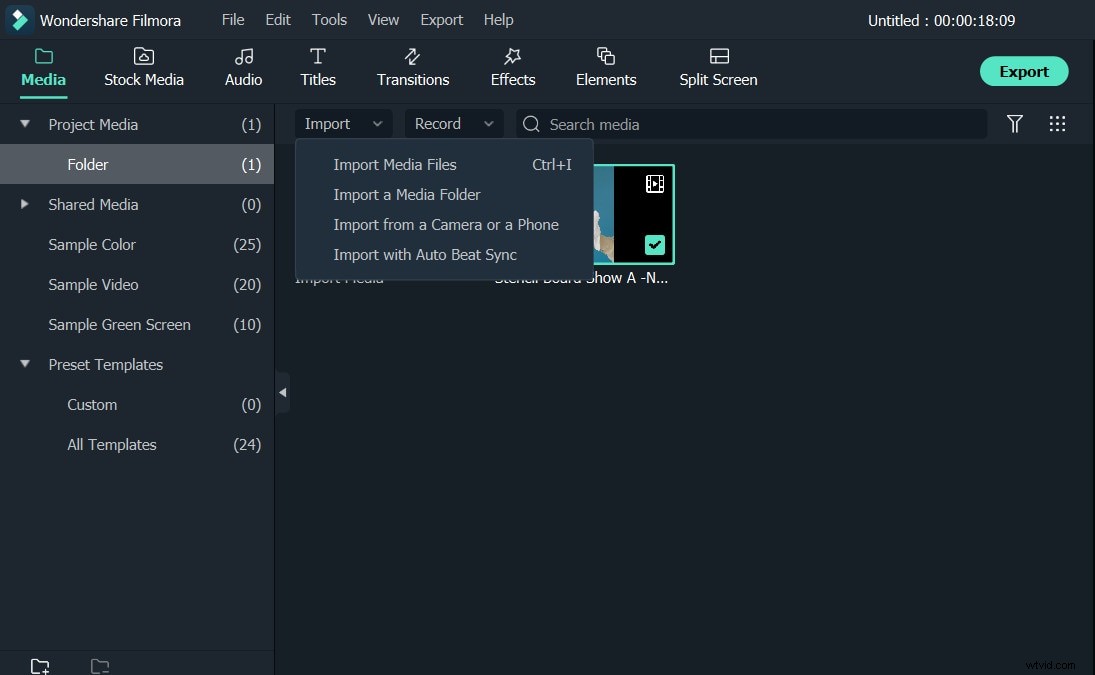
Then right click on the clip to choose Split at the beginning of the unwanted part and move to the end time, Video Editor will create a scene of the section you want to remove. Right click this part and choose Delete to remove it. Repeat until you remove all the unwanted parts.
2. Edit the webcam video according to your needs
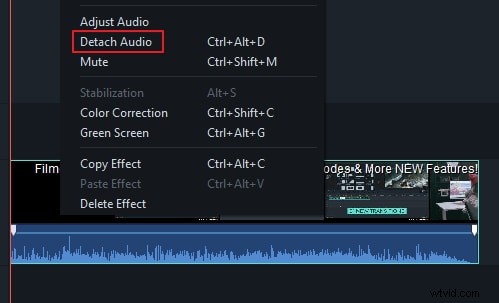
If you don't want to the original audio, right click the video and choose Detach Audio. Then the original audio will be separated and appear on the audio track. Right click and delete it.
If you want to use a pre-prepared song or voice track, you need to import the file into the library. Click Import and the files you selected will be added to the library from which you can add them to the audio track. You can also record a voiceover track inside the program and add it directly to the project. To do this, click Record in the media library. Then you can record your voice over through your computer's microphone.
Besides the basic editing features mentioned above, you can also add transition, texts, intro/credit, or add special effects such as fast/slow motion effect, picture in picture and more. For detailed guide, please go to the guide of Video Editor >>
3. Export the edited webcam video
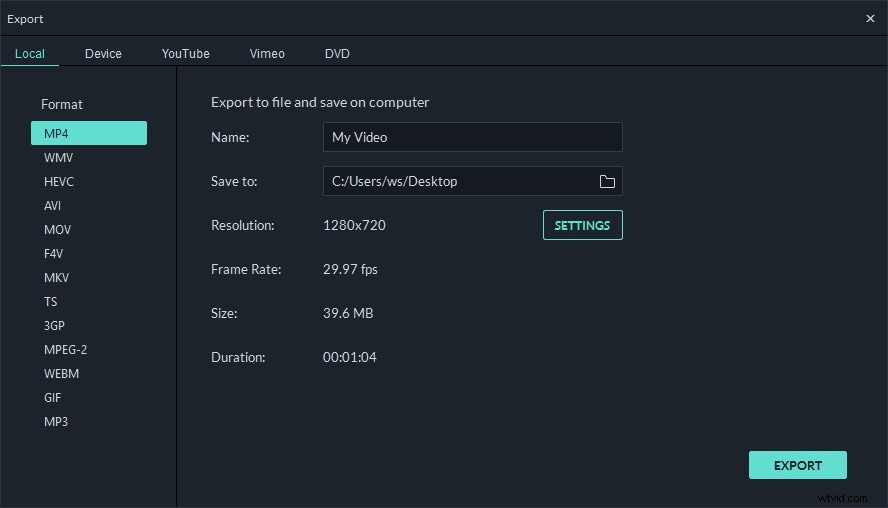
After editing the webcam, preview it by click the "Play" icon. If you are satisfied, hit EXPORT to save the file. You can save it to different formats, directly upload to YouTube or Vimeo or burn to DVD.
Conclusion
It is so easy to edit webcam video by Wondershare Filmora. Basically it only takes 3 steps to edit webcam video. Download it to have a try!