
As Mac OS X 10.14.3 Mavericks will become a popular and household operating system for Mac users, you may need a new video editing tool for Mavericks since many programs don’t keep abreast of Mavericks. Here I recommend the best Video Editing software for Mac OS X Mavericks- Wondershare Filmora for Mac . This regularly updated Mac video editor works perfectly on Mavericks and stands out attributing to its prominent video editing features and easiness. Now download this video editor for Mavericks and learn how to edit videos in OS X Mavericks.
How to Edit Videos in OS X Mavericks
1 Download this Video Editor for Mavericks and add files
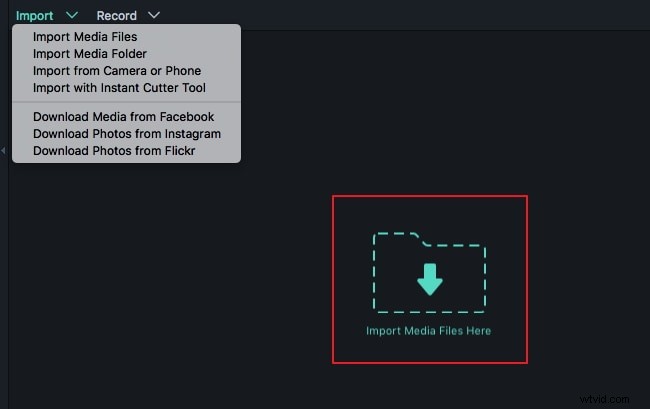
Free download and run Filmora on Mac OS X Mavericks, go to File > Add Files or directly drag-n-drop your videos to the timeline to import the file you want to edit on your Mac. For your convenience, a media browser is provided for you to get files from your iTunes library, iMovie, etc. By the way, you can even record videos using a video capture device or with the built-in iSight.
2 Edit videos in OS X Mavericks
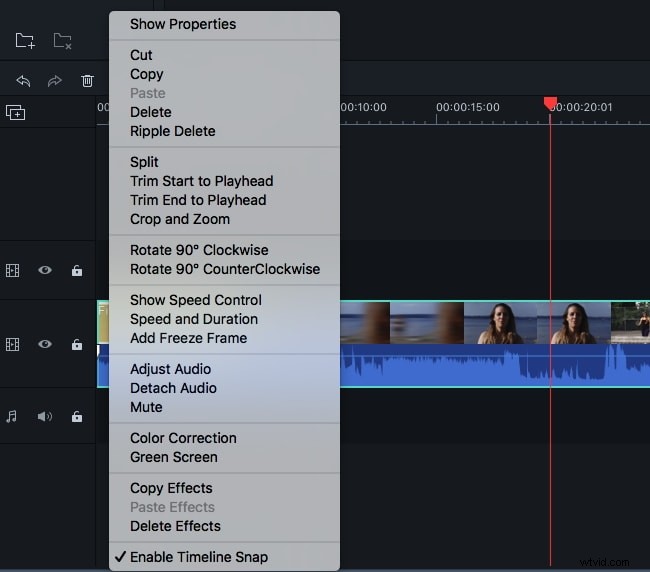
Trim, crop, rotate video, and add titles, filters, video effect etc.
Filmora gives you much simpler videos editing experience on Mac OS X Mavericks. There are two ways to edit video. One is to click the gear button under the video to choose different editing functions like Trimming, Cropping, Rotation, Title, Effect and more. The other is to highlight the video clip and then click the corresponding Trim, Crop, Rotate, Voiceover and button in the tool bar.
Add transitions or credit/intro
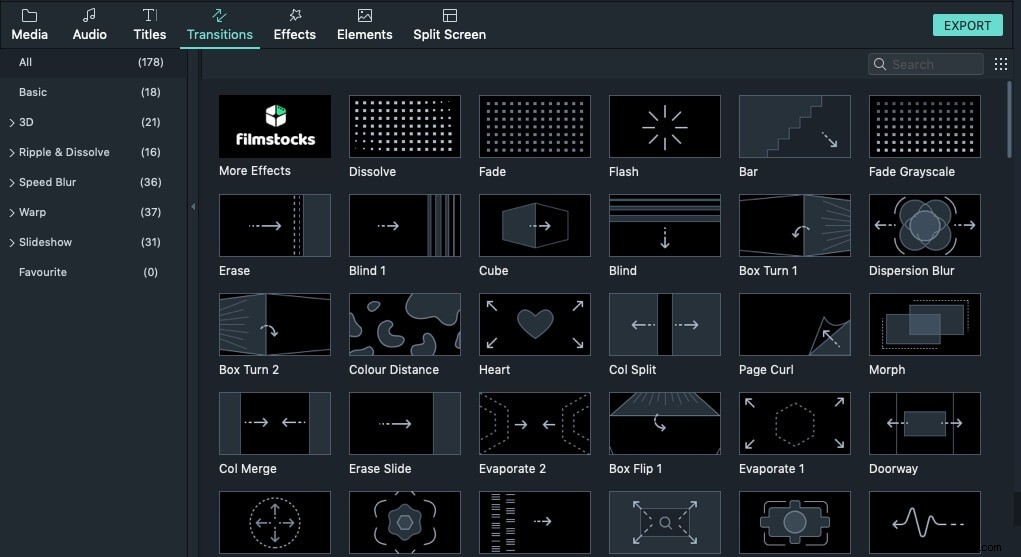
To add transitions, you can click Transitions at the top, and then drag your favorite transition effect to the track over the video to apply. Then double click it to set the transition duration freely. As you can see, you can also apply one favorite transition effect to all the clips or let the software randomly add transitions for you. To make your videos more stunning, you can also switch to the “Intro/Credit” tab to add different intro/ credit effect to timeline. To change the effect and text, choose the “Title” function and customize it as you like.
3 Save the edited videos
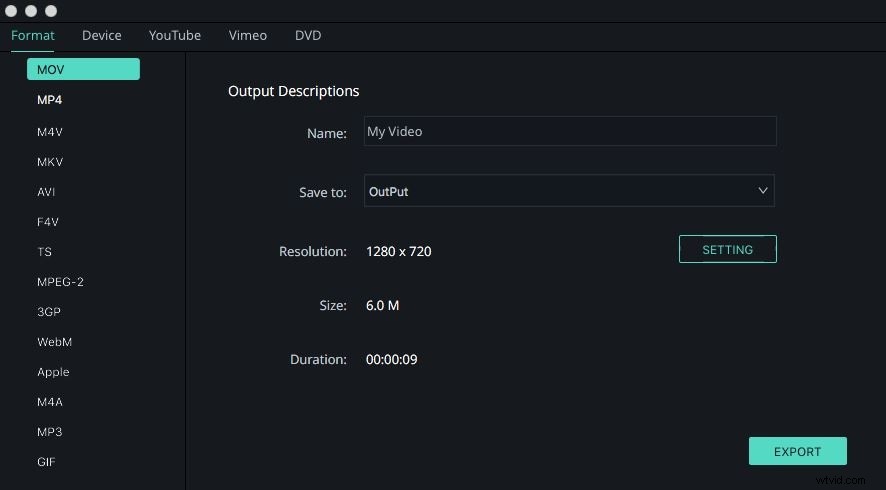
Click the EXPORT button on the primary window to reveal the output window. There are several options for you: Device, Format, YouTube and DVD. Select a way you want to save or share the edited videos. Just have a try.
Now download this video resizer for Mavericks and explore more video editing functions!