
Wax is a light weight but high performance and flexible video editing, composition and special effects software. And above all, it's a free video editor for both commercial and personal use. Wax can create 2D & 3D special effects and can work in two modes - as a standalone application and as a "plug-in" to video editors/NLEs like VirtualDub, Sony Vegas, Adobe Premiere, etc.
This is the getting-started tutorial for Wax. In this Wax tutorial, we are going to show you how to zoom, crop and pan video and image, how to make project settings and how to render AVI videos.
Note: If you think Wax is something complicated, you can turn to Wondershare Filmora, which enables you to edit videos with separate tracks and add transitions to your videos, finally, convert your video to any video format you like.Download the free trial version of Wondershare Filmora (originally Wondershare Video Editor) (Windows/Mac) below.


1. Zoom, crop and pan image for video
Download Wax and install it first. Run the software and Load Media Files by right-clicking on MediaPool panel. But this doesn't finish. To edit video, you need to drag-n-drop desired media files to the timeline. Then switch to Video Plugins to drag-n-drop Quick 3d plugin to the just added track.
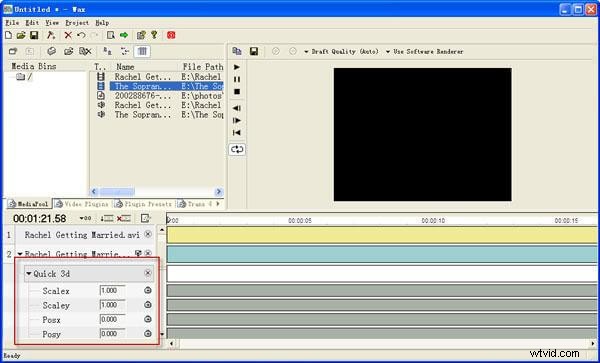
As shown above, click the triangle next to Quick 3d, you would see many options such as Posx, Posz, Cropleft, Cropbottom, etc. Please see detailed instructions to make editing in Wax:
Zoom Video: Click the Posz clock icon to set Keyframming mode to Linear, and then change the value by hanging over mouse to ZEROs and drag to left/right.
Crop Video: Click the Cropleft/Croptop/Cropright/Cropbottom clock icon to set Keyframming mode to Linear, and then change the value by hanging over mouse to ZEROs and drag to left/right.
Pan Video: Click the Posx clock icon to set Keyframming mode to Linear, and then change the value by hanging over mouse to ZEROs and drag to left/right.
Note that you could preview the video while making settings in the top preview windows.
2. Make project settings
Press F3 or click the Project Settings button in the tool bar to bring up the dialog. There, specify the file name, save path and video options, including video dimensions, frame rate, and click OK.
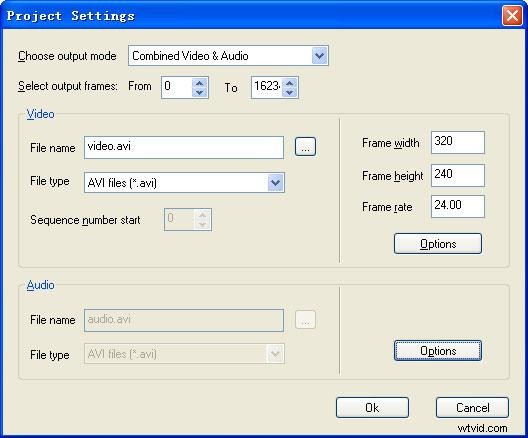
3. Render AVI video
Click the green arrow button on the tool bar to start saving video to specified path in the project settings. A few minutes later, you will get the edited video.

To be concluded, this is just the beginning Wax tutorial. You will find more features while using it. Just download Wax and have a try.