
Are you looking for a smart tool that can support different video format very well? Wondershare Filmora is your ideal choice to edit videos. This intelligent video editor puts all the editing tools you need at your fingertips. Just drag your wanted video files to this app and simply click the one of function icons you want on its intuitive interface. The corresponding pane or window will open and let you finish editing job instantly.
With this easy-to-use app, you can edit video files by trimming, cropping, merging, rotating, adding background music, adjusting video effect like Contrast, Saturation, and Brightness etc. And Rich transition, Inro/Credit, PIP and more resources will let you retouch your videos.
Now, download and install this great video editor to edit your files. Get started now.
How to Edit Video Files
1 Import video files to this editor's album
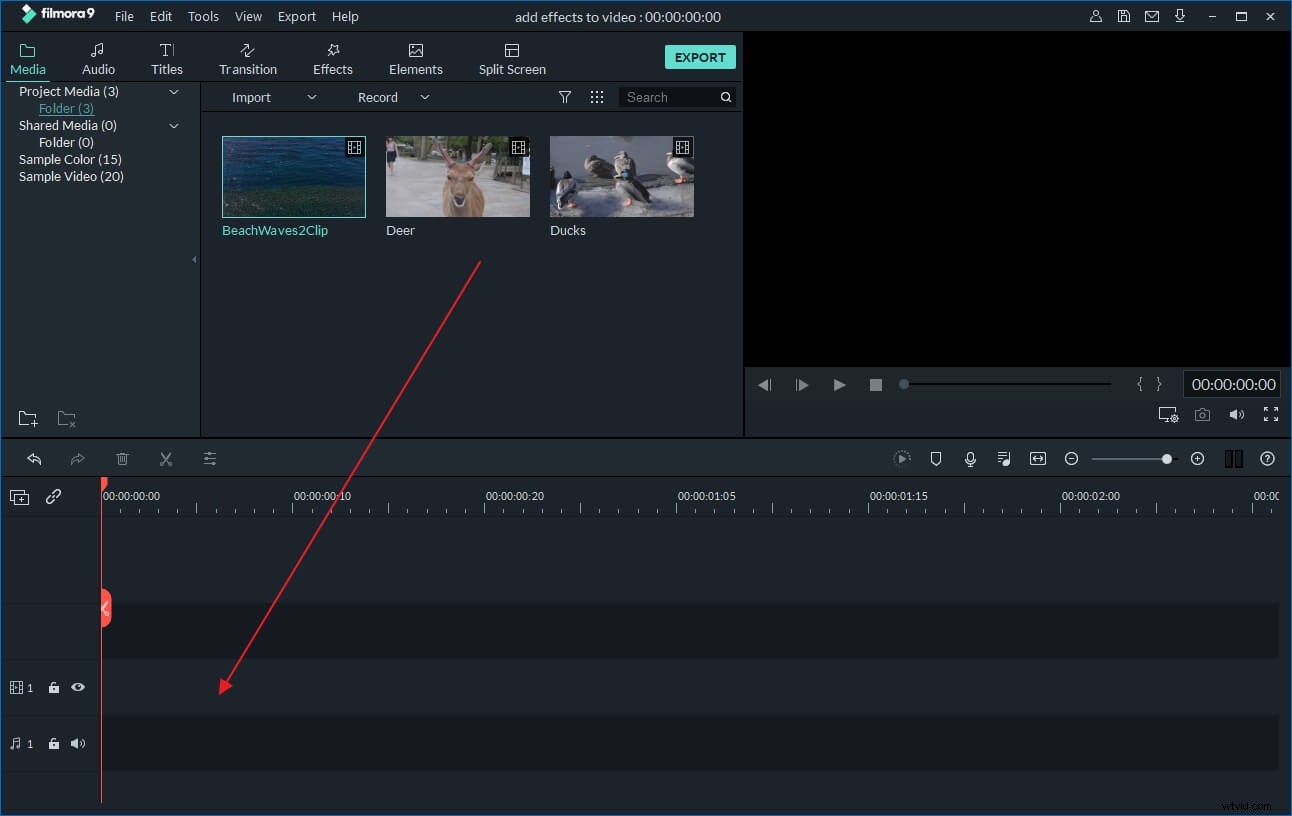
Click the "Import" button to import all video files you want to the User's album. Alternatively, you can drag and drop these target video files from your computer to the album.
2 Drag video files to the Timeline for editing
Drag your wanted video files from this app's album to its Timeline. And when you do it, you'd better drag them from the album to the timeline one by one. That's done to avoid putting one file on another which can have the second file split.
3 Edit video files
Select one video clip on the Timeline and then click the Edit button to open the editing panel, where you can crop, trim, rotate video, change video effect and speed in video bar, and edit audio track in Audio bar.
To trim a video clip to the specified length, just click it and mouser over its left or right edge.
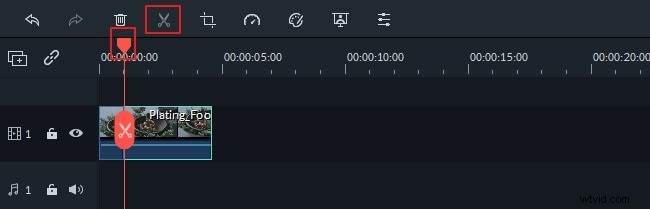
If you want to split a video clip, just select it by clicking, drag the top of the red Time Indicator to any point you want, and then hit "scissor" icon.
4 Export your creation
Press the "Create" button to pop up the output window, where you need to go to “Format” category and select “MP4” format. If you continue the “Advanced settings” option, you can see its encoder is High Definition. That's it. Hit the "Create" button again to export the new video file.
Here is a video tutorial: