
MPEG becomes exceedingly popular in today's multimedia world. A quick and easy way to edit MPEG files is to use a MPEG Editor. We at Wondershare naturally recommend Wondershare Filmora: an excellent video editing software to help you crop, trim, merge, and rotate MPEG videos, or add cool transition effects, filters, captions, etc. to enhance your videos.
What's more, This MPEG video editing software is also a video converter. You can convert your creation to another format and save it on your computer as you like.
Free download the MPEG Editor (free trial), then follow the steps below to edit your MPEG videos on PC with ease and fun. If you are a Mac user, turn to Filmora for Mac for help.
How to Edit MPEG Video Files
1 Import MPEG Files
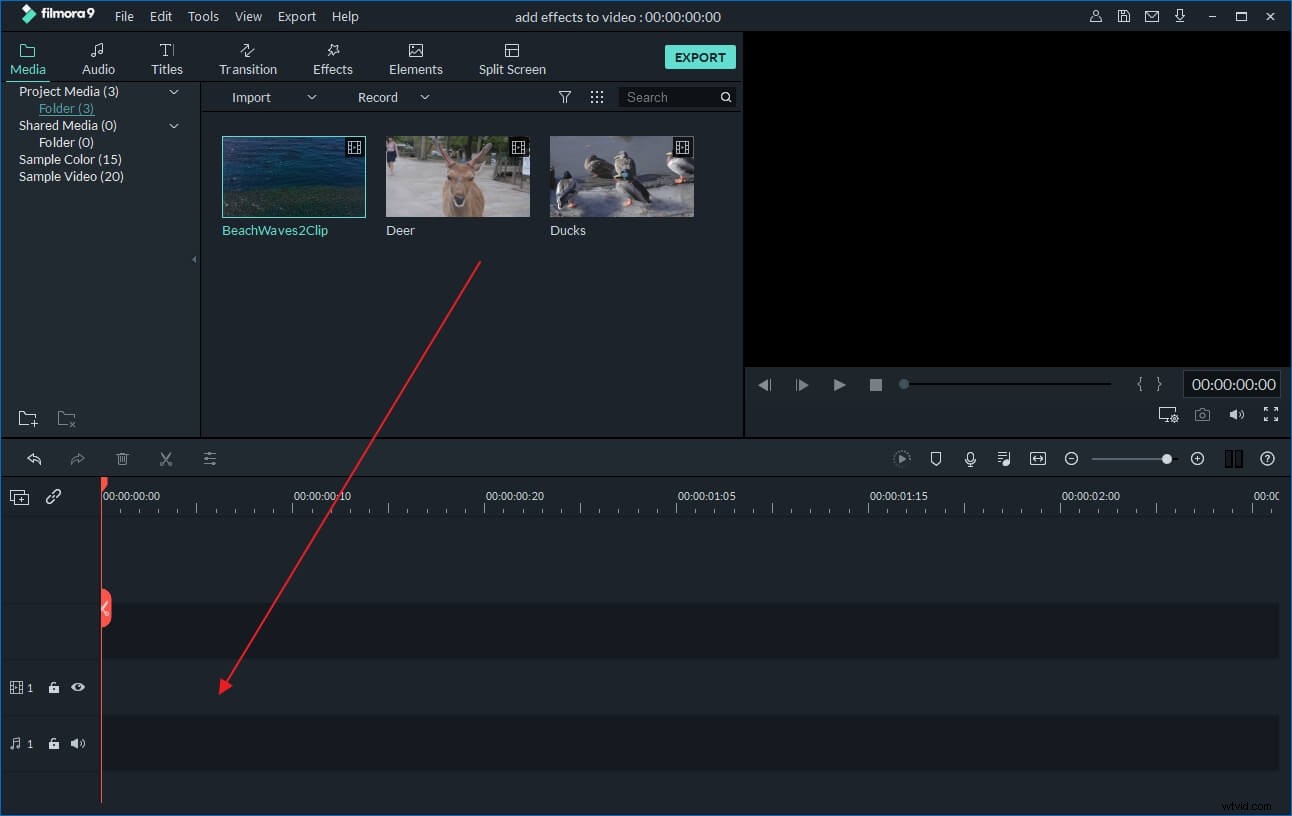
Click "Import" or drag and drop to add files to the resource pane. All the added files will be shown in User's Album and you are free to preview them on the right viewing window and take snapshots of the video scenes you like. Besides MPEG file, this MPEG video editor can also help you edit MP4, FLV, AVI, MOV, MPG, WMV, MKV, etc.
2 Edit MPEG videos
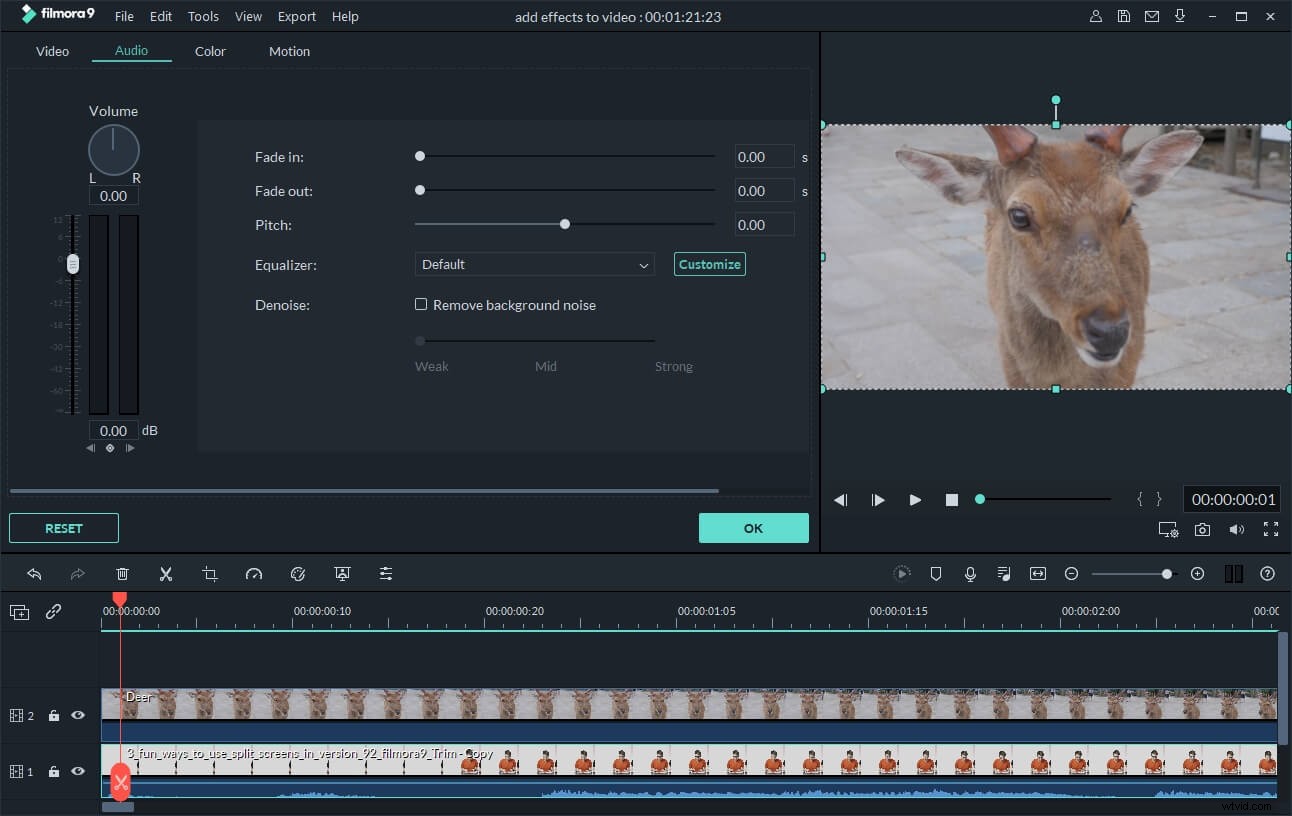
And then drag the files to the video track on the Timeline. To edit an MPEG video, double click on thumbnail to open the editing panel on the top left. You will see the video bar, Audio bar and Crop button. Click Video/Audio bar to expand options. As you can see, just click to rotate, flip, and set video contrast, saturation and brightness, fast/slow motion, etc. You can also add stylish text and artistic video effects to make your videos more personalized and eye-catching.
3 Add scene transition
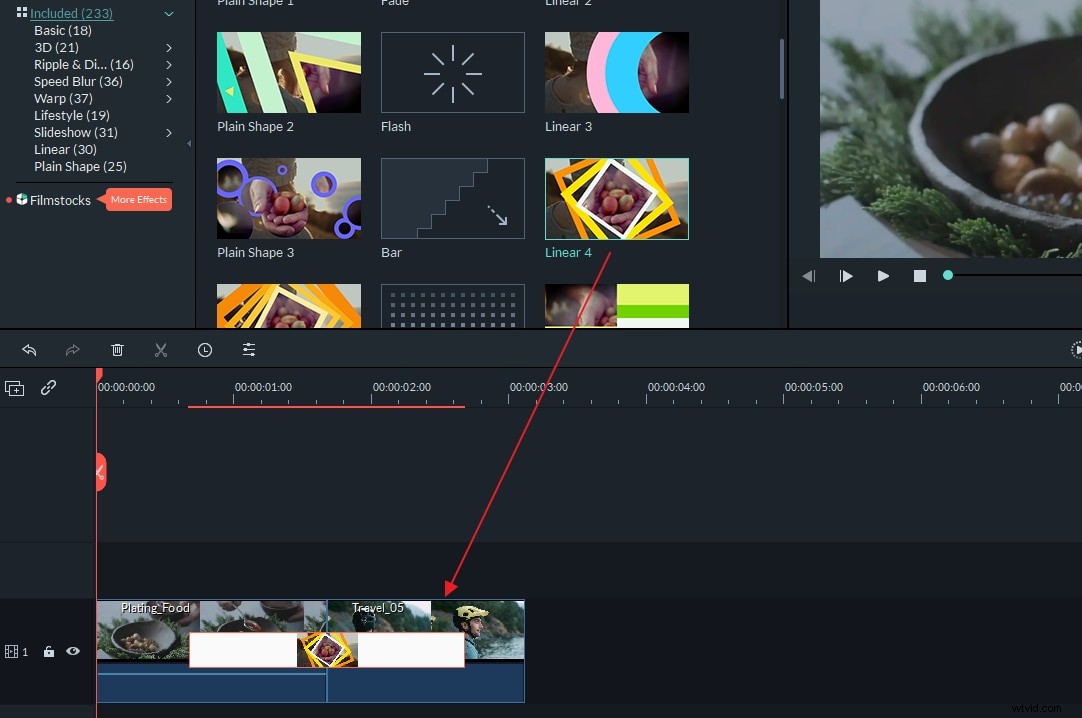
To apply specific scene transitions between video segments, click Transition tab and drag transitions to video clip on the Video track.
4 Share edited MPEG video
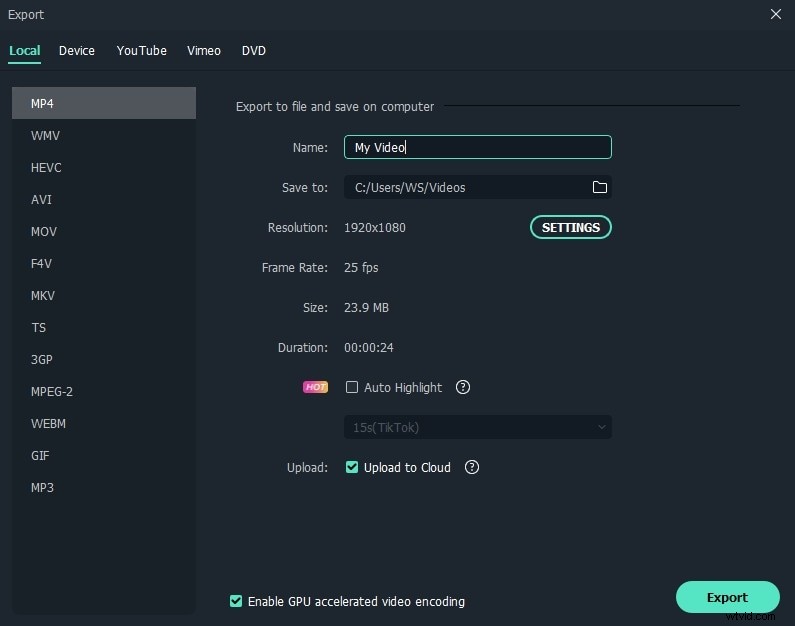
After editing, click "Create" and select where you want to share your edited MPEG videos. Then choose an output profile according to the device and specify the local destination on your computer for saving. Notes: After the conversion, you can transfer the video to iTunes for copying to iPhone, iPod, iPad. You can also save your video to local hard drive in a variety of video formats, share videos on YouTube directly or burn video to DVD discs.
More about MPEG files: The 'Moving Picture Experts Group' (MPEG) is a working group of experts that was formed by ISO and IEC to set standards for audio and video compression and transmission. It was established in 1988 and its first meeting was in May 1988 in Ottawa, Canada.
Download MPEG Video Editor (free trial):