
I have avi files with video and 2 audio. Is there a program to demux these files into elementary streams?
Sometimes you might need to demux AVI files with more than one audio and listen to the audio using your player - a portable MP3 player, for instance. That can be quite easy if you use Wondershare Filmora (originally Wondershare Video Editor). Follow the steps below to learn how to do that.
1 Install and import your AVI files
Download Video Editor and follow the installation wizard instructions. Then hit the “import” button to select the AVI files you would like to demux. In the opened Windows Explorer window browse for the necessary video file and then the thumbnails of the videos will appear in the program's media area.
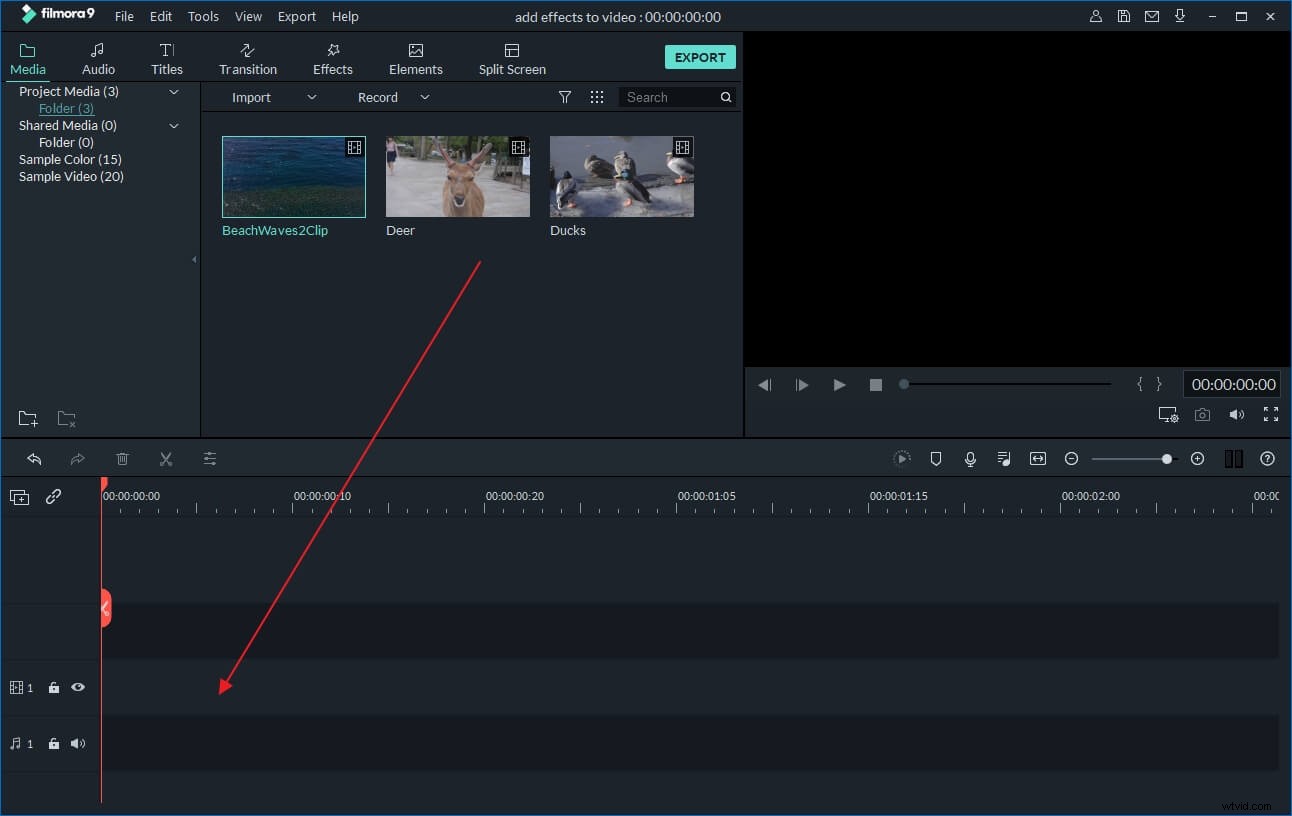
2 Demux AVI files
Then drag-n-drop the AVI files to the video timeline. To demux them, right click the file and choose “Audio Detach” from the menu content. Then you’ll see the audio be separated from the AVI file and appear in the audio timeline.
Tip: If you want to change the video or audio file, just right click the original file and choose “Delete”. Then import and drag the file you want to add to the corresponding timeline.
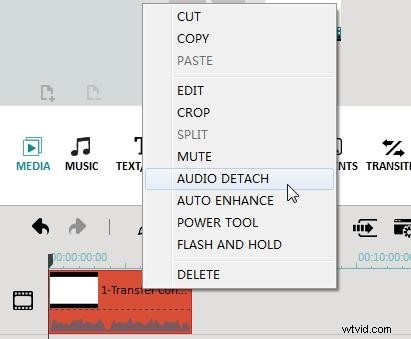
3 Preview and save the new file
After demuxing AVI files, delete the audio or video file that you don't want to save. Then hit “Create” and go to the Output window. Here Video Editor provides four output options for you:
- Go to the “Format” tab and to save it to a suitable format. If you're not sure, save it to MP3 format as this is widely supported on most hardware devices capable of playing digital music.
- If you want to play the file on devices such as iPhone, iPod, iPad, Xbox 360, Zune, switch to the “Devices” tab and choose a device from the list.
- If you want to share the new file to the world, directly upload it to YouTube in the “YouTube” tab. All you just do is to fill in the account information. You can also burn to DVD in the “DVD” tab.
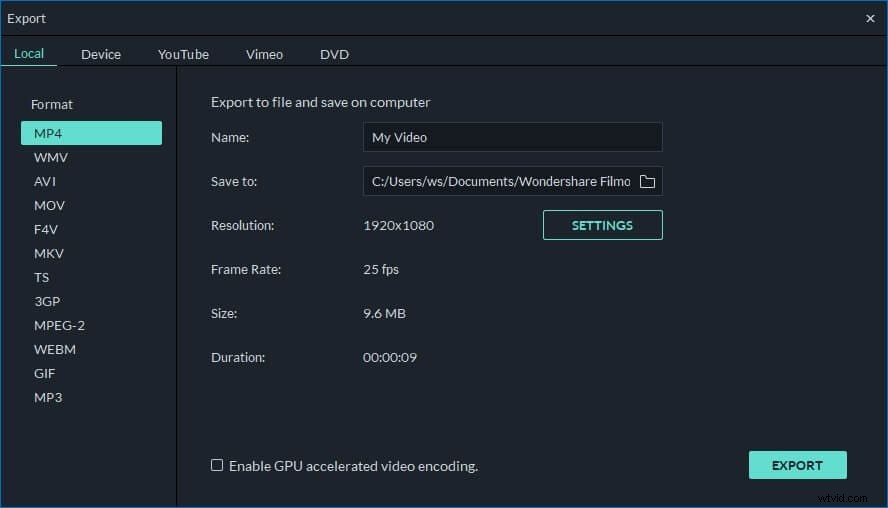
You see, it's so easy to demux AVI files with Video Editor. Besides this function, it's just as simple to add or mute a soundtrack, apply intro and credits, rotate, combine or trim videos and you can save the results as a video file, or upload them directly to YouTube.
Watch this video tutorial below: