
In some situations, you may need to crop AVI files. For instance:
- You have a AVI file that has black bars on the top and bottom. So you want to crop your AVI file in order to remove black bars from a video.
- You need to crop a widescreen AVI video to fit your small-screen device like iPhone etc.
- Just want to focus on certain part of the AVI video
To crop video, you can use Wondershare Filmora, which can let you crop any part of a video screen at will. It supports almost all popular video formats including AVI. So with it, you just feel free to crop your AVI files according to your like. Please check the video tutorial first.
Below is a detailed guide on the basis of Windows system.
How to Crop AVI Files
1 Import AVI files to this AVI cropper
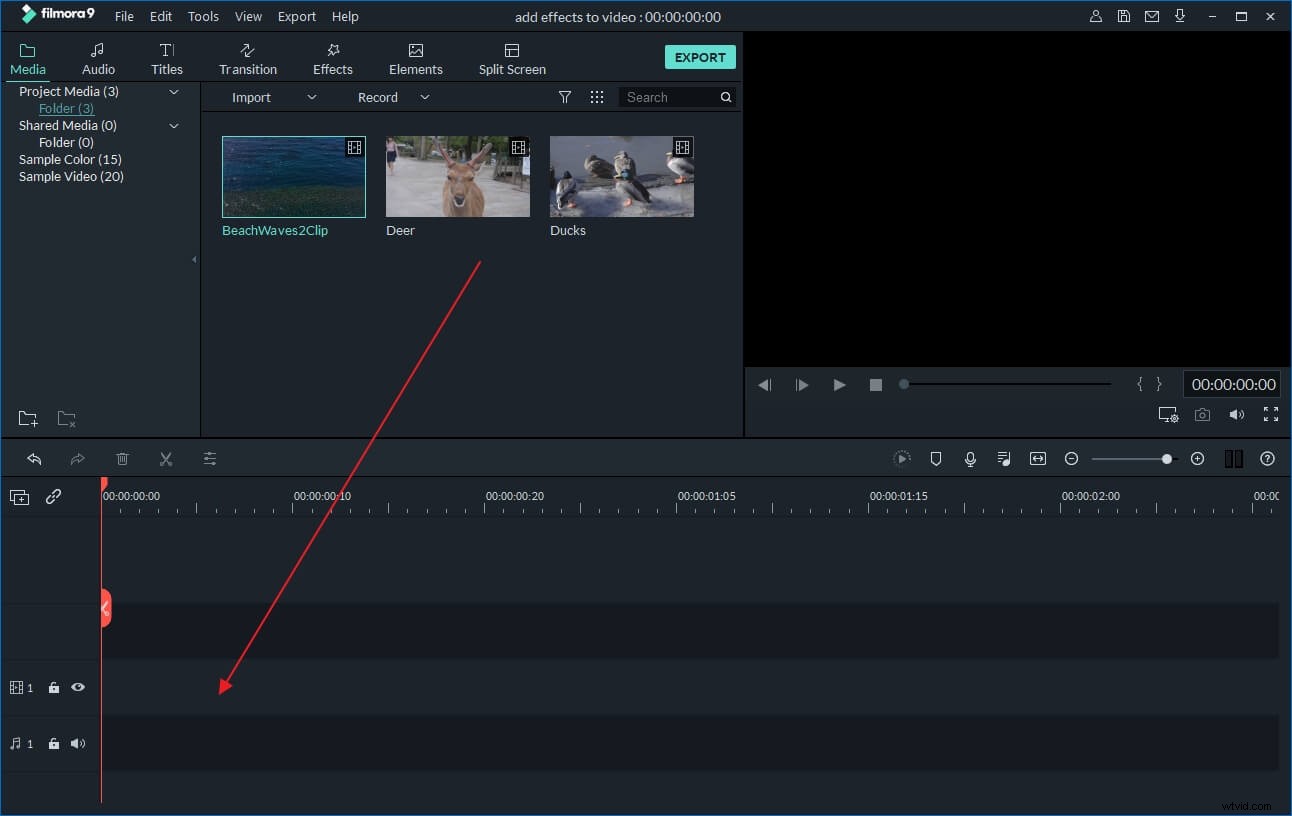
Just click the "Import" button to import your wanted AVI file from the computer to this app. Now, you'll see the added AVI video has been added in the User's album of this AVI video cropper. Alternatively, directly drag the AVI file to the Album.
2 Crop AVI files
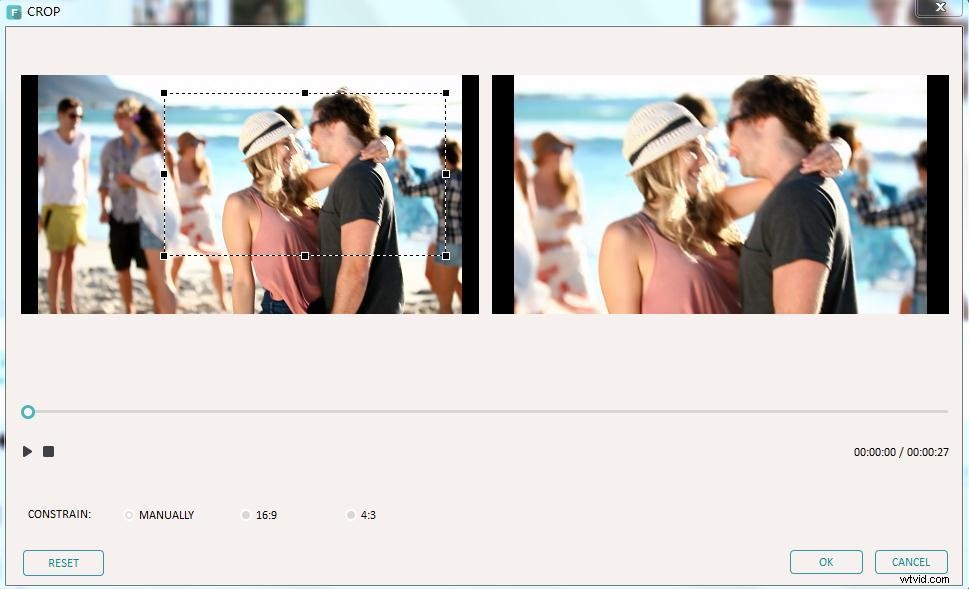
Next, drag the AVI video from the album to the Timeline for cropping. Right click the AVI clip on the Timeline, and then select the "Crop" option. Immediately, the Crop window will pop up. In the left window, there is a rectangle that you can drag it to select the video area at will. And instantly, you can preview the effect in the right window. In this way, you can cut off any part of the AVI video screen and create close-ups.
3 Save the new AVI file
If you're satisfied with the effect, just click the "Create" button to export the new AVI file. In the pop-up the output window, you need to select AVI in the "Format" category. After that, you can find the cropped AVI files according to the output patch you set. Check to crop MP4, FLV, MKV, XVID files here.