Sometimes you may want to mix both the HD (High Definition) and SD (Standard Definition) video files into a complete one. To get it done, an easy-to-use and high-quality video mixer is what you need.
Wondershare Filmora (originally Wondershare Video Editor) is such a program. It enables you to mix HD and SD video files seamlessly and save the completed file in almost all video formats. For those who just mix HD and SD video files for burning a DVD later, this program is absolutely the best choice in this regard. It lets you directly burn a new DVD disc (DVD folder, ISO, IFO file included) after you mix the files together perfectly.
Now download and install it first. And then follow the step-by-step tutorial below to mix your HD and SD files seamlessly.
How to Mix HD and SD Video Files
1 Import your files to the timeline
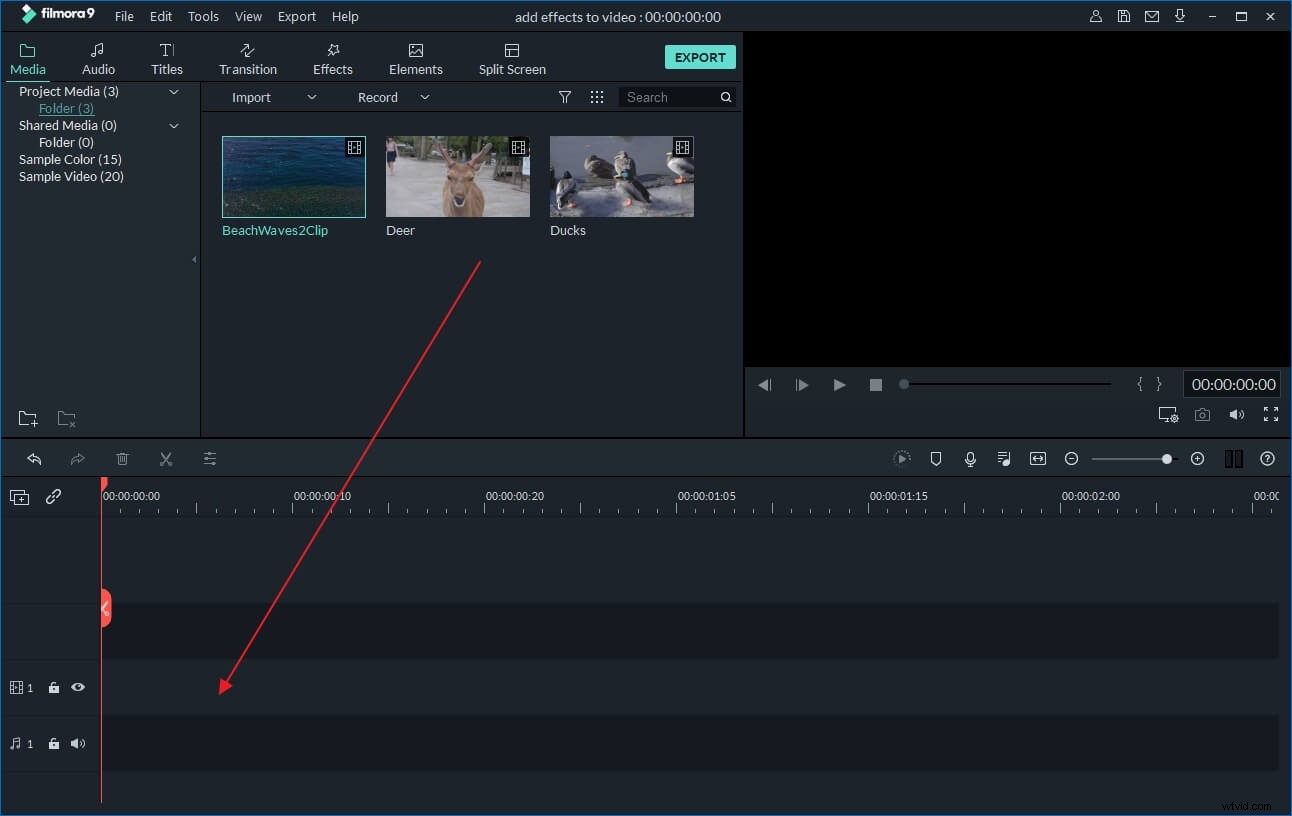
After installing and running this video mixer, choose from the “16:9” or “4:3” ratio rate according to your needs. Then hit the "Import" button to import both of the HD and SD video files from the computer to the program. Or directly drag and drop these target files from your hard disk to the album. You'll notice that all of these added files are listed in the pane of this program, shown as follows.
2 Mix the HD and SD video files together
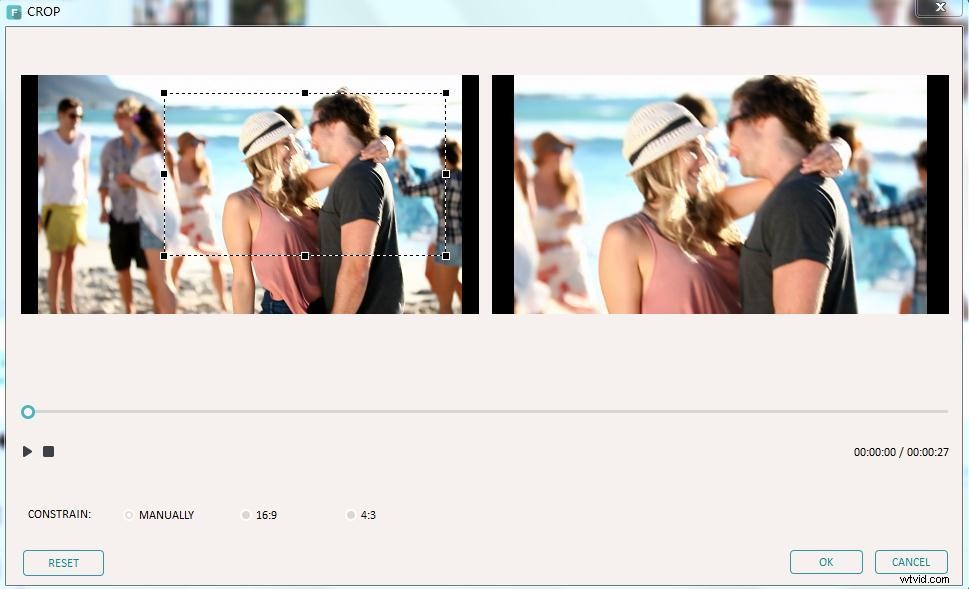
Drag these added files from the album to the Timeline at the bottom of the interface. Then adjust the video resolution by cropping. To do this, right click the target file and choose “Crop”. In the pop up window, you can either crop the video in 16:9 or 4:3 aspect radio or manually crop the selected area according to your needs. Click “OK” to confirm your setting.
Note: If you want to do more editing job, like rotate, crop, split video, add titles, transition, effect, etc, please refer to how to edit video files>>.
3 Export a complete video file or burn to DVD
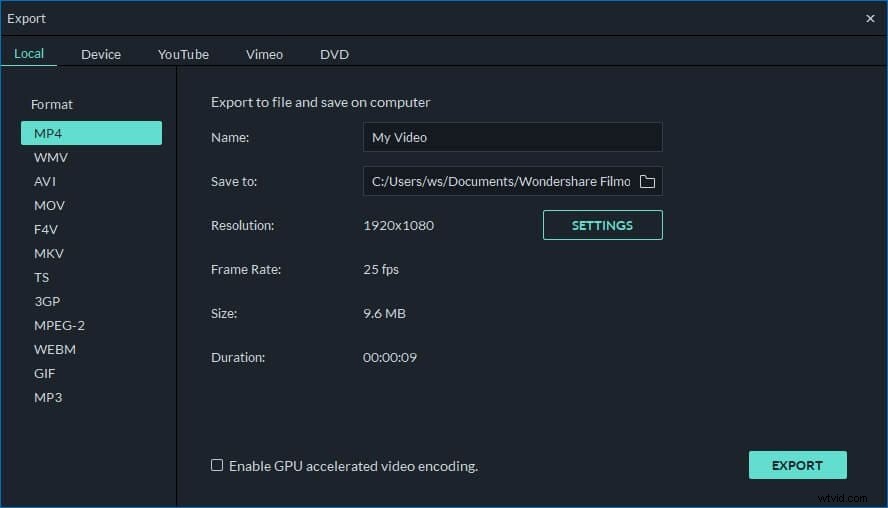
Preview the whole video. If you're satisfied with the result, press the "Create" button to export the video. In the pop up window, select the export method. If you want to export a new file, just go to “Format” and choose a desirable video format from the list. You can also directly share it on YouTube or Facebook in the “YouTube” tab. If you want to burn the file to a DVD, just go to the "DVD" tab, insert a blank DVD disk, and let this program to finish the rest process.