
It's a common situation that you download several FLV video files of a hot movie from YouTube or other video-sharing sites, instead of a complete movie. At this time, you may want to merge FLV files together into one. Of course, it's also a great idea to merge different FLV videos to create a masterpiece like a trailer. Well, to combine FLV files, you need a professional FLV merger as your assistant.
Wondershare Filmora (originally Wondershare Video Editor) can be the best FLV combiner. This smart app makes it easy to merge or combine FLV files into a big video collection without video quality loss. With it, you can watch a complete video or movie without the annoying breaks.
Next, I'll show you how to merge your favorite video clips into a new video collection quickly and easily.
How to Merge FLV Files
1 Run this FLV merger and then import FLV files
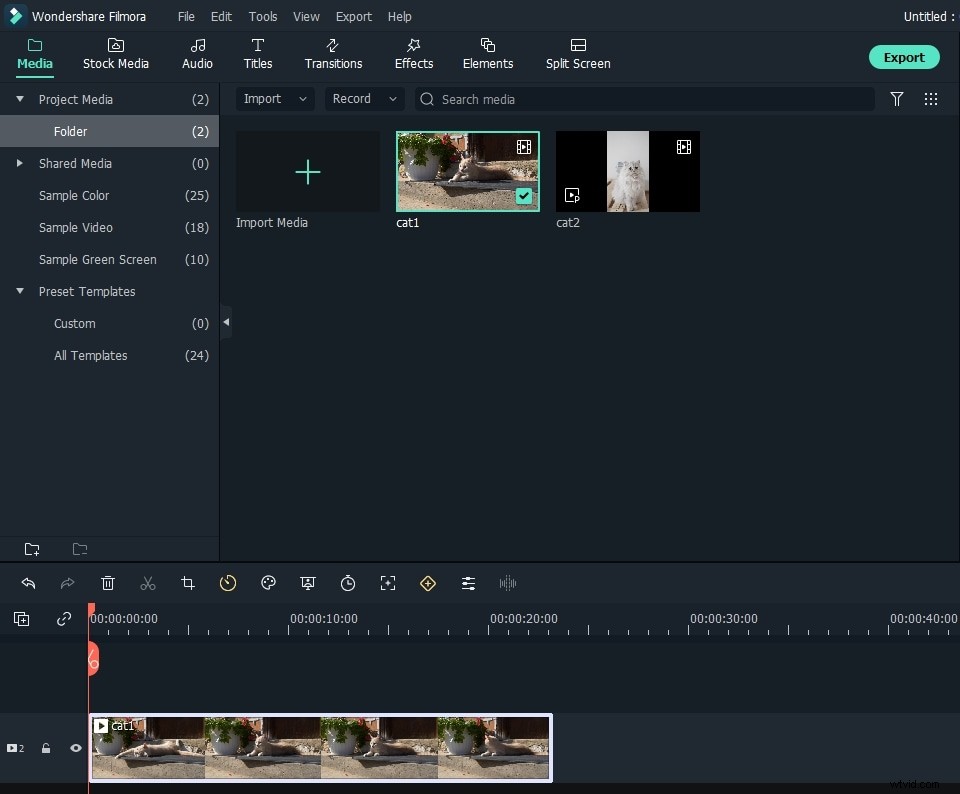
When you run this FLV combiner, you need to click "Import" option to load all of your local FLV files you want to merge to the User's album of this FLV video merger. Alternatively, you can also directly drag and drop these target files from the computer to the album.
2 Merge FLV files into one
There is a Timeline at the bottom of this FLV file merger. Drag FLV files from the album to the Timeline and move the slider bar to help you range all FLV files in the Timeline without overlay. That's very important. Because if you put one video to another, or you'll split the original video. Make sure all FLV files are arranged according to the play order. If not, you can change the position of any video by a simple drag-and-drop.
3 Export a new FLV file
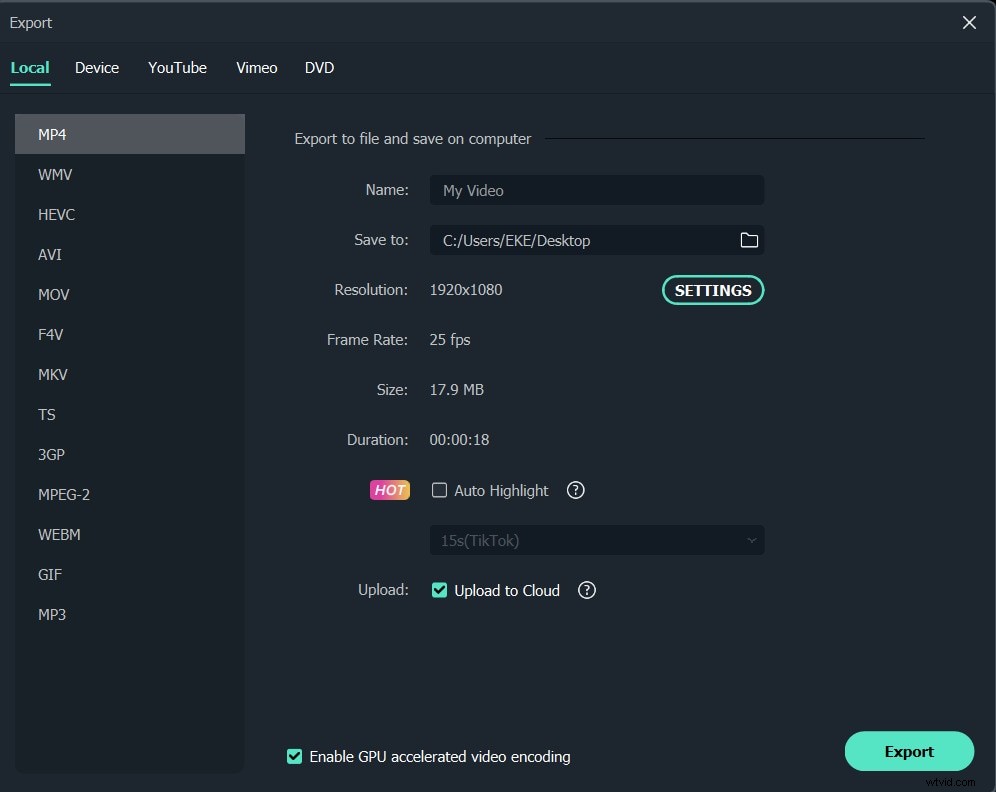
When you make sure all FLV files are in right order in the Timeline, you can view the effect in the preview window in real time. After everything is ok, you can export the new FLV file. Just press the "Create" button, and in the output window, go to "Format" tab > "FLV" output format. At last, click the "Create" button to save the setting and export the new FLV file simultaneously. When it's over, just find the complete FLV video according to the output file path.
Video tutorial on how to merge video clips with Wondershare Filmora