
TS file extension is widely used in HD content. Videos with this format are usually large in size. So you may need to cut a big-size TS video into multiple smaller video files, or cut off some unnecessary video clips of a TS file. Check the video tutorial about how to cut/split videos first.
In fact, you can quickly and easily finish the jobs as long as you own an excellent TS cutter. Here, Wondershare Filmora is highly recommended. It's easy to use and has lots of video editing features including cutting TS files, most importantly, still keep relative high video & audio quality after when the editing is done.
Easy-to-use TS Cutter: Wondershare Filmora (originally Wondershare Video Editor)
Why Choose Wondershare Filmora (originally Wondershare Video Editor)
- Easily cut TS file into different parts with no quality loss.
- Add transitions, filters, intro/credits and sound effects to make TS file more vivid.
- Save the Ts file in different formats, burn to DVD or directly upload online.
- Supported OS: Windows (Windows 10 included) & Mac OS X (above 10.6).
1. Import TS files to this TS cutter
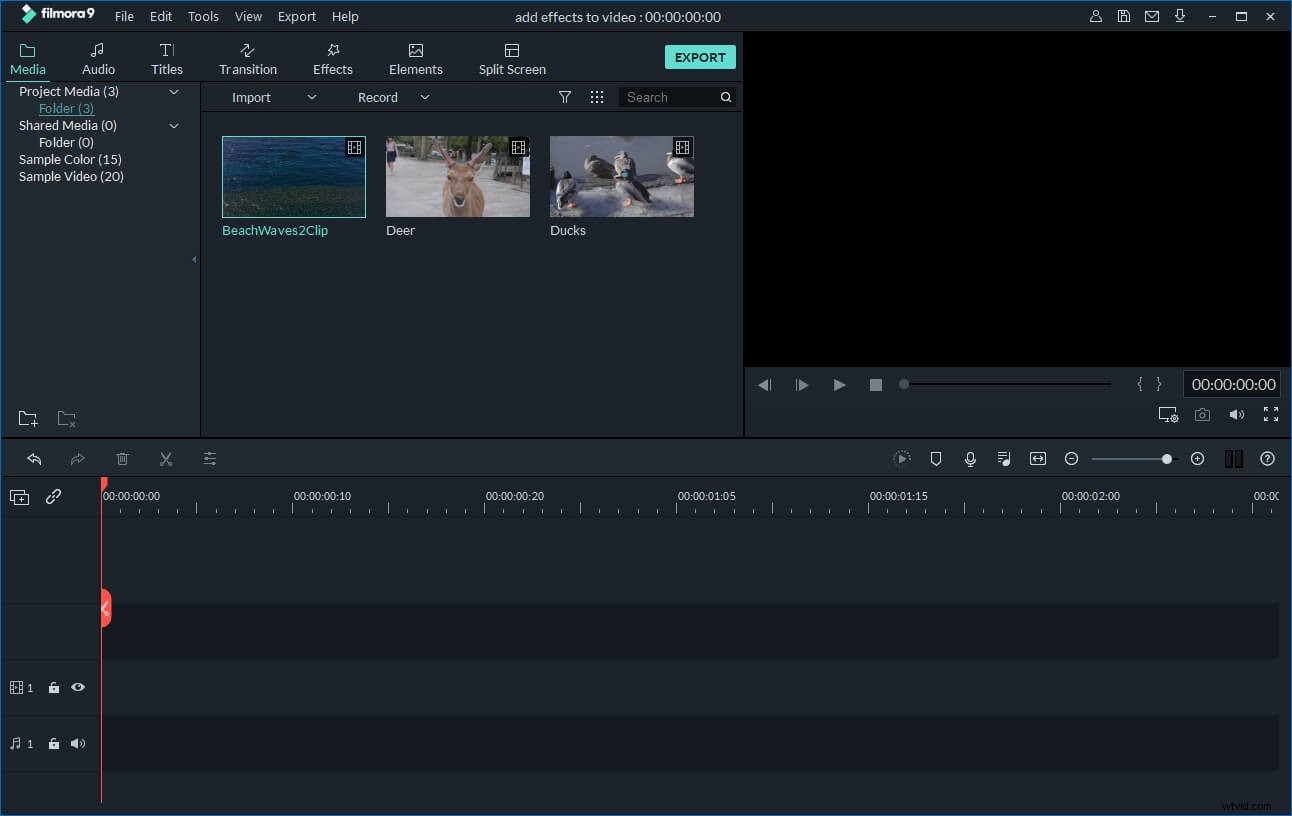
On the main menu of the interface, there is a "Import" button. Just click it to import your wanted TS file from the computer to this app. At this time, you'll notice the added TS video has been listed in the User's album of this TS video cutter. You can also directly drag and drop it to the Album. Then place the TS video you want to split from the album to the Timeline.
2. Cut TS files
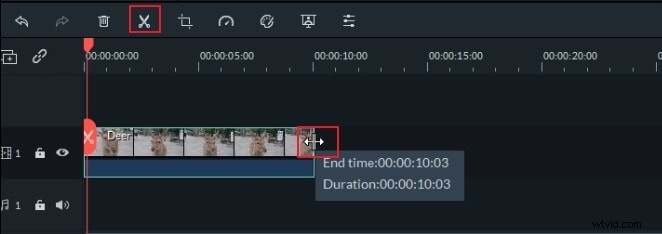
Move the red Time Indicator to the position you want and then click the Scissor button. Immediately, the TS file will be split into two parts. In this way, you can cut TS files into several clips. In this time, you'd better save this project by pressing the button on the top-left corner and going to "Save as" for archive purpose.
When you cut the TS file into clips, just delete these clips you don't want. And then directly export the rest clips into a new file.
3. Export the new TS file
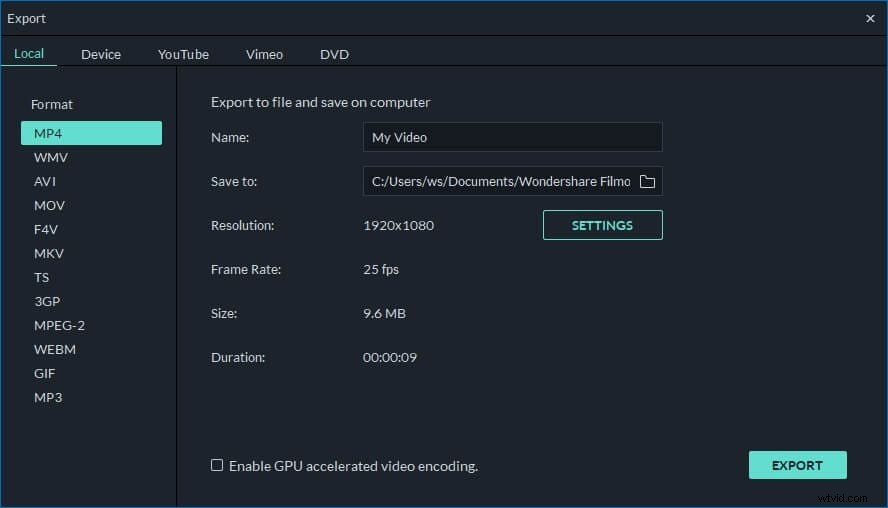
To export a new file, just click the "Create" button. In the pop up output window, you can go to "Format" tab to save your video into different formats. Other output options include burn to DVD, upload on YouTube and Facebook or save for mobile devices compatible formats.
Video Tutorial: How to Cut/Split/Trim TS Videos