
Divx is a very efficient compressing codec. It becomes more and more popular due to its ability to render small-size files while maintaining relatively highly image quality. To edit Divx videos fast while maintaining the quality, you need a powerful and easy-to-use Divx video editor. Wondershare Filmora (originally Wondershare Video Editor) is such professional video editing software that gives you full control of your Divx content creation.
This tutorial of how to edit Divx will show you how to do basic editing like trim, crop, rotate, adjust brightness, contrast, and also apply transitions, effects, watermarks to your Divx video. Furthermore, you can use special features like Jumpcut, mosaic blur, close-up, picture-in-picture, overlay to create a professional-looking home movie in minutes. When you finish divx video editing, you can save it to various video formats or even DVD and share onto YouTube, Facebook.
Free download Divx editor trial version:
Note: This program is available on both Windows and Mac platforms. If you want to edit Divx video in Mac, just adopt Wondershare Filmora for Mac(Originally Wondershare Video Editor for Mac) to do it efficiently at ease.
1 Import Divx files
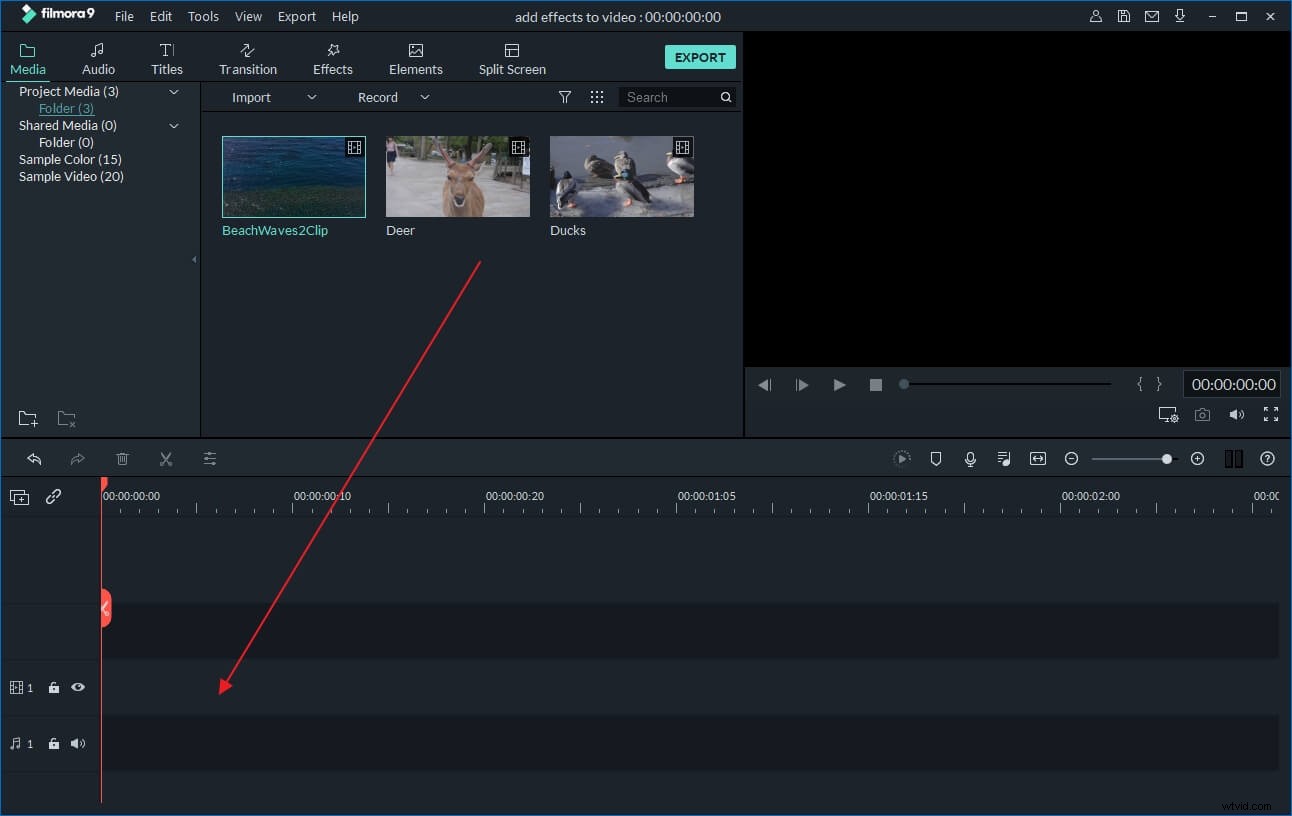
To import your Divx video, just click "Import" to browse your file folder and load them together. When they successfully load onto the Album, just drag and drop them in the video Timeline.
Note: All the Divx videos on Timeline will be merged automatically, and you can rearrange the order as per your needs.
2 Edit Divx videos with ease
This smart Divx video editor gives you full control on your video creation with handy tools.
Basic Video Editing: Crop, Rotate, Trim, Split
Double click the video item, you'll open the video and audio editing panel. Here, you can rotate video 90 degree, adjust Brightness, Saturation, Contrast, slow or speed up the playing speed, crop to a propriate size, set audio pitch, volumn, fade in/out, and more.
Touch up Divx videos: Apply 300+ Effect, Transition, Intro/Credit.
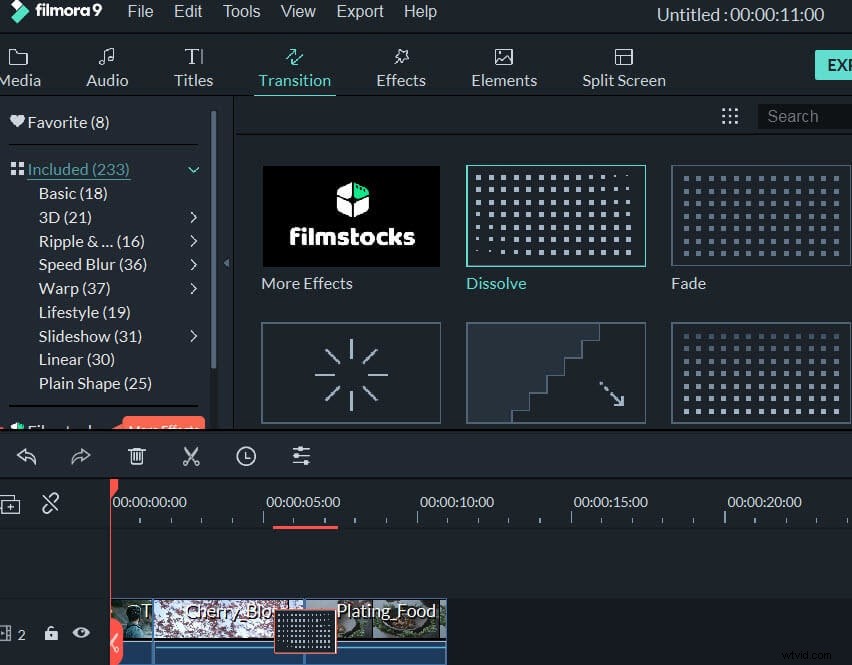
It's pretty easy to add titles, effect and intro/credits to your movie using this dvix movie editor.Hit Transition, Text, or Effect tab above the Timeline, and then drag your favorite template between every two video clips.
If needed, you can also apply a Close-up, Jump Cut, Tilt-Shift, Mosaic, and Face-off to your video. For more details, please refer to the detailed User Guide.
3 Export the new Divx files
Before exporting, you can preview your createad Divx file on the right window. When everything satisfied, just click Create to access the output window. This Divx video editing tool provides various way to save your video creation and share with worldwide. Also, you can choose to burn a DVD disc for enjoying on wide screen TV or any DVD player.
Also, click to check a step by step video tutorial below: