
Want to edit your DVR recordings like removing the adverts or merge some short clips together to create an entire show? Well, since DVR MS is a Microsoft format, it's incompatible with most video editing programs except Windows Movie Maker. However, if you’re looking for a more powerful and stable DVR MS video editor, give Wondershare Video Editor a try. It’s a professional video editing program running in Windows 8/7/XP/Vista that helps you to create professional home movie in minutes. Below I'll describle how to do it.
Free download DVR-MS editor trial version:
1 Import DVR-MS files
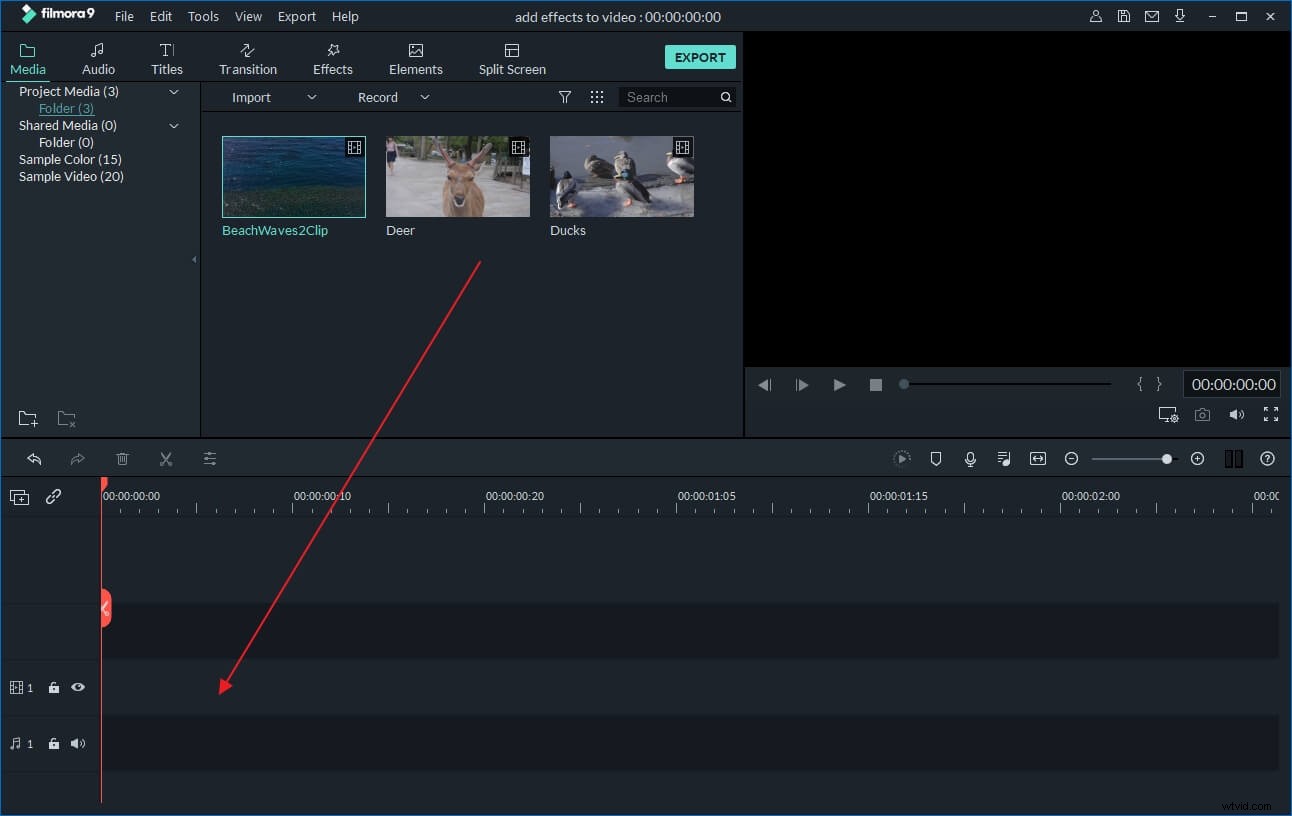
Click "Import" to browse your file folder and add your captured DVR-MS files into the program window. When you successfully load them all, drag and drop them into the video Timeline. They'll be merged seamlessly.
If necessary, you can rearrange the clips on the timeline by clicking on any DVR-MS clip, holding down the mouse button and dragging it left or right on the timeline. Please don't overlay it into another clip, in case that you need to split it.
2Cut DVR-MS videos with ease
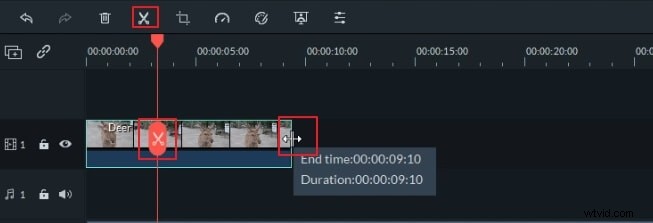
To cut part of a DVR clip out of the timeline, move the read time indicator to the section point you want to cut. And then click the Sissor icon to cut it away and press the "Delete" key on your keyboard.
3 Apply transitions and effects to DVR-MS videos
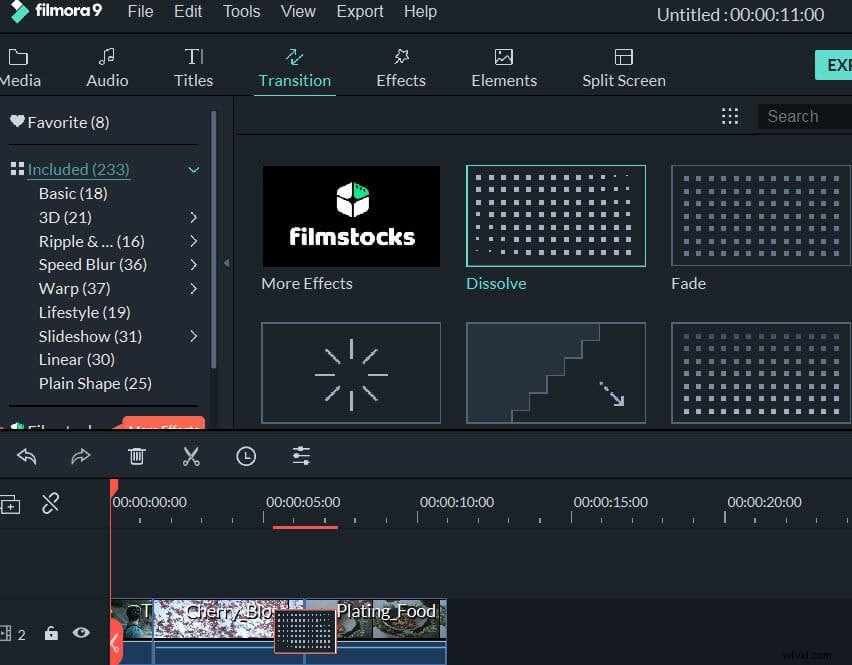
Apply transitions and effects is extremely easy with this DVR-MS video editor. Given 300+ free templates, you can easily pick up your favorite one to apply to your DVR-MS videos. To apply them, just drag the transition or effect you need and drop it between DVR-MS clips in the Timeline. You can also further customize it, e.g time of duration,
For more advanced effects like Jump Cut, Close-up, Mosaic, and Face-off, you can refer to this detailed User Guide.
4 Export the new DVR-MS file
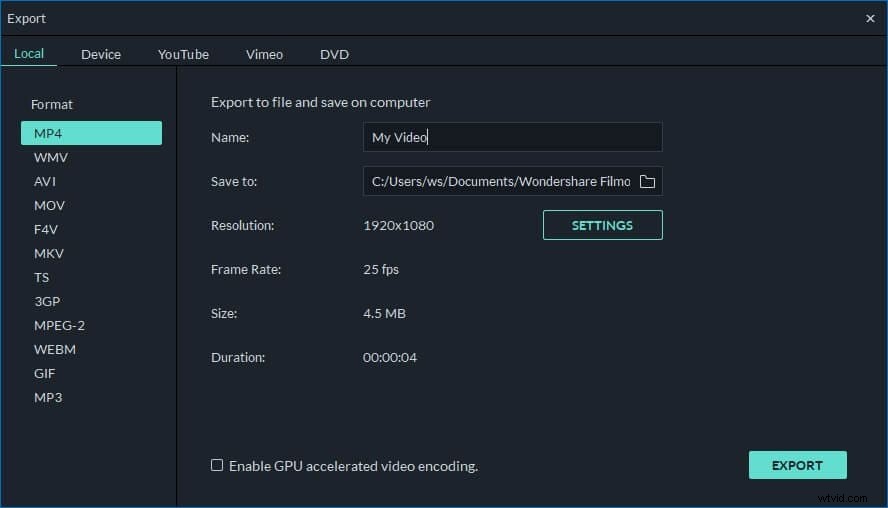
To save your edited DVR MS files, please click on "Create". In the windows that opens, you can select a popular video format like MP4, MOV, WMV or configured device preset to export your creation.
Want to upload onto YouTube, Facebook for sharing? Or burn your masterpiece to DVD for long-time preserving? Just go for the option. After that, hit Create and you're done.
Check out below video tutorial on how to edit DVR-MS files step by step: