
If you are here, it means that you have crossed the “Why Should I even learn video-editing phase.” Congratulations! Because that phase is the most difficult to cross. The rest of the journey will be challenging and complex, but if you have the right tools and right methods, you can make it through in no time.
That said, this guide will teach how to edit video on Mac devices. Scroll down to find the best video editing software for Mac suitable for beginners.
Part 1: Edit Video with Filmora for Mac
Wondershare Filmora for Mac is by far the most convenient way to edit videos on Mac. Having powerful tools and intuitive interface, Filmora lets you edit videos like a pro in minutes. Here’s how to edit video with Filmora on Mac:
Step 1: Install Filmora on Your Mac.
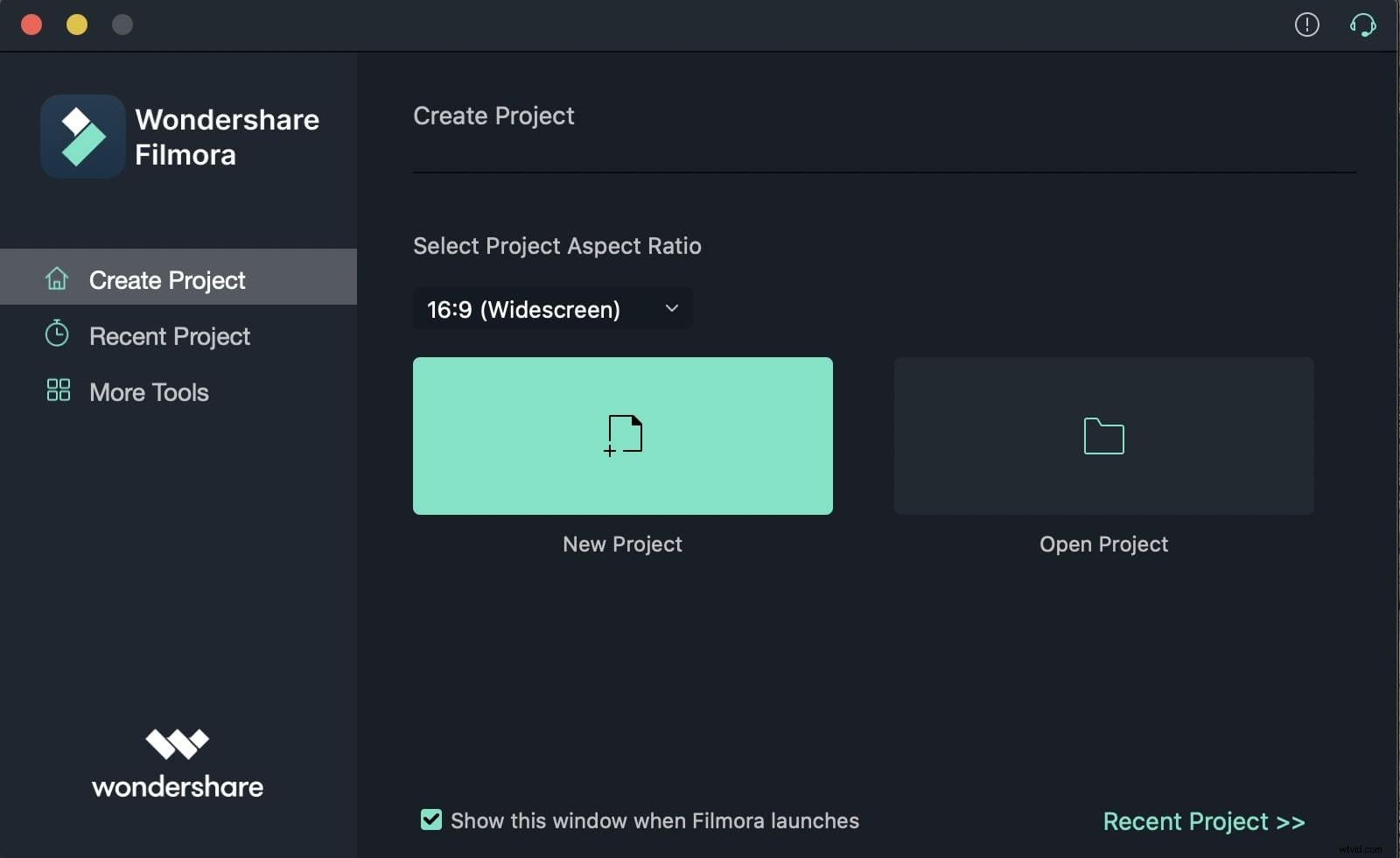
From the main interface, choose New Project to start a video editing from scratch. Or you can also import saved projects by clicking on the ‘Open Project’ option available.
Once uploaded, the video will show as a thumbnail. Simply double-click on it to preview it on the three panel view and start the editing process.
Step 2: Edit video with Filmora
After simply drag-and-drop your videos to timeline, you can start editing it. You can conduct basic editing like trimming, cropping, splitting, and merging easily with few clicks.
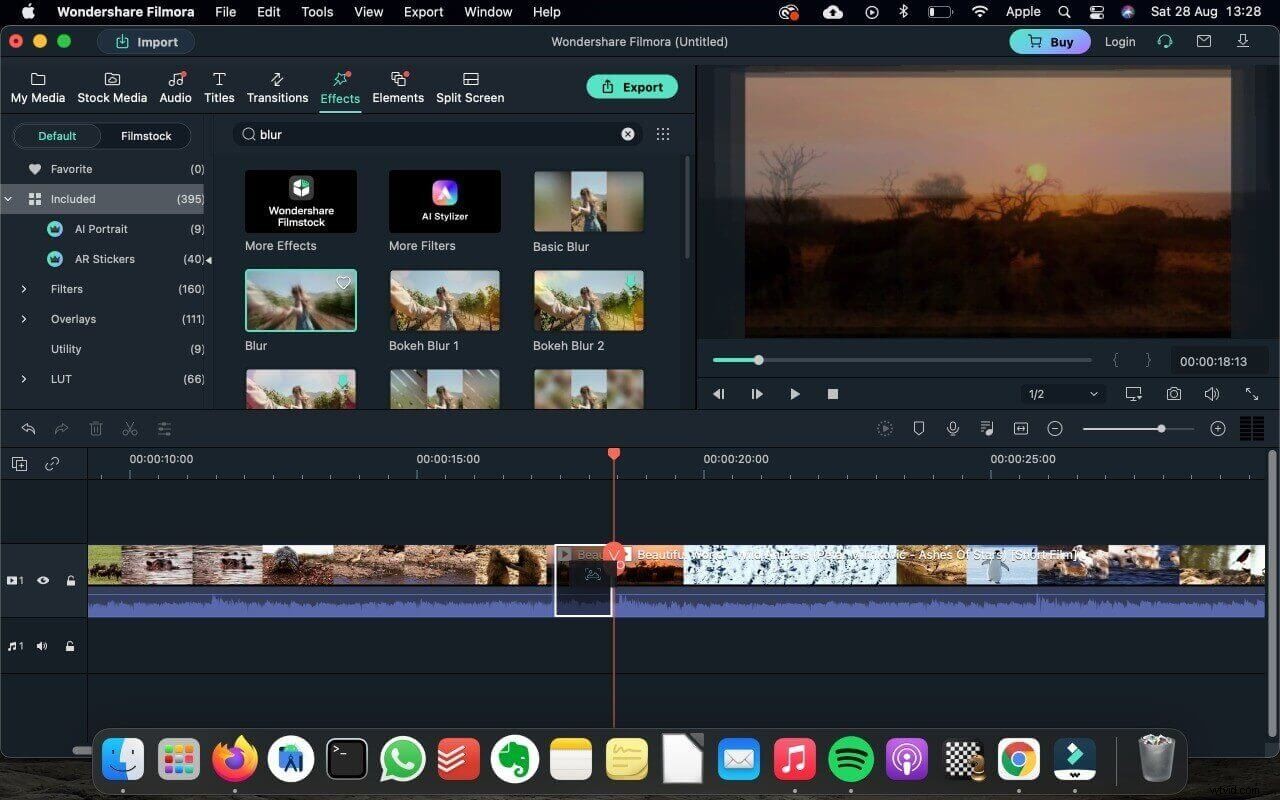
If you need more advanced tools like motion tracking, key framing, green screen, color matching and others, Filmora will also not let you down. You can easily edit like a pro without any editing experience.
There are 20,000+ effects out there wait for you to find the ones you like to add on your video. You can also add filters, transitions and subtitles to make your videos more amazing to watch.
Step 3: Export and share video
After editing, you can simply export the video in formats and resolutions you like to your computer. You will also find options to share the video to social platforms like YouTube!
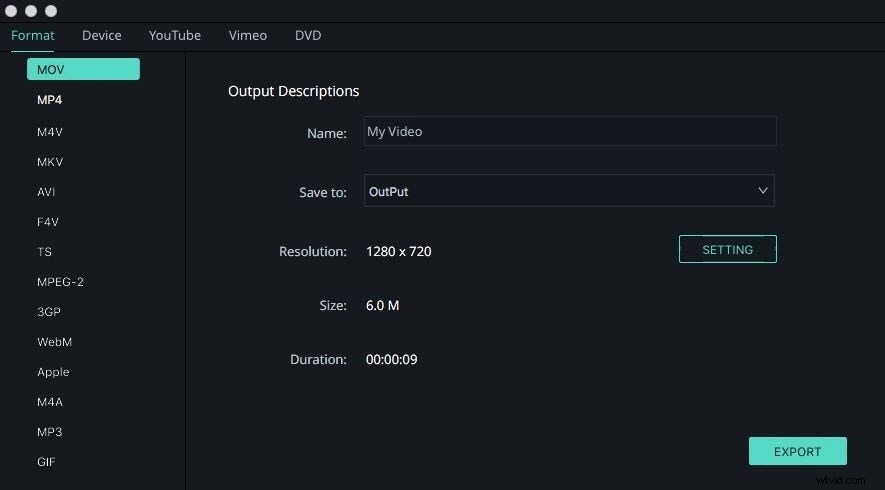
There you go! It is that simple Filmora. Be it basic editing functions like splitting, cutting, trimming, or the advanced ones like Layer media for special effects — Filmora lets you do all conveniently and effortlessly.
Part 2: Edit Video with iMovie
Apple’s own iMovie is a free tool that allows you to apply basic changes to a video. Follow these simple steps to edit video with iMovie:
Step 1: Open iMovie
From the dock, choose to launch the iMovie app by clicking on the Start icon.
Step 2: Import video
After opening the software, just click the import button or press ⌘ + I.
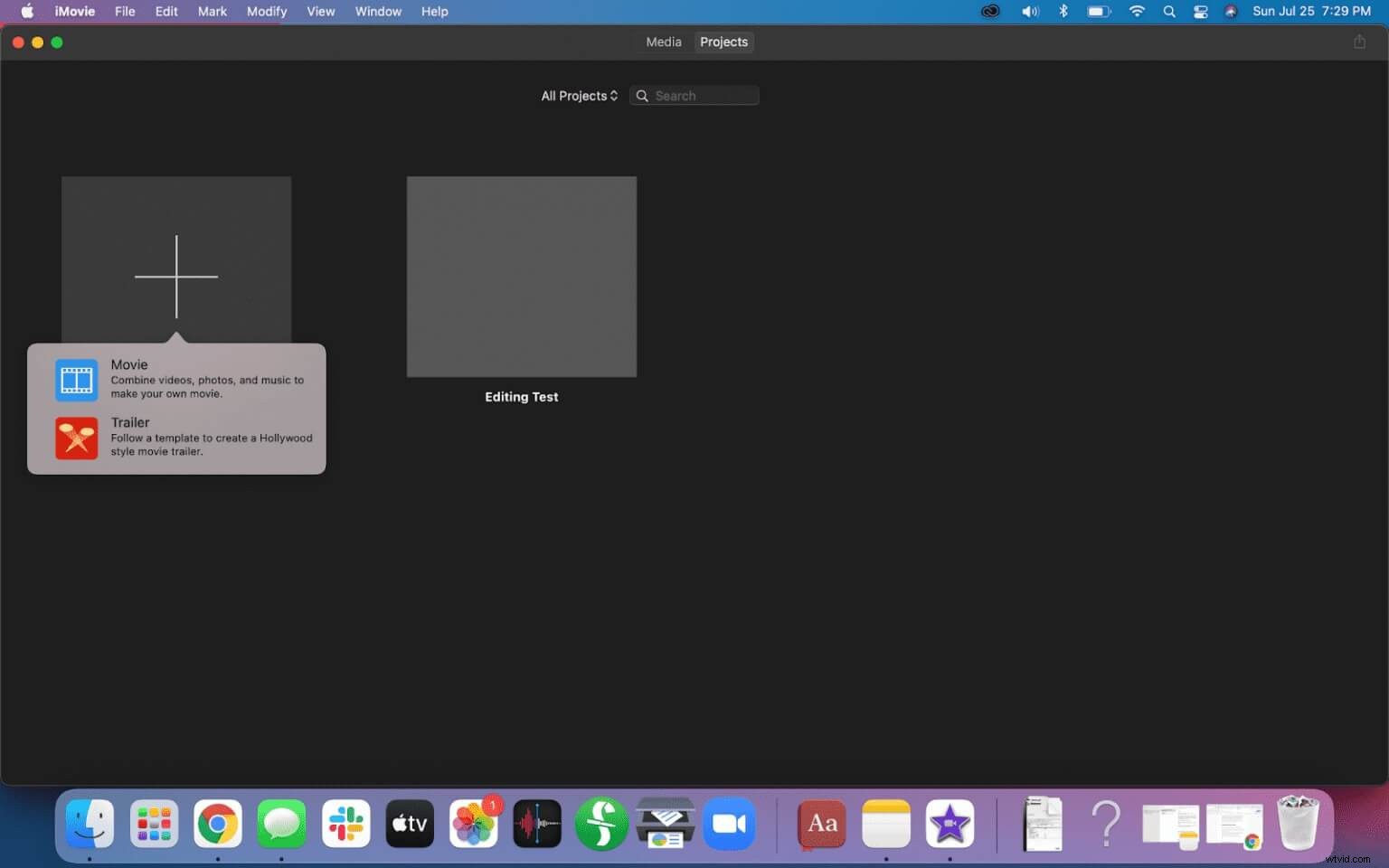
Step 3: Edit video
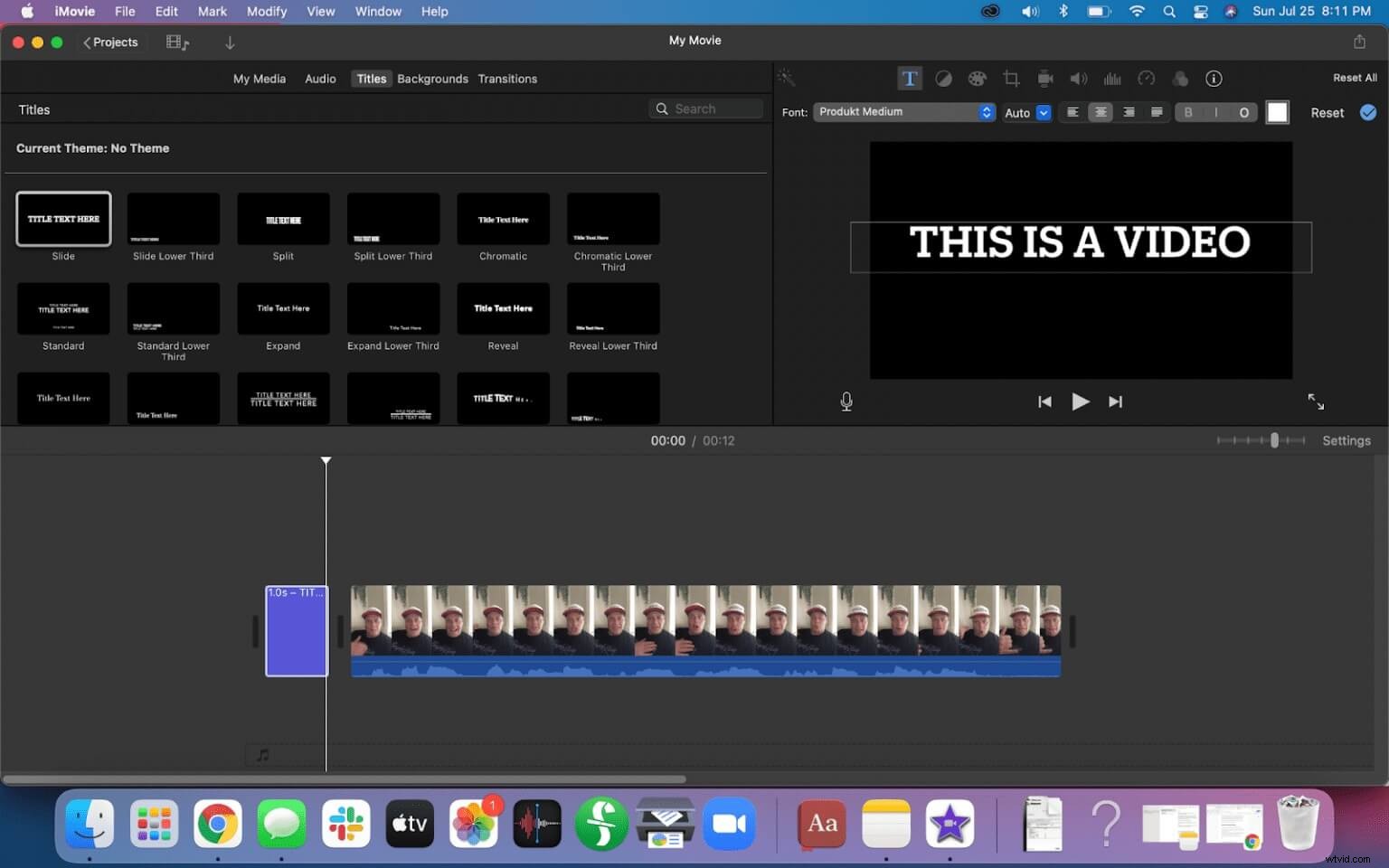
- Drag and drop the video to the timeline; you can also select other files and drop it to the timeline to initiate editing
- You will find options like Audio, Titles, Backgrounds, Transition
- Choose any of the following and apply the changes you like
- Further, you can also trim, split, cut the videos added in the timeline
Step 4: Export video
- Unlike Filmora, iMovie does not have many Export options, but is enough to get your edited clips on your computer.
Part 3: Edit Video with QuickTime
Another native tool of Apple, QuickTime can also help you in editing videos. Of course, there aren’t many features like Filmora. Still, you can try editing the video and see if the application is able to cater to your needs or not.
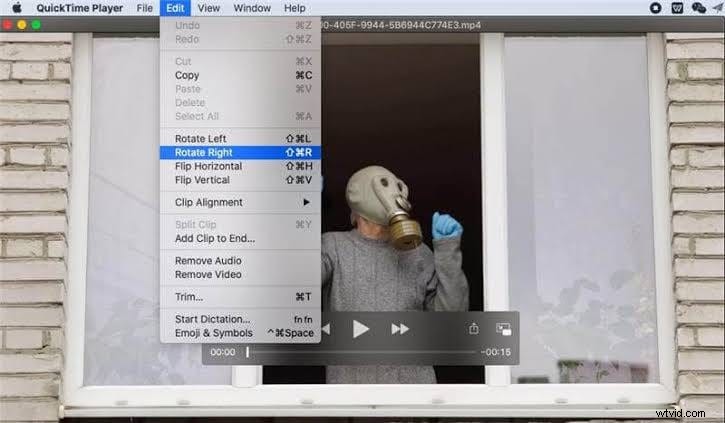
As stated, you cannot do much with QuickTime, but the software is helpful in performing simple things: trim, split and rotate videos. Of course, if you want the same convenience but with powerful features — then Filmora will be more suitable for you.
Part 4: Final Words
Depending on your needs, you can choose any of the tools to edit videos on Macs. Still, if you want to learn quickly and utilize the powerful video-editing features like the professionals — then Filmora is the way to go. By now, the reason for using Filmora might already be clear to you, i.e., the application has a simple interface, one-click presets, tons of royalty-free stuff, and more!