How to trim video online
We've come to learn that short and snappy content is the most engaging - it’s all about retaining that audience. You only have to look at most social media platforms, Instagram, Facebook, Snapchat, etc, that this is the case as they limit the length of the clips you can upload to their servers.
It comes as no surprise then, that the need for handy video trimming tools is the highest we’ve ever seen.
So in this tutorial, we’ll show you how to cut a video using Clideo without the need to waste time downloading complex editing software that can take up valuable storage space.
And the best part is: it’ll work on any browsers and across all platforms, whether that’s Windows, Mac, iPhone, or Android.
Upload your lengthy content
To get started, simply head to the Video Trimming Tool by Clideo and hit the ‘Choose file’ button to upload the content you want to cut.
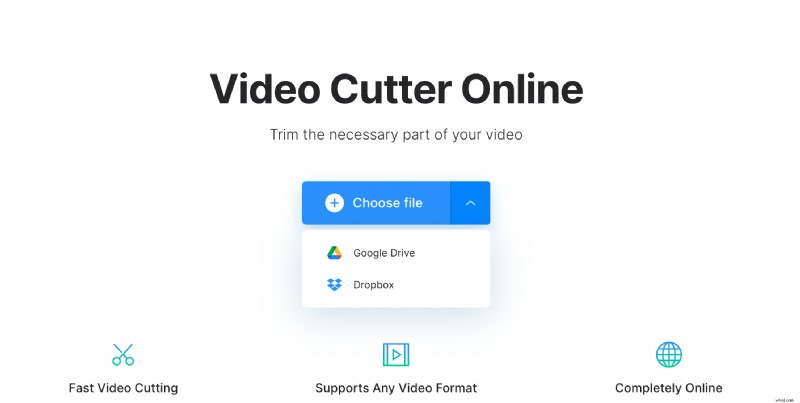
If you’re working from a Mac device or a Windows computer, you can simply drag and drop a video from one of your folders. You can also add it from Dropbox, or Google Drive.
It’s worth noting here that the app allows you to trim a video up to 500 MB, completely free of charge.
Cut cut cut!
Once your video has been added, it’s time to cut it down. Here is where things are kept nice and simple. The minimal design helps ensure trimming is fast with as little confusion involved as possible.
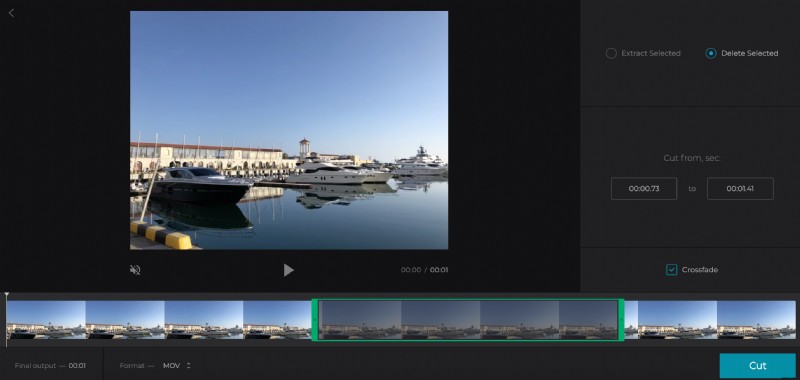
On the bottom is the preview reel, where you can manually adjust the sliders to choose where exactly in your video you’d like your clip to be trimmed. Then choose to delete or extract the selected part.
You can also add a Fade-in/out or Crossfade effect if you feel the need.
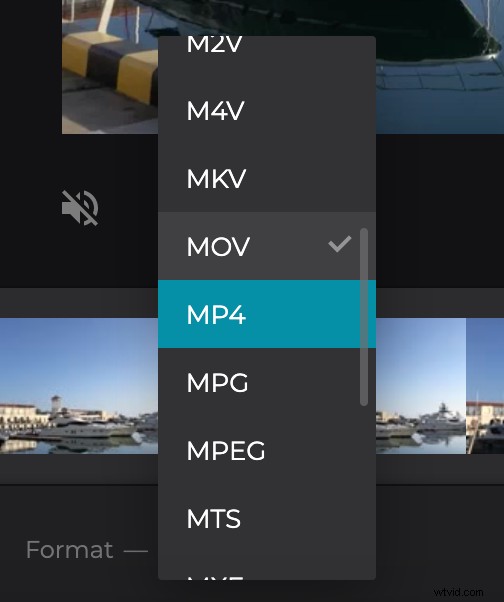
Select a different output format for your file. If you’re editing the video from your iPhone or Android, please note that it’s better to pick the MP4 format.
Now the video cutter will work its magic. Sit back, relax and your newly edited video clip will be ready in just a few moments.
Preview and download
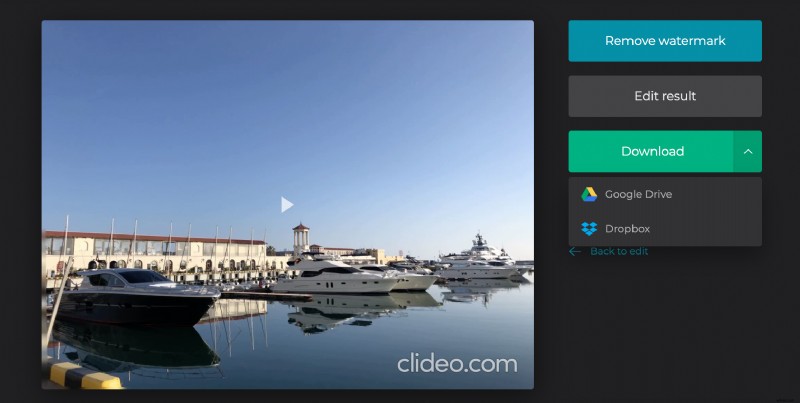
Once your fresh clip has been processed, you’ll be presented with the options to download it to your device for safe keeping, or back it up in Google Drive or Dropbox.