
Sometimes you may find that when shooting home video in bad light or against the sun, it appears to be too dark or blacked out. In fact, you can easily lighten up the video by editing video brightness using Filmora. Now in this article, you will learn how to easily make necessary adjustments thus improving your dark video with it. You can download the program first and then follow the steps below. If you want to edit video brightness on iPhone and online, we also offer you two solutions in the end.
You may also like: Best ways to take amazing time lapse videos on Android 2021 >>
You can use Filmora to adjust white balance, tone or 3D lut to enhance video brightness. If you want more options, just go to advanced editing where light and HSL can easily help you. Besides, more than 150 filters to make you adjust video brightness with just one click. Just download Filmora to have try!
- Part1: Edit video brightness on PC
- Part2: Edit video brightness on iPhone
- Part3: Edit video brightness online
Part 1: How to edit video brightness on PC
1 Import your video
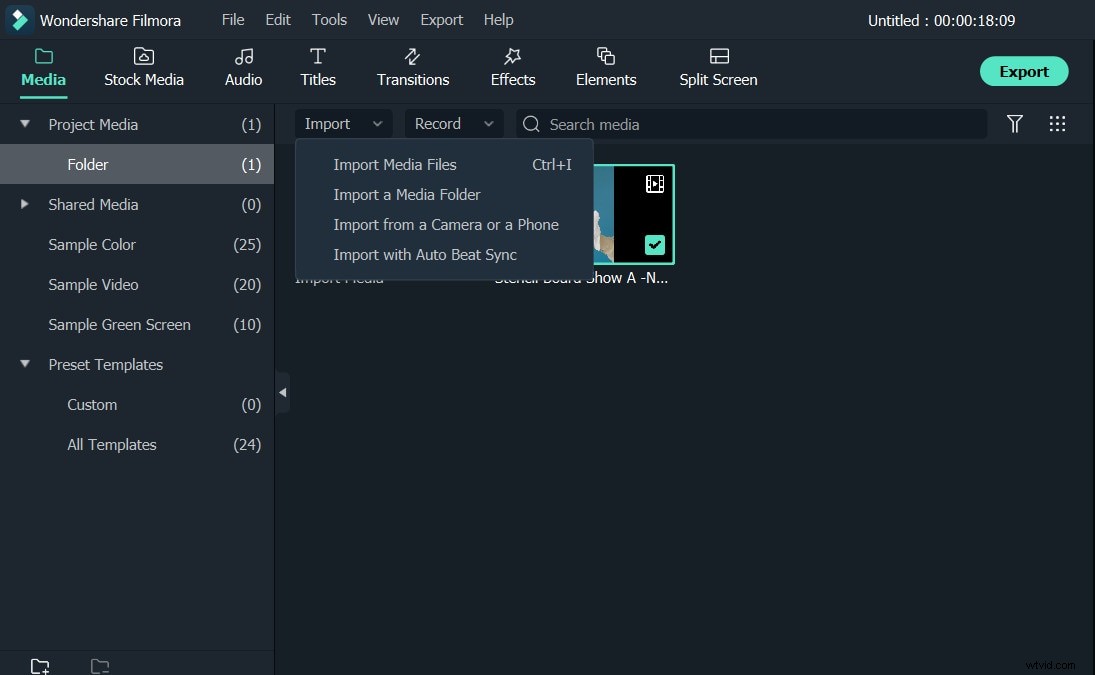
After running Wondershare Filmora, click the "Import" button to preview and import your video to the program. It's also possible to directly drag and drop your video to the primary window. Then drag and drop the target video to the timeline for editing.
2 Edit video brightness
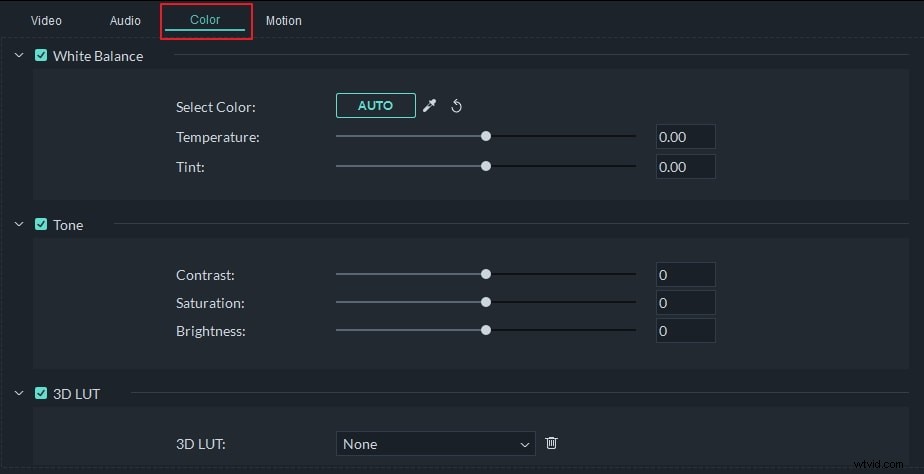
Double click the video which needs editing, and then the Video Editing window will be opened at the top left corner where you can adjust some settings of your video in the Color tab. Among them, brightness is used to customize the overall lightness or darkness of your video image. This setting lets you make simple adjustments to the tonal range of your video.
To edit the video brightness, direct your mouse cursor to the indicator, and move it to the left or right along the slider. After releasing the left mouse button, the respective value will be set. You can immediately see the result in the preview window. If you don't like the result, you can always click the "Reset" button during the process to reset any setting to its original value.
Tip: In order to achieve the best result, you can also edit the "Contrast" setting to change the difference in color and brightness in different parts of the video image.
3 Preview and export the edited video
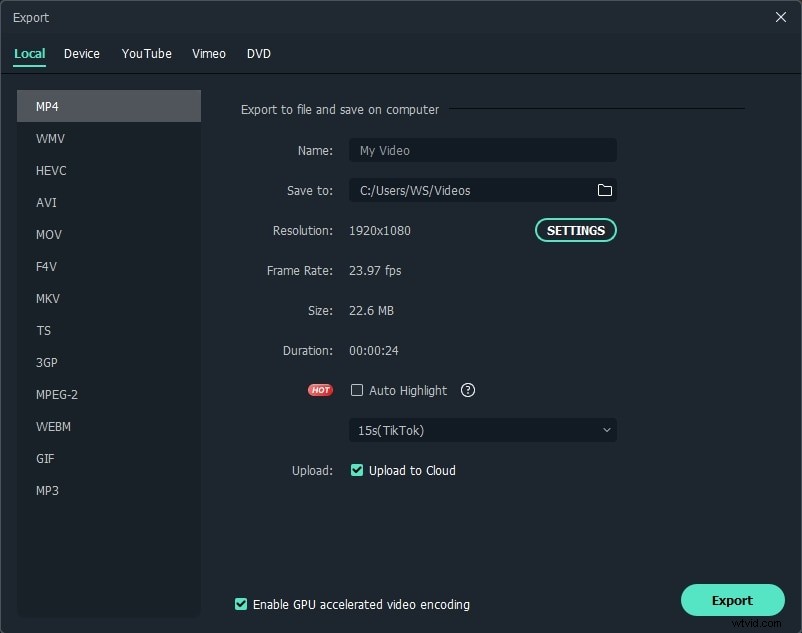
After everything is done in order to edit the brightness of your video, you can preview the edited file to make sure you got the necessary result. To do this, just click the "Play" button to start the playback.
If you are completely satisfied with the result, click the "Create" button and save the edited video file into one of the supported formats in the "Format" tab. You can also choose the "Device" tab to create a video for a mobile player, mobile phone or a gaming console of yours. What's more, you can even directly upload the video to YouTube in the "YouTube" tab or burn to DVD if you like.
Apart from editing video brightness, Filmora also can help you trim/cut/rotate video, and touch up video with various video and audio effects. Know more about Wondershare Filmora. Please check the video below.
Part 2: How to brighten a video on iPhone
After you shoot a video on iPhone, you may want to brighten it on your iPhone without importing to PC. In this case, we also offer you a iPhone solution for you to edit video brightness with an app - Chromic. It is color correction app. You can use filters and effects to brighten videos. Below are the steps to brighten videos.
Step 1: Open the app and choose the video you want to edit. After it is selected, a tick will appera on the thumbnail.
Step 2: Choose contrast, hue or other options to brighten video. You just need to swipe up and down to adjsut the effects.
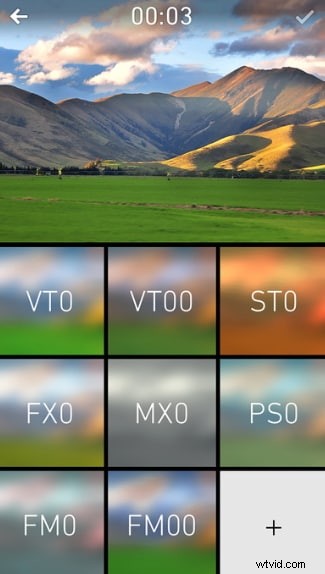
Step 3: What you see is what you get, so if you feel like it is the brightness you want, just export. So easy!
Note: This app is free to use with in-app purchase. It requires iOS 8.0 or later.
Part 3: How to edit video brightness online
If you feel like downloading a softwars is too much annoying, we recommned you using Clipchamp. It is an online video editor that you can adjust exposure, contrast and more. Check the steps below to know the details.
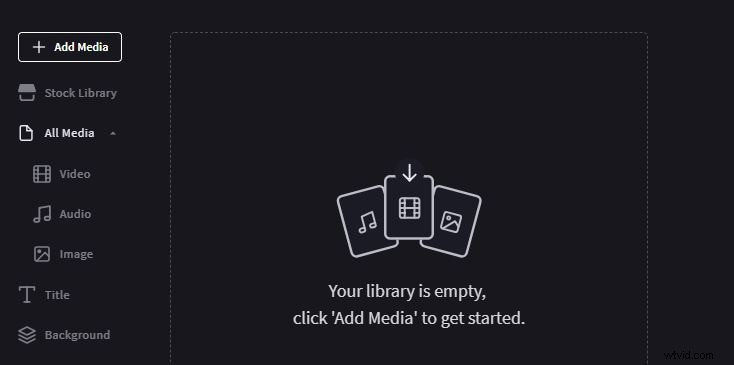
Step 1: Click here to open Clipchamp, and then sign up first. then import your target video.
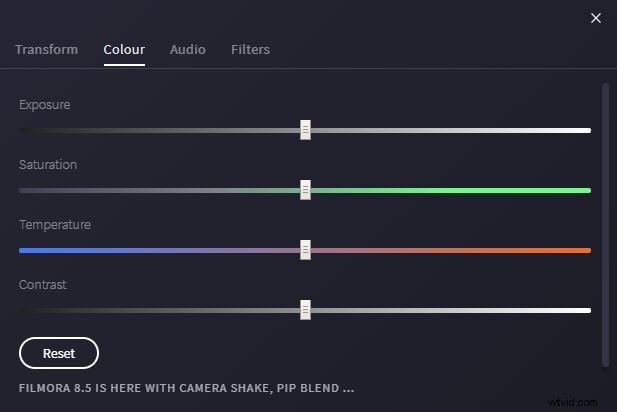
Step 2: The imported video will be on timeline automatically. Double clik on it. You will see an editing panel at the top left corner. Drag the exposure slider to adjust the brightness. You can also adjust saturation, contrast and temperature. Preview your video in real time on the right till you are satisfited.
Step 3: In the end, click Export Video at the top right corner to save your video. You can select video quality from 480p to 1080p. However, 720p and 1080p are locked. After everything is done, click Export Video to save in the end. So easy, right? Check the video below to know more.
Conlusion
Above are the two solutions that we offered. If you don't want to download video, try Clipchamp, but if you want to have more features to edit video prefect, Filmora is a must. Why not start editing video brightness right now!