
How to cut an iPhone video
In this article, you will learn how to cut a video on your iPhone using our simple service.
As it’s online, you don’t need to download or install some apps on your device – you can just open it and start to edit immediately.
The tool allows you to work with different video formats (such as AVI, MP4, VOB, MPG, MOV and others), which you can also change while cutting your file.
If you worry about security, it’s not an issue since our tool uses premium security. That means that only you can access the files you’ve uploaded.
To cut the video follow these steps:
Upload an iPhone file
Open Clideo’s online video cutter, then push the blue “Choose file” button and pick the file through the library.
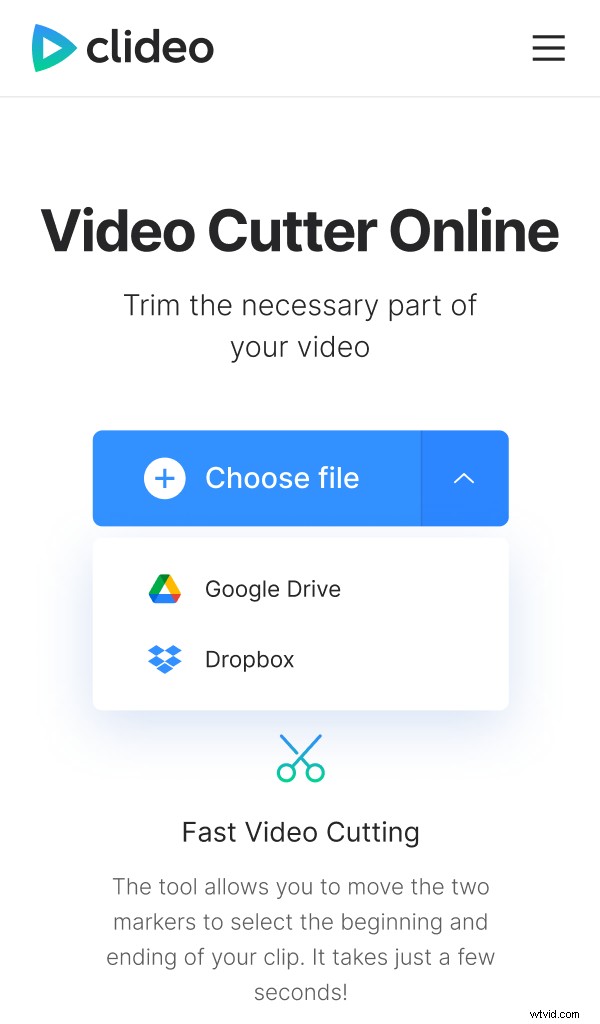
If you have video on your Google Drive or Dropbox, you can also upload them from there by pushing a face-down arrow on the right side of the button and selecting the option you need.
Cut an iPhone video
Once it’s uploaded, scroll down. You can move yellow sliders to select the fragment you want to trim. If you need to be precise, you can put time points in fields below the “Cut from, sec” option. So, for example, if your video is 20 seconds long and you put 5 to 15 seconds time points, the first and the last 5 seconds will be cut.
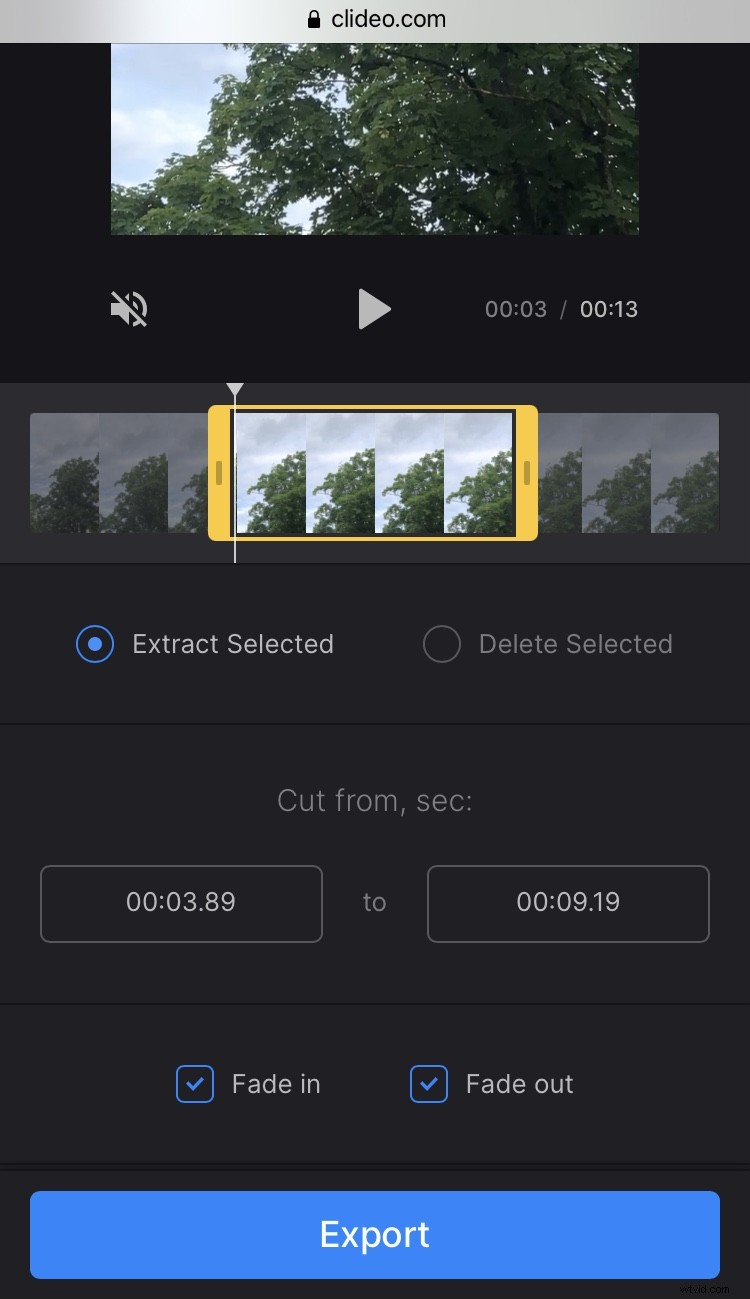
If you want the video to gradually appear out of a dark frame and gradually disappear at the end, you may also hit “Fade in” and “Fade out” boxes.
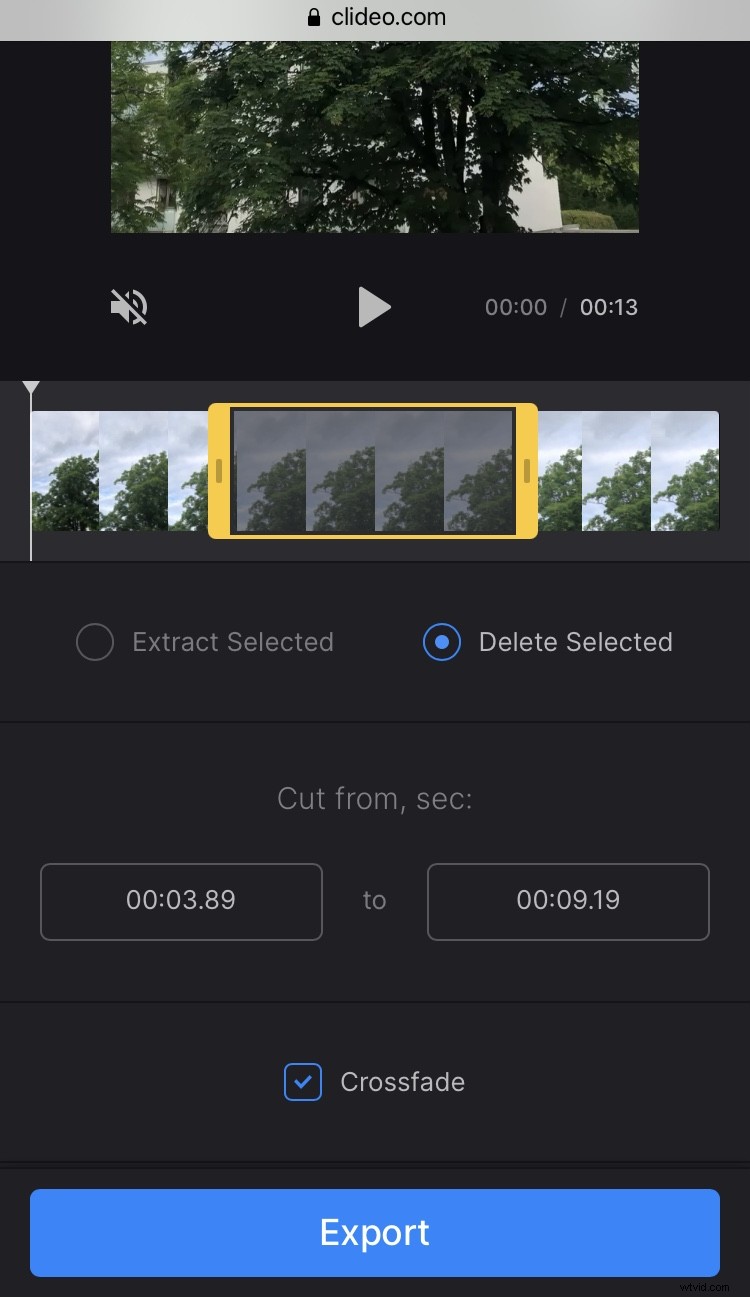
The other option, “Delete Selected”, lets you cut out a part of your video on iPhone and combine the sections before and after it. For smother transition, hit "Crossfade".
You can also change the format using a variety of selections.
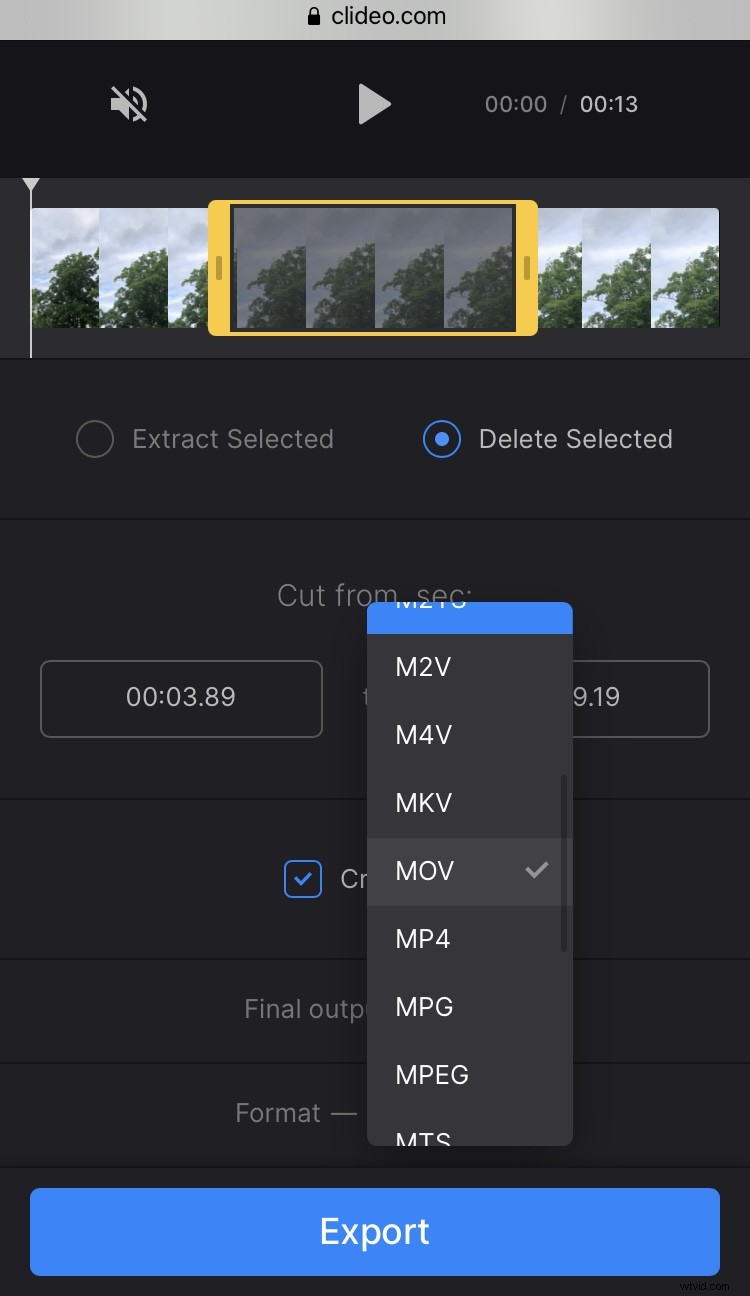
When you finish editing, hit the “Export” button.
Save the fragment you cut
On the next screen, you can download the trimmed video directly to your device or cloud storage accounts.
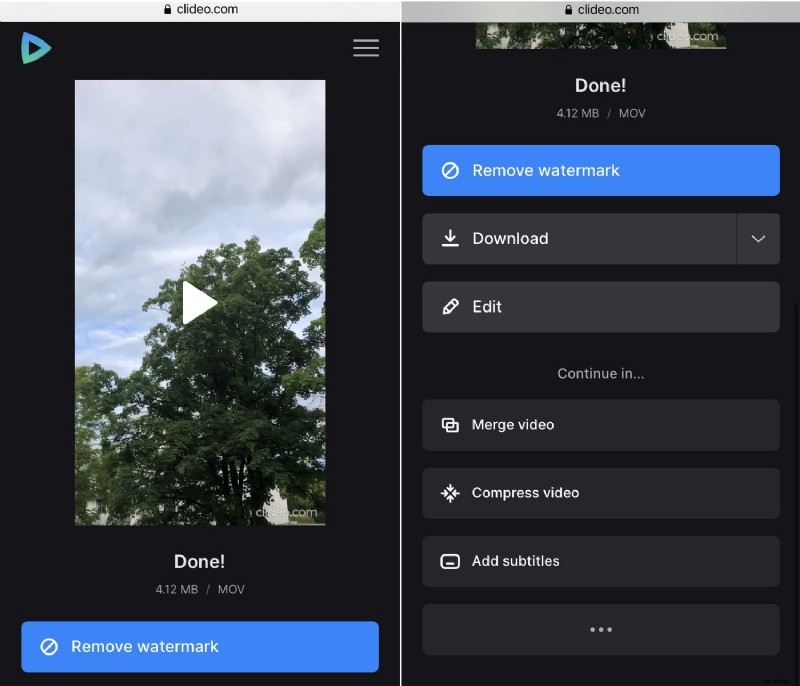
In case you need to edit it some more, simply hit the “Edit” button. Sign up for Clideo Pro so you can continue editing your video using our other tools right away.