Turn iPhone video into slow motion after recording
If you often change settings when shooting video to see different effects, you probably already know how to make a video in slow mo on an iPhone. But what about videos that you shot without this effect? Sometimes there are moments in them that you want to focus on and look at them in more detail, for which you would need to change a video to slow mo. How to do it, you wonder?
Our tool does exactly that! You can use it to make a regular video into slow motion without downloading any apps – it’s enough to have an internet connection. The tool also supports many popular video formats, if you like experimenting with this setting as well.
Plus, it’s very easy to use, just look at the steps below!
-
Upload a video
Open Clideo’s Video Speed Changer.
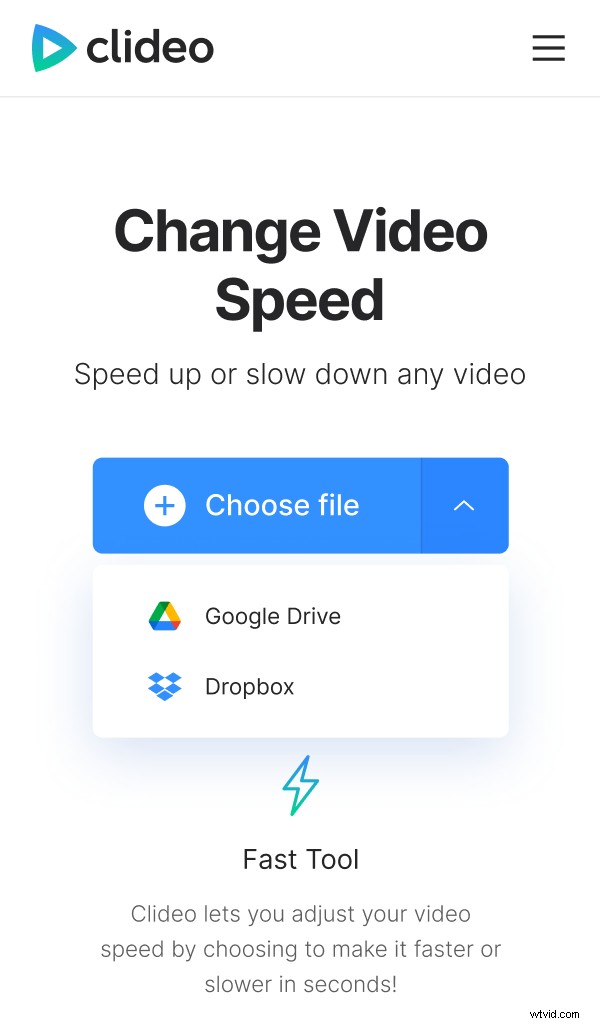
Tap "Choose file" and pick a clip on your device or add a file from your Google Drive or Dropbox account by tapping on the arrow on the right side of the button.
Slow the video down
In the editor, choose one of the preset video speeds to make the video slower. If you want a more precise speed, simply move the slider above the preset grid to set the perfect one for you.
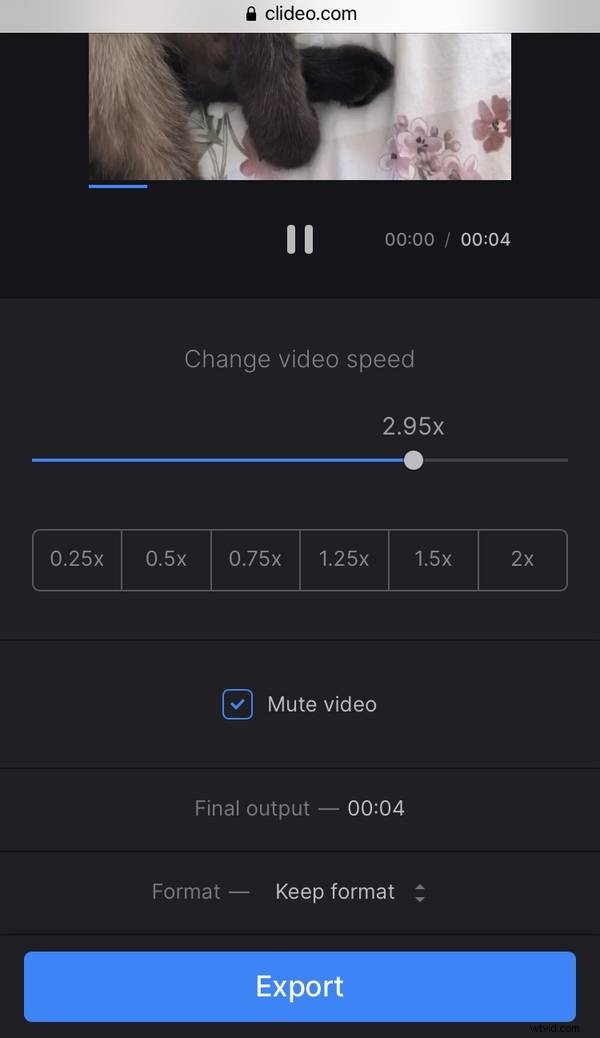
Tick "Mute video" if it’s necessary to remove the sound. You can also change the video’s format – just tap the extension in the "Format" tab and pick the one you need.
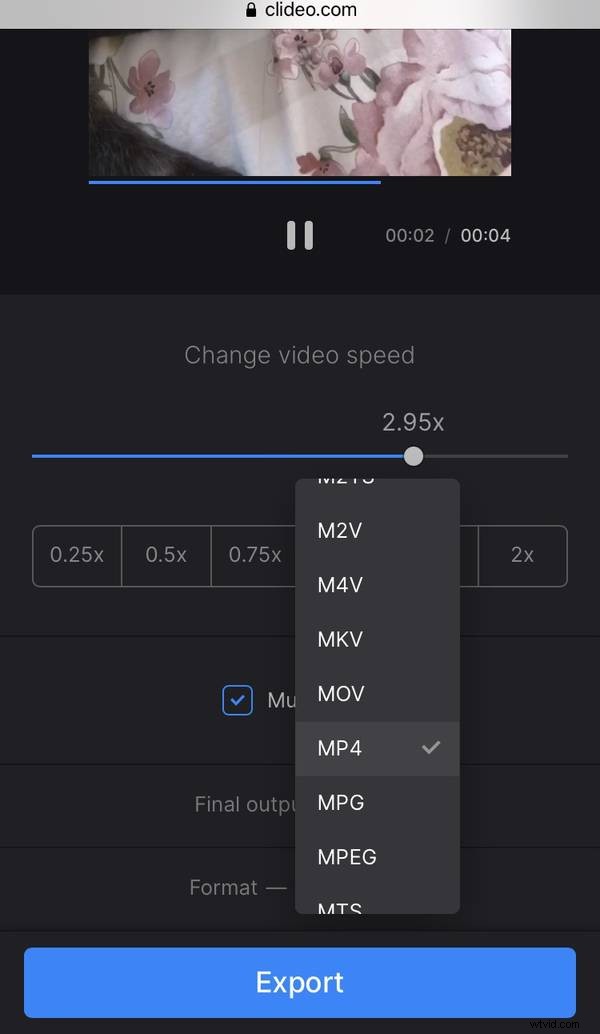
When you finished editing, tap "Export".
-
Download the result
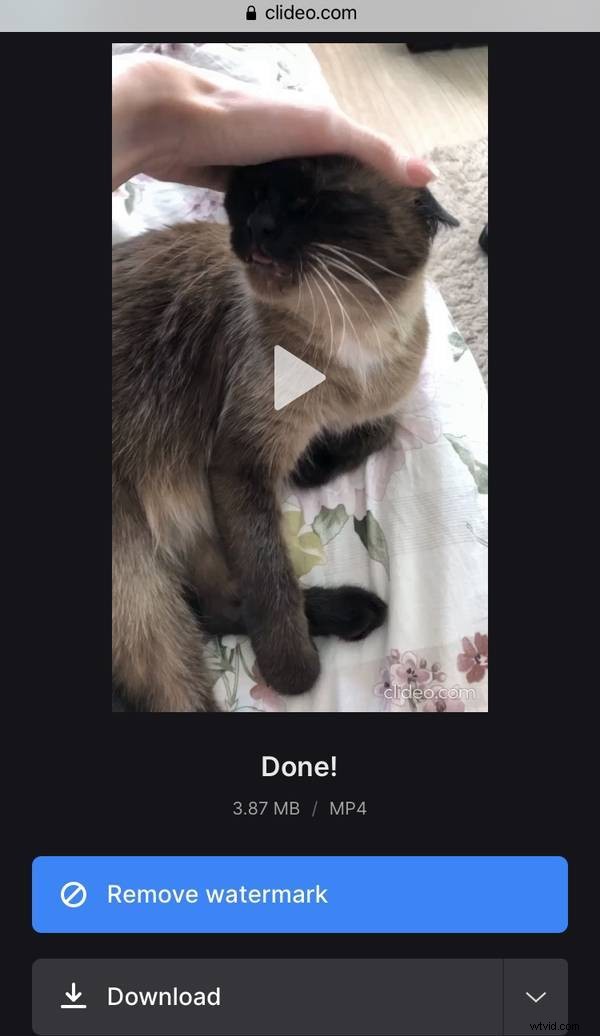
Watch the preview to make sure it looks right. If some changes are needed, tap "Edit". Otherwise, tap "Download" to save the video on your device or upload it to your Google Drive or Dropbox account.